Claude Cowork Crash Course: Turn Notes into Reports and Spreadsheets
Learn Claude Cowork with a practical workshop report: clear prompts, approvals, Word and Excel files, revisions, projects and recurring tasks.
In this post we will use Claude Cowork to turn rough workshop notes into a Word report, an Excel budget and an action list, without writing code.
In Part 1, we built a Task Tracker with Claude Code. In Part 2, we used the desktop app, MCP servers and sub-agents. Now let's use Claude for the work around a project: planning an event, checking its budget and preparing documents someone else can use.
You can follow this tutorial without reading the coding posts. All the people and expenses in our example are fictional.
What is Claude Cowork?
Cowork brings Claude's ability to carry out a sequence of steps to everyday work. You describe a result, provide the source material and let Claude work towards it. For our workshop, that means reading notes, extracting actions, calculating a budget and creating files. You don't need a terminal. See Anthropic's getting-started guide.
Here is how I would choose between the workflows we have covered:
| What you want | Where to start |
|---|---|
| Understand a concept or improve a paragraph | A conversation with Claude |
| Turn notes and data into a set of usable documents | Cowork's task capabilities |
| Change an app, run tests and review a code diff | Claude Code |
This is a guide to choosing the kind of work, rather than a promise that every account has three separate buttons.
Why your app may not have a Cowork tab
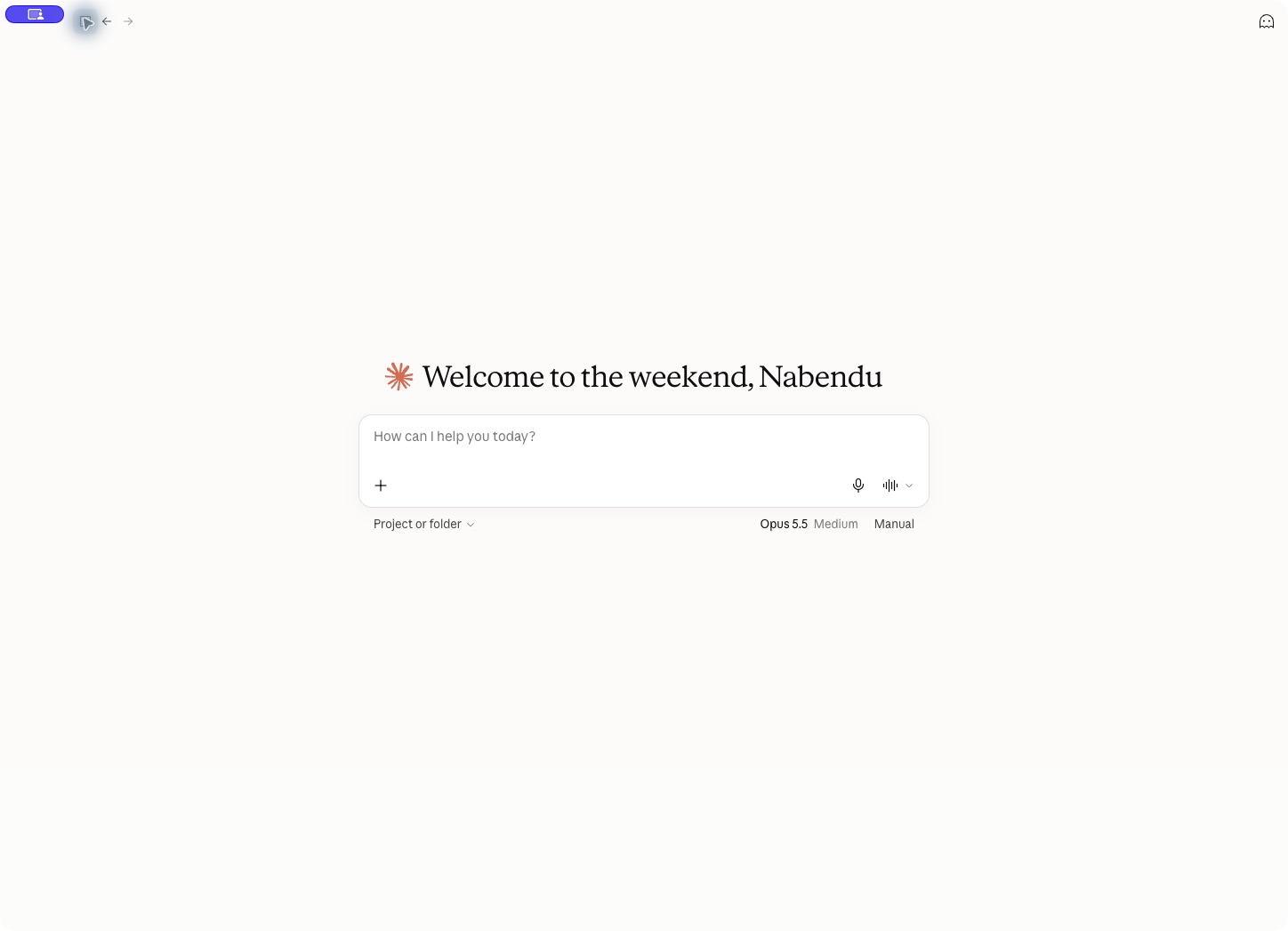
Checked on October 10, 2026, using the Claude desktop app on macOS, a Pro account and Opus 5.5. Our app showed Claude and Code, with one prompt box for conversations and tasks.
Anthropic announced that Cowork and chat are becoming one Claude. The change is rolling out, so your screen may differ from the screenshots in the previous post. If you still have a Cowork option, select it. If you have the new interface, start from Claude and ask for the files you need.
Cowork is available on paid plans, including Pro, Max, Team and Enterprise. Availability and organization controls differ across desktop, web and mobile; check the current availability table before subscribing for a particular feature. For this tutorial, install or update the Claude desktop app and sign in.
Start with a small task and Manual mode
Our first task will use pasted sample data. There is no need to connect your email, grant access to your Downloads folder or install an MCP server.
On the home screen, the Manual selector sits below the prompt box. In the tested app, its menu described Manual as asking before using new tools or opening new sites. It also offered Auto, where Claude runs more independently and pauses when something looks unsafe. We'll keep Manual for this exercise.
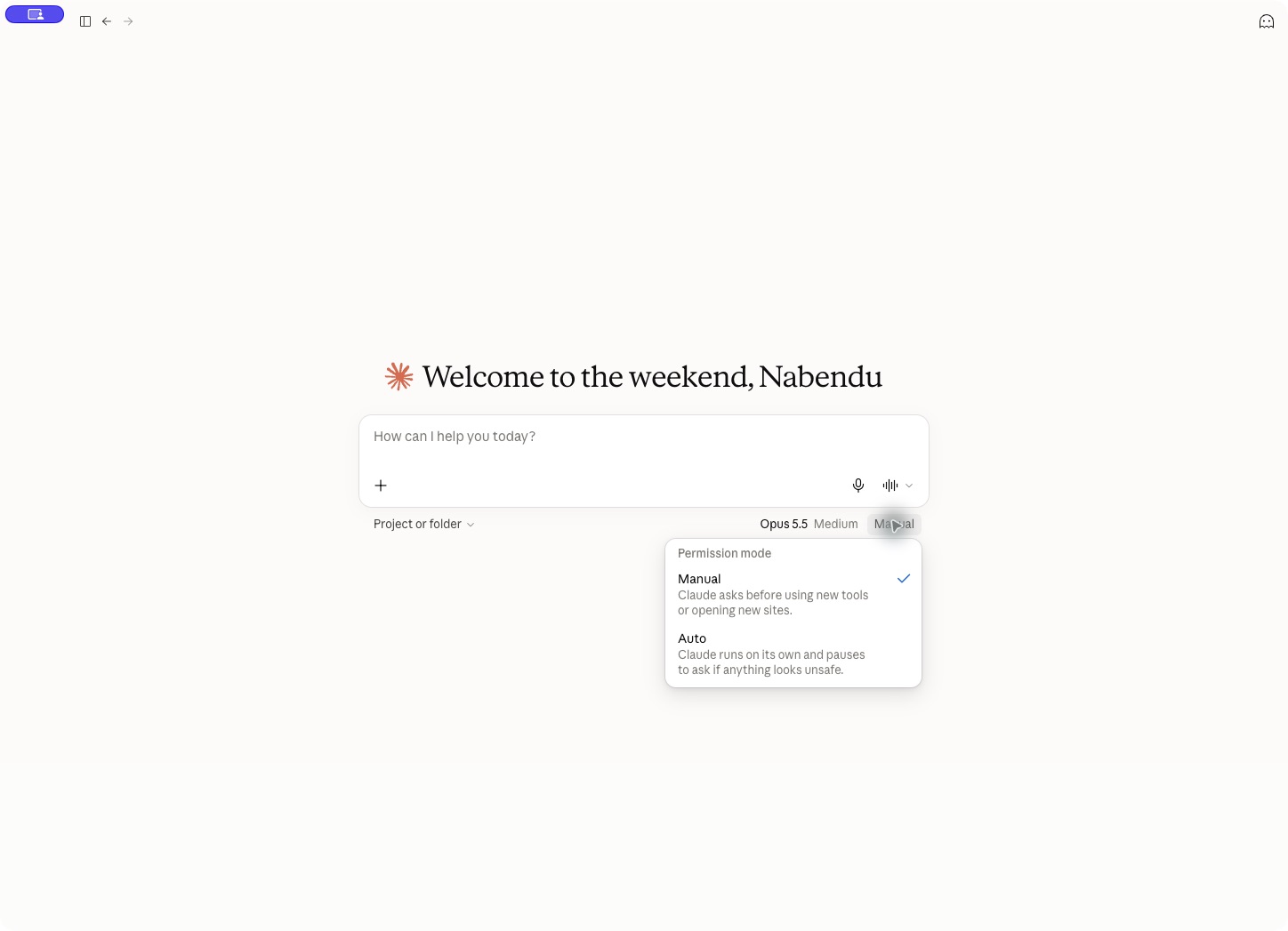
An approval mode and a good prompt solve different problems. The mode controls tool approvals. Our prompt will also ask Claude to show its proposed document structure before it creates the files. That lets us catch mistakes in the interpretation of our notes.
Give Claude a result it can check
Imagine we are organizing a React Basics workshop. We have meeting notes and four expense rows, but no report yet.
We want three outputs:
workshop-report.docx: a one-page planning report.workshop-budget.xlsx: an editable workbook with Expenses and Summary tabs.action-items.csv: a simple action list that can open in a spreadsheet.
Paste the following prompt into a new conversation. It includes the complete dataset, so you can reproduce the exercise without downloading anything.
Create a beginner-friendly workshop report from the fictional data below.
This is a Claude Cowork tutorial demo; no real people or expenses are involved.

Deliver downloadable files:
- workshop-report.docx (one page)
- workshop-budget.xlsx (Expenses and Summary tabs, formulas for totals
  and remaining budget)
- action-items.csv (owner, task, due_date, status)

Use INR. Budget is 15000. Event date is 2026-10-17.

Meeting notes:
React Basics workshop: aim for 30 learners.
24 registrations confirmed; 6 seats remain.
Asha will confirm the classroom by 2026-10-12 (pending).
Ravi will prepare starter code by 2026-10-14 (in progress).
Meera will send joining instructions by 2026-10-15 (pending).
Projector availability is not confirmed. Mark that as a risk;
do not invent a booking.

Expenses CSV:
category,item,amount_inr
Venue,Classroom booking,6000
Food,Snacks,2400
Materials,Printouts,900
Marketing,Posters,700

Before creating files, show your proposed structure and expected totals
and wait for my approval. Use only this pasted data.
Do not browse, connect apps, access local folders, send messages,
or schedule tasks.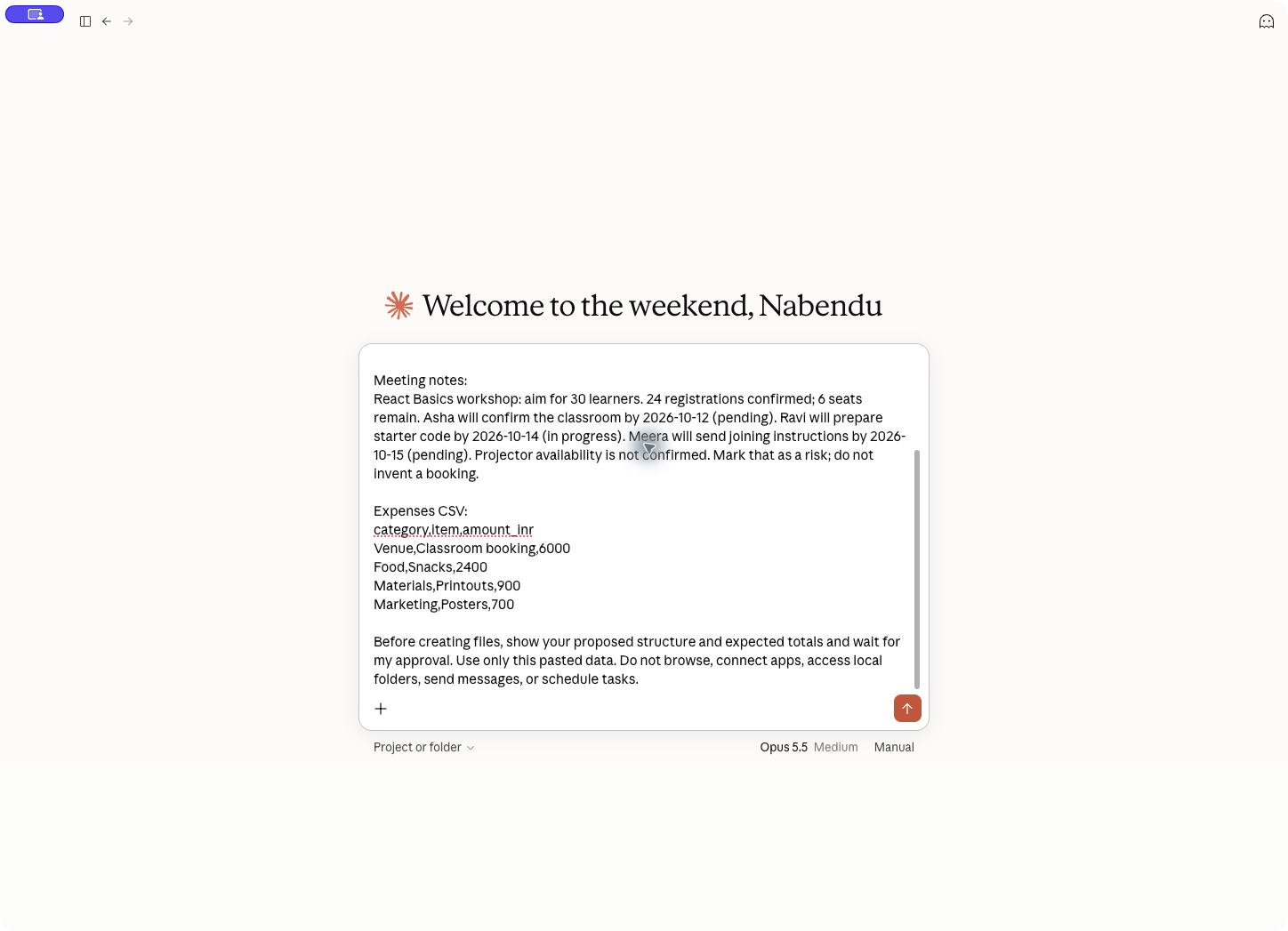
Notice the details that make this prompt useful. We name the files, define their contents, specify the currency and separate known facts from an unresolved risk. We also say where the information should come from. Claude has enough material to finish the task without researching our fictional event.
Read the plan before approving it
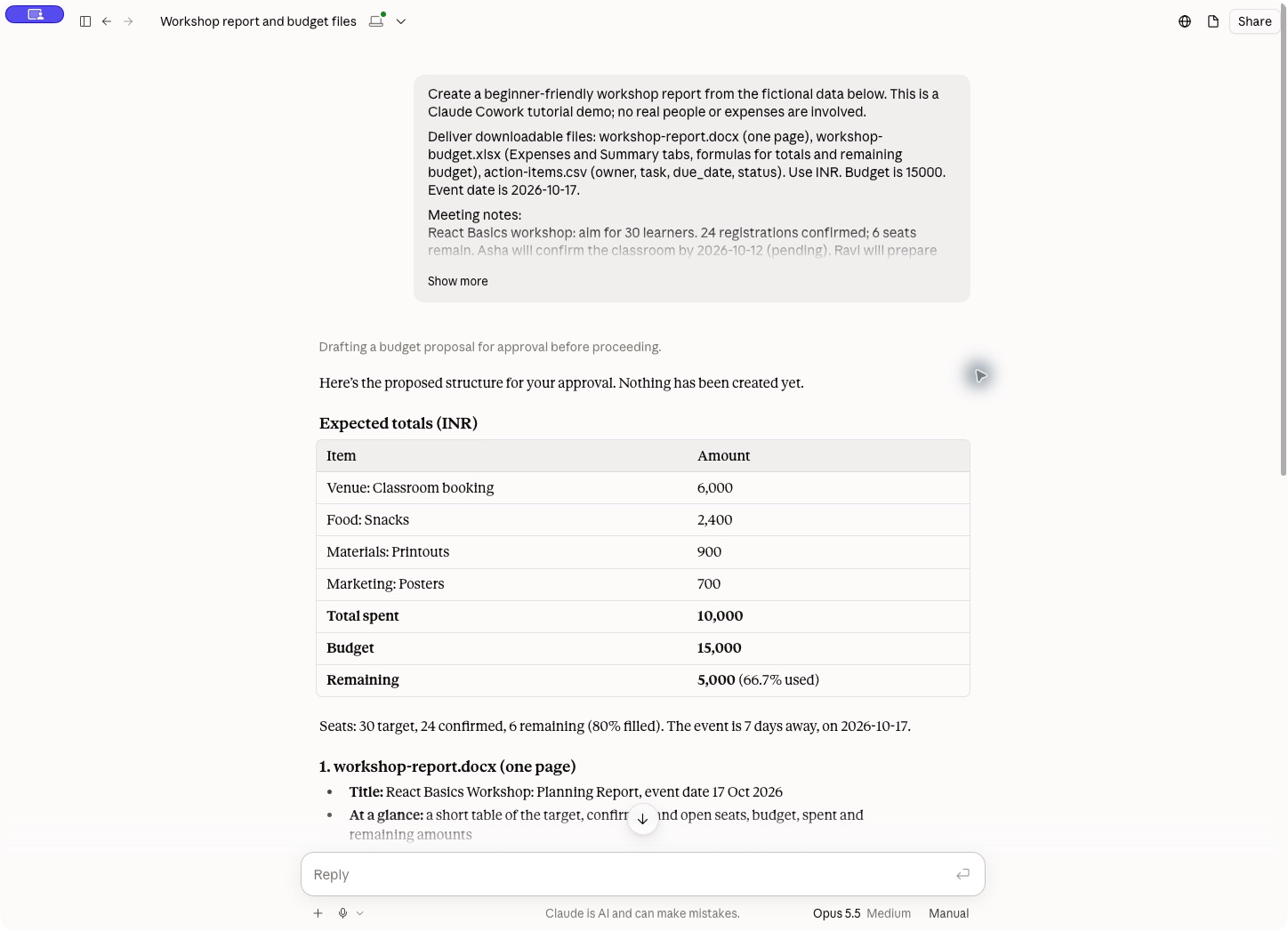
In our run, Claude first proposed the report sections, workbook formulas and CSV rows. It had not created any files at this point.
The expected figures were:
| Check | Expected result |
|---|---|
| Listed expenses | ₹6,000 + ₹2,400 + ₹900 + ₹700 = ₹10,000 |
| Budget remaining | ₹15,000 − ₹10,000 = ₹5,000 |
| Budget used | 66.7%, rounded |
| Seats filled | 24 out of 30 = 80% |
| Seats remaining | 6 |
Claude also asked what to do with the projector. The notes gave it no owner or due date, so it proposed keeping it in Risks, outside the action CSV. That is the right choice for this sample. A tidy table should not create facts the notes don't contain.
There was a small wording mistake in the plan: it said the Expenses tab had four columns, then listed only Category, Item and Amount. The file should have those three columns. Read even a sensible-looking plan carefully.
Send the approval:
Approved. Keep the projector in Risks only, with no invented owner
or due date. Create all three files now and verify the totals,
formulas and one-page layout.
Watch the work, then inspect the files
After approval, our session moved into file creation. Claude reported loading the docx and xlsx skills. These give it instructions for working with those file formats; we didn't have to add a custom skill for this exercise.
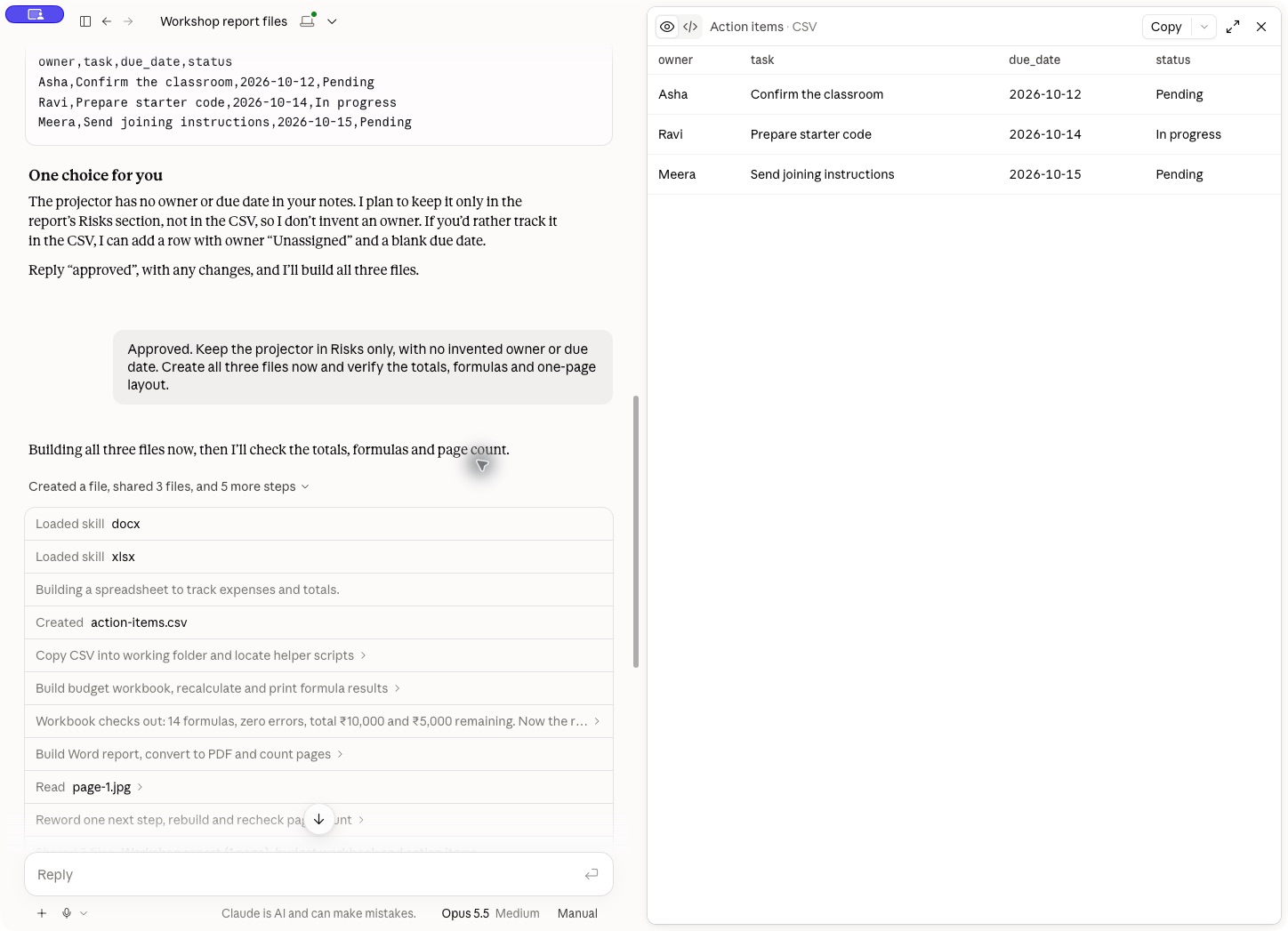
The app can spend time setting up the task environment before producing an output. A progress message is not a finished document. Wait for the files to appear and open each one.
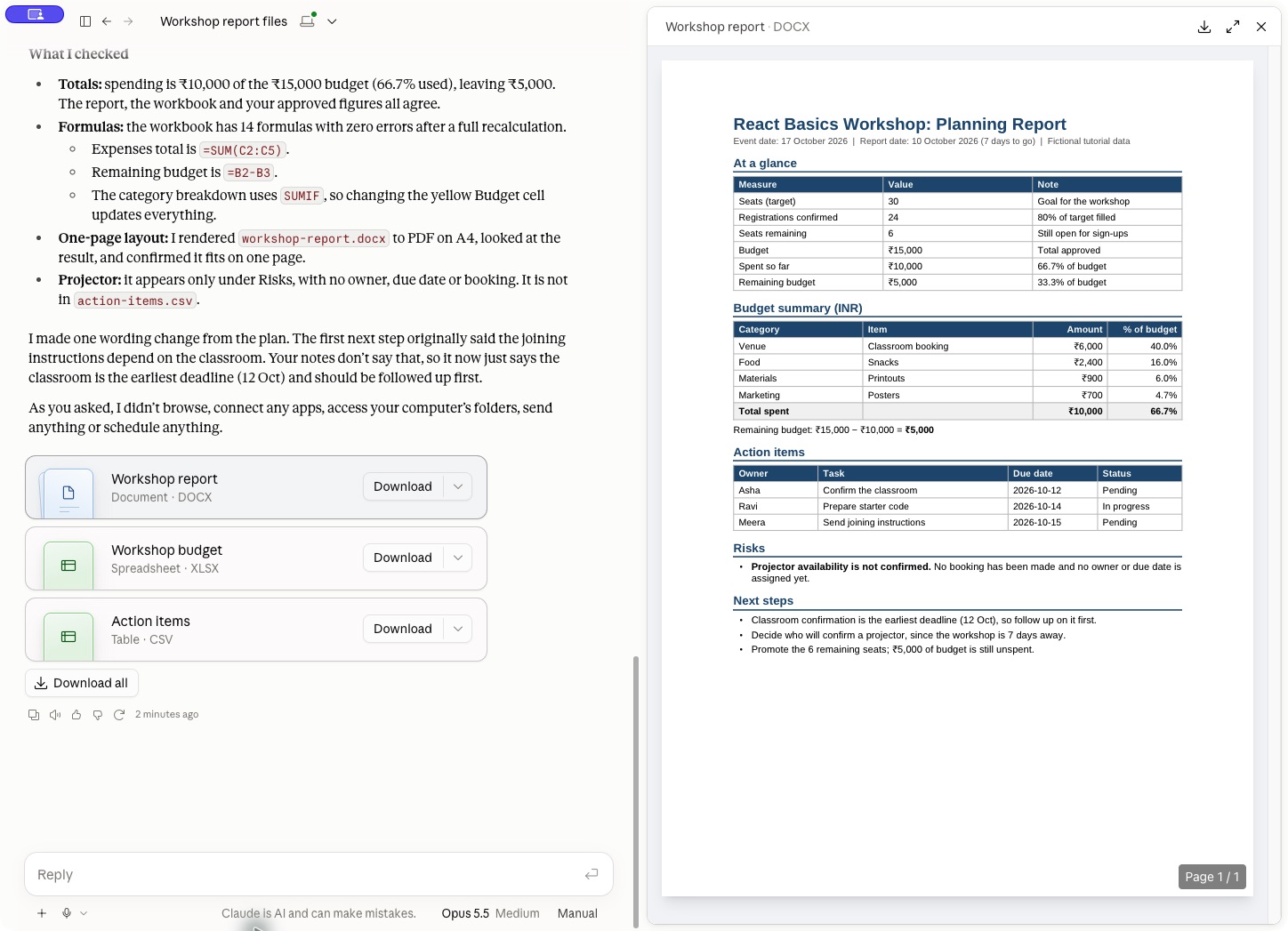
The report should contain the event date, registration figures, budget, three assigned actions and the projector risk. It should describe confirming the classroom as an action still to do. An expense row for classroom booking does not prove that the classroom has been confirmed.
For the workbook, check the actual formulas as well as the displayed numbers. A number typed into a cell can look correct today but stop updating tomorrow. A formula-based total should change when its input changes.
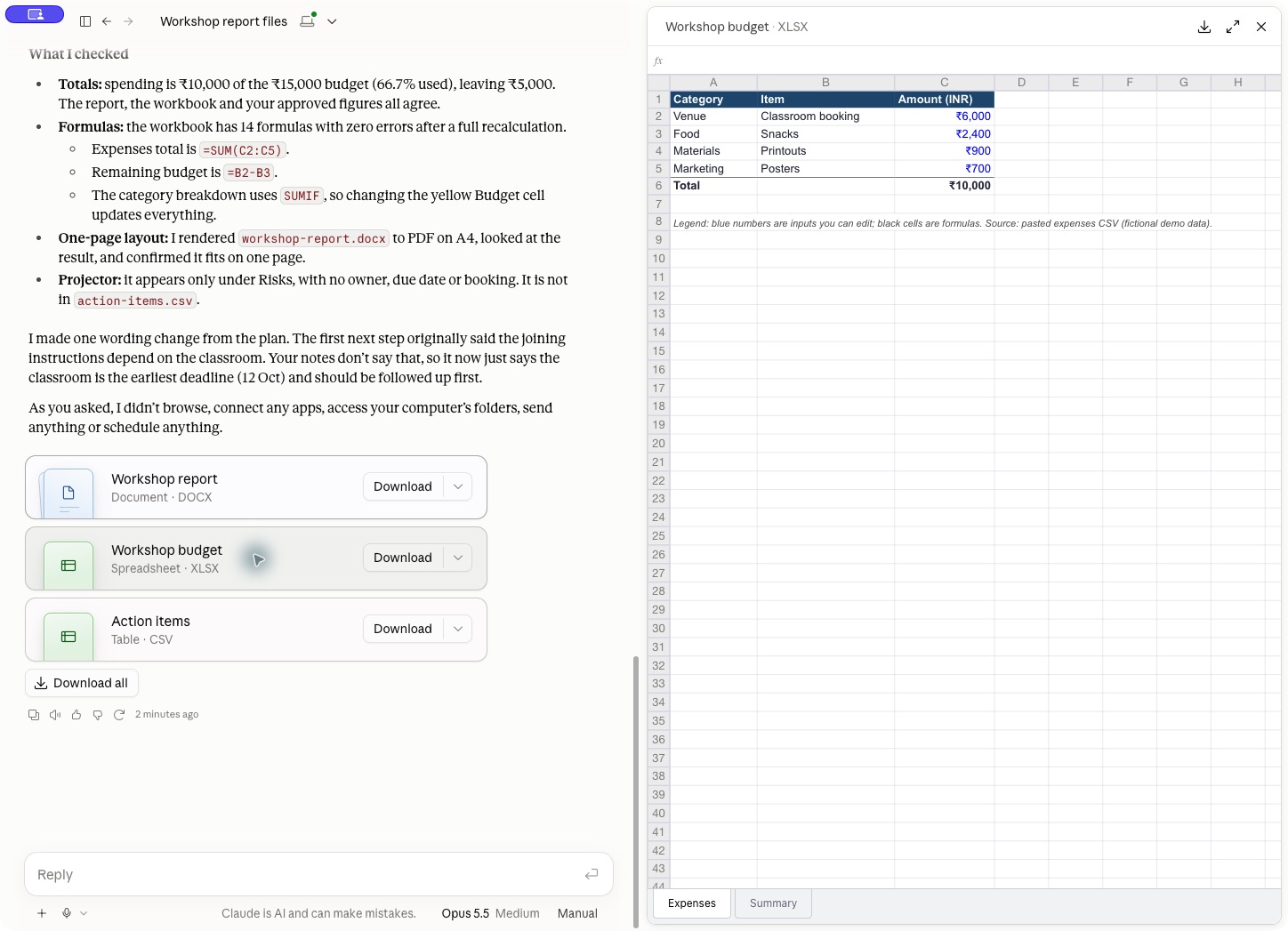
The Summary tab showed ₹5,000 remaining. We downloaded the workbook and inspected its formulas too: the Expenses total used SUM(C2:C5), Summary linked to that total and subtracted it from the budget. The cached results agreed with our hand calculation.
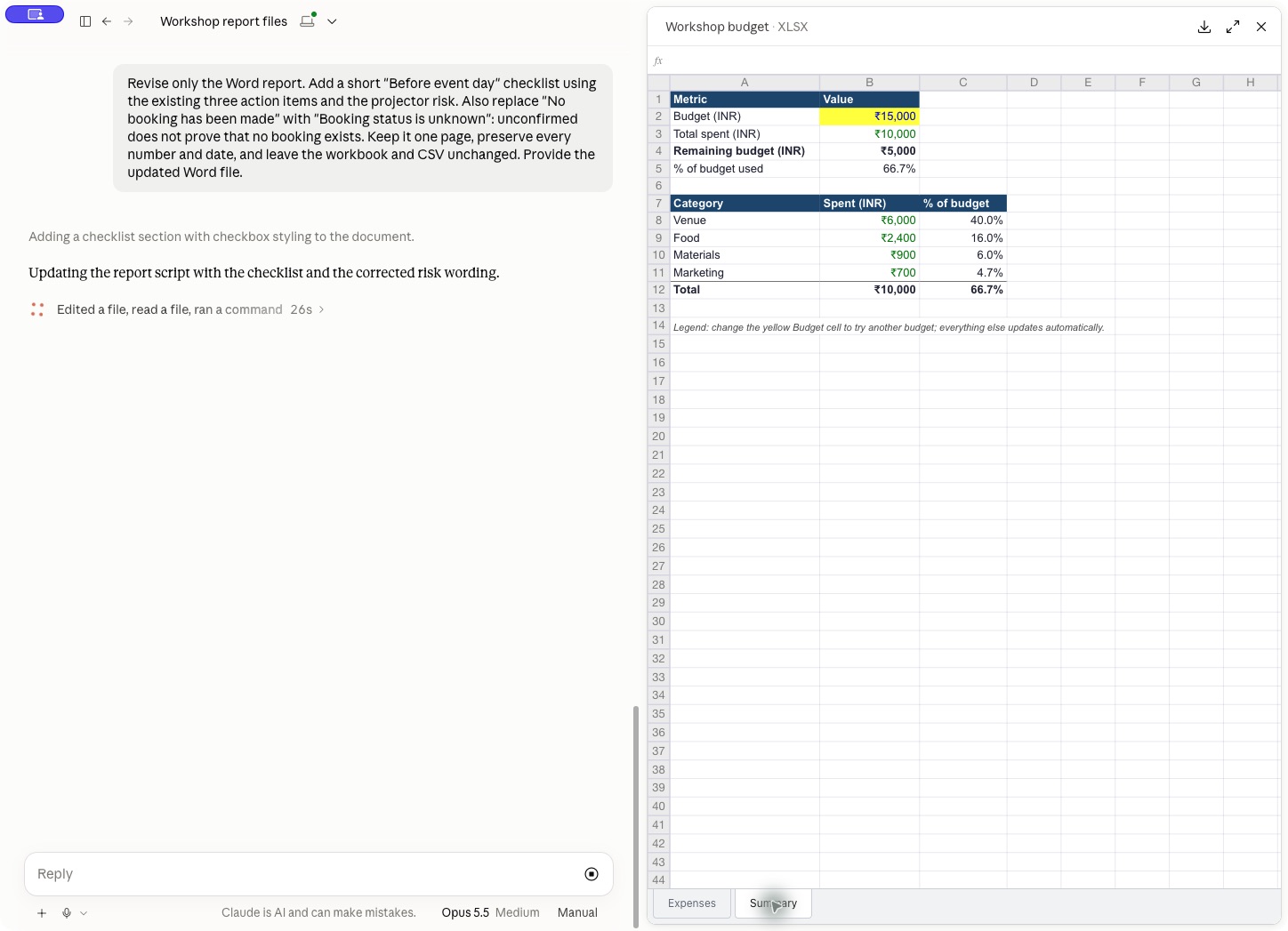
Here is a useful verification checklist for this particular task:
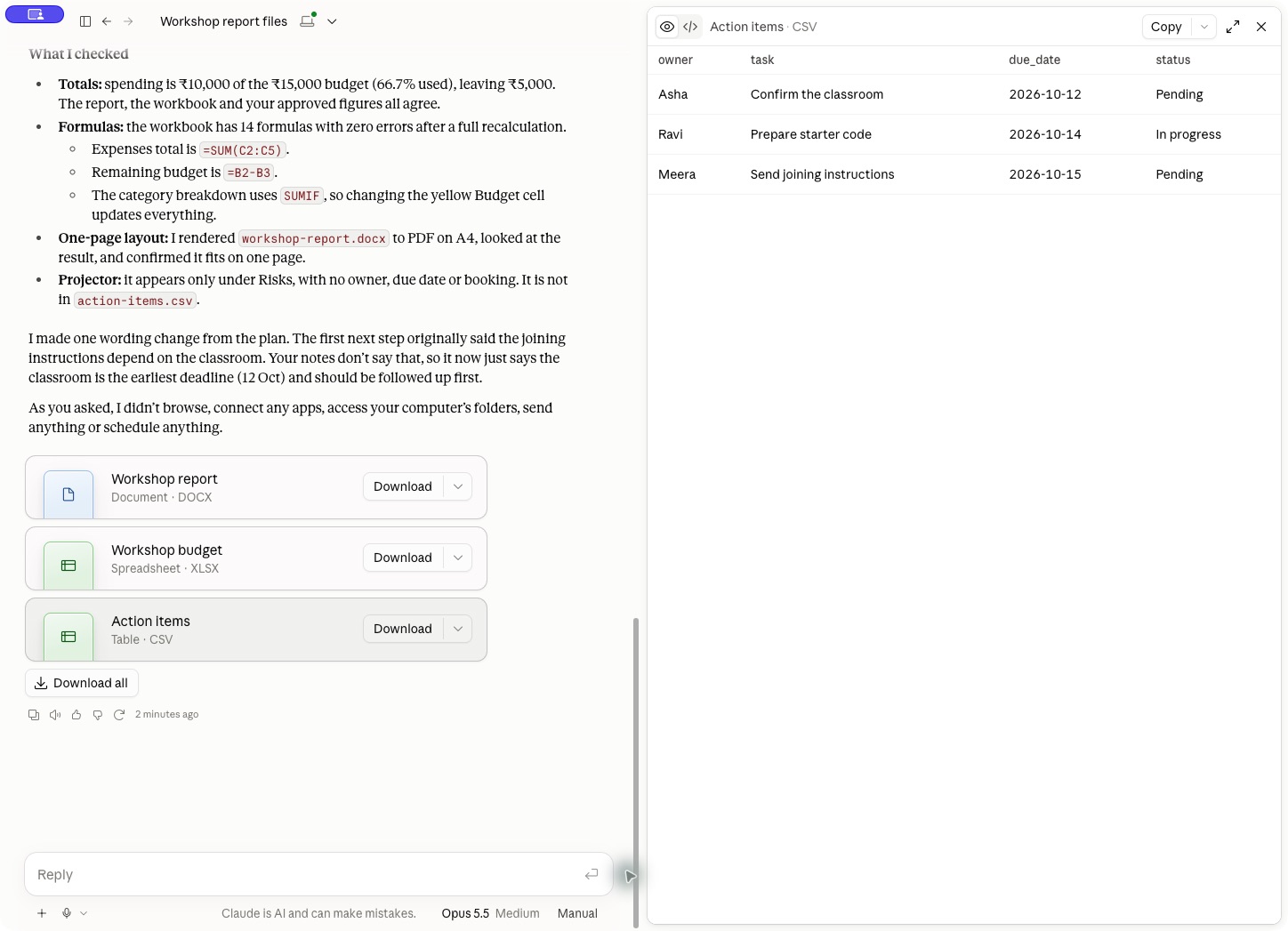
- Expenses: four data rows, three columns and a ₹10,000 total.
- Summary: ₹15,000 budget, ₹10,000 expenses and ₹5,000 remaining, with formula references to the expense data.
- Actions: Asha, Ravi and Meera, with the exact dates and statuses from the notes.
- Report: one page, with the projector unconfirmed and no invented booking.
For a real event, add a distinction between estimated, committed and paid expenses. Our tiny sample doesn't contain payment status, so don't treat it as an accounting record.
Make one focused revision
Don't restart the whole task because one paragraph needs improving. Our first report said "No booking has been made" for the projector. The source only said availability was unconfirmed. Those are different facts, so we asked for a correction alongside a small layout improvement:
Revise only the Word report. Add a short "Before event day" checklist
using the existing three action items and the projector risk.
Also replace "No booking has been made" with "Booking status is unknown":
unconfirmed does not prove that no booking exists.
Keep it one page, preserve every number and date, and leave the
workbook and CSV unchanged. Provide the updated Word file.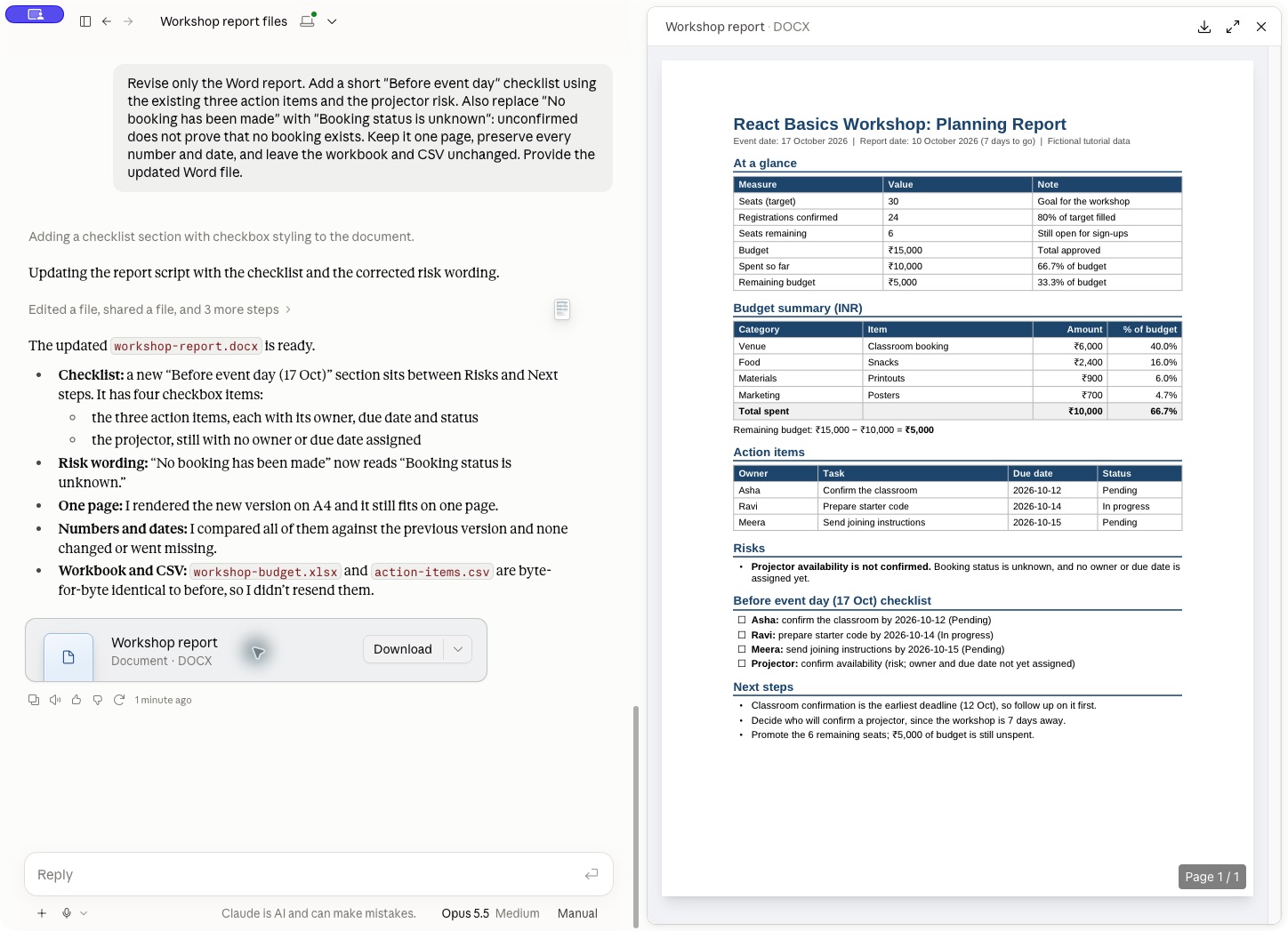
The revised preview showed the corrected risk and a four-item checklist. Claude reported that the workbook and CSV were unchanged. Compare the new report with the original: an invented fourth owner or a changed budget would make the revision worse. Precise follow-up prompts reduce the amount you need to recheck.
Move from pasted data to a folder
Pasting a small dataset makes the first exercise easy. For a larger task, prepare a dedicated folder such as:
workshop-demo/
  input/
    meeting-notes.md
    expenses.csv
  output/
Use Project or folder in the desktop app to select the folder you intend Claude to work with. UI labels can differ during the rollout. Give a folder-based task explicit boundaries:
Read meeting-notes.md and expenses.csv from input/.
Create the workshop report, budget workbook and action CSV in output/.
Do not edit, rename or delete the input files.
If an output file already exists, ask before replacing it.
Show the plan and expected totals before creating the files.
This folder variant is an extension you can try; the screenshots above come from the pasted-data run. We didn't connect a local folder for that run.
Folder access does not mean all processing stays on your computer. Anthropic's architecture overview says current cloud sessions execute on its servers. Local file operations go through a connected desktop app and the granted folder permissions. That app must be available for a cloud task to reach your local files. Older local sessions and some managed deployments behave differently.
Start with copies of non-sensitive files in a small folder. Anthropic also explains how to use Cowork safely, including the risks of untrusted content influencing an agent's actions. Treat instructions found inside a document as source material, rather than automatically allowing them to override your task.
Keep repeated work in a project
If you prepare this report every week, a project can hold the shared context and instructions. Open Projects in the sidebar and create a workspace for the workshop. The exact creation flow depends on your interface; the projects guide covers account projects and projects based on local folders.
Useful project instructions would be:
Write for a beginner workshop organizer.
Use INR and ISO dates in data files.
Separate confirmed facts, pending actions and assumptions.
Keep source files unchanged.
Use formulas for spreadsheet calculations.
Never send emails or publish a report unless I explicitly request it.
A project helps reuse context. You still need to give each task the latest inputs and verify its output. A previous week's registration count is not evidence for this week's count.
Recurring tasks: a next step
Once the one-off report works, you could ask Claude to prepare a recurring version. For example:
Every Monday at 9 AM Asia/Kolkata, prepare a workshop status summary
using the latest files in this project. Flag missing or stale data.
Save a draft for my review; don't send it to anyone.
Review the proposed schedule, data sources and task instructions before saving it. The Scheduled section lets you inspect and manage recurring tasks. New cloud schedules can run while your computer is asleep; tasks that depend on local files or apps have additional device requirements. See the scheduling guide.
We did not create a schedule for this tutorial. The example event is fixed on October 17, so repeating the original pasted prompt would keep producing a report from old data.
Common problems
| Problem | What to check |
|---|---|
| No Cowork button | Your account may have the unified interface. Ask for the task from Claude; also check plan availability. |
| Only an explanation, no files | Name the required file extensions and ask for downloadable files. |
| Correct-looking workbook that doesn't update | Inspect the formulas and change one input in a copy. |
| A task cannot read the local folder | Check the selected folder, permissions and desktop connection. |
| A report contains extra names or dates | Ask Claude to use only the supplied evidence and mark unknowns explicitly. |
| Usage runs out quickly | Multi-step tasks use more of your allowance. Reduce scope and separate unrelated work. |
For your first Cowork task, choose something with a clear input and a result you can check. Our workshop had four expense rows, three owners and one unresolved risk. That small dataset made it easy to see whether Claude had understood the work.
For coding tasks, continue with Claude Code Part 1 and Part 2. For document tasks, reuse the prompt above with your own approved source material.