Claude Code Crash Course For Developers
Learn Claude Code step by step by building a small Task Tracker app: prompts, permissions, modes, CLAUDE.md, plan mode, context, skills and git.
In this post we will learn Claude Code by building a tiny Task Tracker web app with it. We will keep the app simple on purpose, so that we can focus on how to use Claude properly: how to ask, how to approve its changes, when to plan first, and how to give it memory about the project. This post has been inspired by this YouTube video by Traversy Media.
Every screenshot in this post comes from a real Claude Code session (version 2.1.288) on a Claude Pro plan.
What is Claude Code?
Claude Code is an AI coding assistant that runs in your terminal. You describe what you want in plain English. Claude reads your files, writes and edits code, and runs commands, but it asks your permission first. Think of it as a pair programmer that can actually type into your project.
It also runs inside VS Code and JetBrains, in the Claude desktop app and on the web. The commands in this post are the same everywhere.
Install Claude Code
The recommended way is the native installer. On macOS, Linux or WSL run:
curl -fsSL https://claude.ai/install.sh | bashOn Windows PowerShell run:
irm https://claude.ai/install.ps1 | iexIf you use Homebrew, brew install --cask claude-code works too. Check that it installed:
claude --versionYou need a Claude subscription (Pro, Max, Team or Enterprise) or an Anthropic Console account with API billing.
First launch
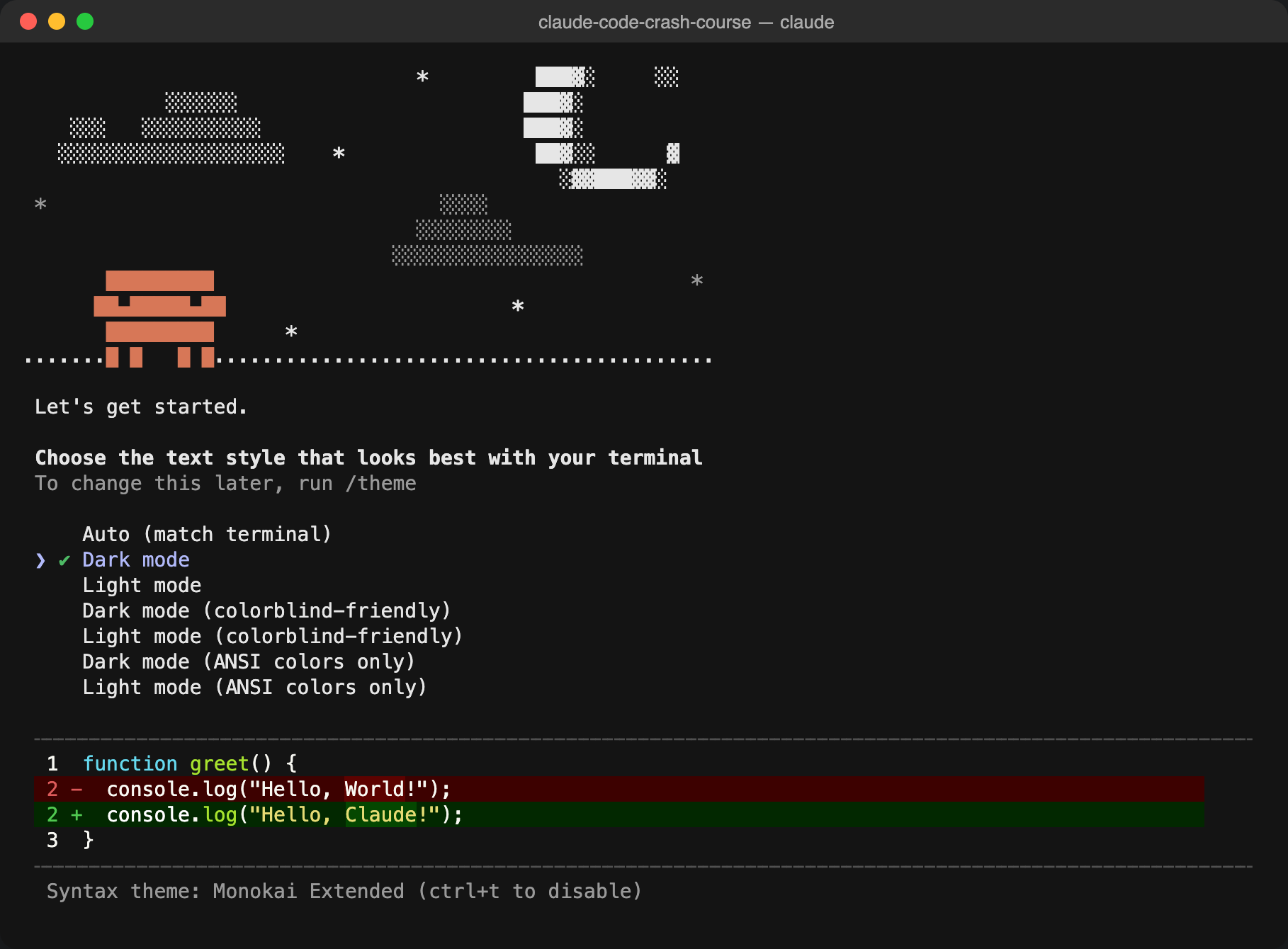
Run claude in any terminal. The first time, Claude Code asks you to pick a text style. Choose the one that looks best in your terminal; you can change it later with /theme.
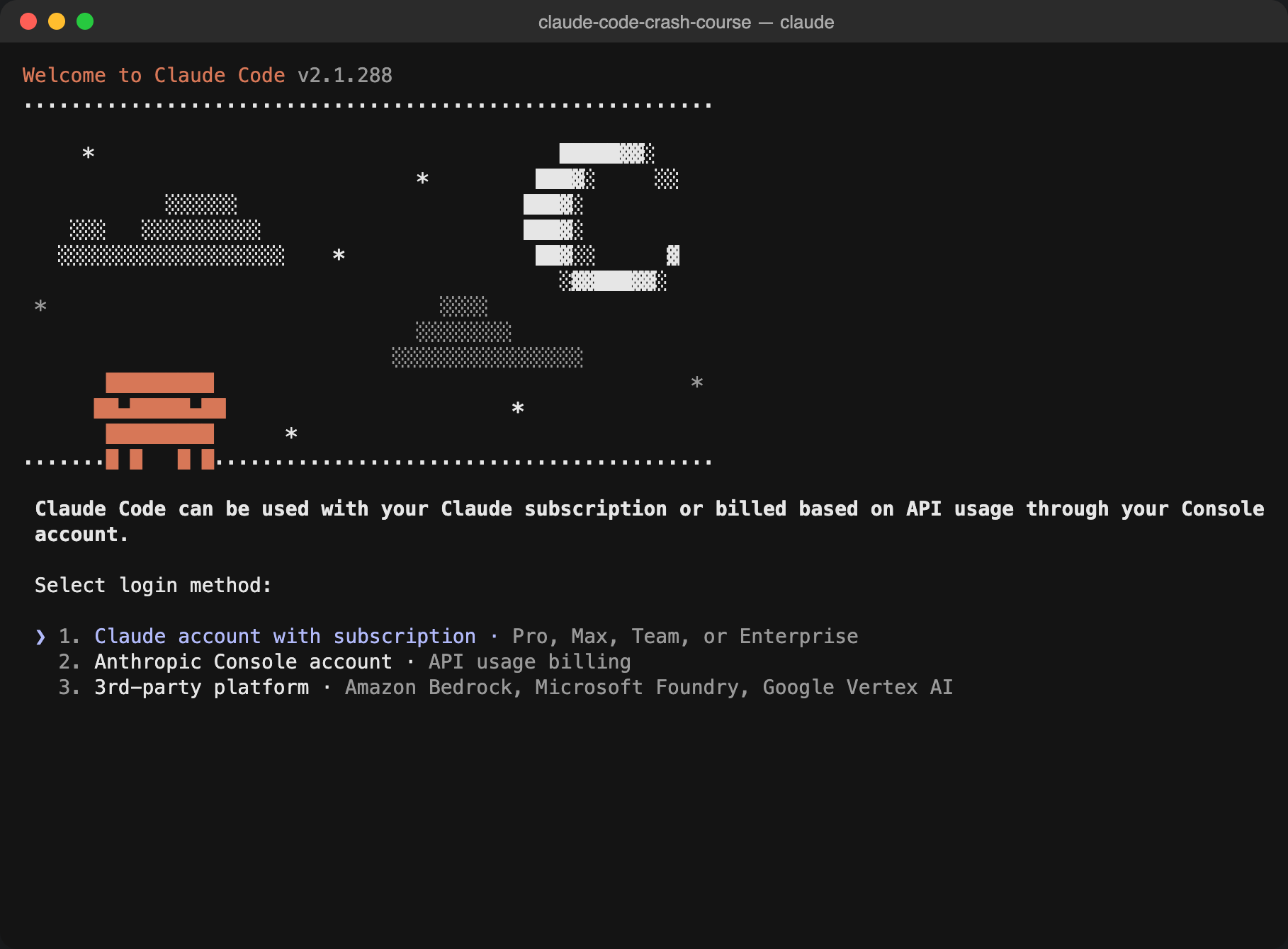
Next, choose how to log in. With a Pro or Max plan pick 1. Claude account with subscription. A browser window opens, you approve, and you are back in the terminal.
Start Claude in your project
Claude Code works on the folder you start it in, so always cd into your project first. Let us create an empty project and make it a git repo, so we can always see and undo what Claude changes:
mkdir claude-code-crash-course
cd claude-code-crash-course
git init
claude
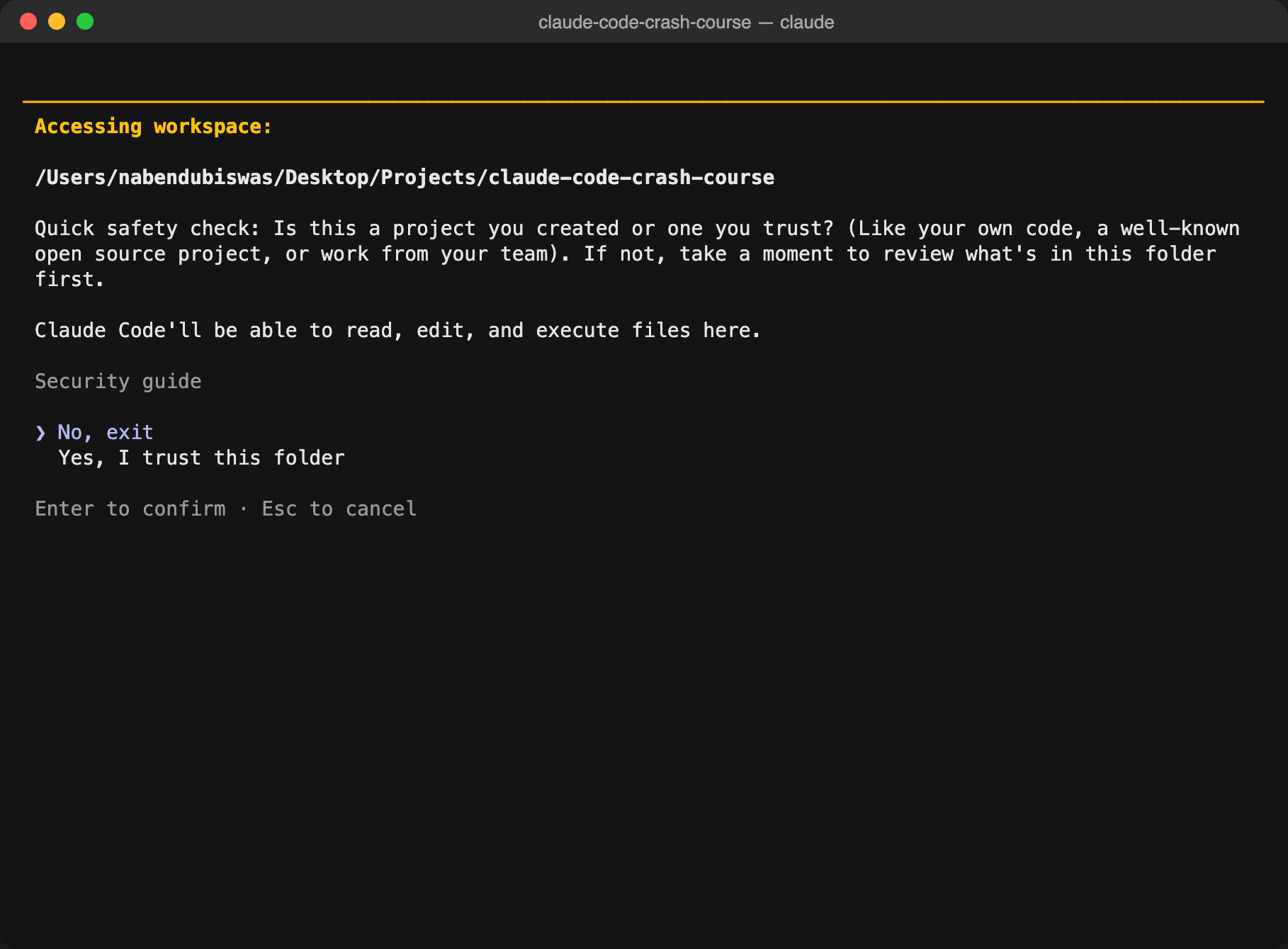
The first time you open a folder, Claude asks whether you trust it. Use the arrow keys to choose Yes, I trust this folder and press Enter. Only do this for code you know, because Claude will be able to read, edit and run files here.
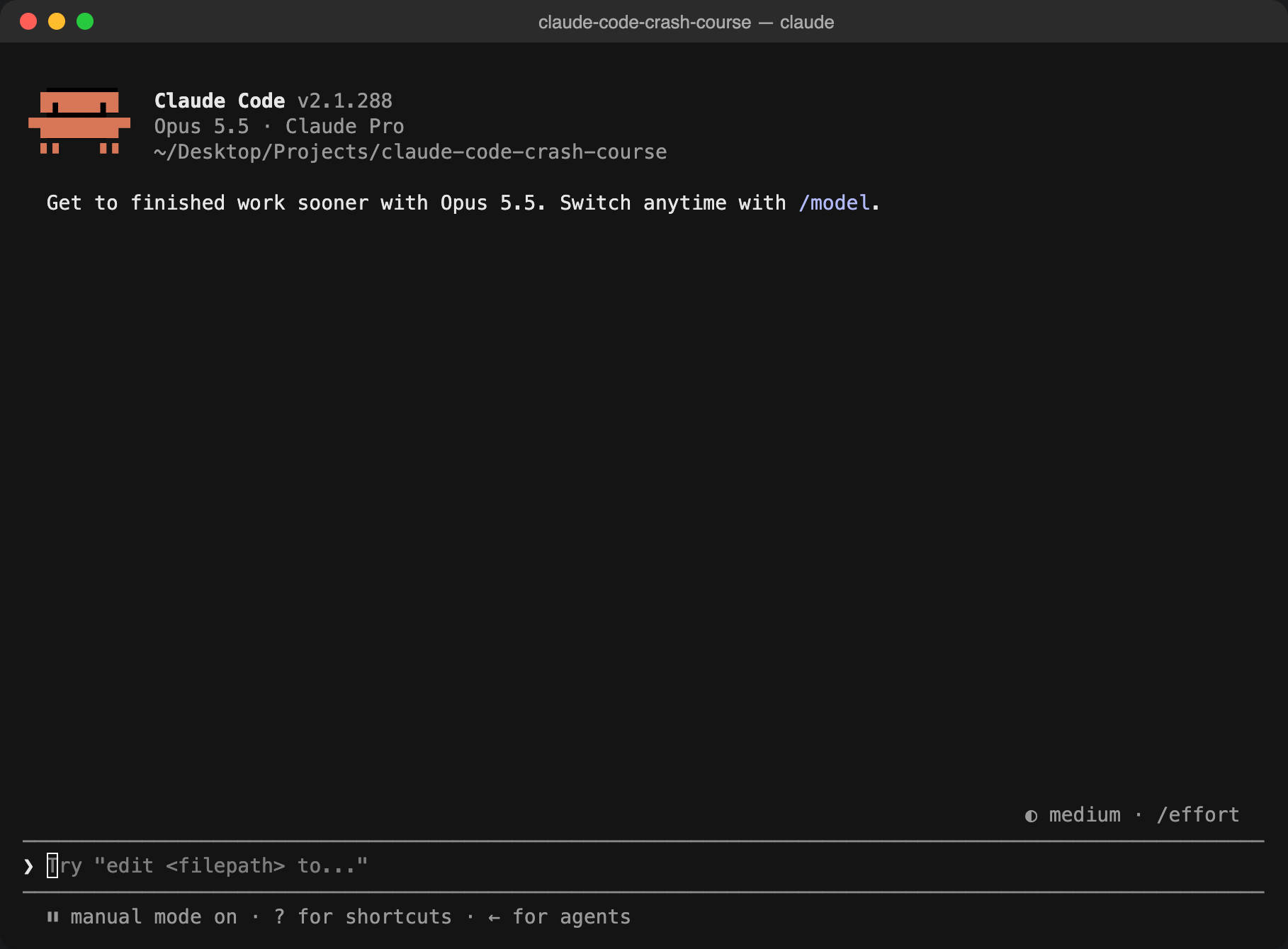
Now you see the welcome screen. It shows the version, the model (Opus 5.5), your plan (Claude Pro) and the folder. At the bottom is the prompt box where you type, and below it the current mode (manual mode on) and the effort level (medium · /effort).
Pick a model
Type /model and press Enter to see the models. Bigger models such as Opus are smarter but use your plan's limits faster; Sonnet and Haiku are quicker and cheaper. For learning and small apps the default is fine. Press Esc to close the menu.
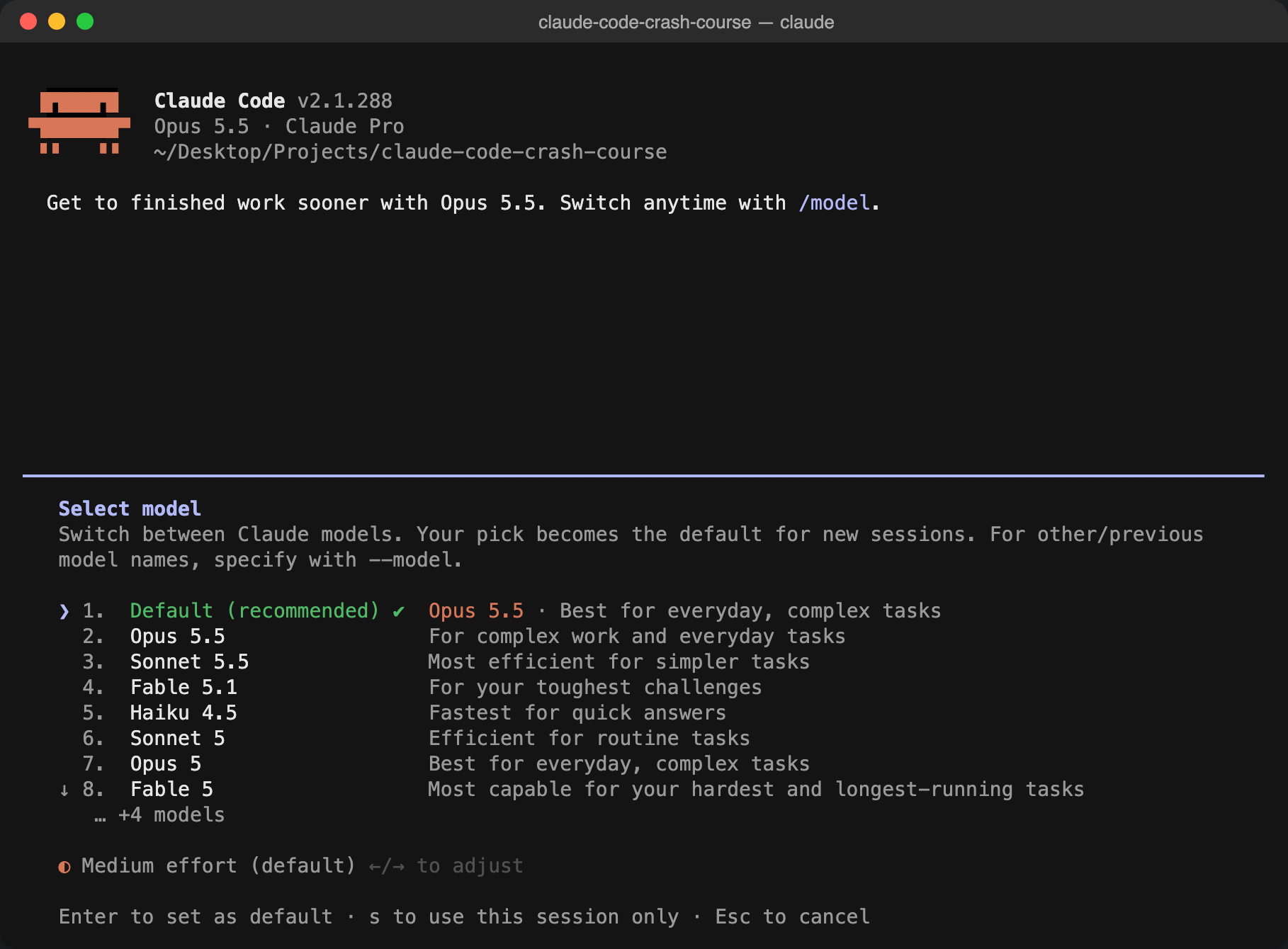
You can also change how hard Claude thinks with /effort (low, medium, high). Higher effort is slower but better for tricky problems.
Your first prompt
Now the fun part. Be specific about what you want and how you want it. Type this in the prompt box:
Create a simple Task Tracker web app with plain HTML, CSS and JavaScript in index.html, style.css and app.js. I can add a task, mark it as done and delete it. Save tasks in localStorage. Keep the code short and beginner friendly.Claude plans the work and starts writing files. Before it creates the first file, it shows you the code and asks for permission:
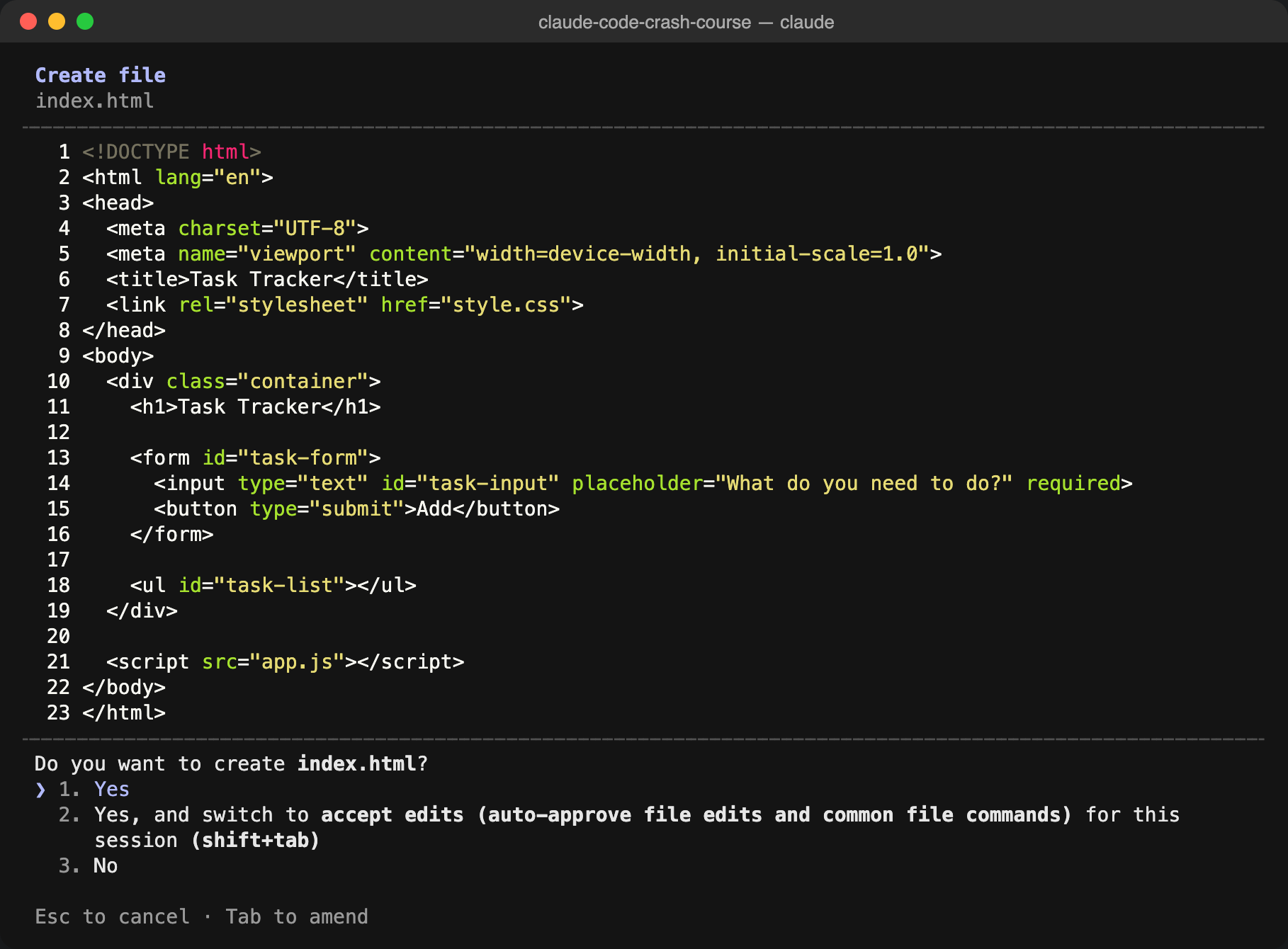
You have three choices:
- 1. Yes approves just this one file.
- 2. Yes, and switch to accept edits approves every file edit for the rest of the session.
- 3. No stops Claude so you can tell it what to do differently.
While learning, read each change before you say yes. Here we chose option 2 so Claude could write all three files. When it finishes, it explains what it built:
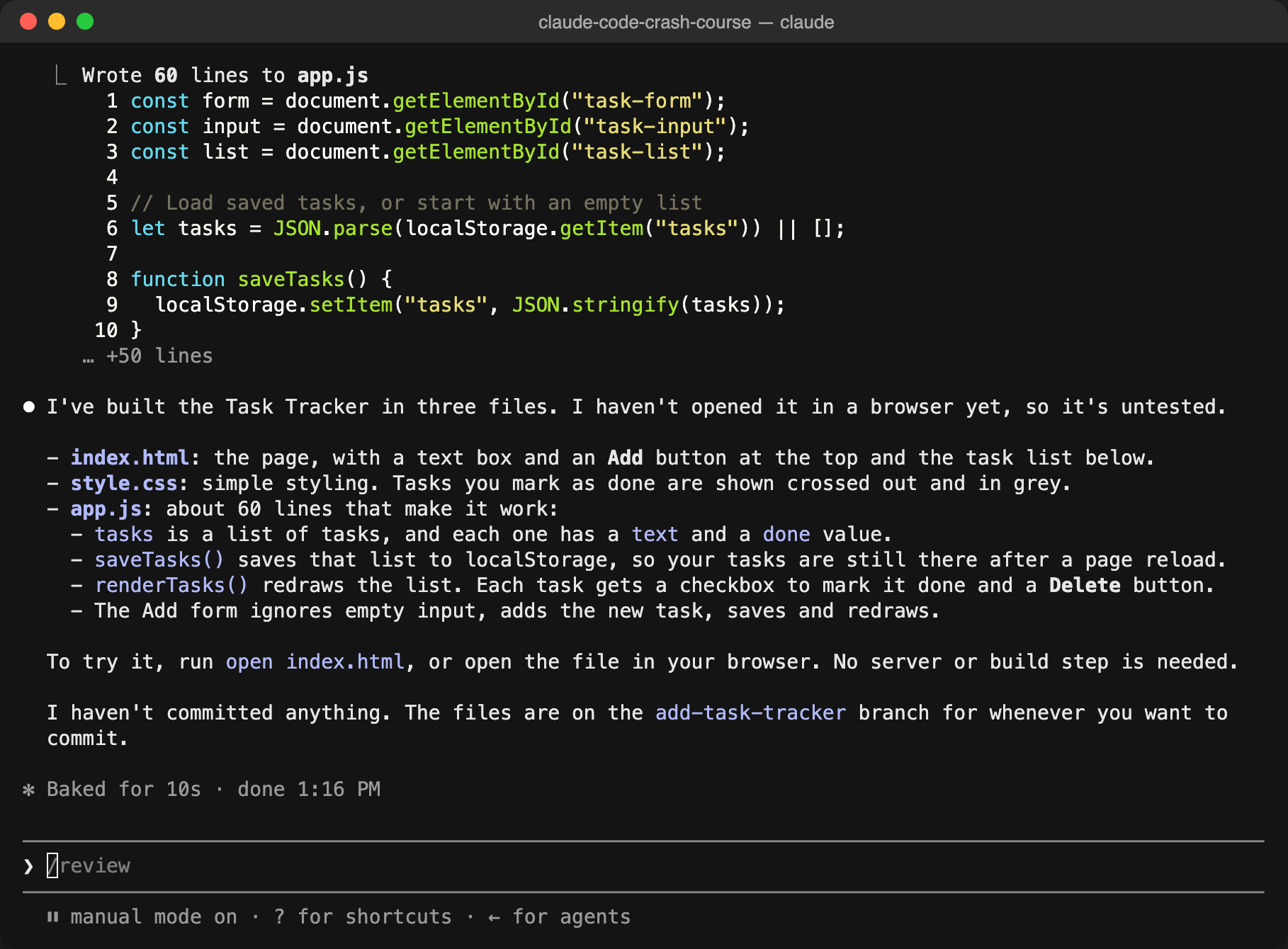
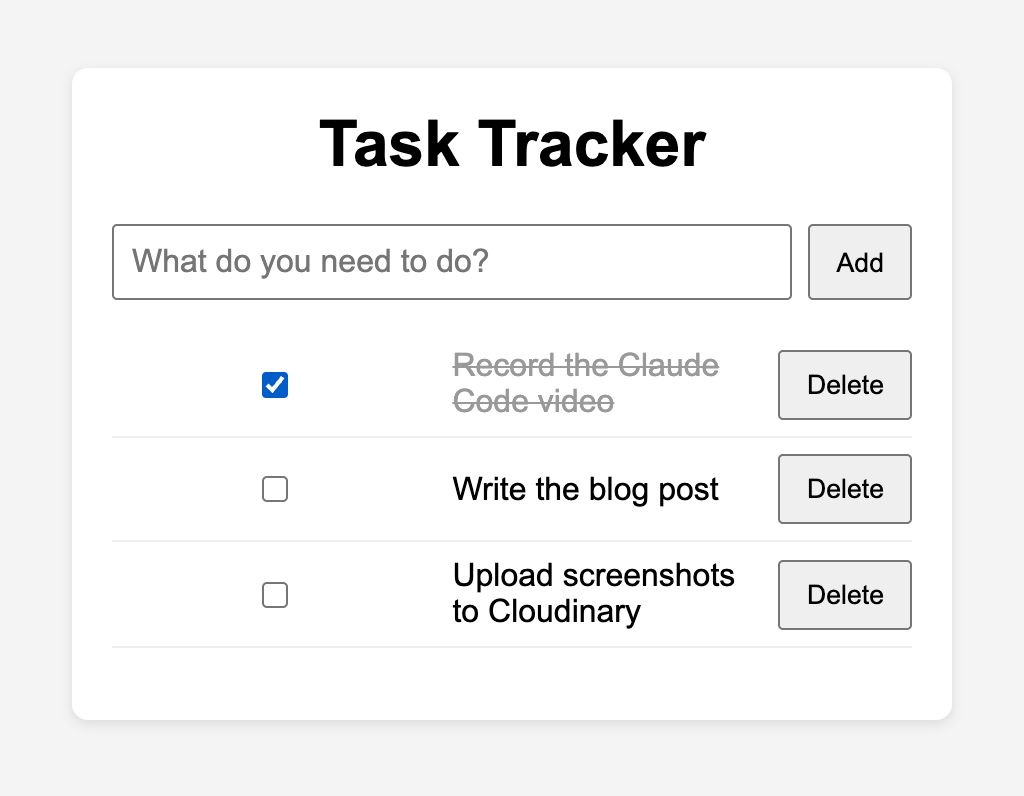
Notice Claude says it hasn't opened the app in a browser yet. That is your job: always try what it built. Open index.html and add a few tasks:
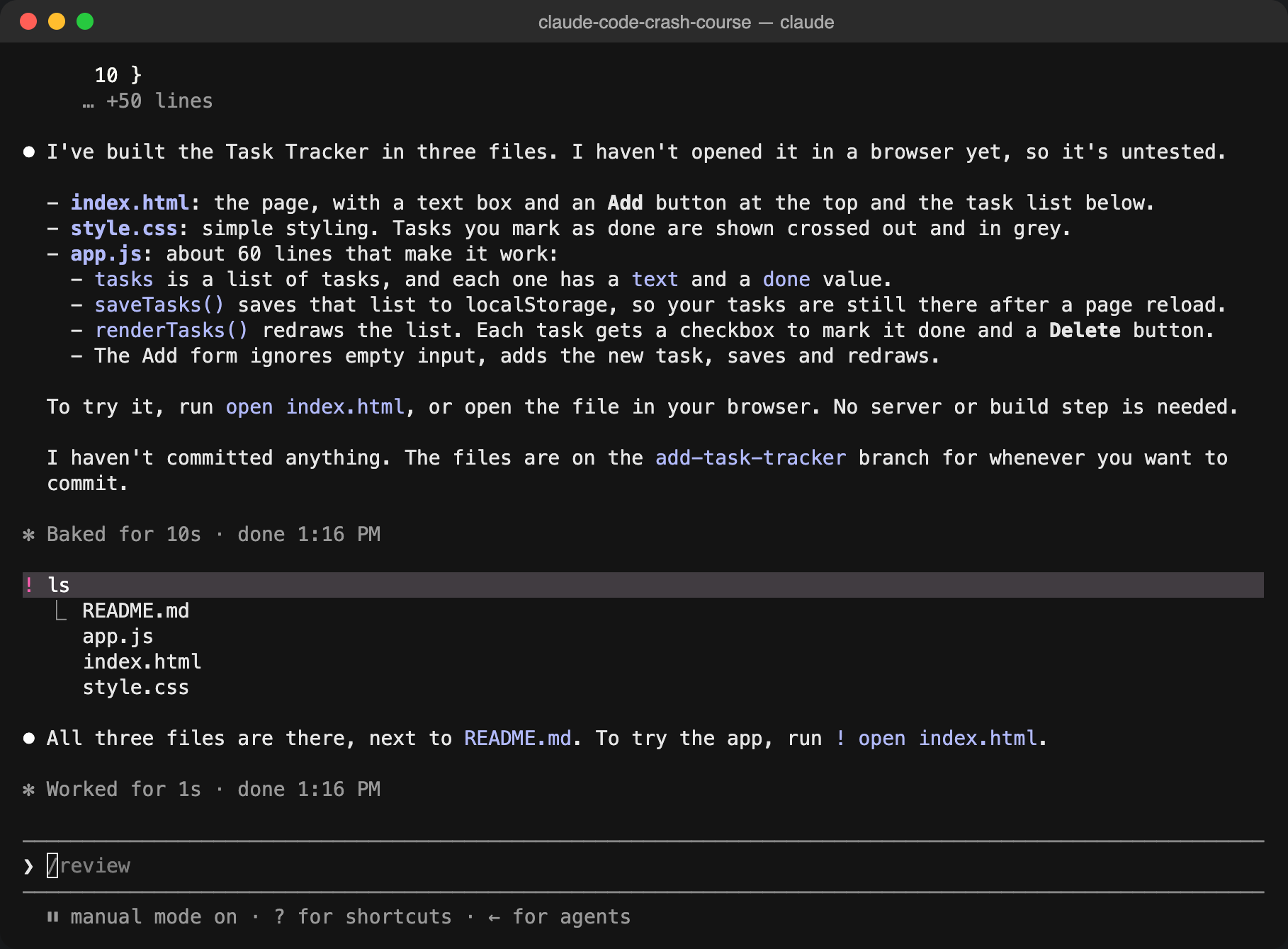
Shell mode with !
Start a line with ! to run a terminal command without leaving Claude. The command and its output also go into the conversation, so Claude can see them. Here ! ls lists our new files:
Permission modes
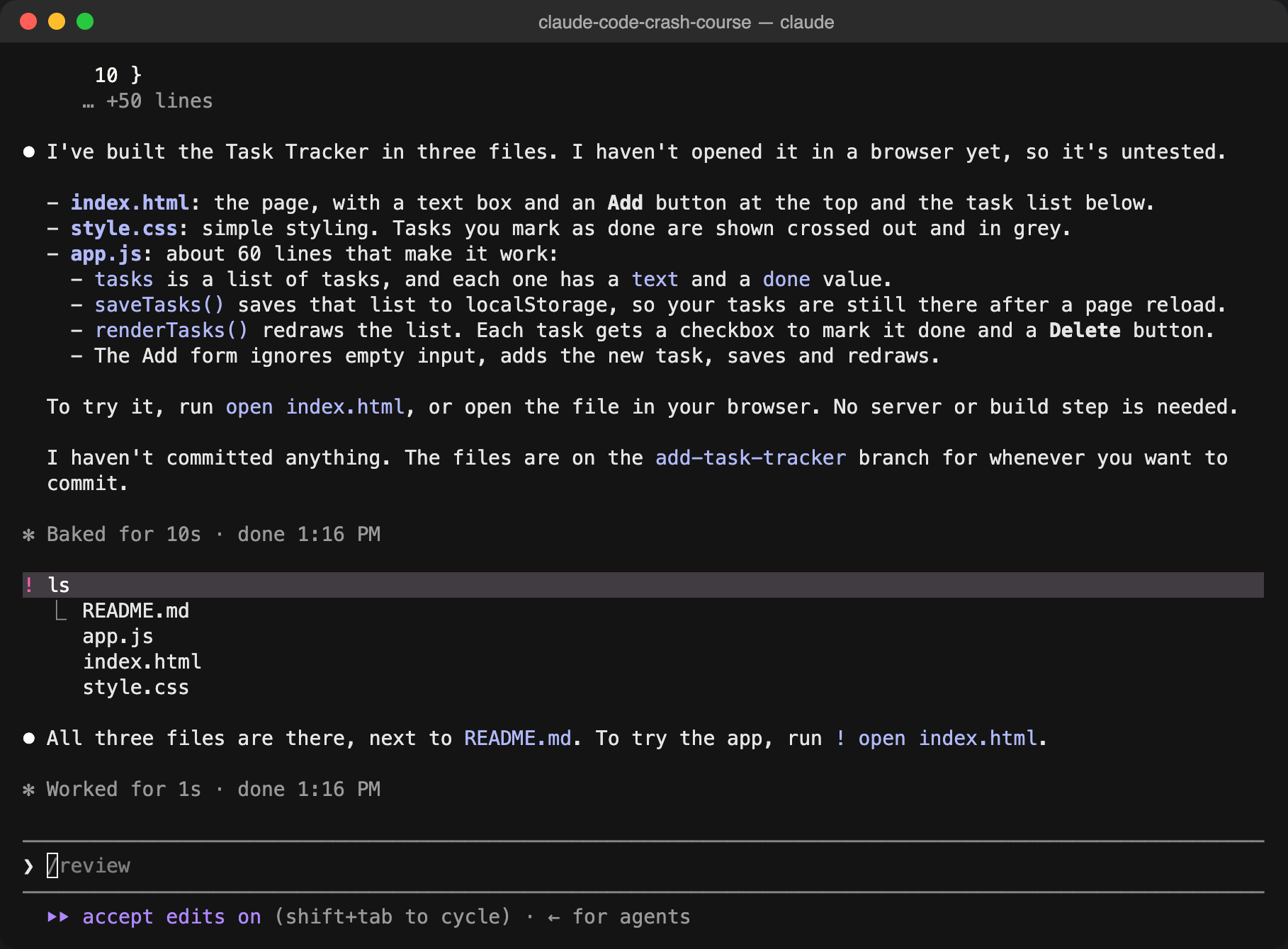
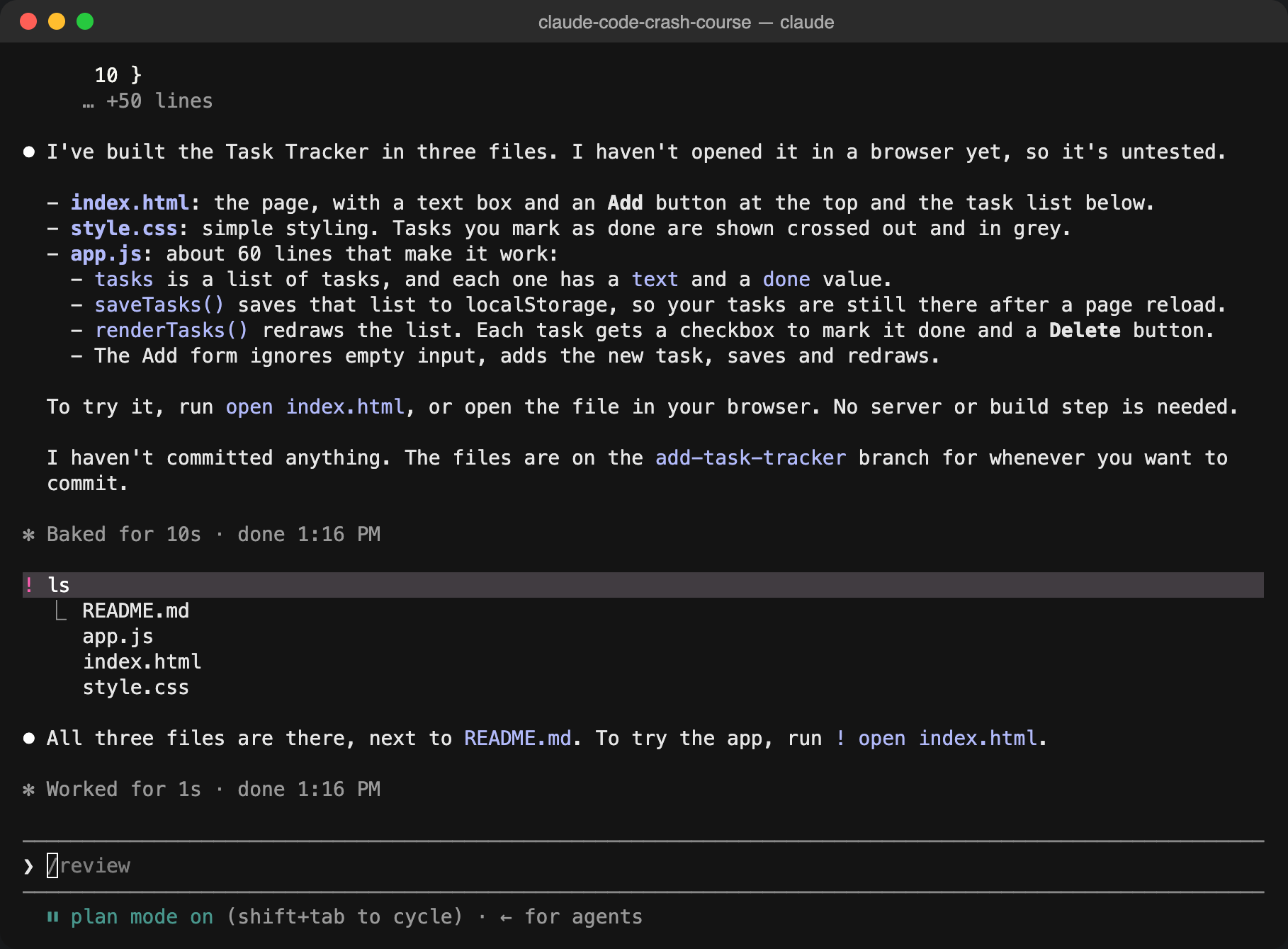
Press Shift+Tab to cycle through the modes. The current one is shown under the prompt box.
| Mode | What Claude does |
|---|---|
| manual | Asks before every file edit and command. Best while learning. |
| accept edits | Edits files without asking, still asks before most commands. |
| plan | Reads and plans only. It changes nothing until you approve the plan. |
| auto | Approves safe actions on its own and stops for risky ones. |
CLAUDE.md and /init
Claude doesn't remember past chats. Instead, it reads a file called CLAUDE.md at the start of every session. Run /init and Claude studies the project and writes this file for you:
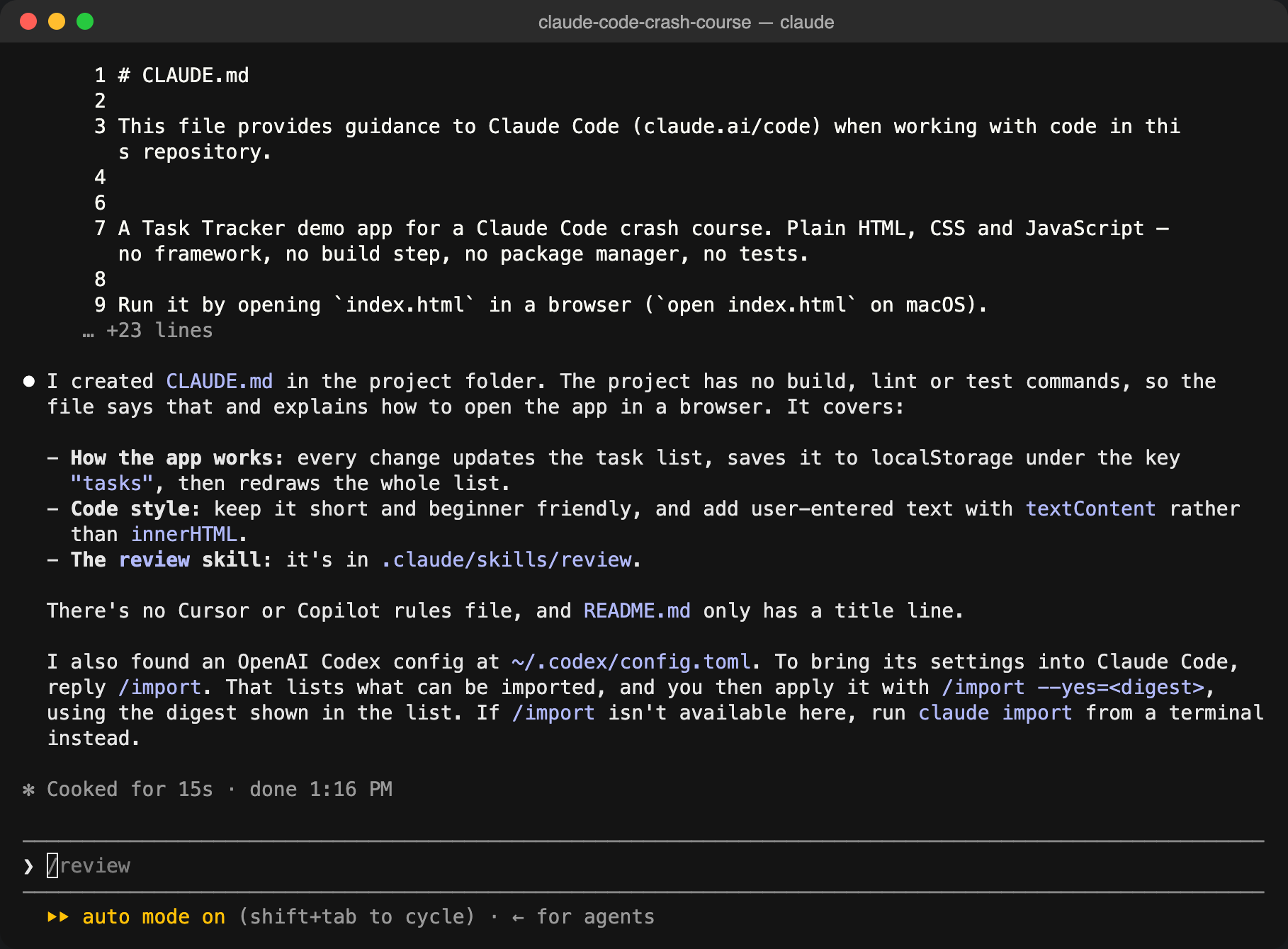
Here is part of what it wrote for our app:
## Project

A Task Tracker demo app for a Claude Code crash course. Plain HTML, CSS and JavaScript — no framework, no build step, no package manager, no tests.

## Conventions

- Keep code short and beginner friendly: plain `function` declarations, no modules, no libraries.
- Use `textContent` (not `innerHTML`) when inserting user-entered text.
Edit CLAUDE.md like any other file. Whenever you catch yourself repeating an instruction ("use plain functions", "run the tests before you finish"), put it here, and commit it so your whole team gets it.
Add a feature
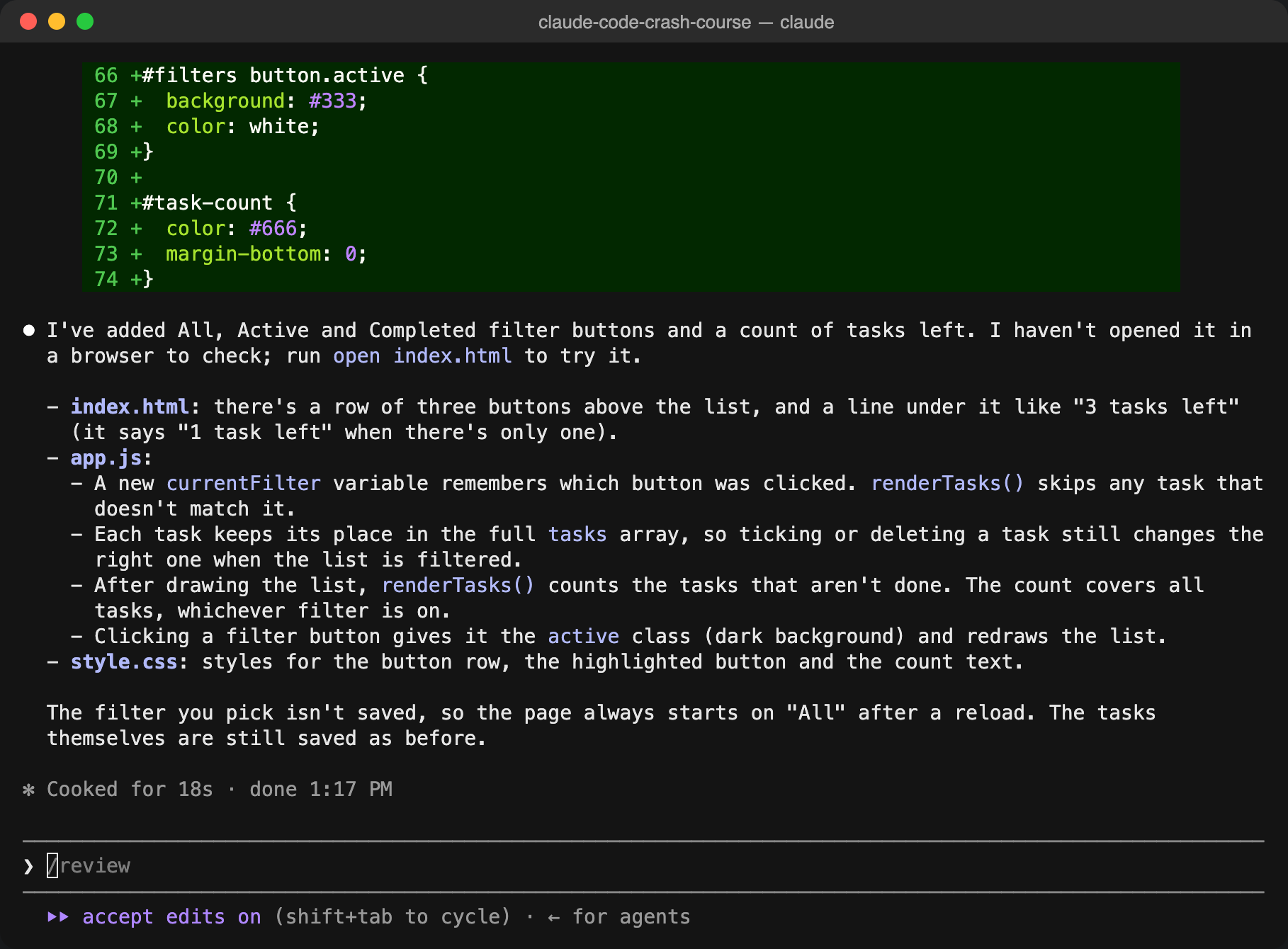
Small, clear features can go straight in. In accept edits mode we asked:
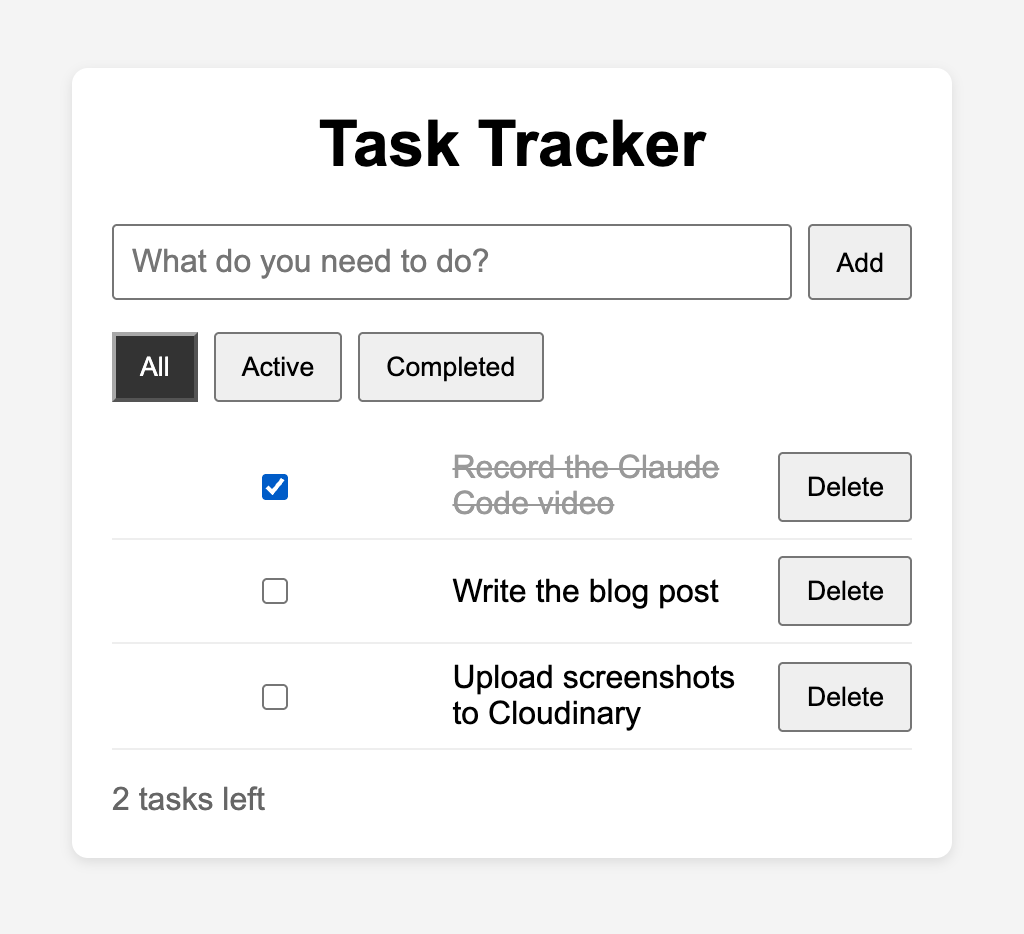
Add filter buttons for All, Active and Completed tasks, and show how many tasks are left.Claude updated all three files and explained how the filter works:
Plan mode for bigger changes
For anything bigger, or anything you aren't sure about, plan first. Switch to plan mode with Shift+Tab (or start with claude --permission-mode plan) and describe the feature:
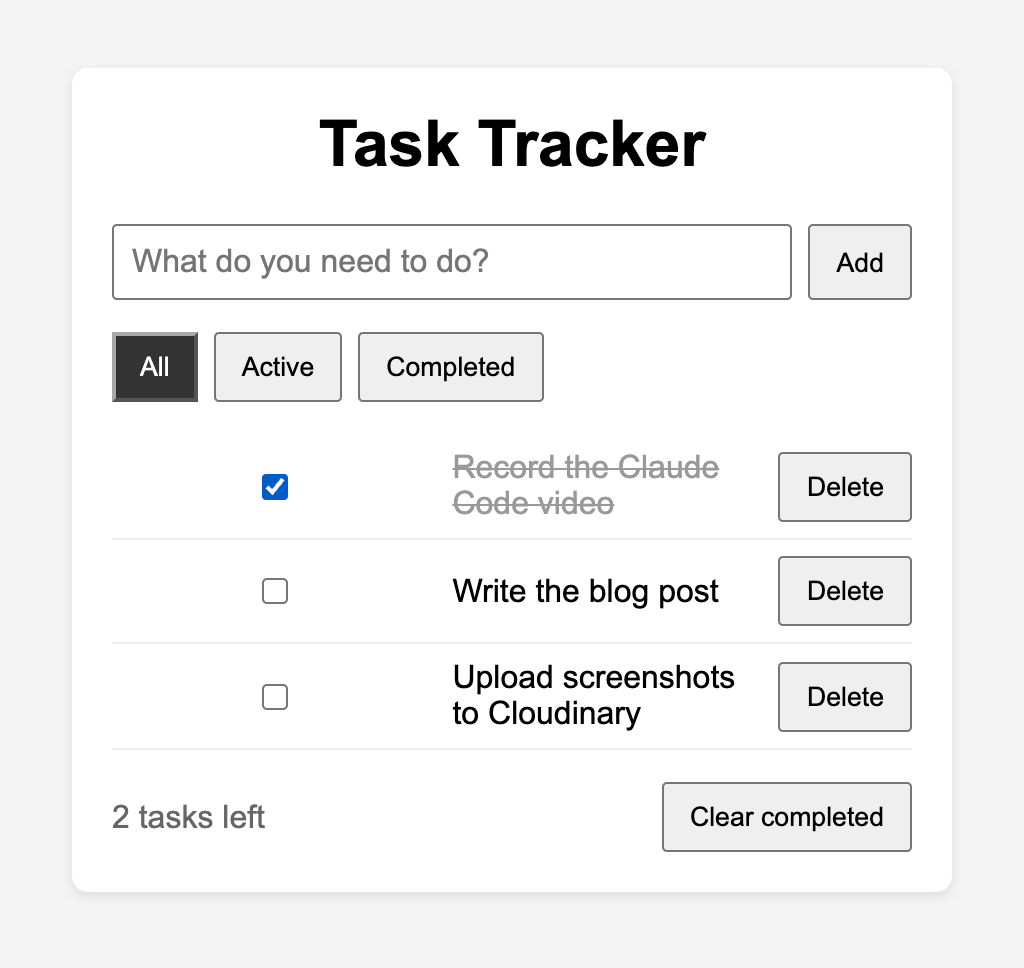
Add a Clear completed button that removes all finished tasks.In plan mode Claude only reads the code. It then shows a written plan and waits:
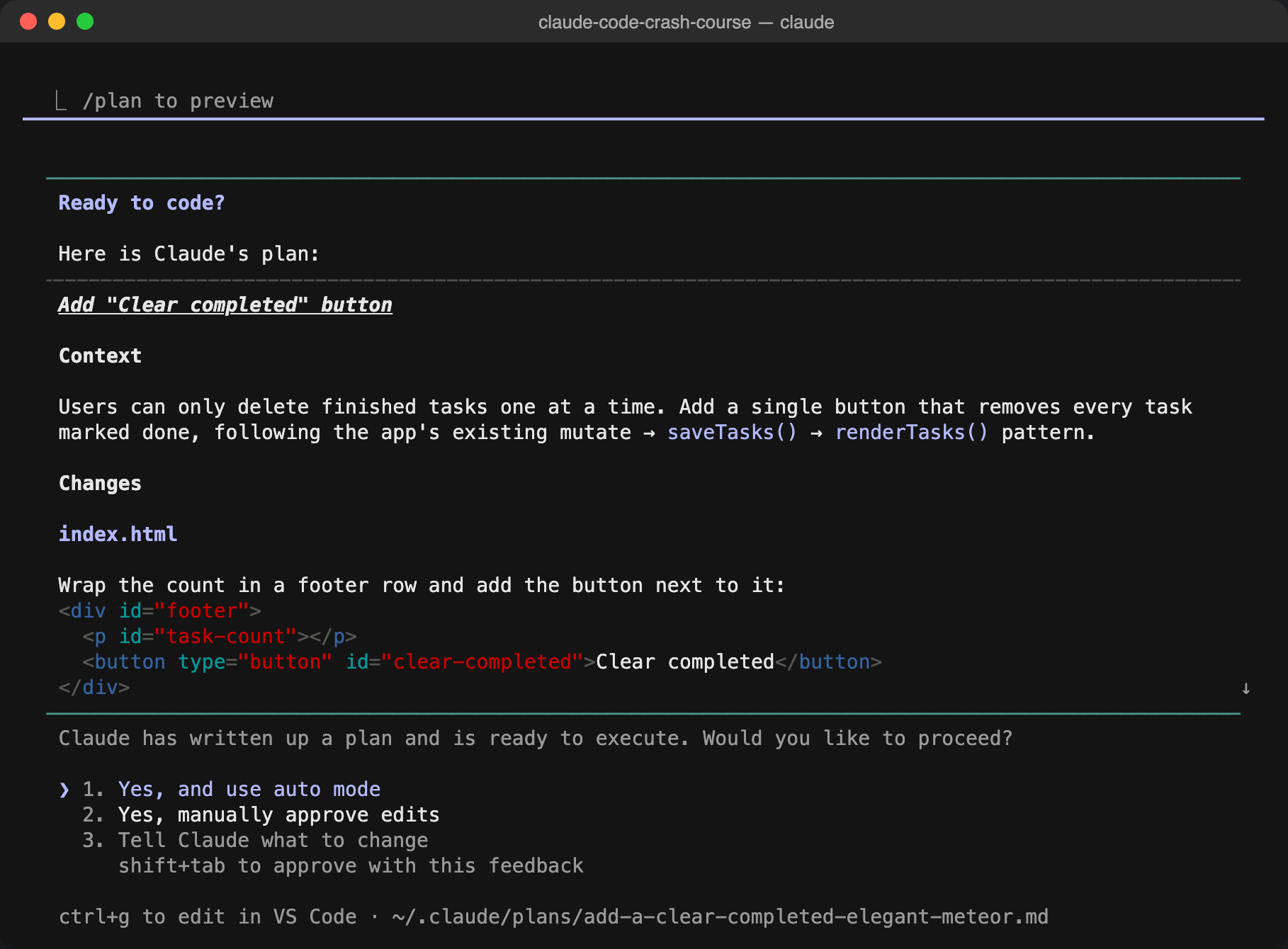
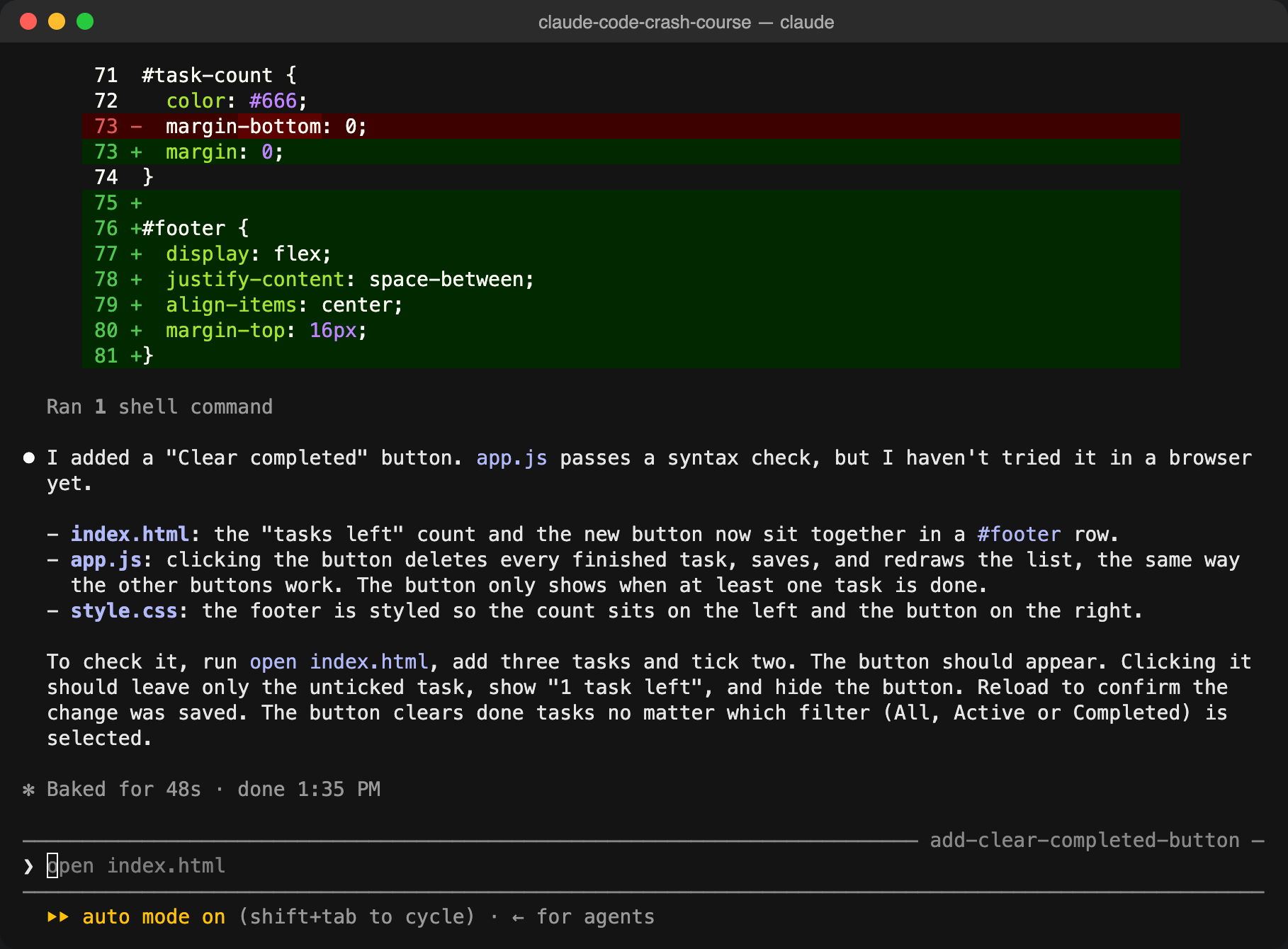
Read the plan. If something is wrong, choose Tell Claude what to change. Fixing a plan costs seconds; fixing finished code costs much more. When the plan looks right, approve it and Claude writes the code:
Point Claude at files with @
Type @ followed by a file name to add that file to your question. It saves Claude from searching and keeps the answer focused:
How does @app.js save the tasks? Answer in three short bullet points.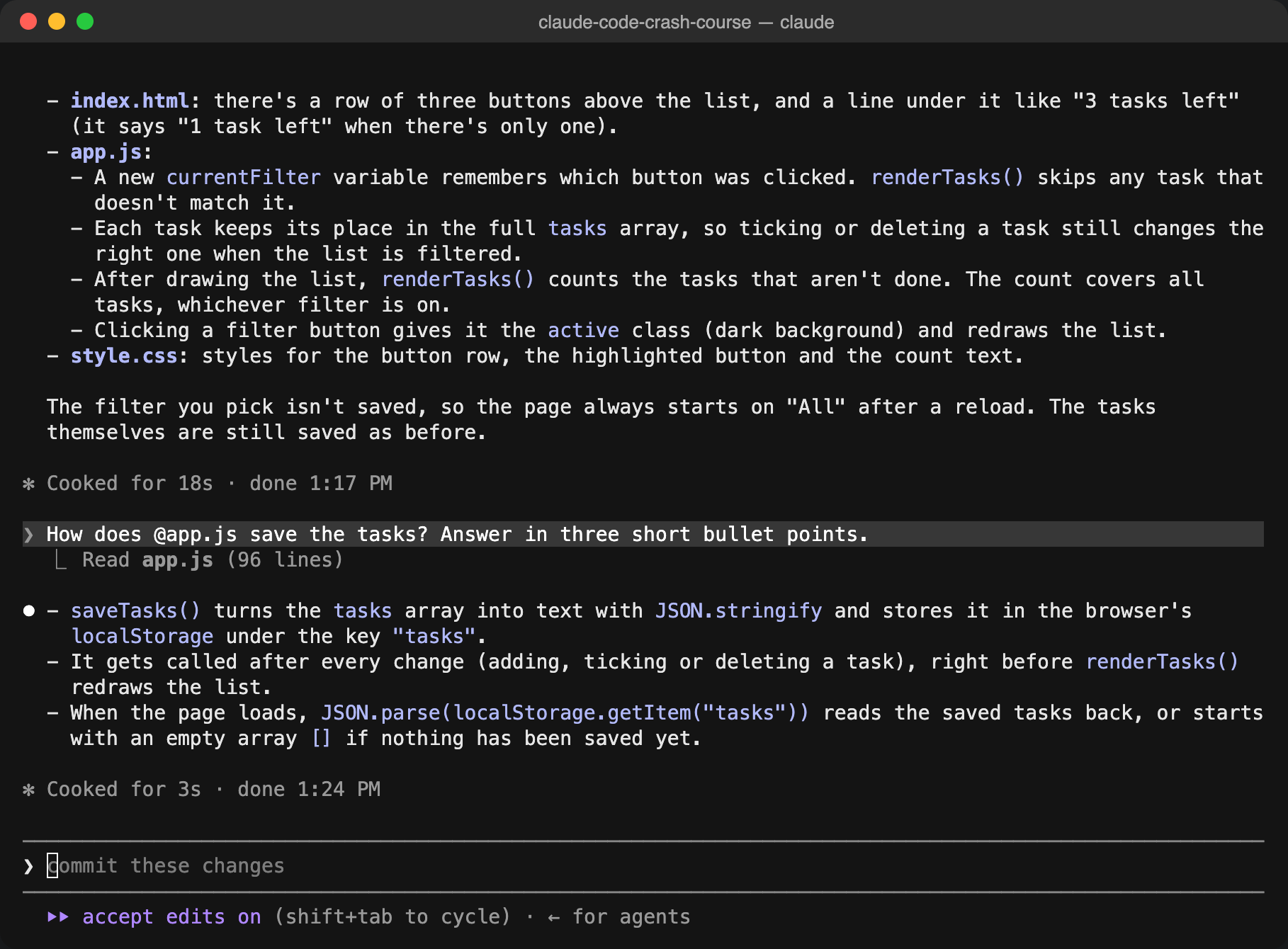
Asking questions like this is the fastest way to understand a codebase you didn't write, including code Claude wrote for you.
Context, tokens and /clear
Everything in the conversation (your messages, files Claude read, command output) fills Claude's context window. Run /context to see how full it is:
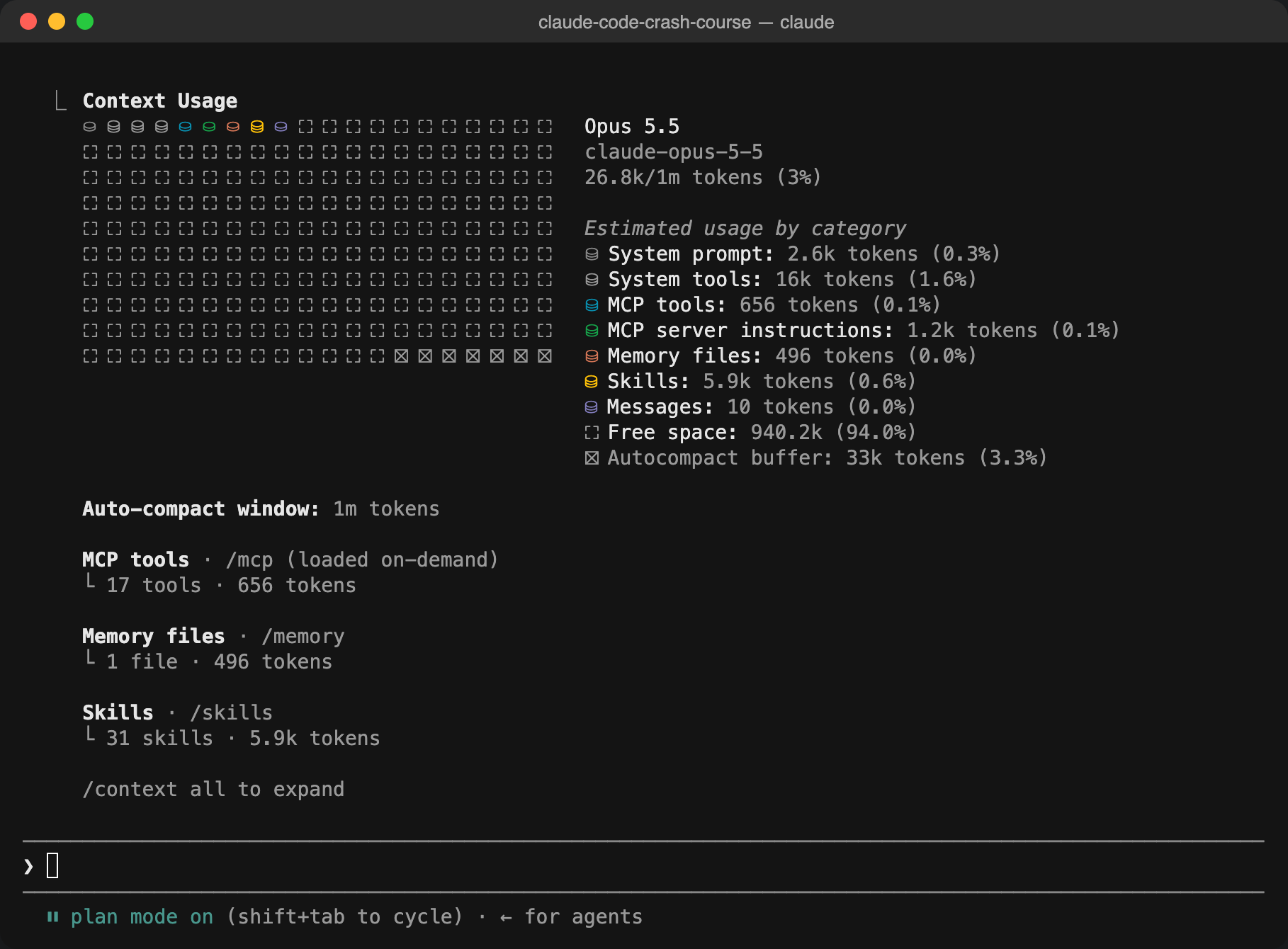
Three habits keep Claude sharp and save your usage limits:
- Run
/clearwhen you start a new, unrelated task. CLAUDE.md is read again, but the old chat is gone. - Run
/compactto summarise a long conversation and keep going. - Use
claude --continue(orclaude -c) to reopen your last conversation, and/resumeto pick an older one.
Skills: reusable instructions
A skill is a set of instructions saved in a file. Claude uses it when it is relevant, or you run it like a command. Create .claude/skills/review/SKILL.md in your project:
---
name: review
description: Review the Task Tracker code for bugs and beginner-unfriendly code. Use when the user asks for a code review.
---

Review index.html, style.css and app.js.

1. List any bugs first (for example, tasks not saving or deleting the wrong task).
2. Then list up to three small improvements that keep the code simple.
3. Keep the whole review under 15 lines. Do not change any files.
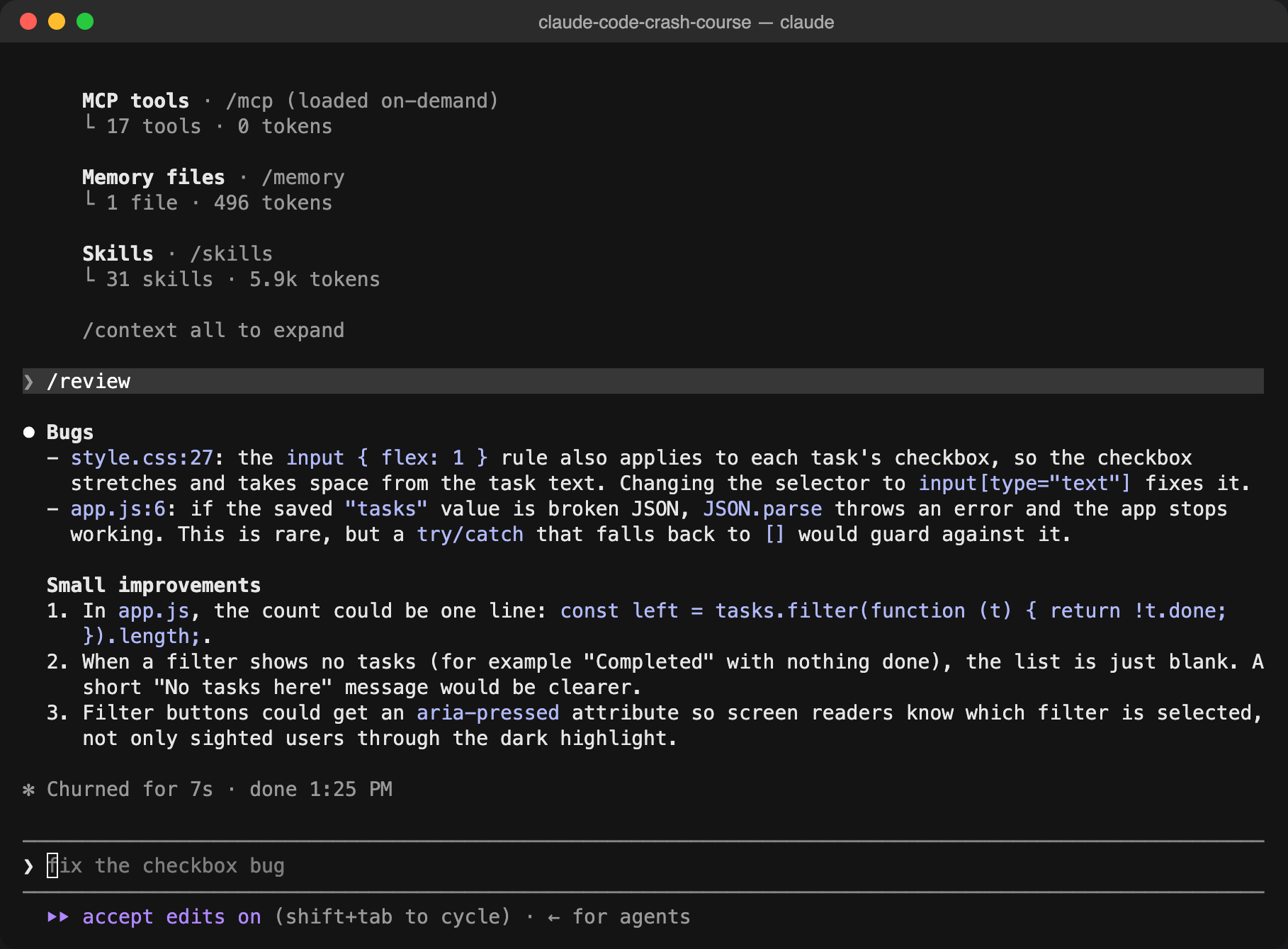
Now type /review. Your skill shows up next to the built-in commands:
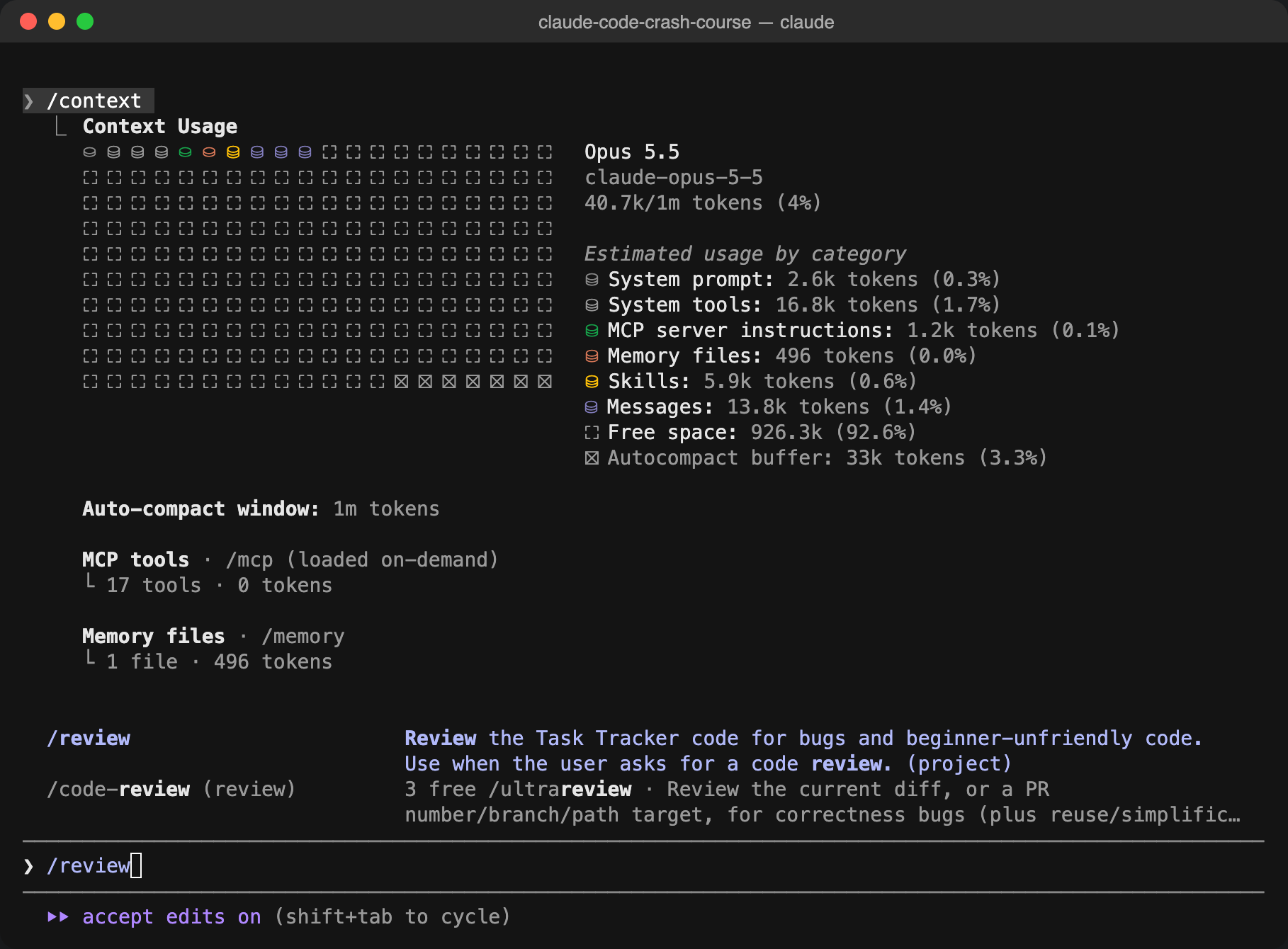
Press Enter and Claude follows your instructions. It even found a real bug: the task input's CSS rule also stretches each task's checkbox.
Skills are great for anything you do again and again: reviews, release notes, writing tests in your team's style.
Let Claude commit
Claude knows git. Ask it:
Commit all the changes with a short, clear commit message.Running a command is riskier than editing a file, so even with accept edits on, Claude shows the exact command and asks first:
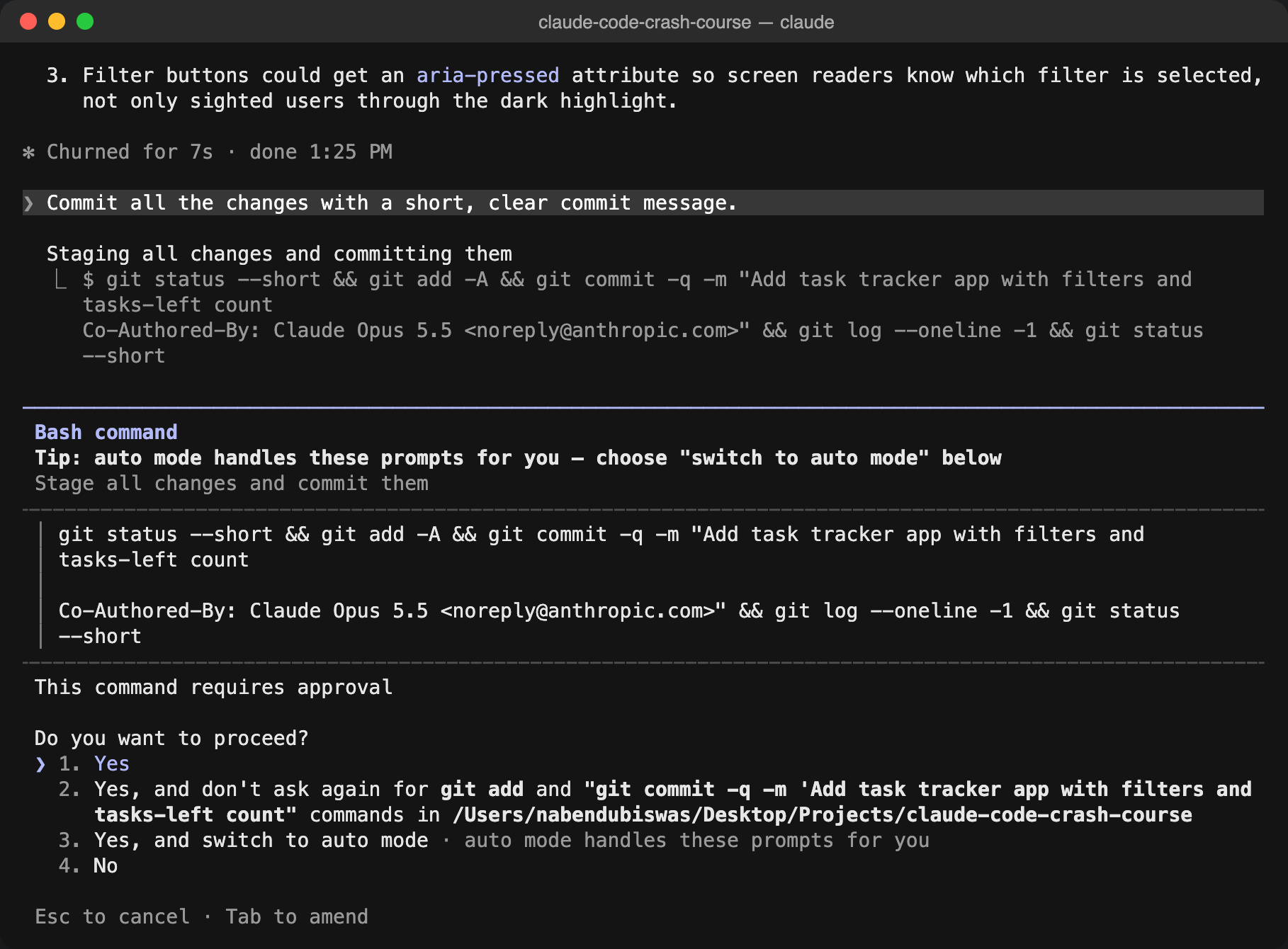
Read the command, then approve it. Claude wrote a clear message on its own:
git log --oneline -1
# a75f8c9 Add task tracker app with filters and tasks-left count
Quick reference
| Command or key | What it does |
|---|---|
claude | Start Claude Code in the current folder |
claude -c | Continue the last conversation |
claude -p "question" | Ask once and print the answer (no session) |
/model, /effort | Choose the model and how hard it thinks |
/init | Create CLAUDE.md for the project |
/context, /clear, /compact | See, reset or shrink the context |
/resume | Open an earlier conversation |
/help | List every command |
! command | Run a shell command |
@ file | Add a file to your message |
| Shift+Tab | Switch permission mode |
| Esc | Stop Claude in the middle of a task |
Tips to use Claude properly
- Be specific. Say which files, which language, what "done" looks like and any limits ("keep it short", "no libraries").
- Work in small steps. One feature per prompt, then test it. Small changes are easy to review and easy to undo.
- Plan before big changes. Use plan mode and fix the plan, not the code.
- Review everything. Read the diffs and the commands before you approve them, and run the app yourself.
- Use git. Commit after each working step so you can always go back.
- Teach it once. Put repeated instructions in CLAUDE.md, and repeated workflows in a skill.
- Keep the context clean.
/clearbetween unrelated tasks.
Where to go next
Once you are comfortable, explore MCP servers (connect Claude to tools like GitHub, databases or your browser, see /mcp) and sub-agents (helpers Claude can hand a task to, see /agents).
You can find the code here