Task Management System - 2
NextJS
In this post we will continue with the Task Management System using NextJS. This project and post have been inspired by this YouTube video.
You can find the Part-1 here. We will start from where we left.
The Navbar component is updated with new imports including Filter and Badge. The Props interface now includes onFilterClick and filterCount? for board page support.
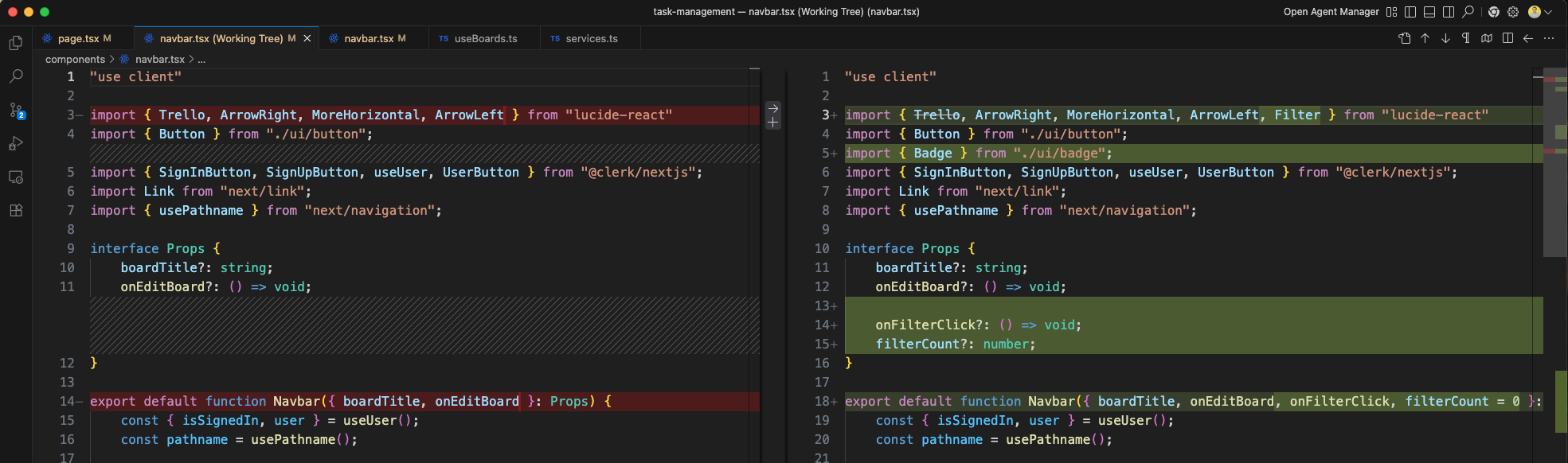
The Navbar now accepts onFilterClick and filterCount props (green outline).
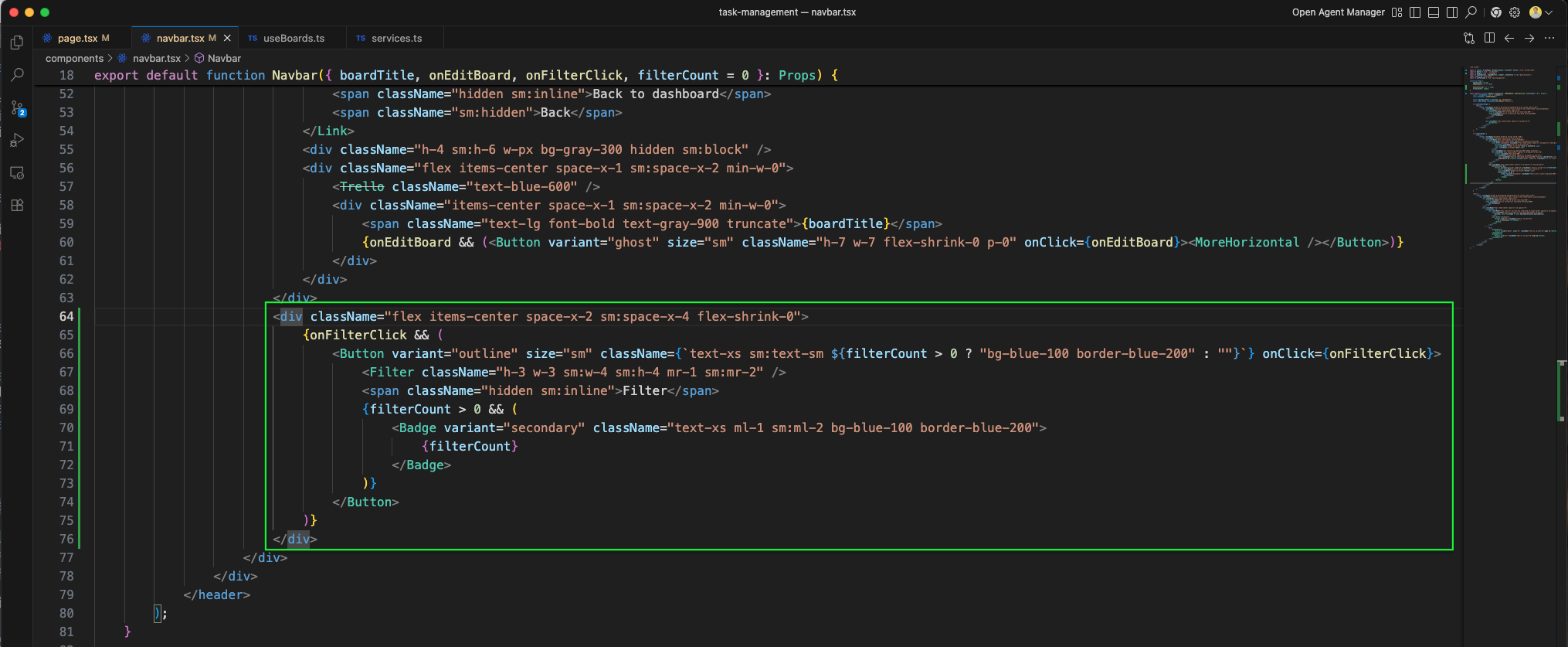
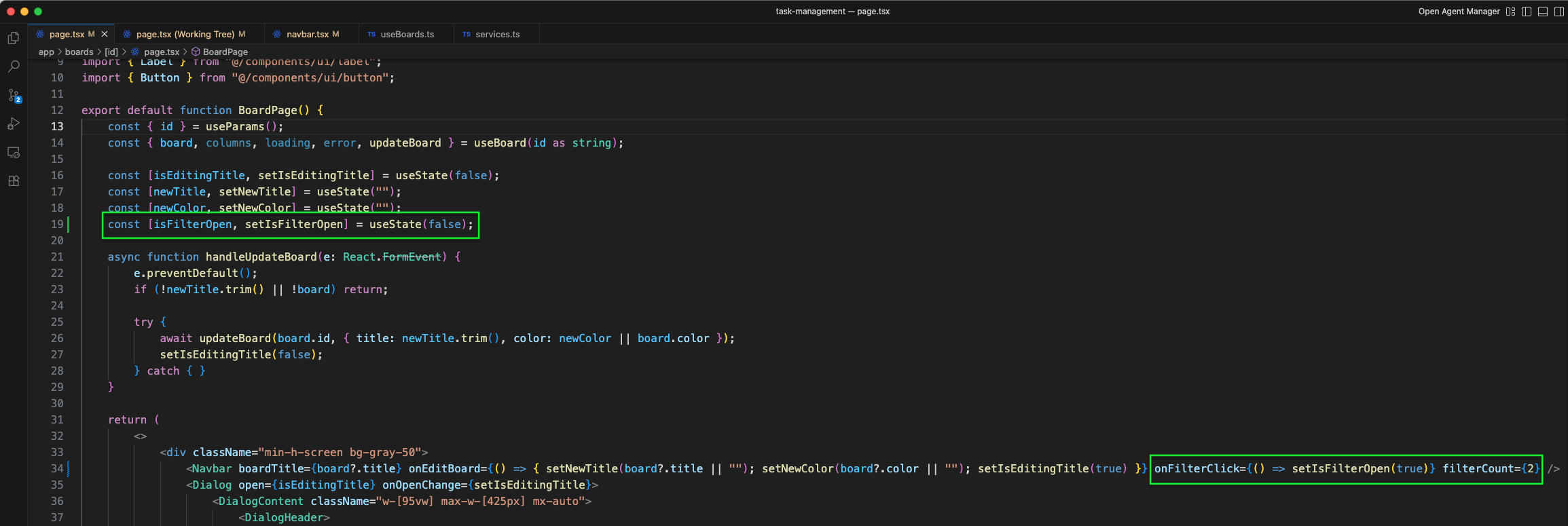
The BoardPage is updated with a useState hook for isFilterOpen to manage the filter dialog state. In the Navbar, onFilterClick and filterCount props are now passed to toggle the filter dialog and display the active filter count badge.
The BoardPage continues with more UI code including the board color picker and dialog content structure (green outline).
The board page at http://localhost:3000/boards/3 now shows a Filter button with a count badge in the top-right (indicated by the blue arrow), alongside the Back to dashboard link and board title.

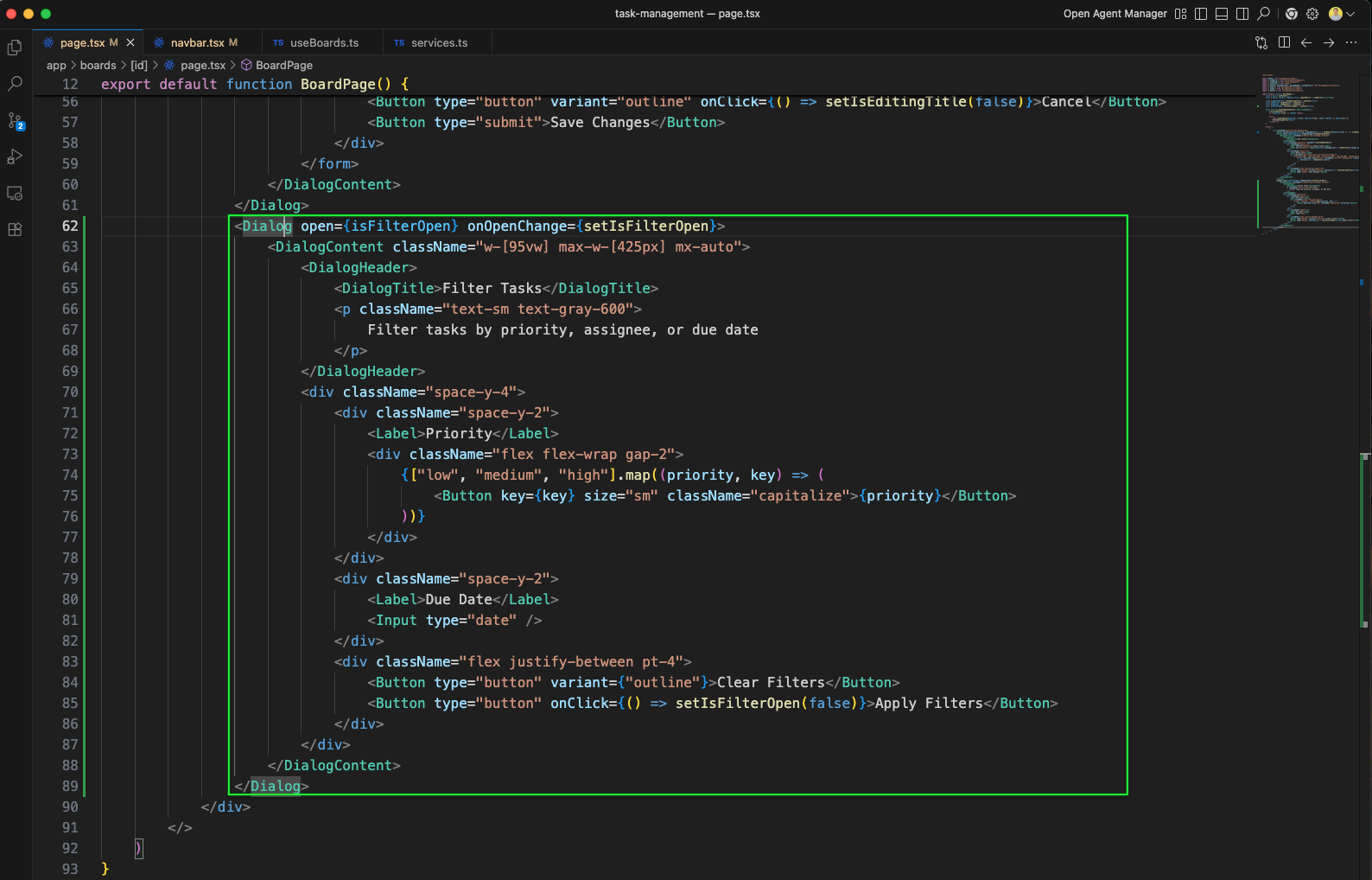
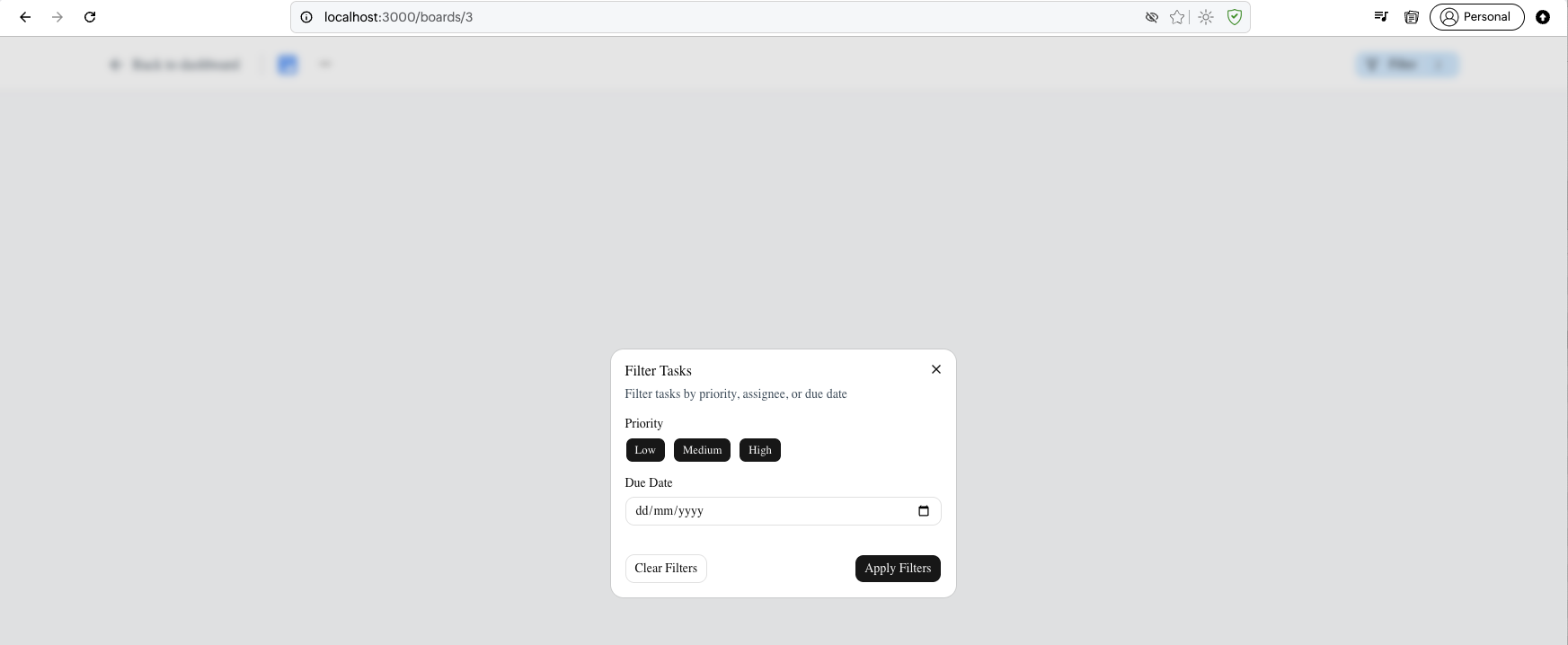
The Filter Tasks dialog is open with options to filter by Priority, Due Date (dd/mm/yyyy), and buttons for Clear Filters and Apply Filters.
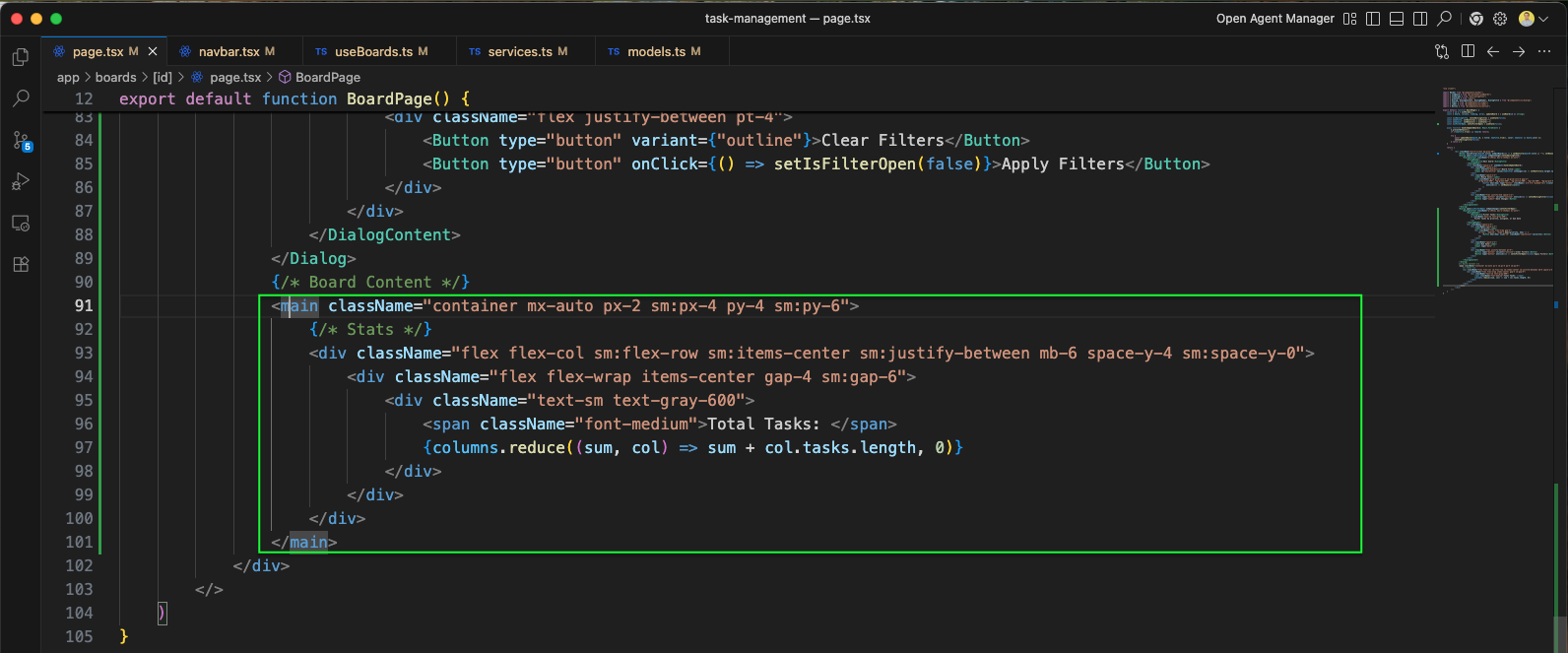
More code sections of the BoardPage component are shown, continuing the board layout structure (green outline).
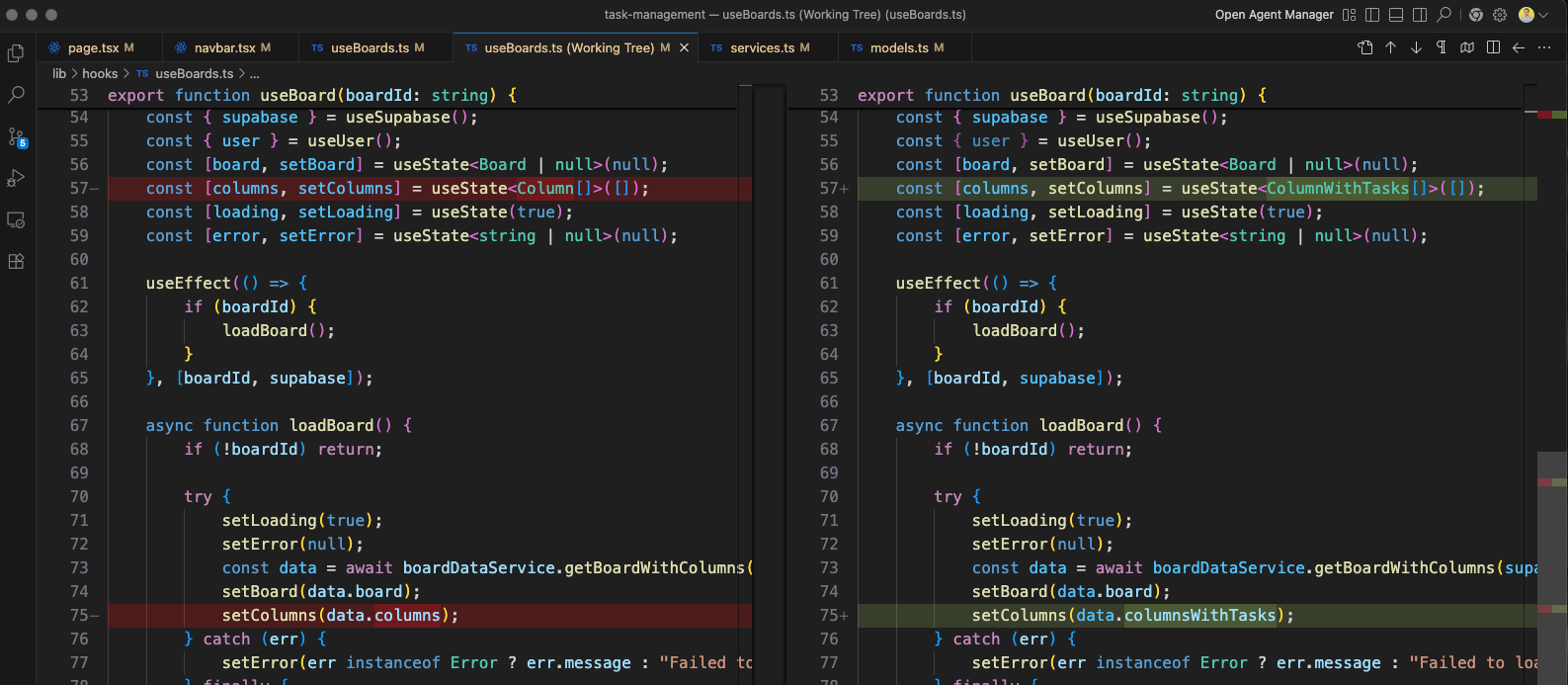
The useBoards.ts working tree diff shows updates: ColumnWithTasks type replaces Column for the columns state, and columns replaces ColumnWithTasks to fetch board data along with tasks for each column.
The services.ts working tree diff shows the import updated to include Task types from the models file.

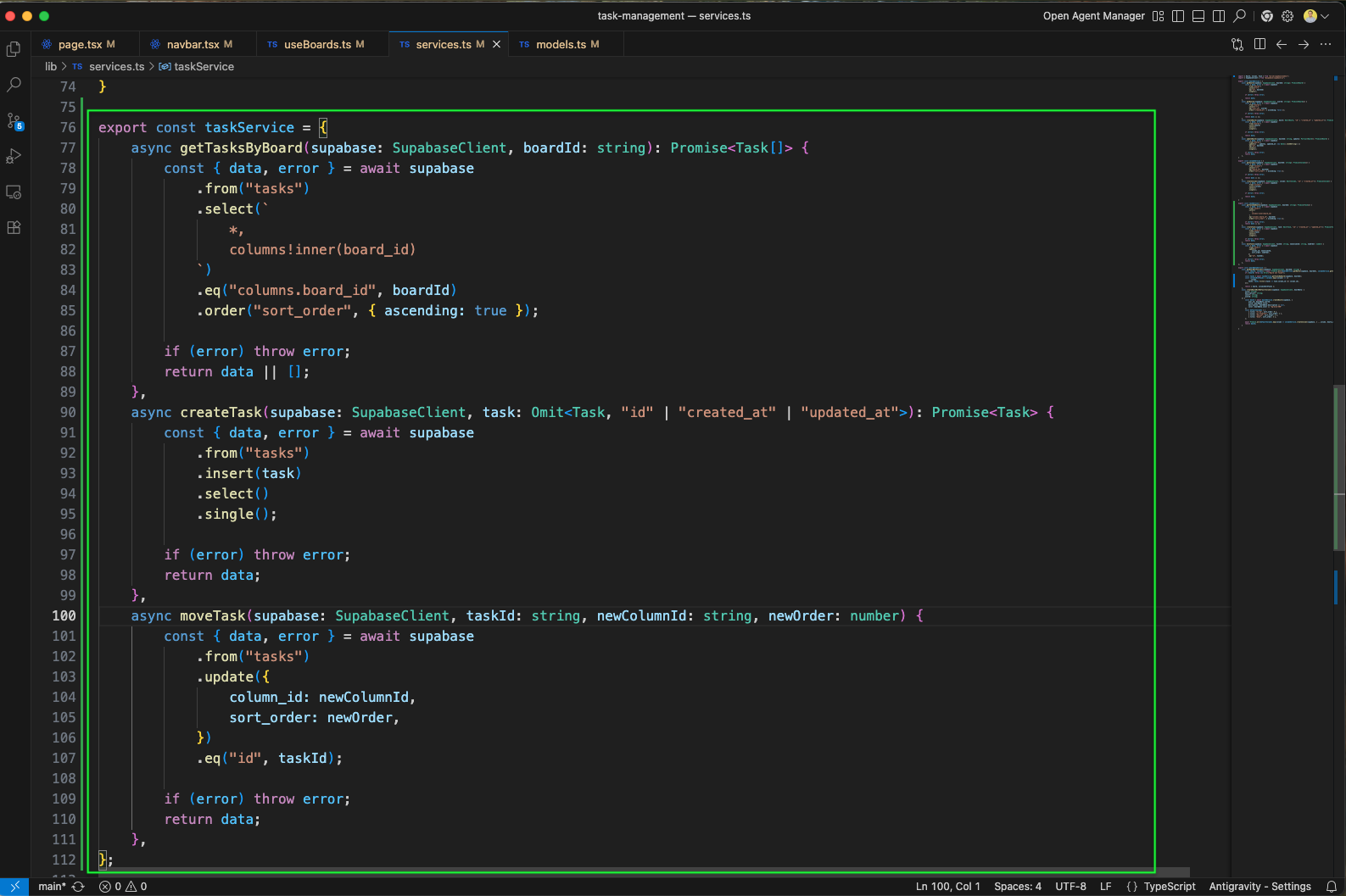
The taskService is defined in services.ts with three functions: getTasksByBoard fetches tasks via a join through columns to boards, createTask inserts a new task, and moveTask updates a task's column_id and sort_order.
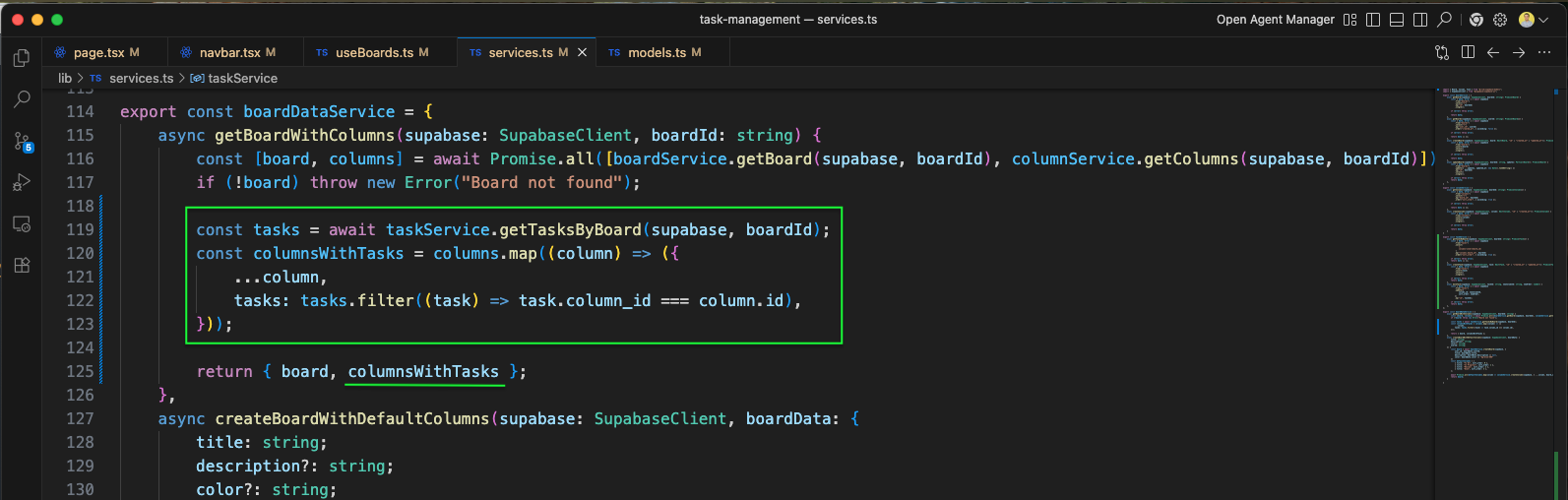
The boardDataService now has a getBoardWithColumns function that fetches the board and columns in parallel, then fetches all tasks for the board and maps them to their respective columns using columnsWithTasks.
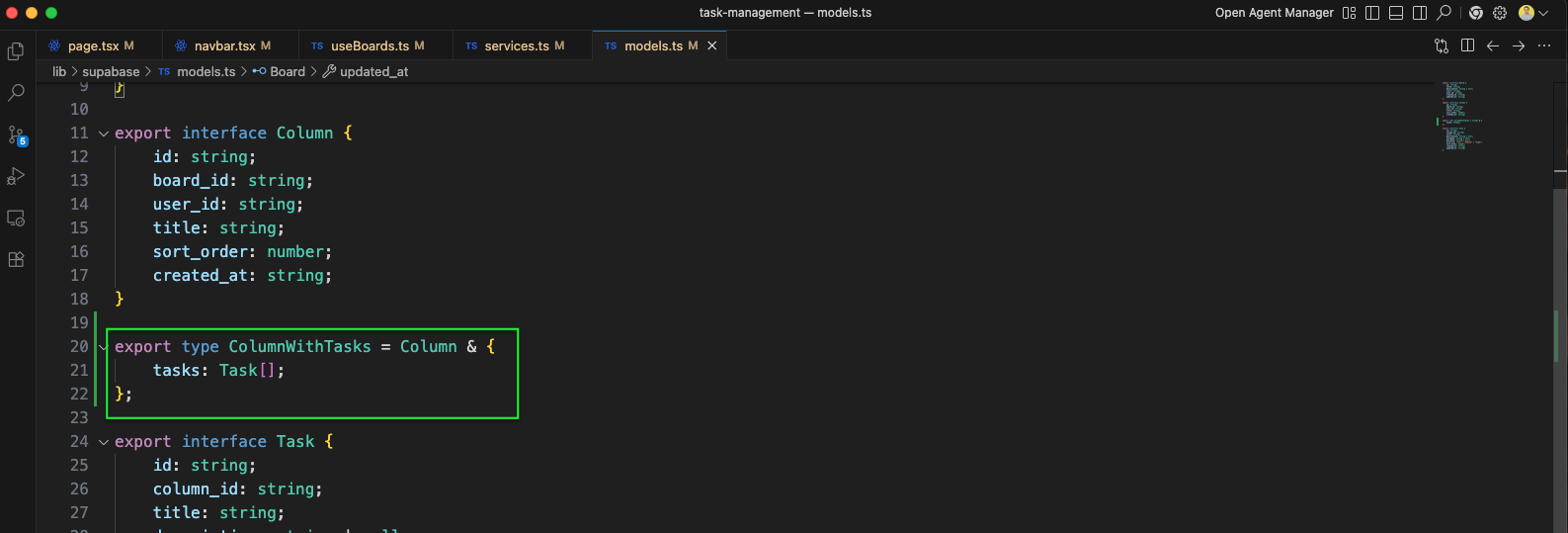
The models.ts file defines the ColumnWithTasks type (extending Column with a tasks: Task[] array) and the Task interface with fields for id, column_id, and title.
The board page now shows Total Tasks: 0 with the updated layout including the Filter button with count and the Back to dashboard link.

The page.tsx imports are updated to include DialogTriggeer, Plus, Textarea and other components from select.

More sections of the BoardPage component code are shown (green outline), continuing the board and column structure.
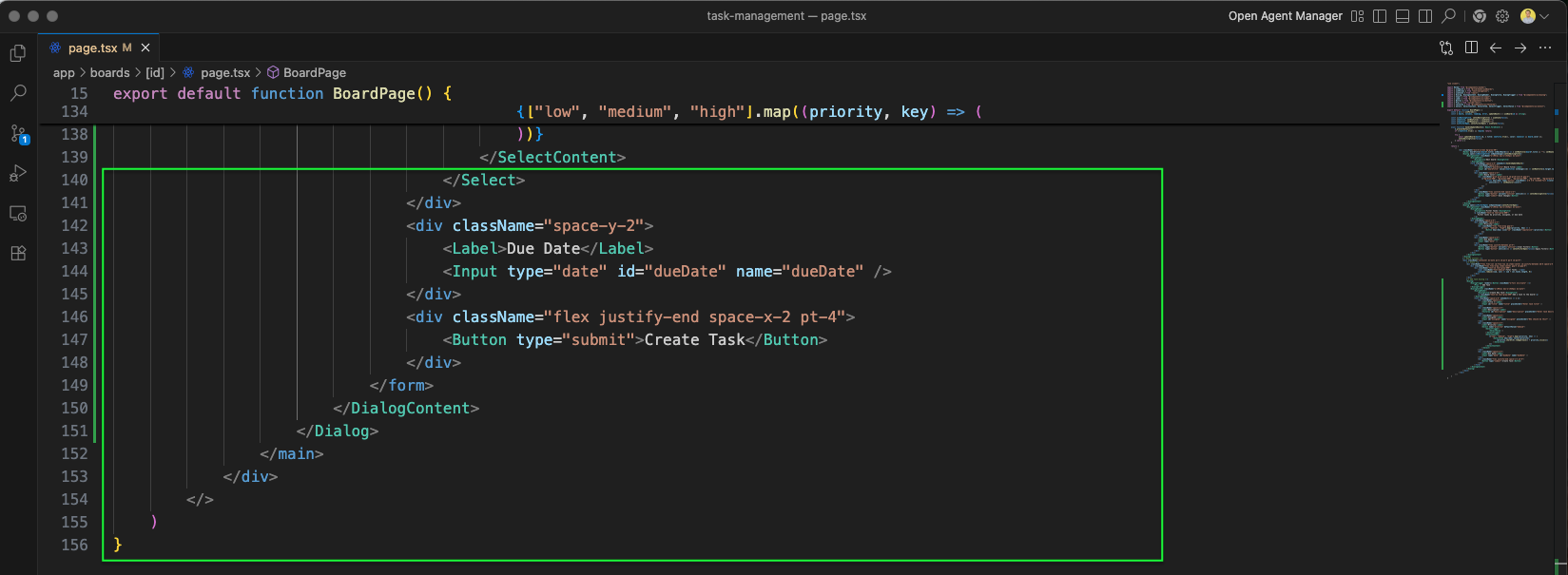
The BoardPage includes a Create Task dialog form with fields for Priority (low, medium, high select), Due Date (date input), and a Create Task submit button.
The board page now shows + Add Task button.

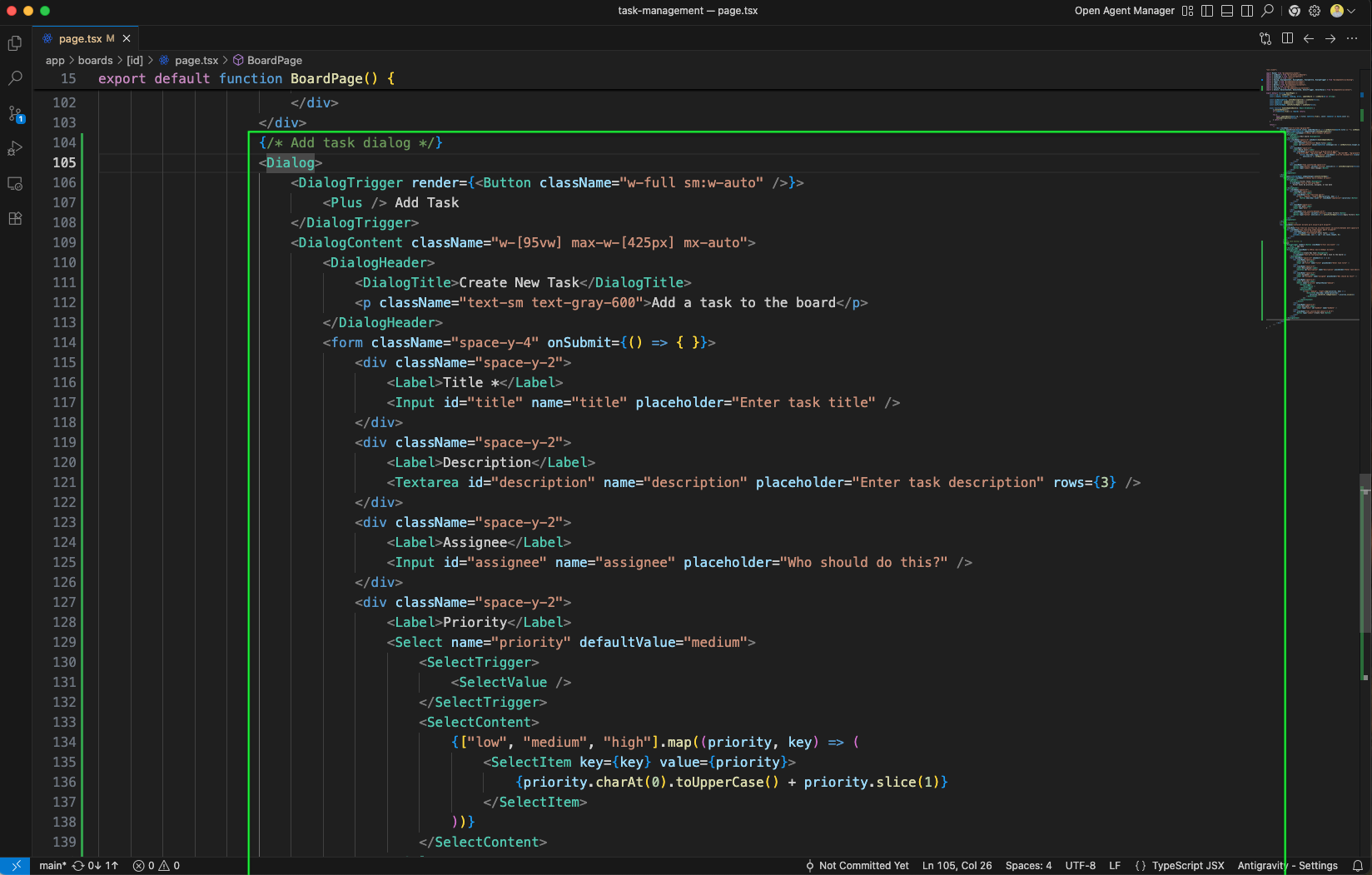
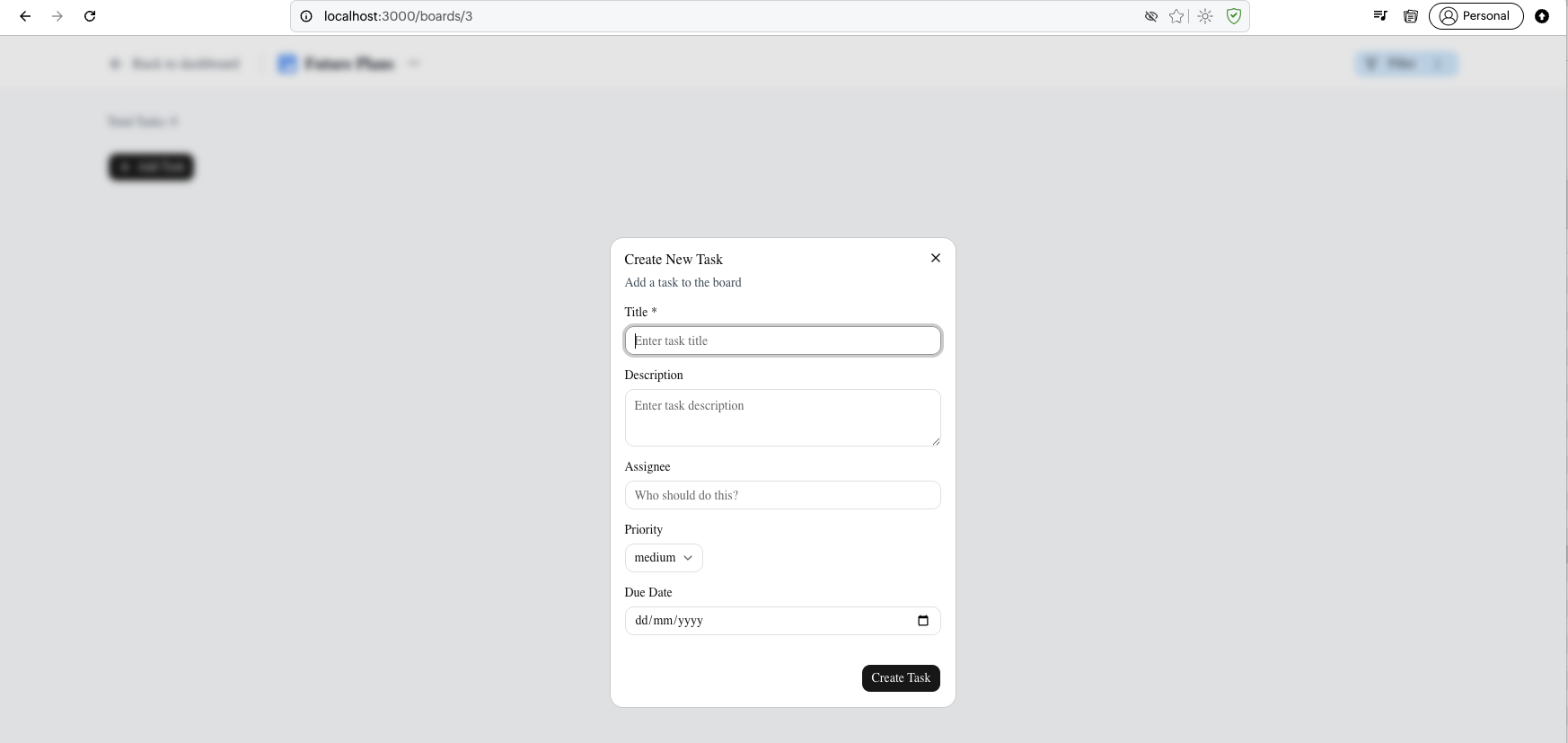
Clicking on the + Add Task button , shows the Create New Task dialog with form fields for Title, Description, Assignee, Priority (dropdown), and Due Date (date picker).
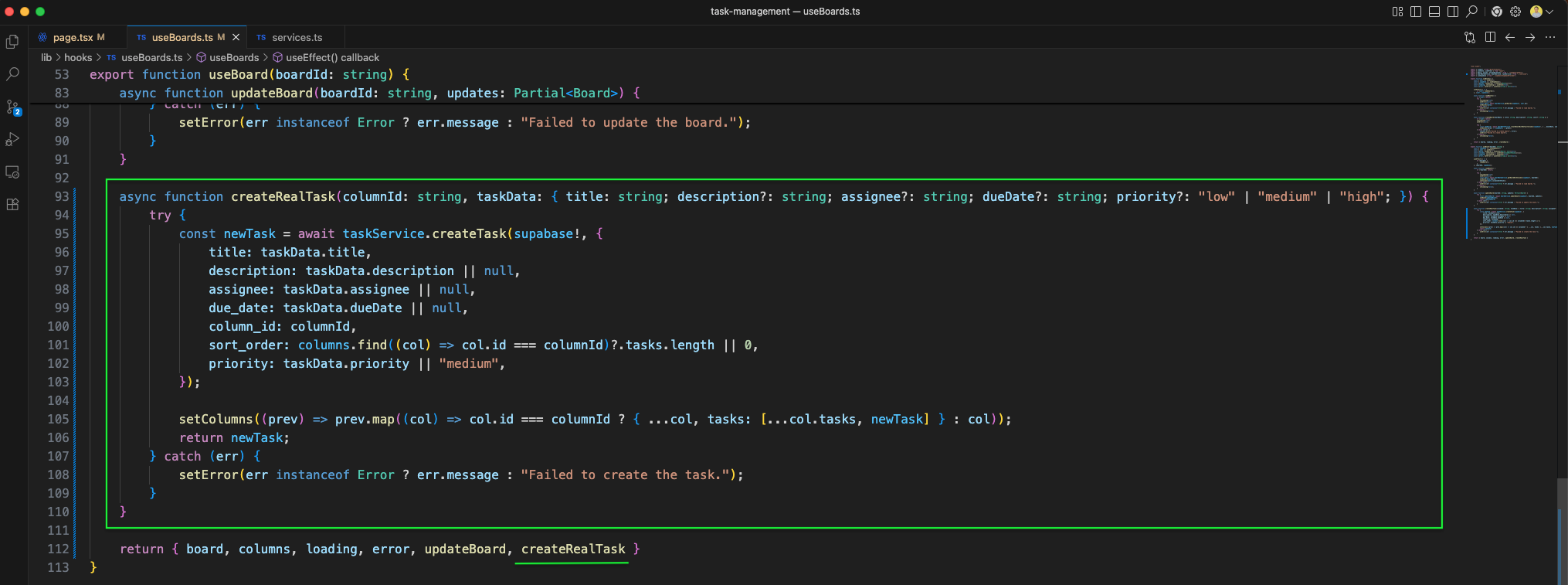
The useBoards.ts hook adds a createRealTask function that calls taskService.createTask with the task data including title, description, assignee, dueDate, column_id, sort_order, and priority. It updates the columns state optimistically.
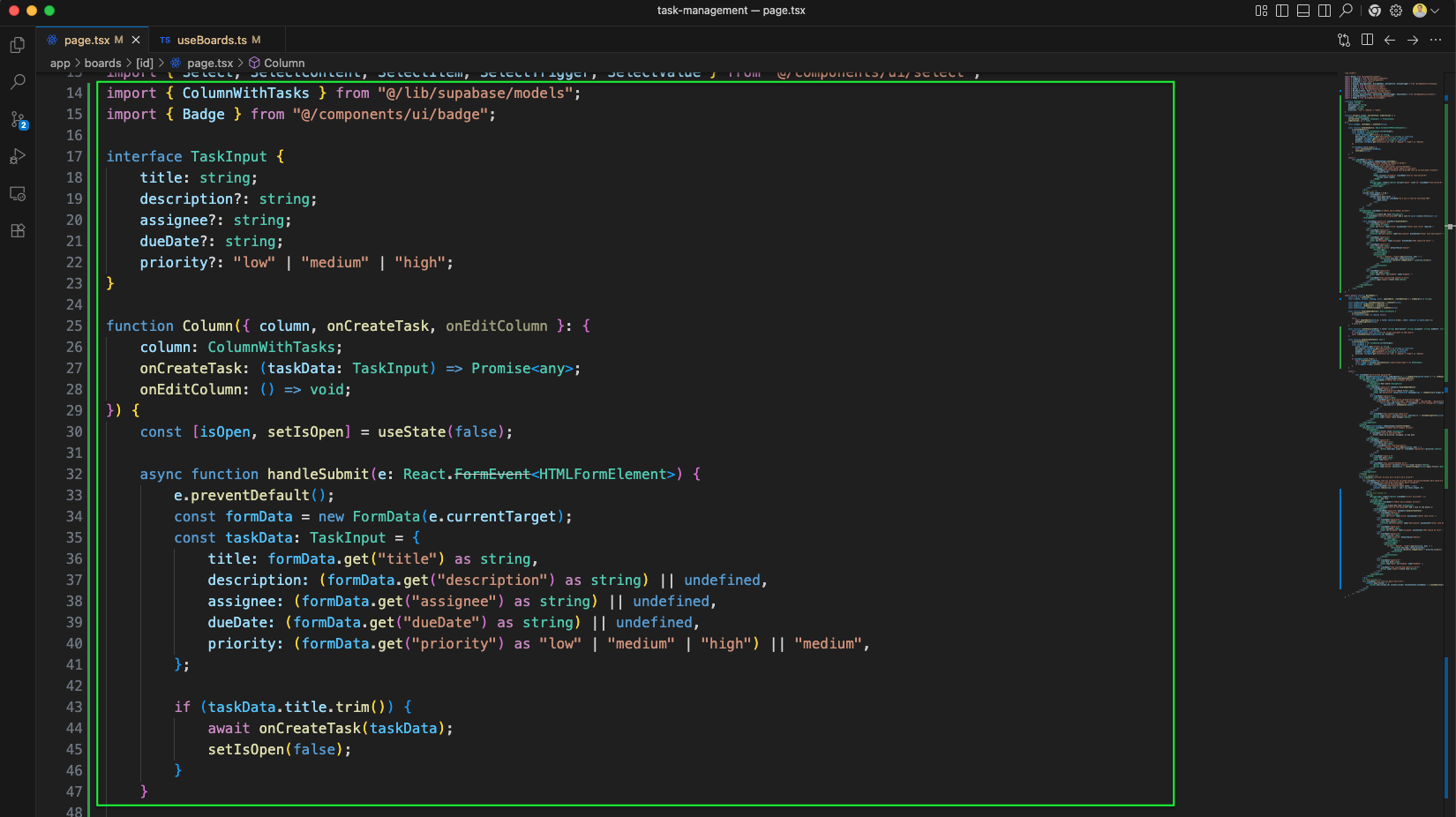
The page.tsx includes a Column component structure for rendering individual columns with their tasks in the board view.
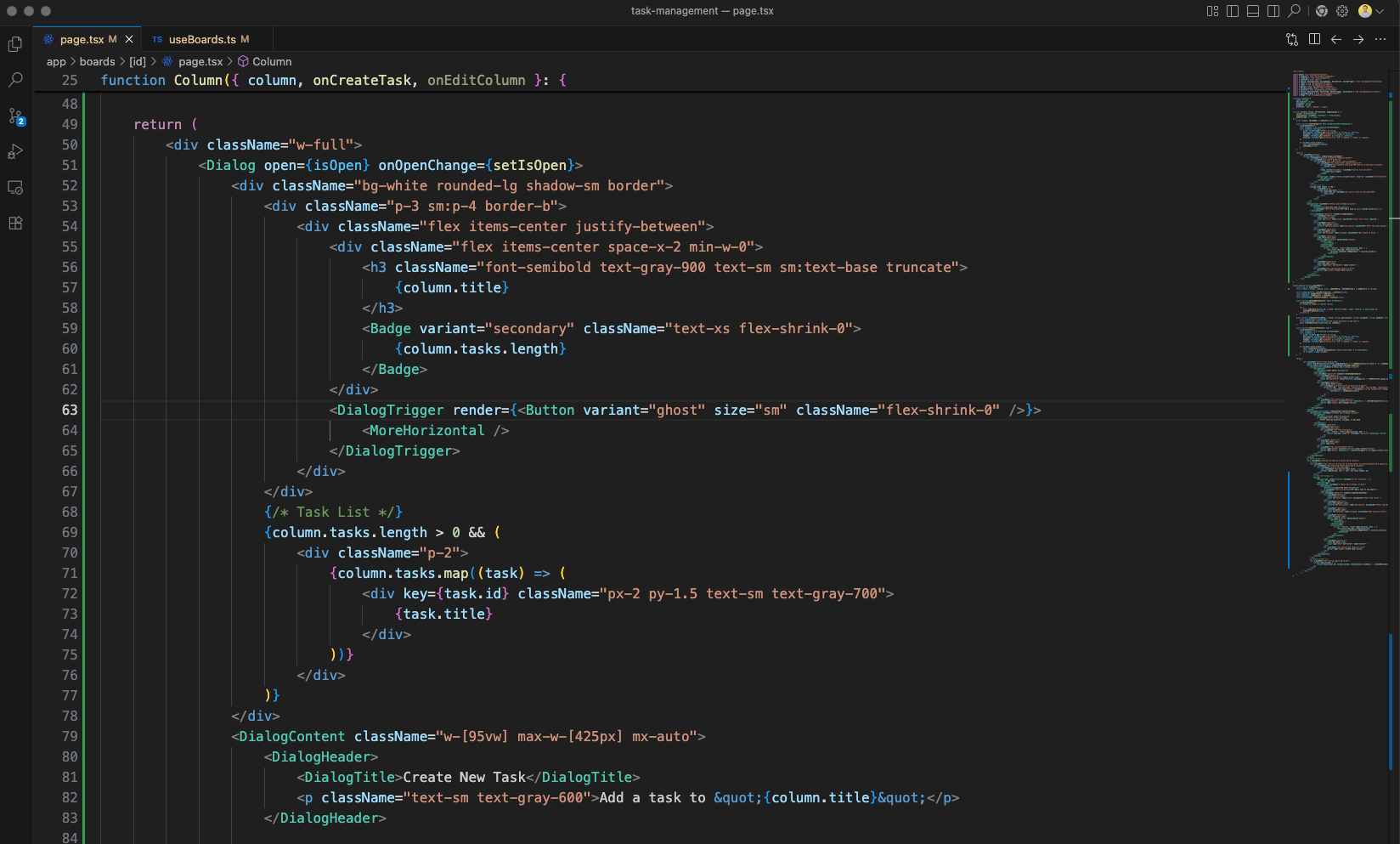
The Column component renders a column with the column title, a Badge showing the task count, and a MoreHorizontal button. The task list maps over column.tasks and displays each task title.
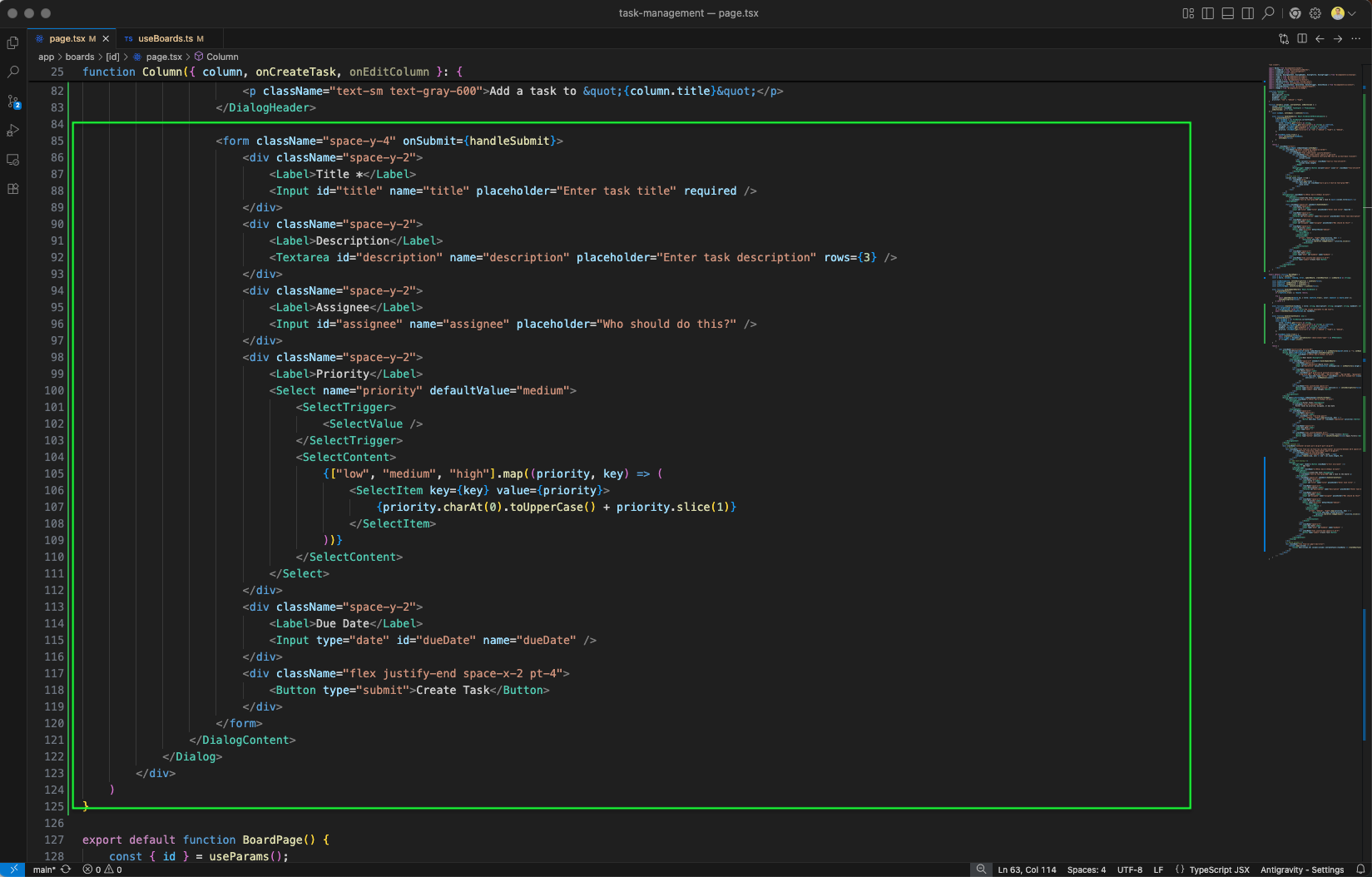
The Column component includes the Create Task dialog form (green outline) with fields for Title, Description, Assignee, and Priority (low/medium/high select) using shadcn/ui components.
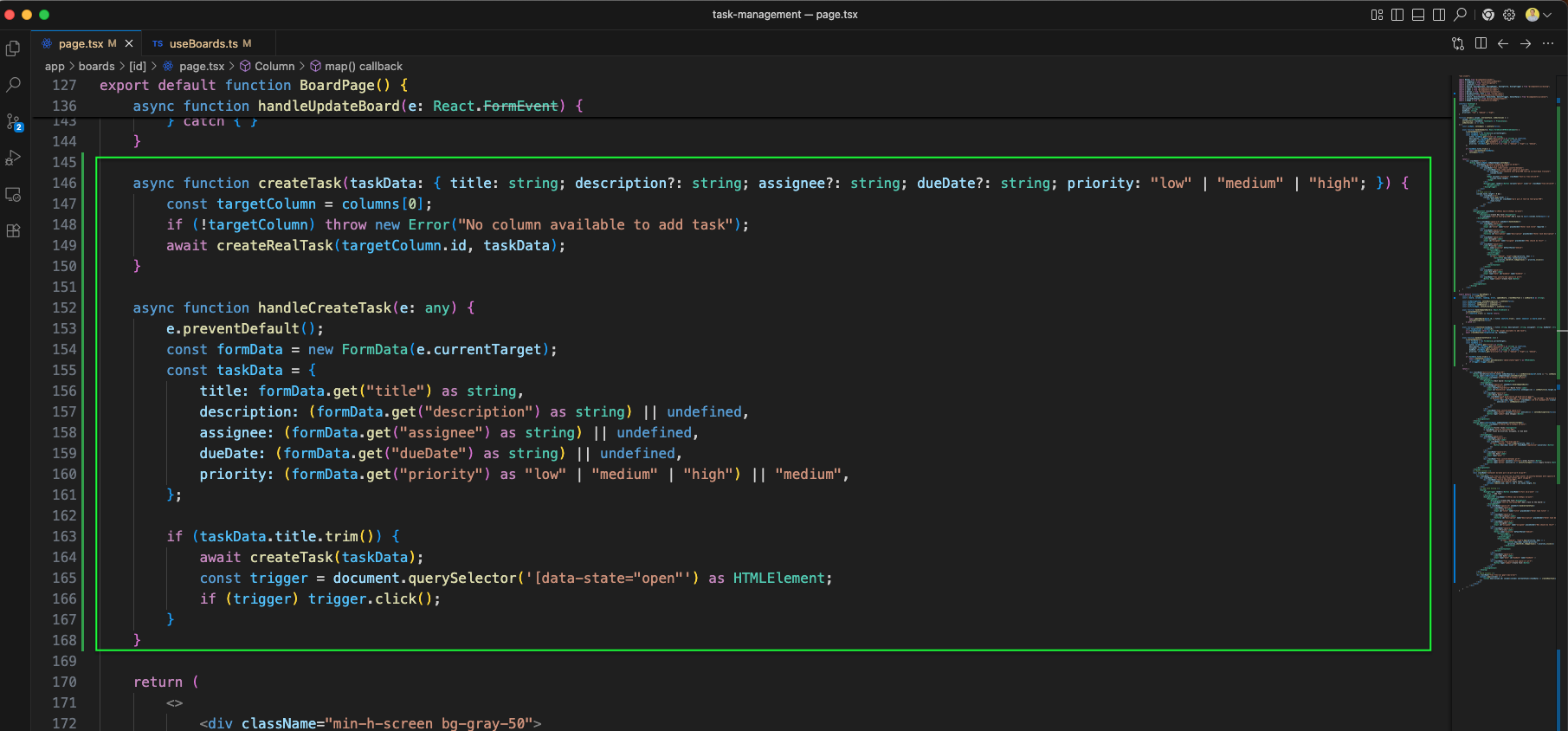
The BoardPage adds createTask and handleCreateTask functions (green outline). createTask creates a task in the first column, while handleCreateTask extracts form data and calls createRealTask.
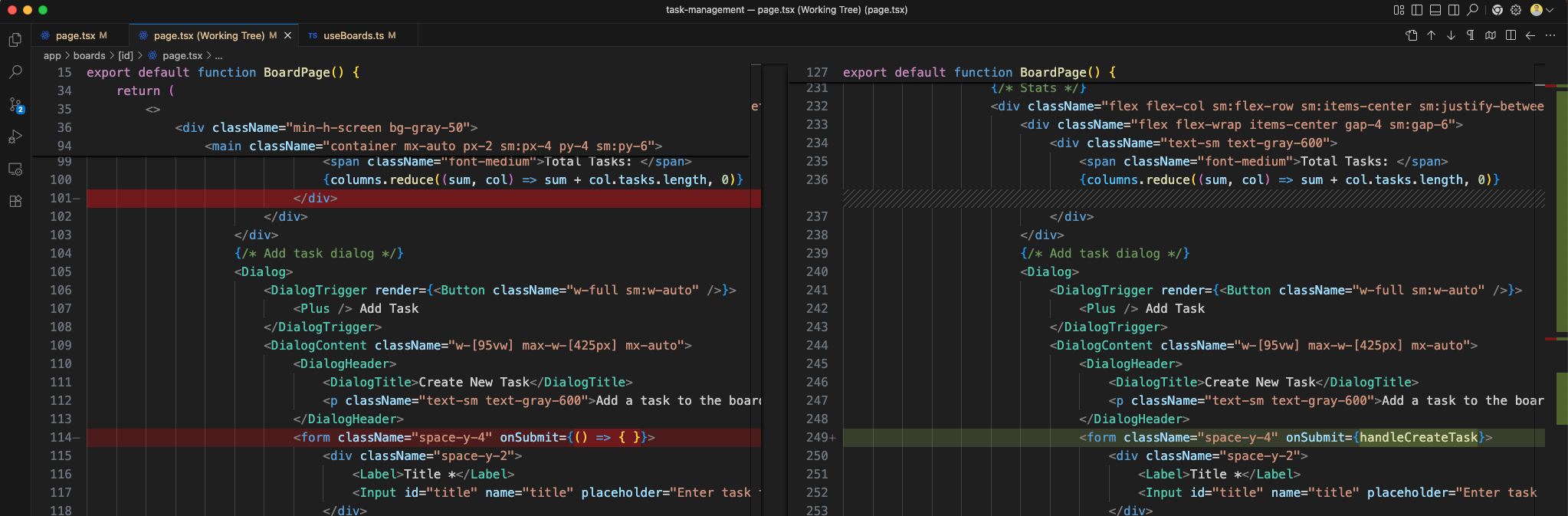
The page.tsx working tree diff shows updated code for the BoardPage component (green outline). We have removed a div which was causing style problems. And in the form we have added handleCreateTask in onSubmit.
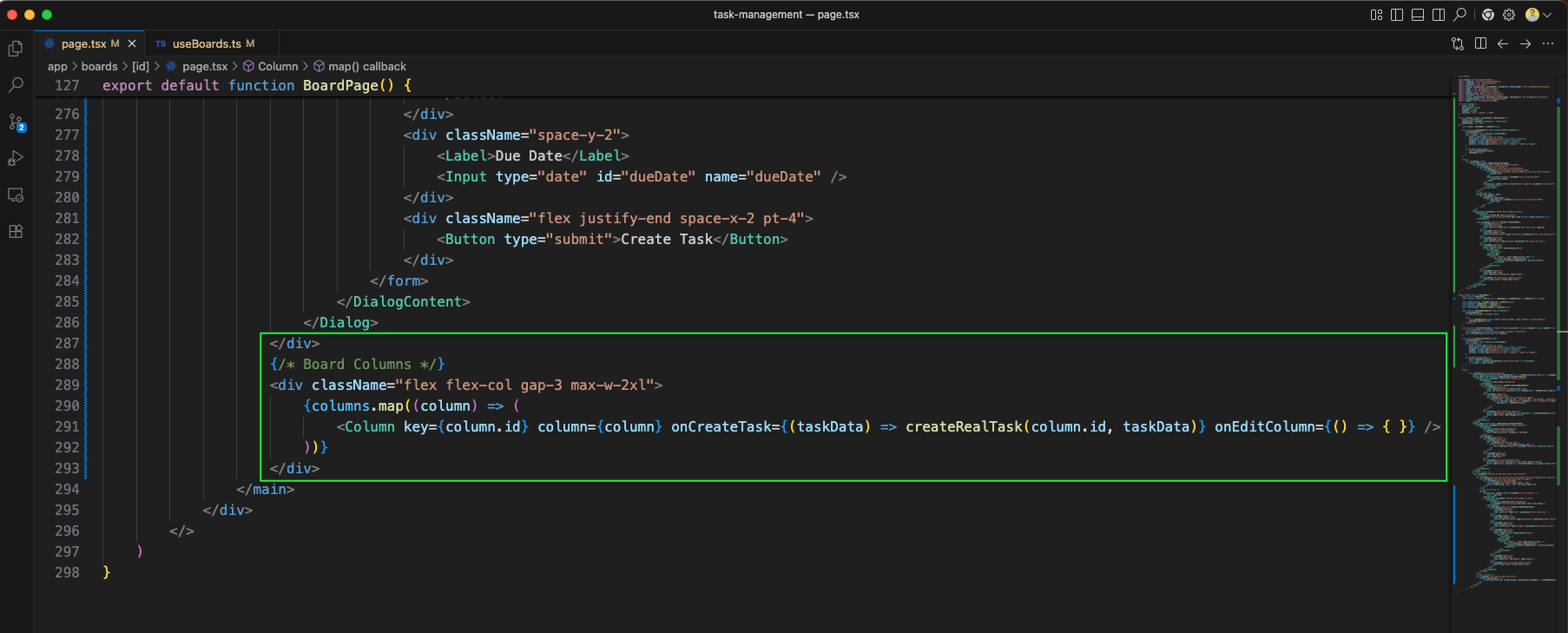
The Board Columns section renders each column using columns.map, passing key, column, onCreateTask, and onEditColumn props. This completes the column rendering in the board view.
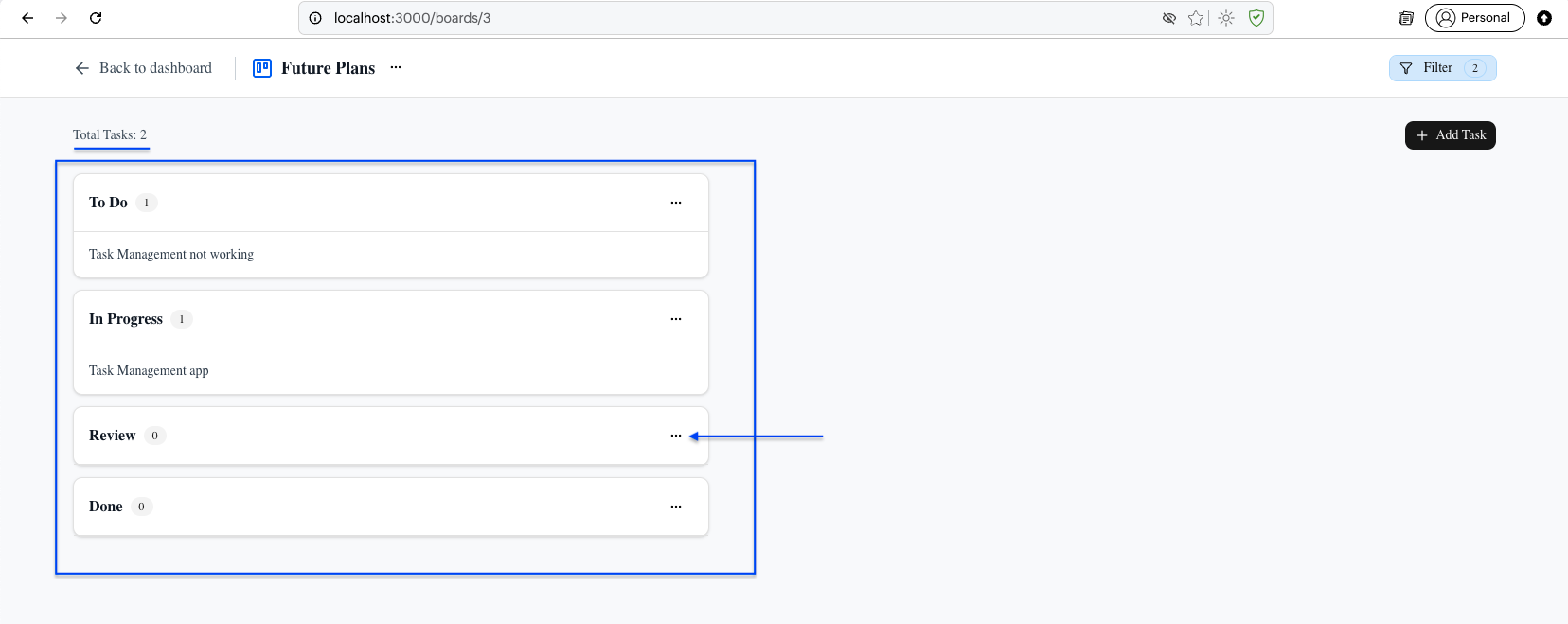
The board UI now shows Future Plans with four columns: ToDo , In Progress, Review and Done. Notice that the description is added in ToDo and In Progress. Also the Total Tasks shows the current number of tasks. Now, we can click on the three dots in the Review or other places.
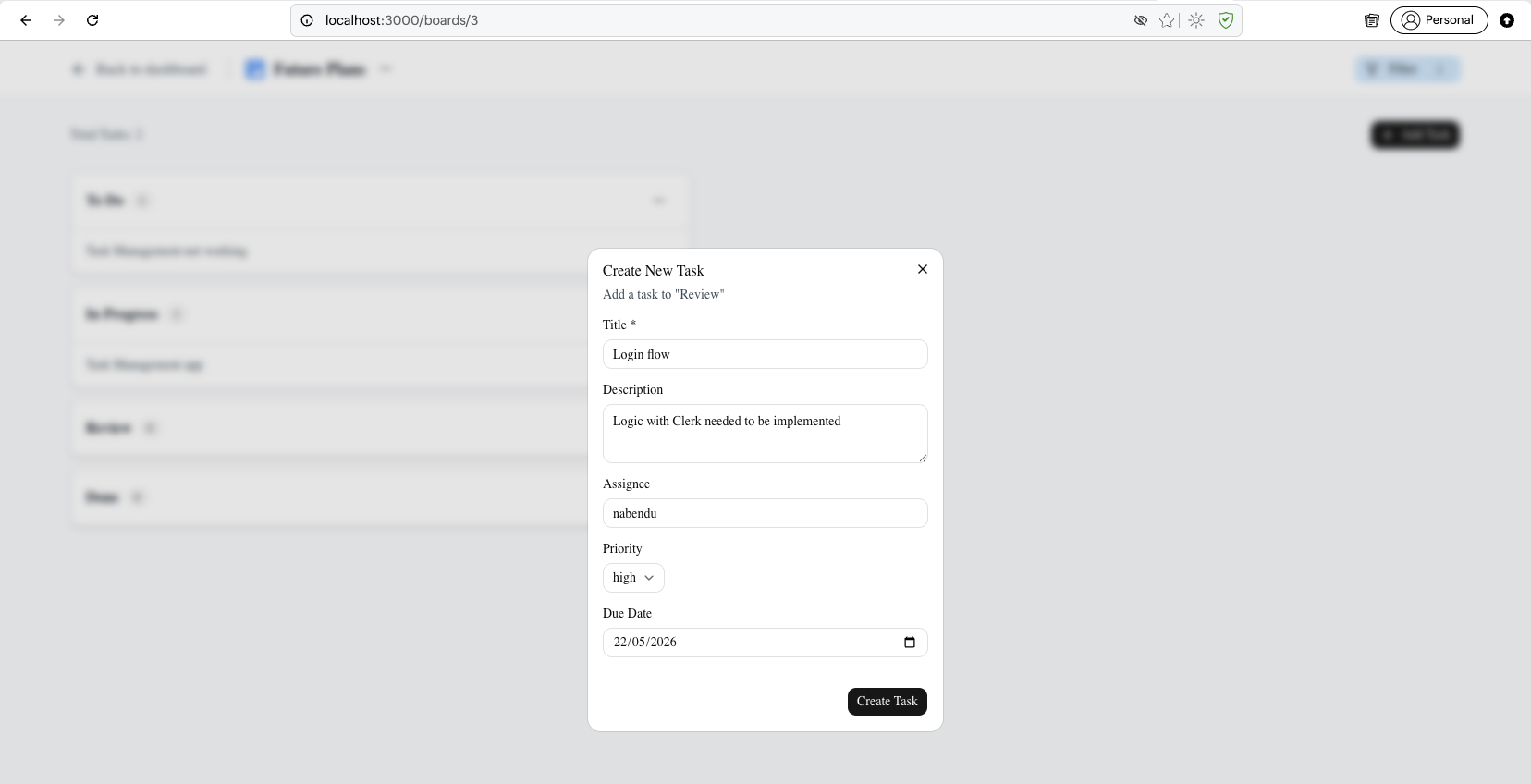
The Create New Task dialog for the "Review" column is shown. And here we have entered all the data. ANd clicked on Create Task button.
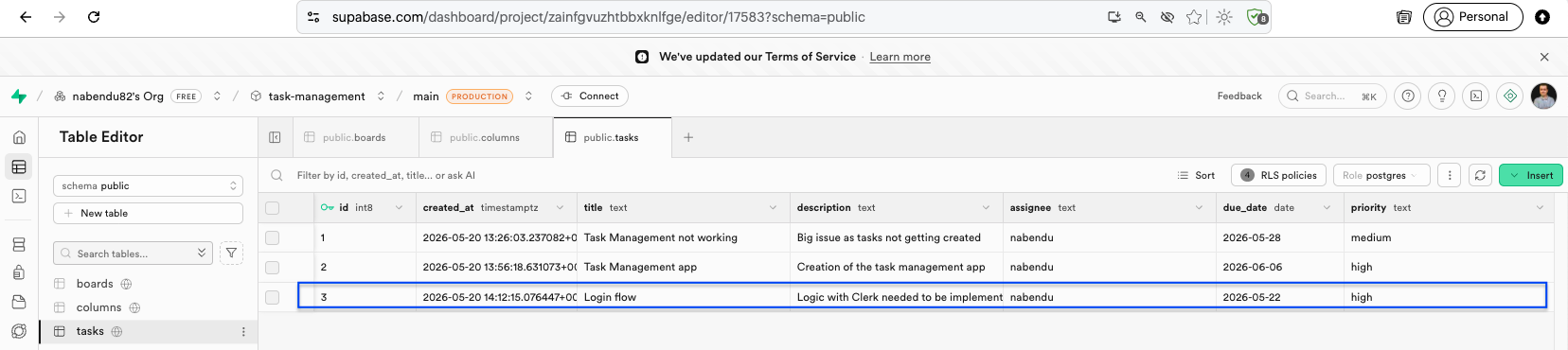
The Supabase Table Editor shows the tasks table with data rows including title, description, assignee, due_date, priority, column_id, and sort_order columns.
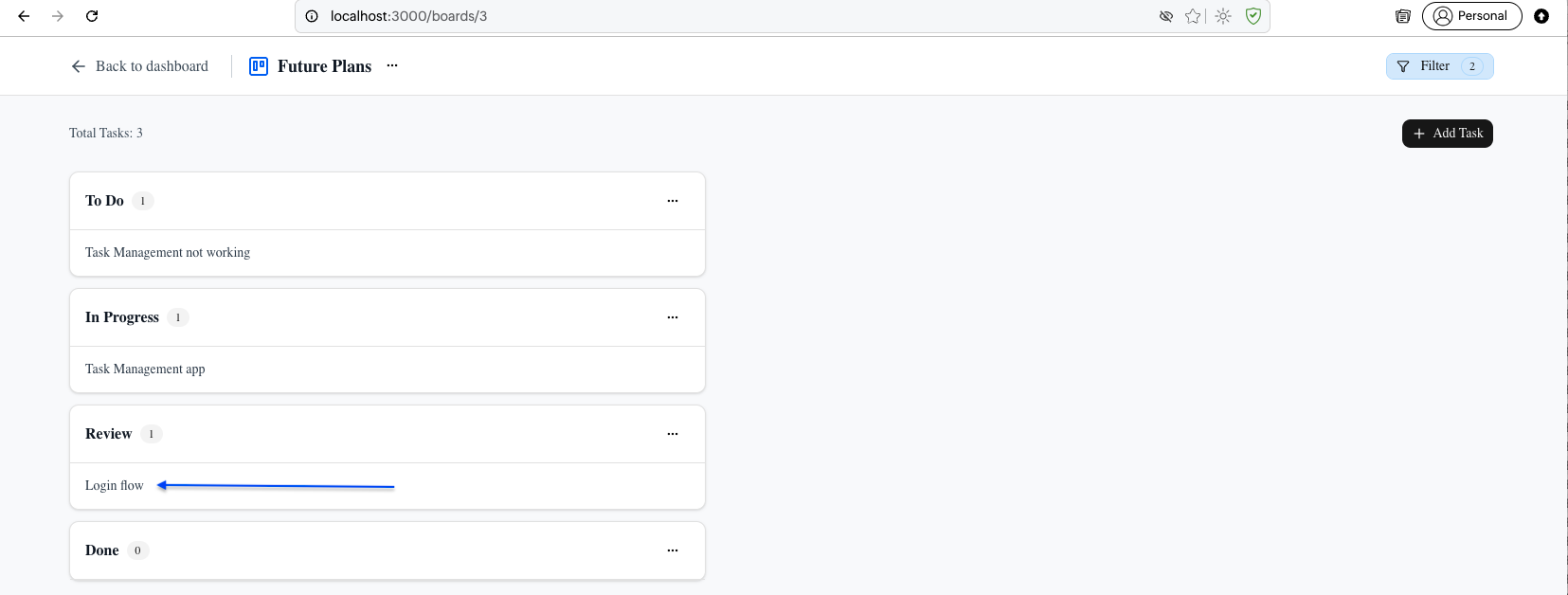
The board shows Total Tasks: 3 with the "Login flow" task now appearing in the Review column.
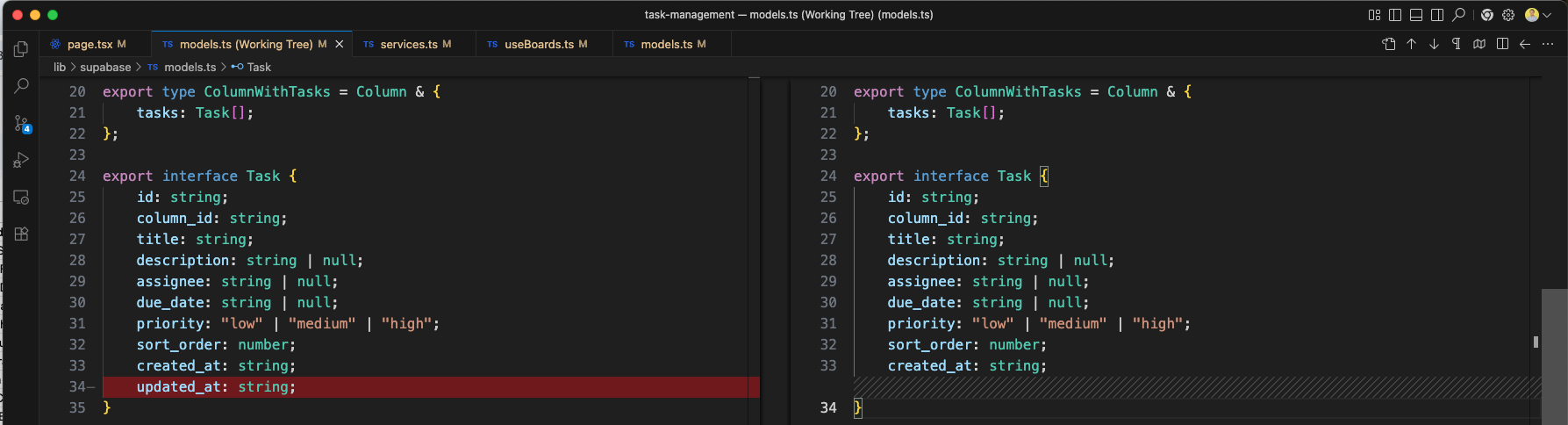
The models.ts working tree diff shows the updated Task interface with updated_at removed.
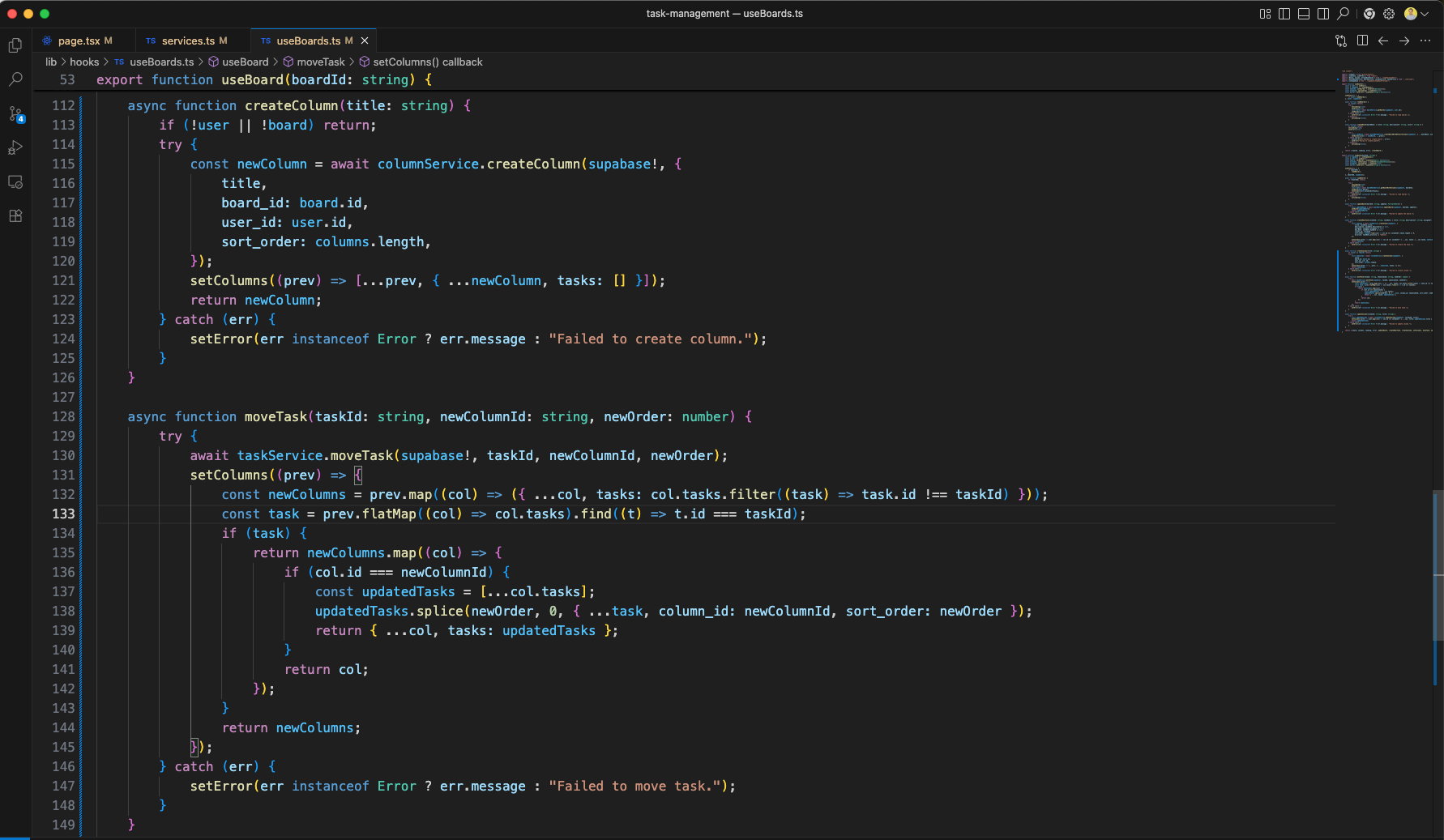
The useBoards.ts hook adds the createColumn function (creating a new column with Supabase) and the moveTask function (updating task column_id and sort_order via service, then optimistically updating the columns state).
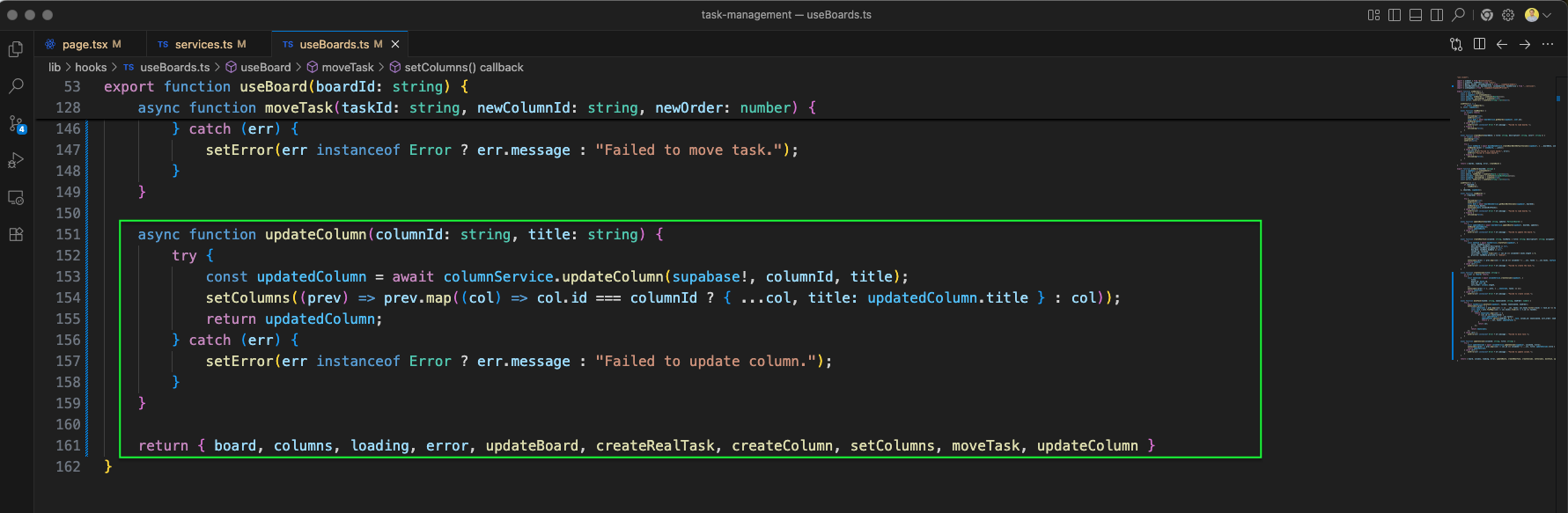
The useBoards.ts also adds the updateColumn function (updating column title) and returns all functions: board, columns, loading, error, updateBoard, createRealTask, createColumn, setColumns, moveTask, and updateColumn.
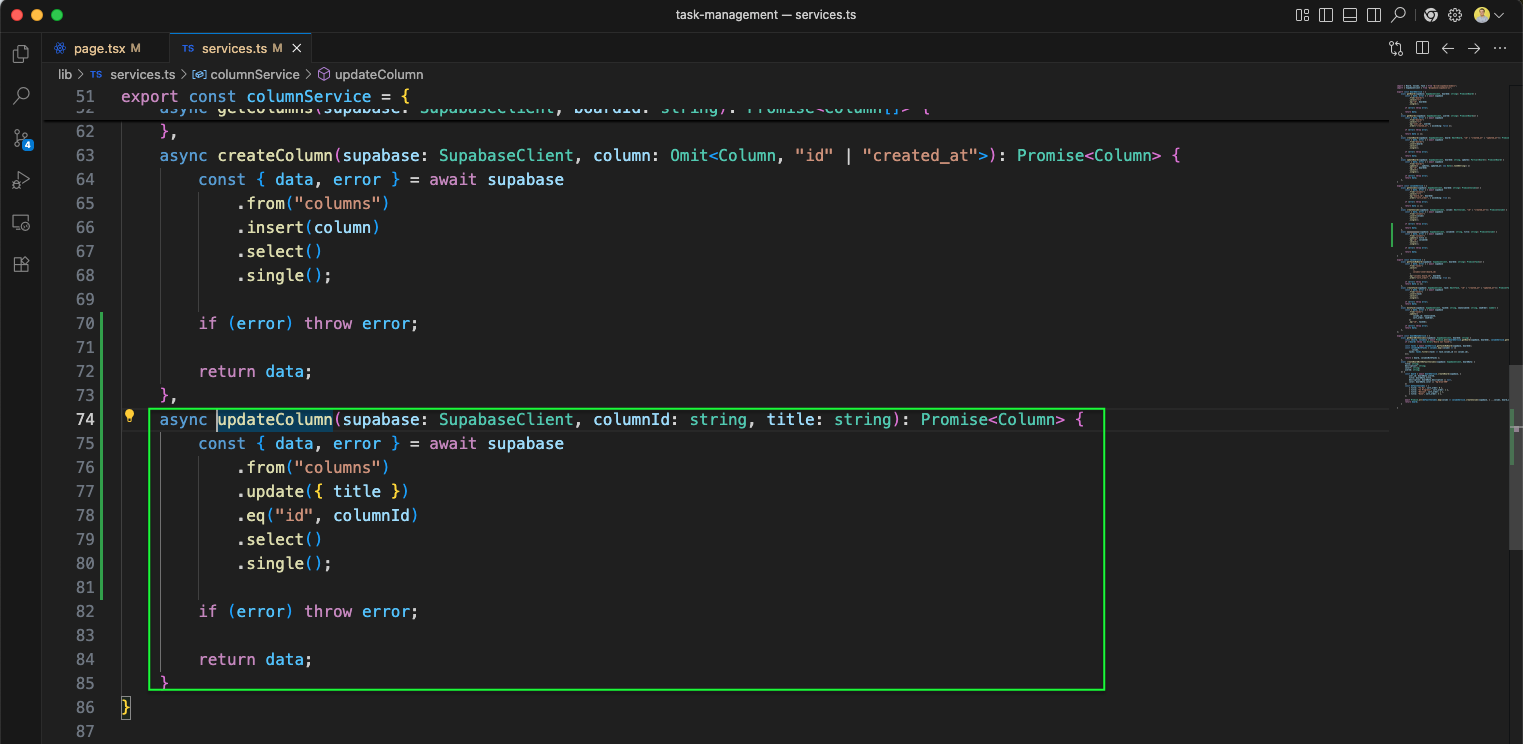
The services.ts file adds the updateColumn function in columnService (green outline). It updates the column title by ID using Supabase and returns the updated column data.
The page.tsx imports are updated to include DndContext, DragEndEvent, DragOverEvent, DragOverlay, DragStartEvent, PointerSensor, rectIntersection, useDroppable, useSensor, useSensors from @dnd-kit/core, and SortableContext, useSortable, verticalListSortingStrategy from @dnd-kit/sortable. The DroppableColumn component uses useDroppable for drop zones.
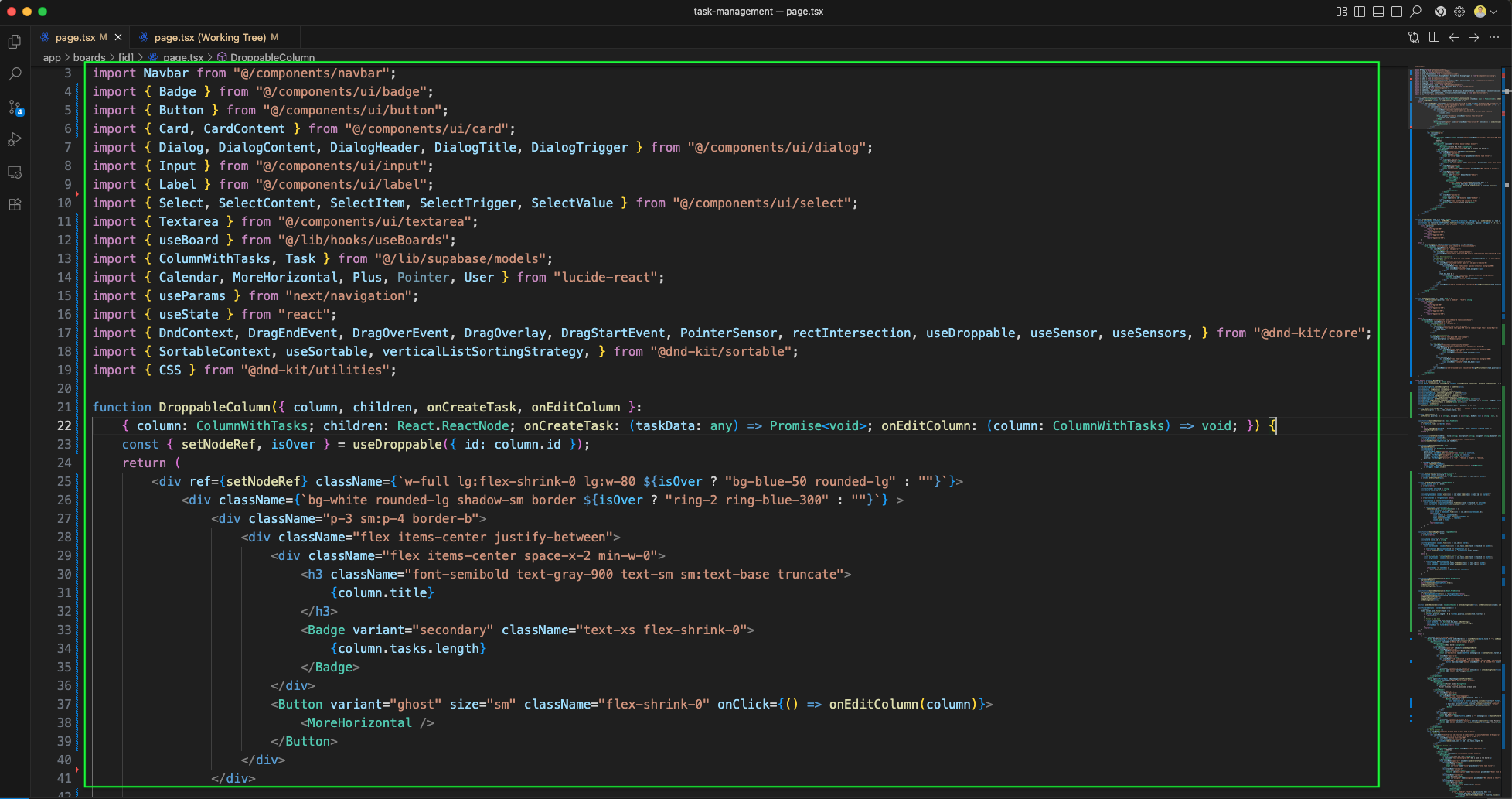
The DroppableColumn component includes the Add Task button (Plus icon) that opens a Create New Task dialog with fields for Title, Description, Assignee, and Priority.
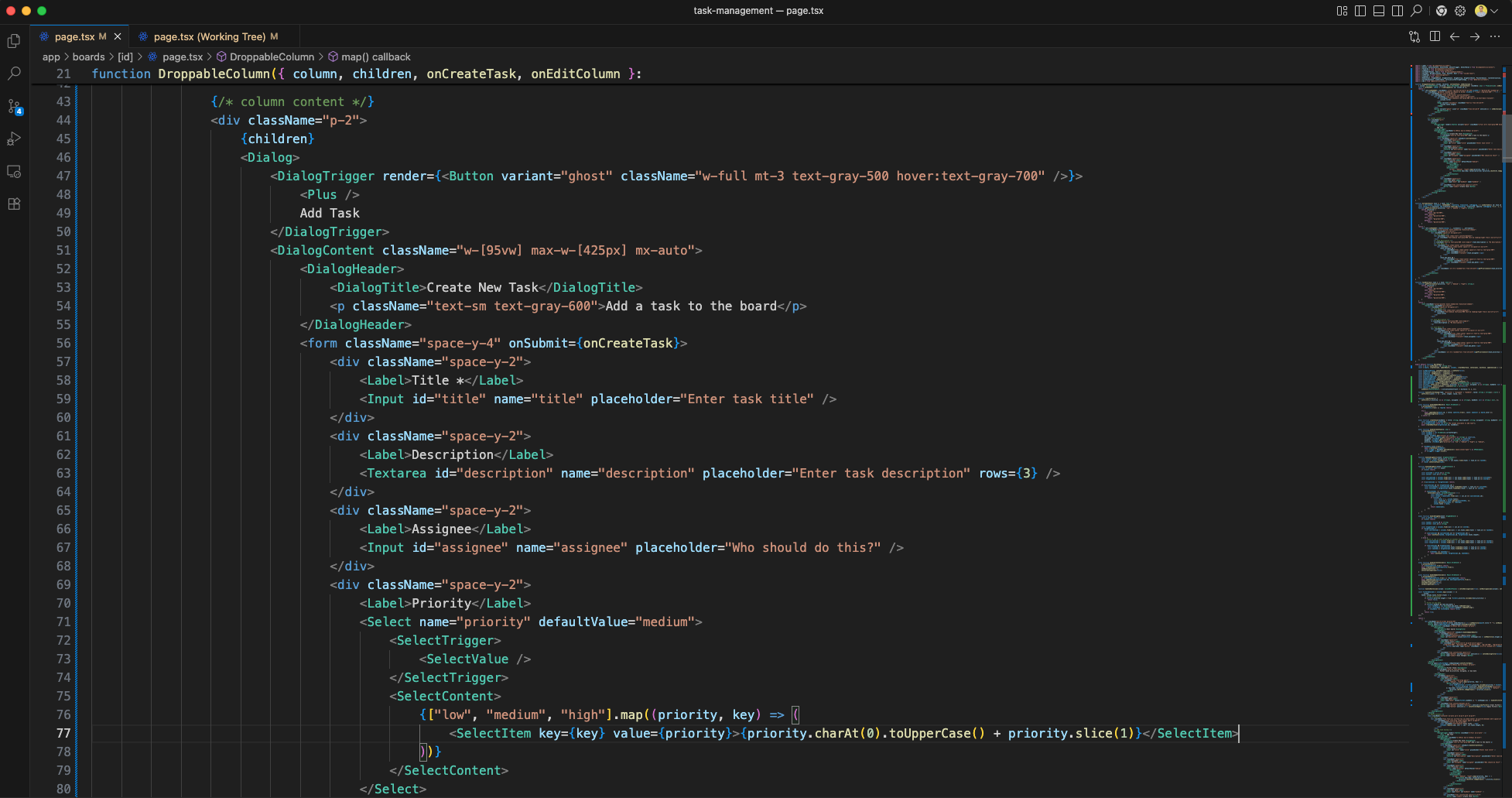
More code sections of the DroppableColumn component are shown (green outline), continuing the column drop zone structure and task creation dialog.
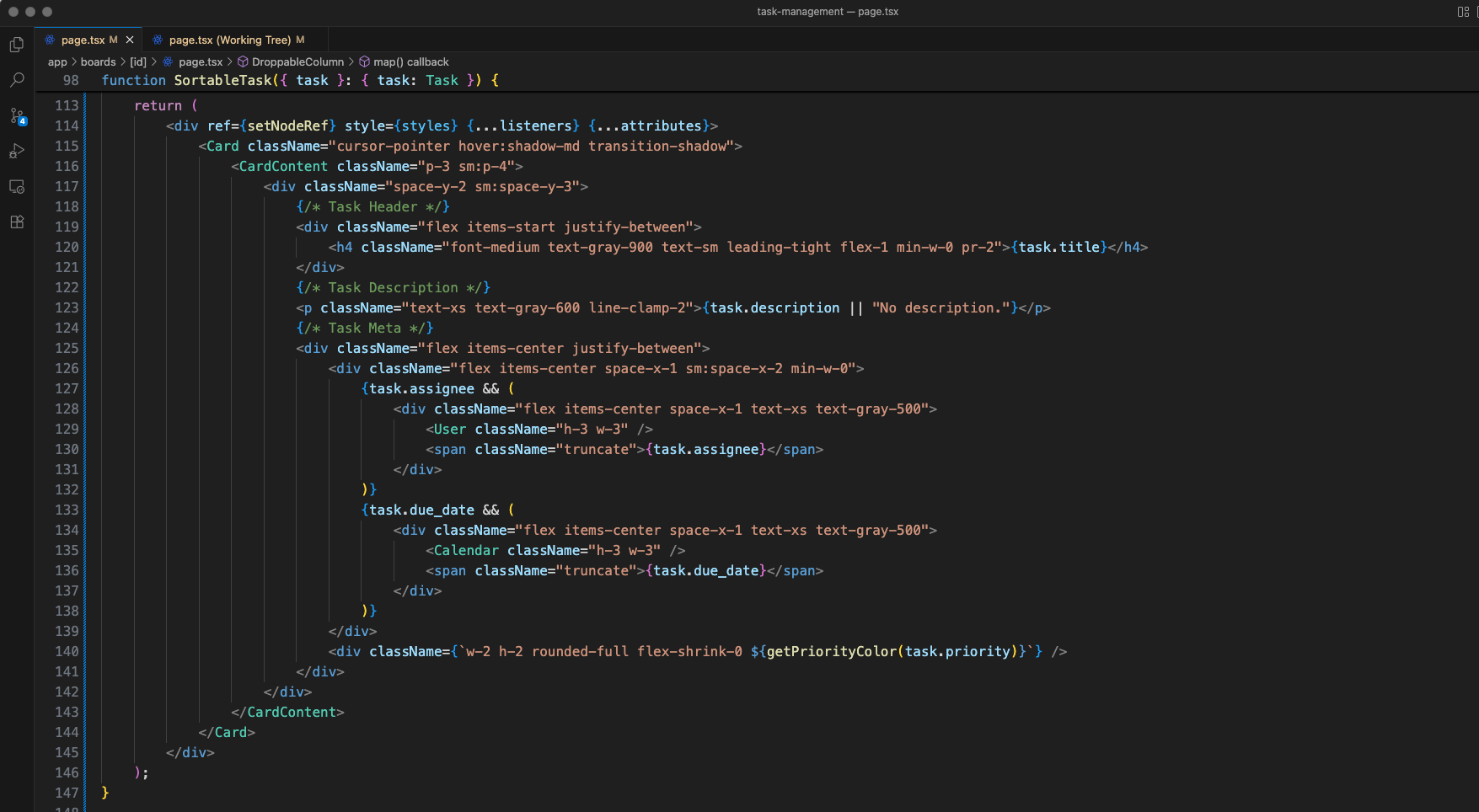
The SortableTask component renders a task card with the task title, description (with line-clamp), assignee (User icon), due_date (Calendar icon), and a colored priority dot (green for low, yellow for medium, red for high). It uses useSortable for drag-and-drop.
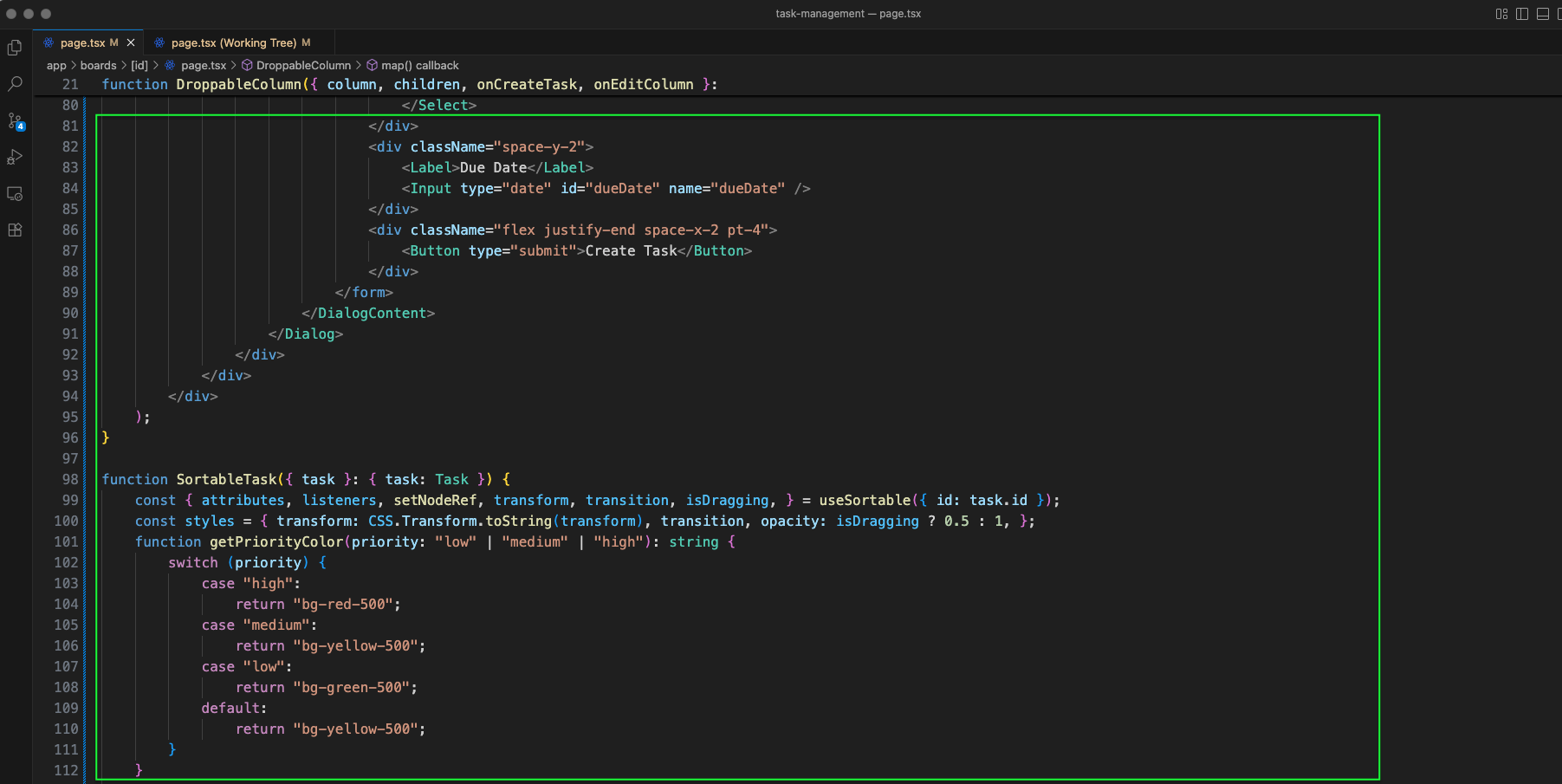
The TaskOverlay component and getPriorityColor function map priority values to colors: "high" returns "bg-red-500", "medium" returns "bg-yellow-500", and "low" returns "bg-green-500".
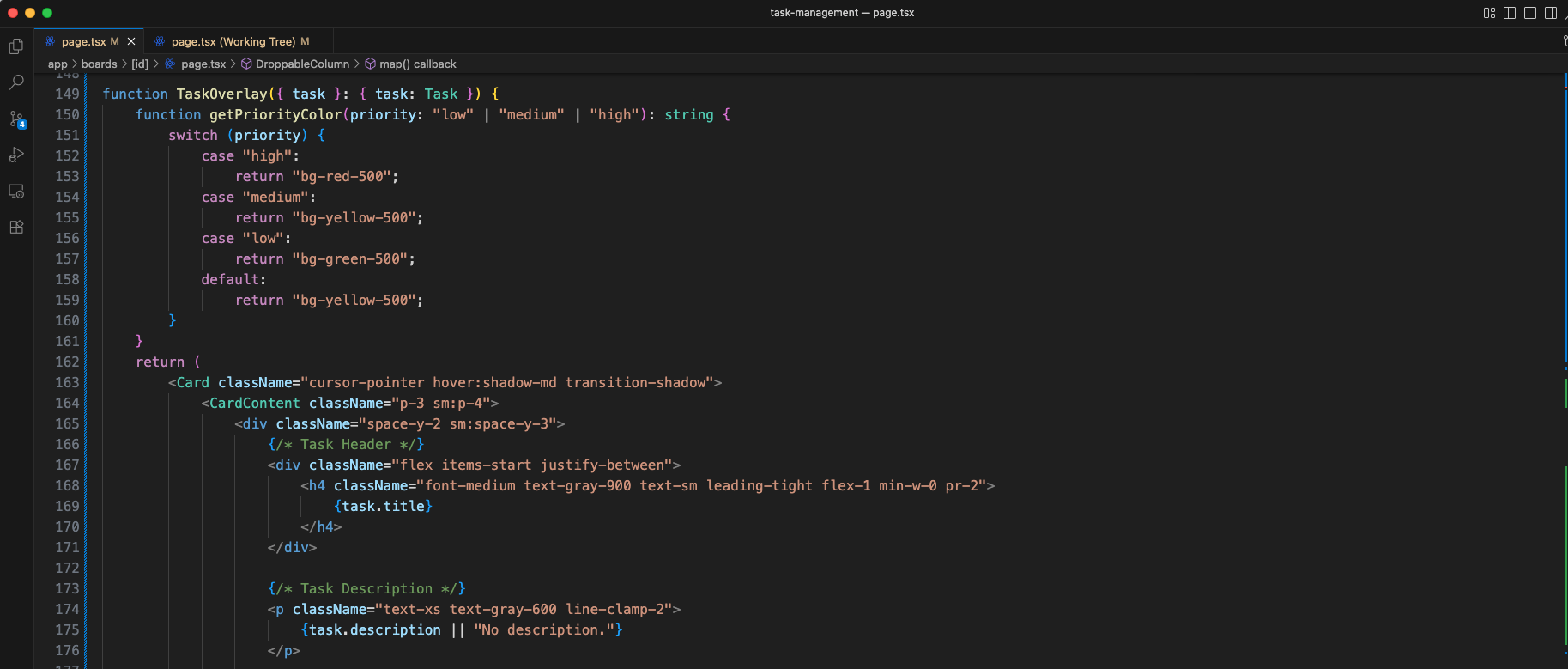
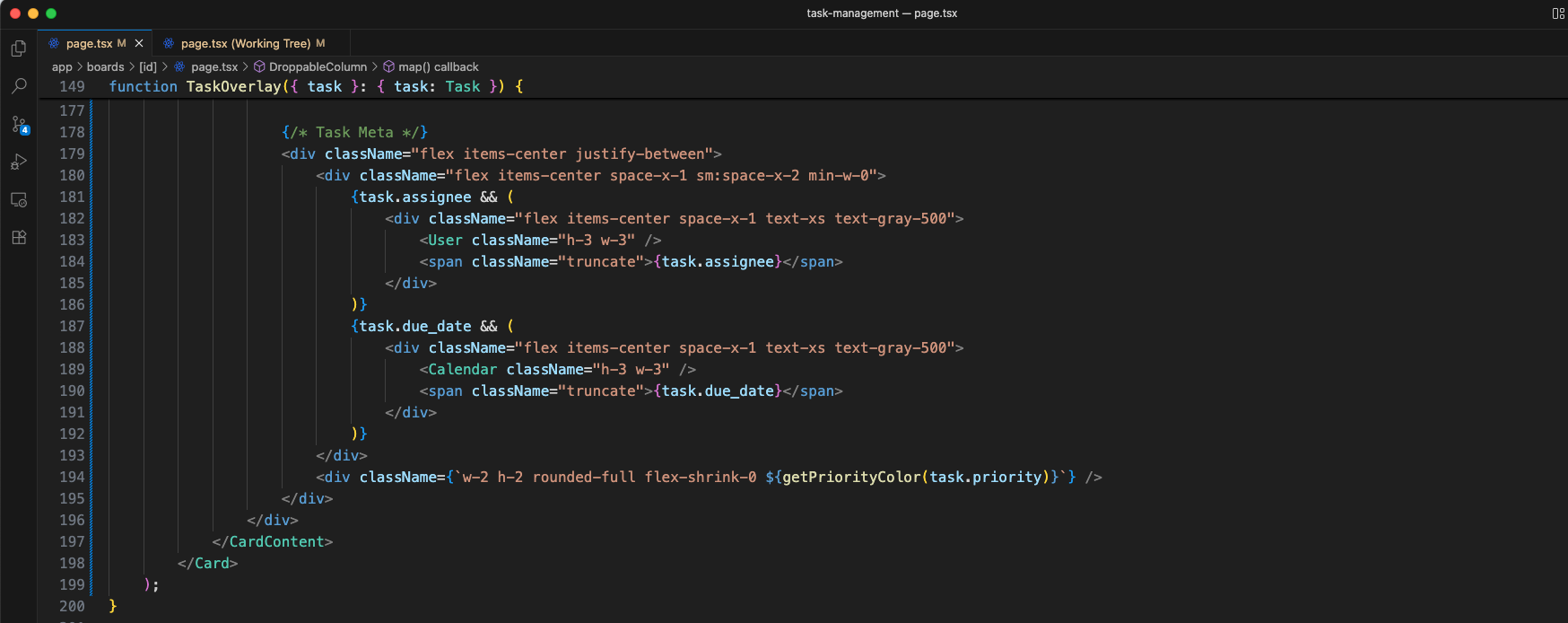
The TaskOverlay continues rendering the task card with meta information including assignee, due_date, and priority color dot for the drag preview overlay.
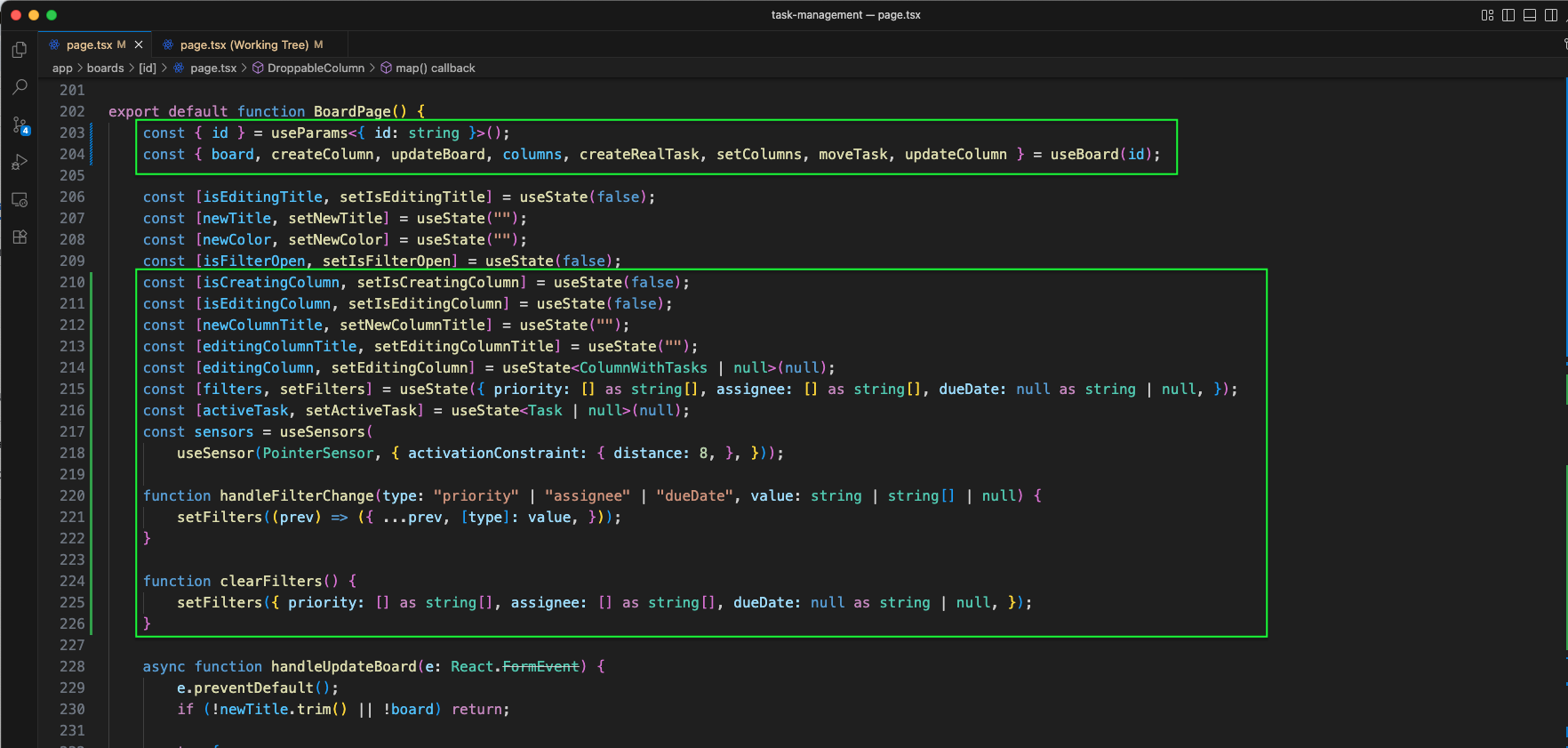
The BoardPage component includes all state variables: isEditingTitle, newTitle, newColor, isFilterOpen, isCreatingColumn, isEditingColumn, newColumnTitle, editingColumnTitle, editingColumn, filters (with priority, assignee, dueDate), activeTask, and sensors with PointerSensor. Functions handleFilterChange, clearFilters, and handleUpdateBoard manage filter and board editing logic.
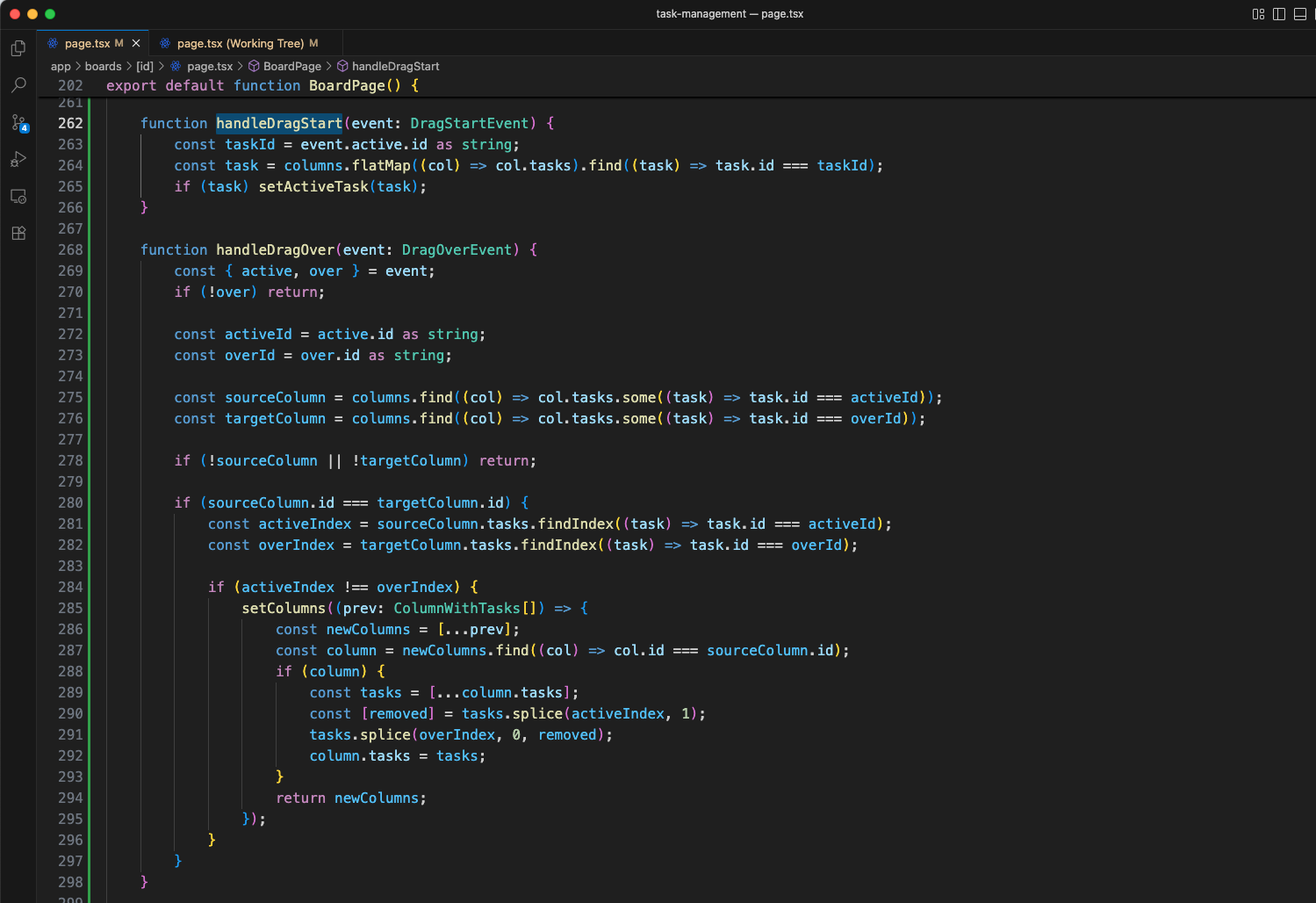
The handleDragStart function is added. It extracts the task ID from the drag event's active element, finds the corresponding task across all columns, and sets it as activeTask for the drag overlay.
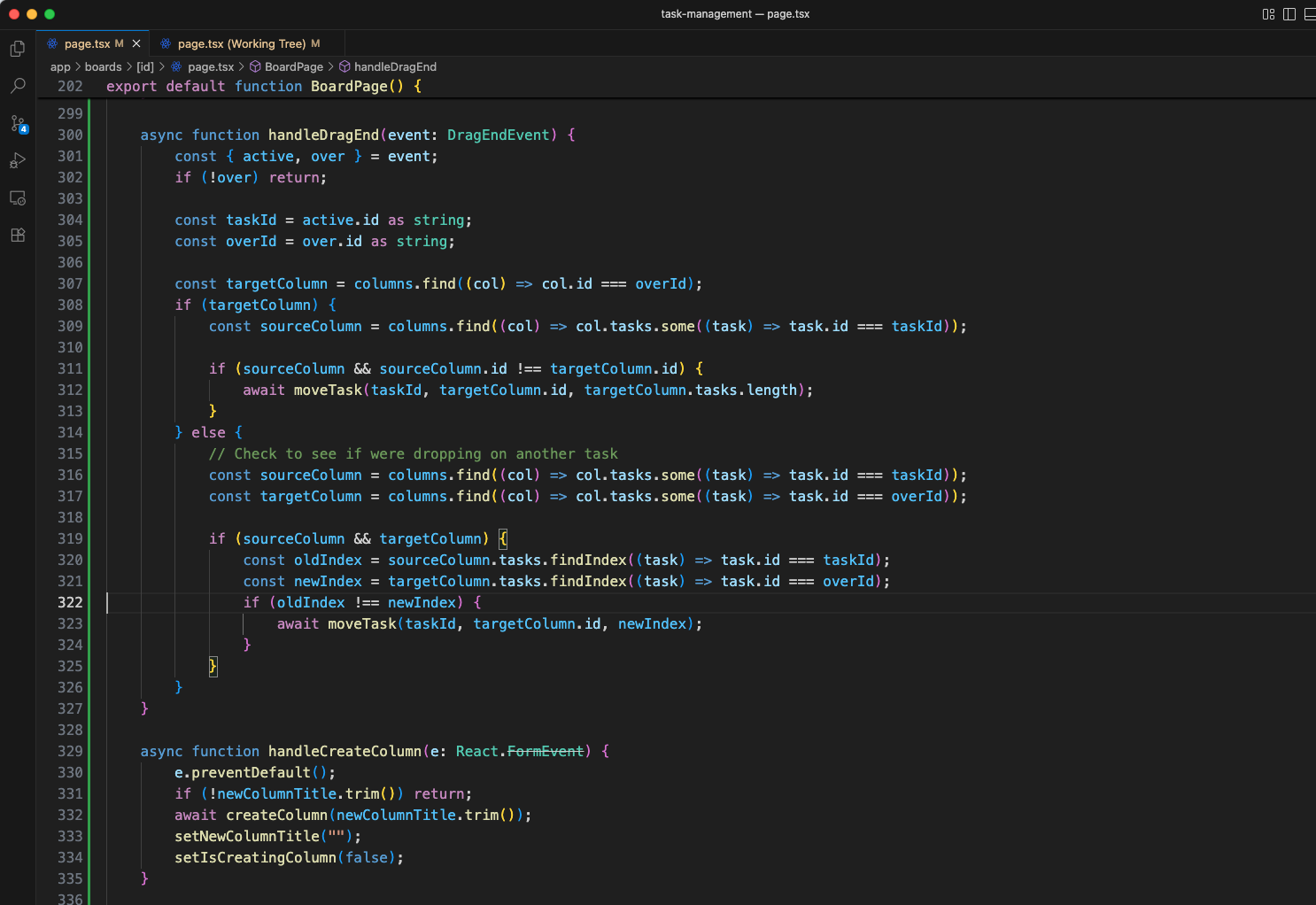
The handleDragEnd async function handles the completion of a drag operation. It checks if the task was dropped on a column or on another task, identifies source and target columns, and calls moveTask to persist the reordering.
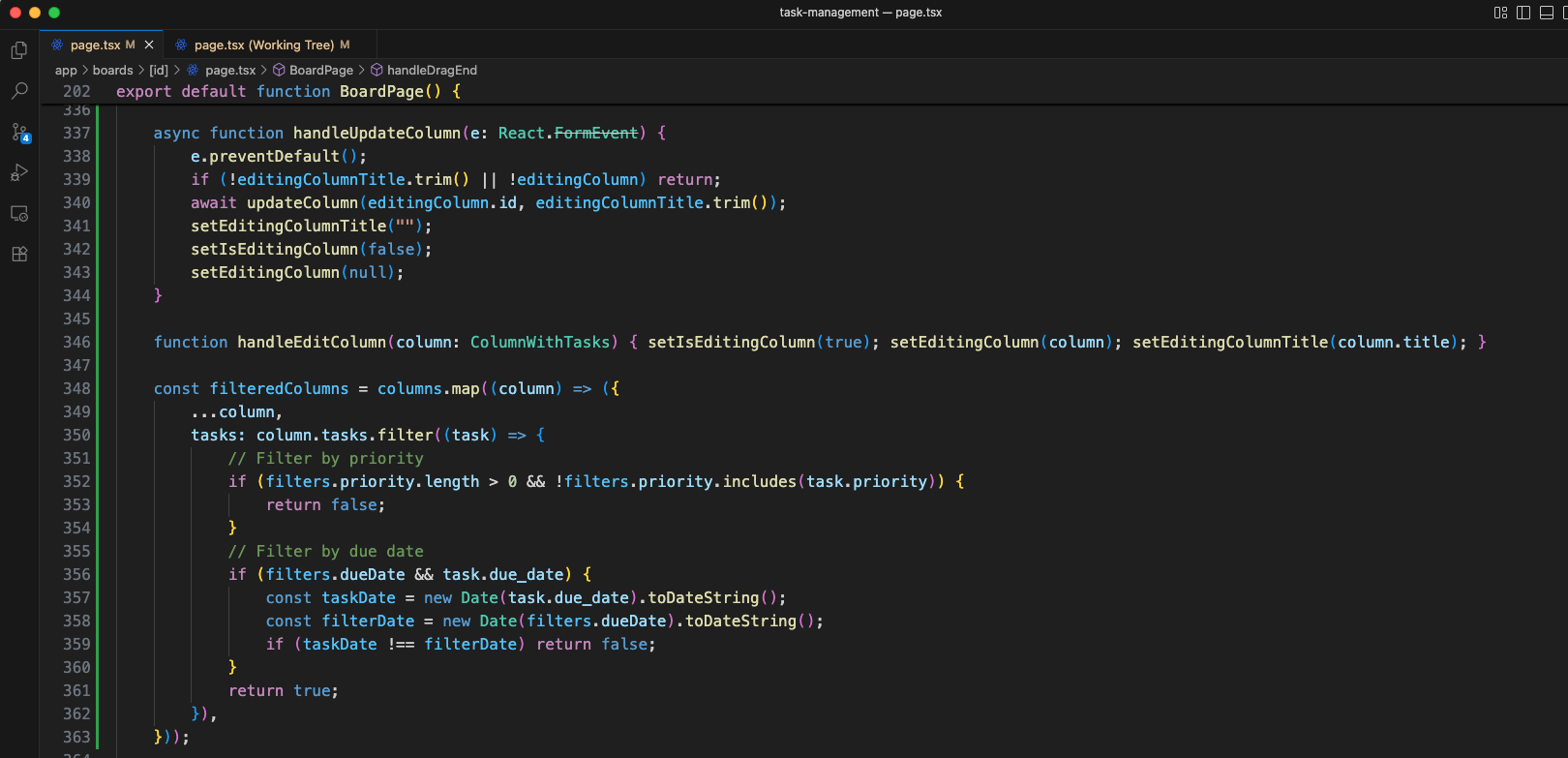
The handleUpdateColumn function and handleEditColumn function are added. The filteredColumns logic filters tasks by priority and due date, returning tasks that match the active filter criteria.
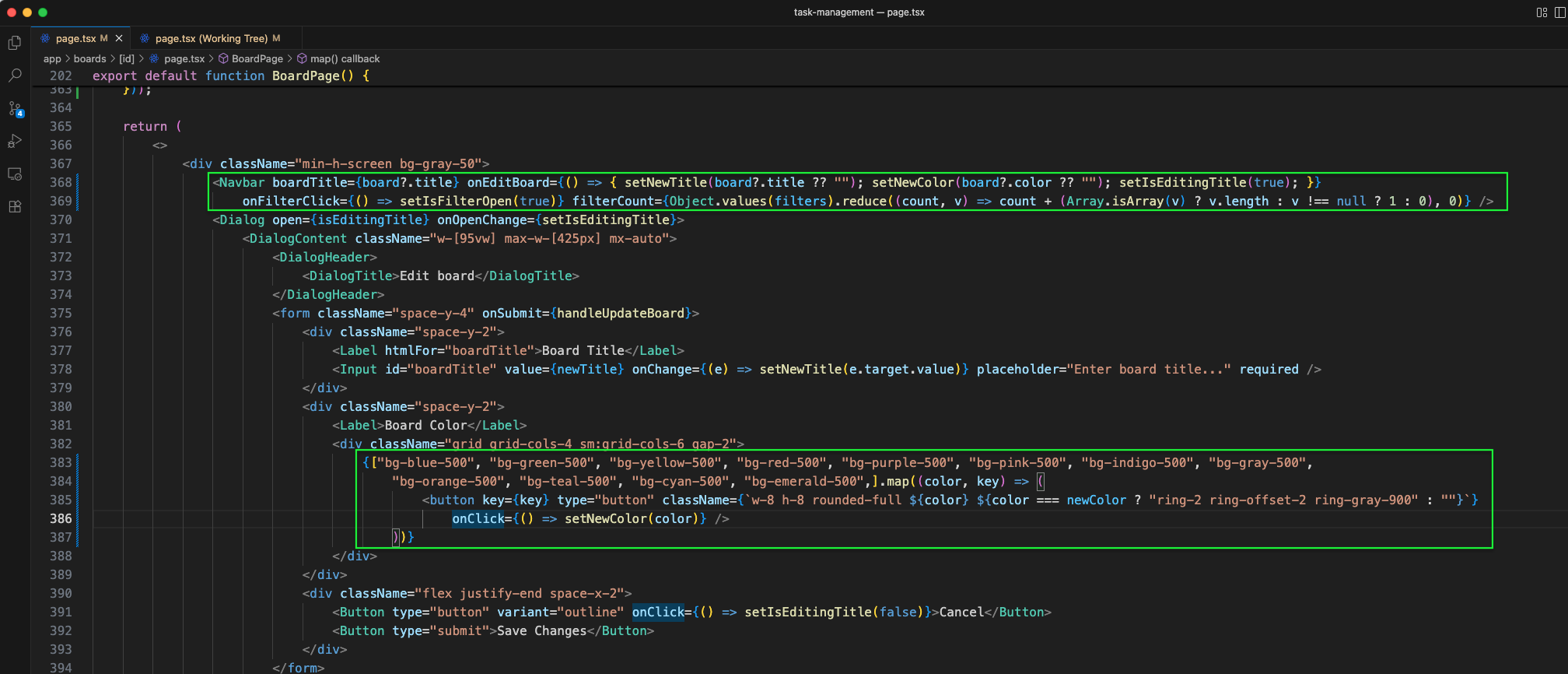
The BoardPage return statement passes onFilterClick and filterCount props to Navbar. The Edit board dialog now includes 12 color options for the board (blue, green, yellow, red, purple, pink, indigo, gray, orange, teal, cyan, emerald).
More code sections of the BoardPage component are shown (green outline), continuing the board layout and column rendering structure.
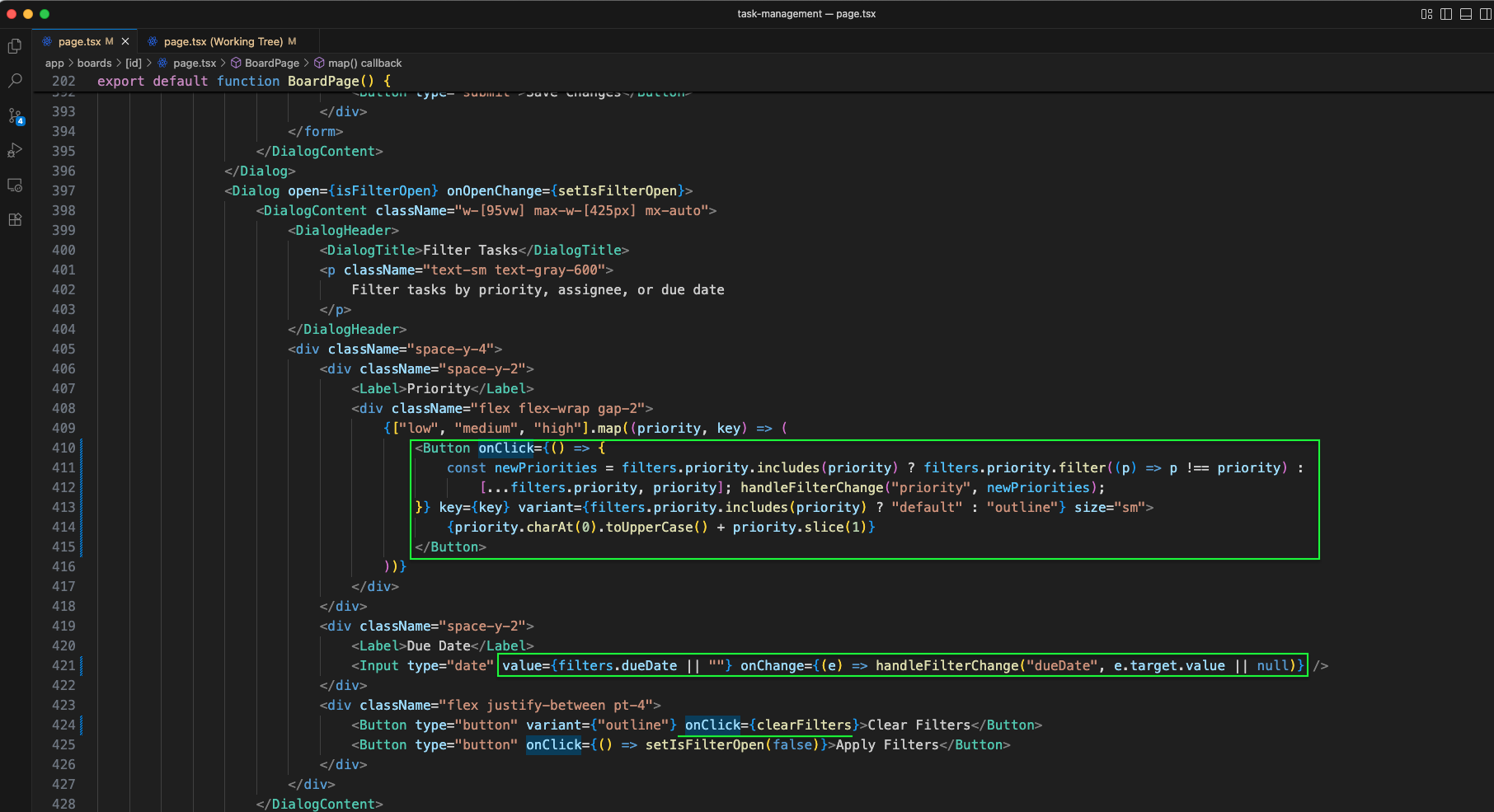
More code sections of the BoardPage component are shown (green outline), continuing with the drag-and-drop context and column rendering.
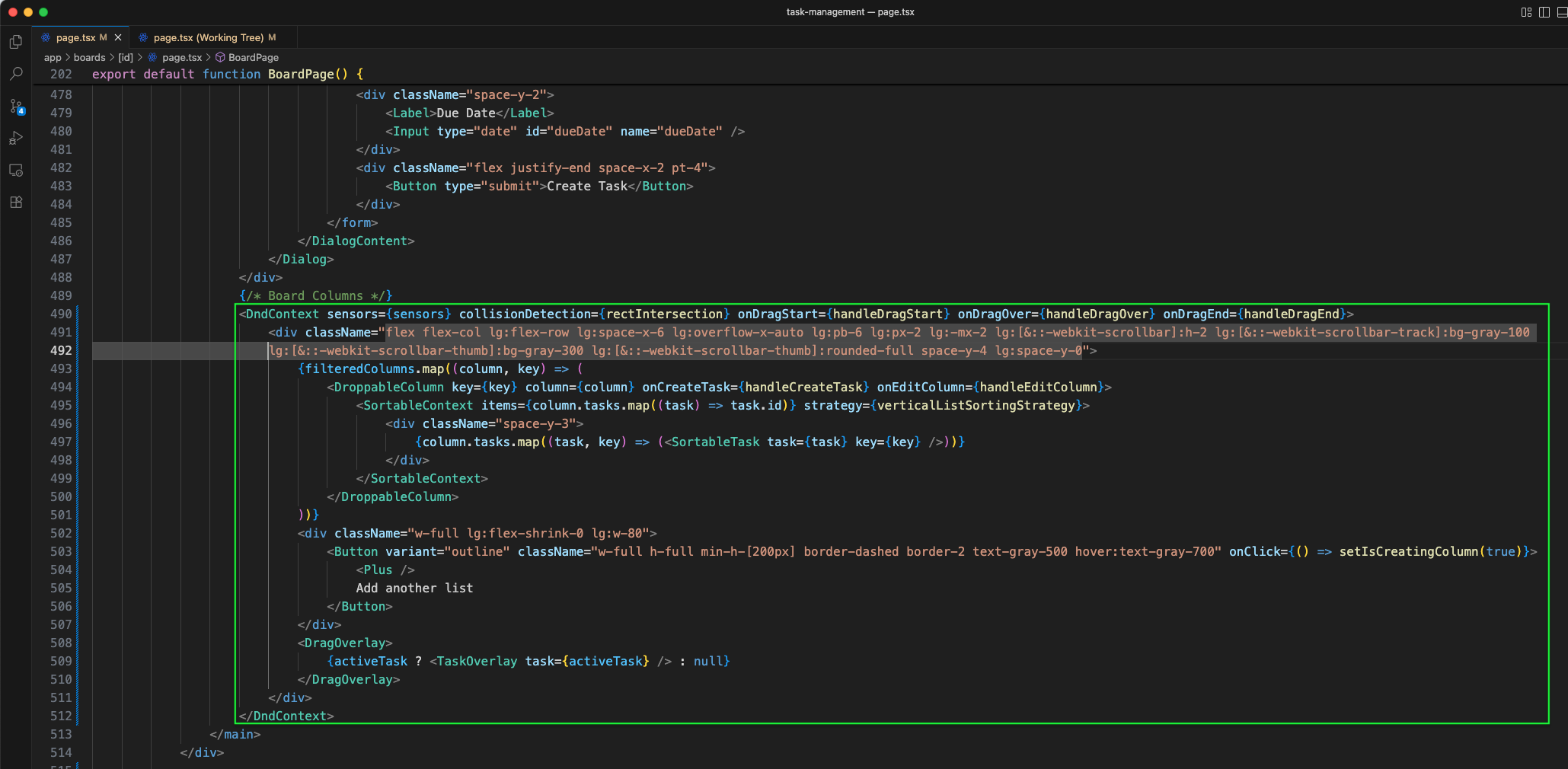
The Create New Column dialog is added. It opens when isCreatingColumn is true and contains a form with a Column Title input field and Create Column submit button.
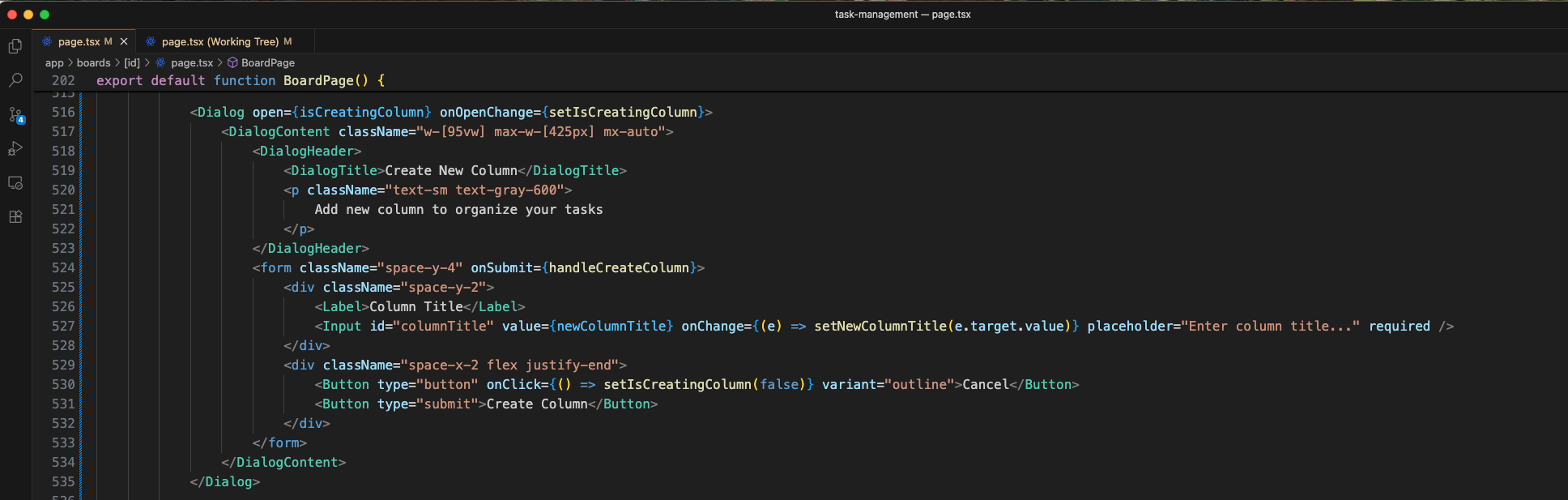
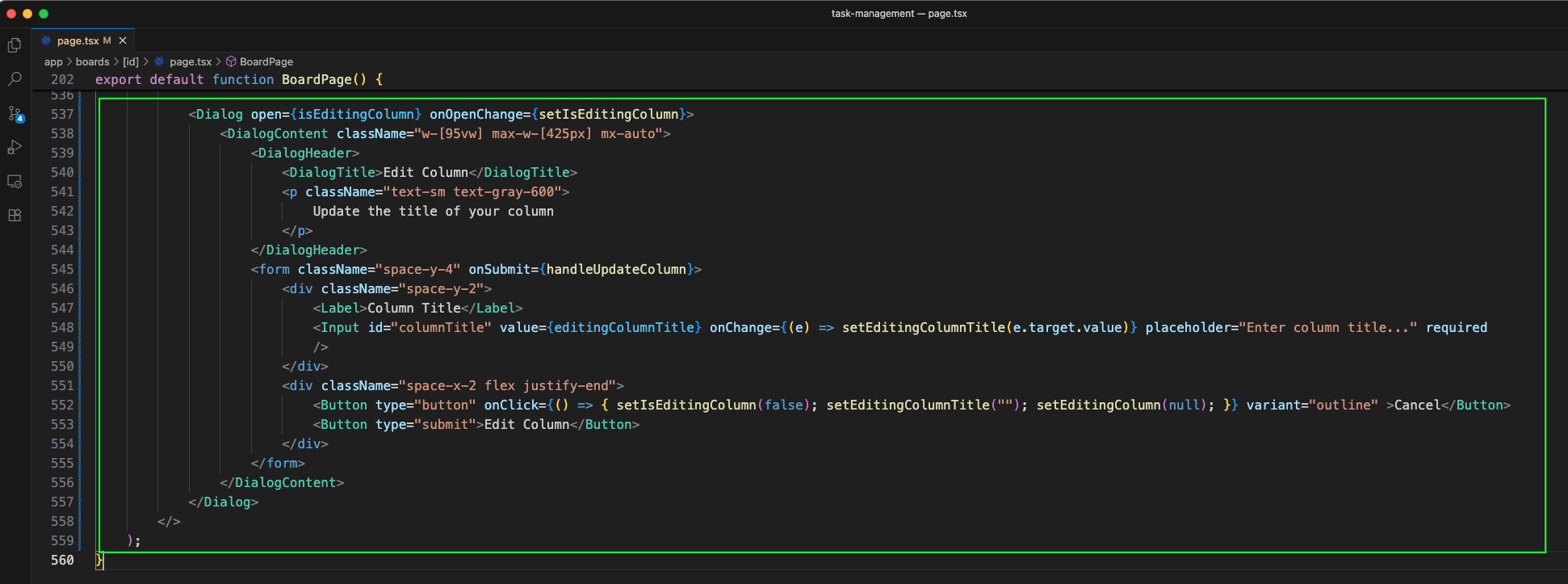
The Edit Column dialog is added. It opens when isEditingColumn is true and contains a form with Column Title input pre-filled with the current column title, and Cancel and Edit Column buttons.
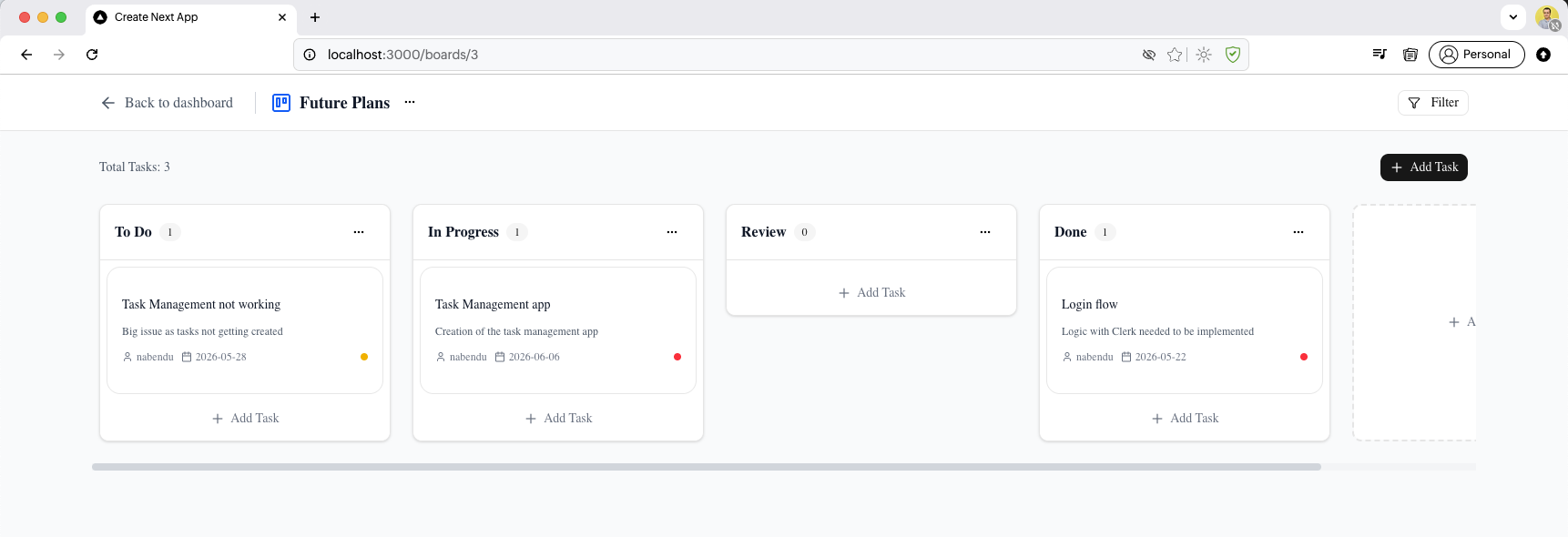
The board now shows details of four columns: ToDo, In Progress , Review , and Done with added title and description. Each column has an Add Task button.
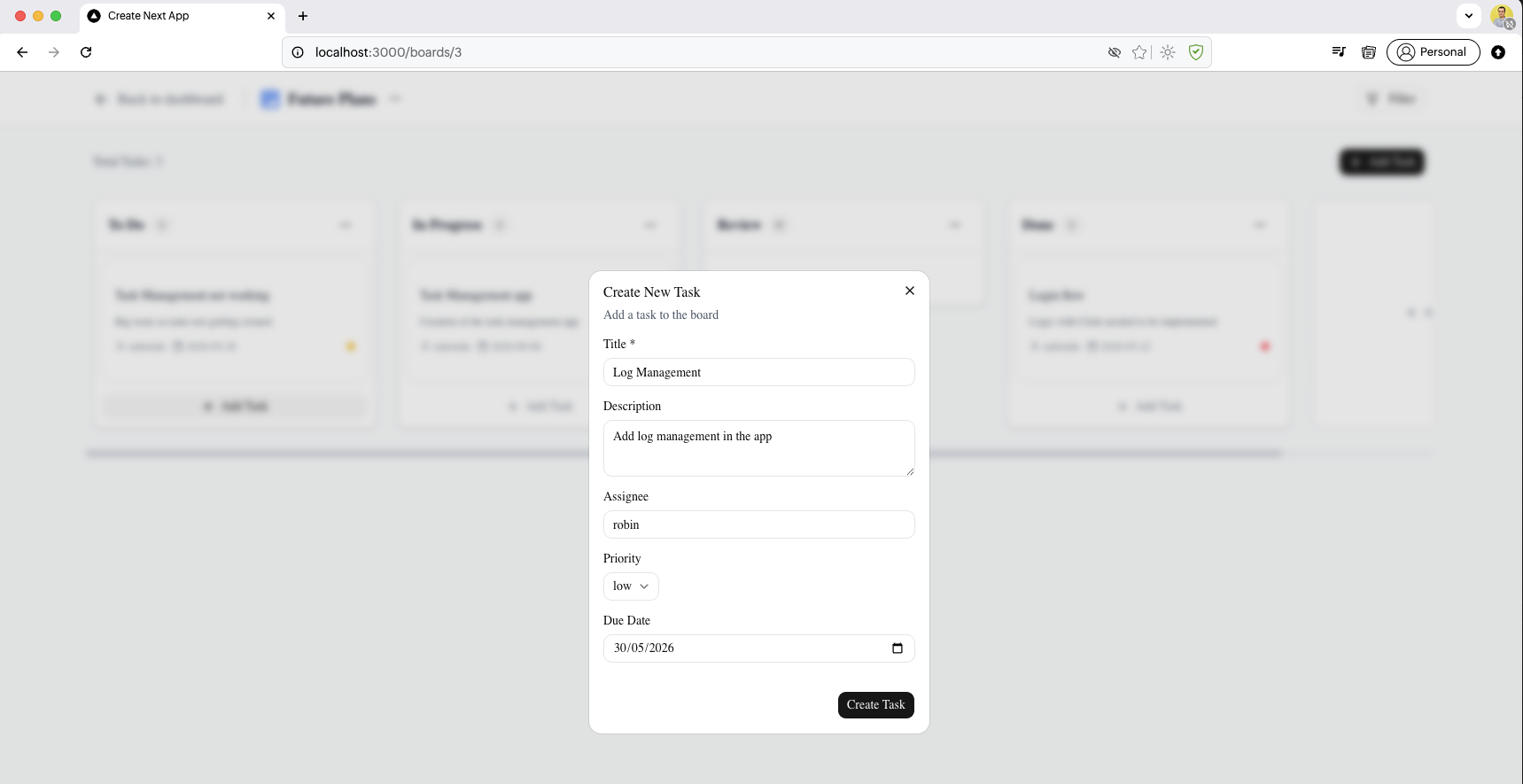
Clicking on the Add Task button, opens the Create New Task dialog in which we have filled the details.
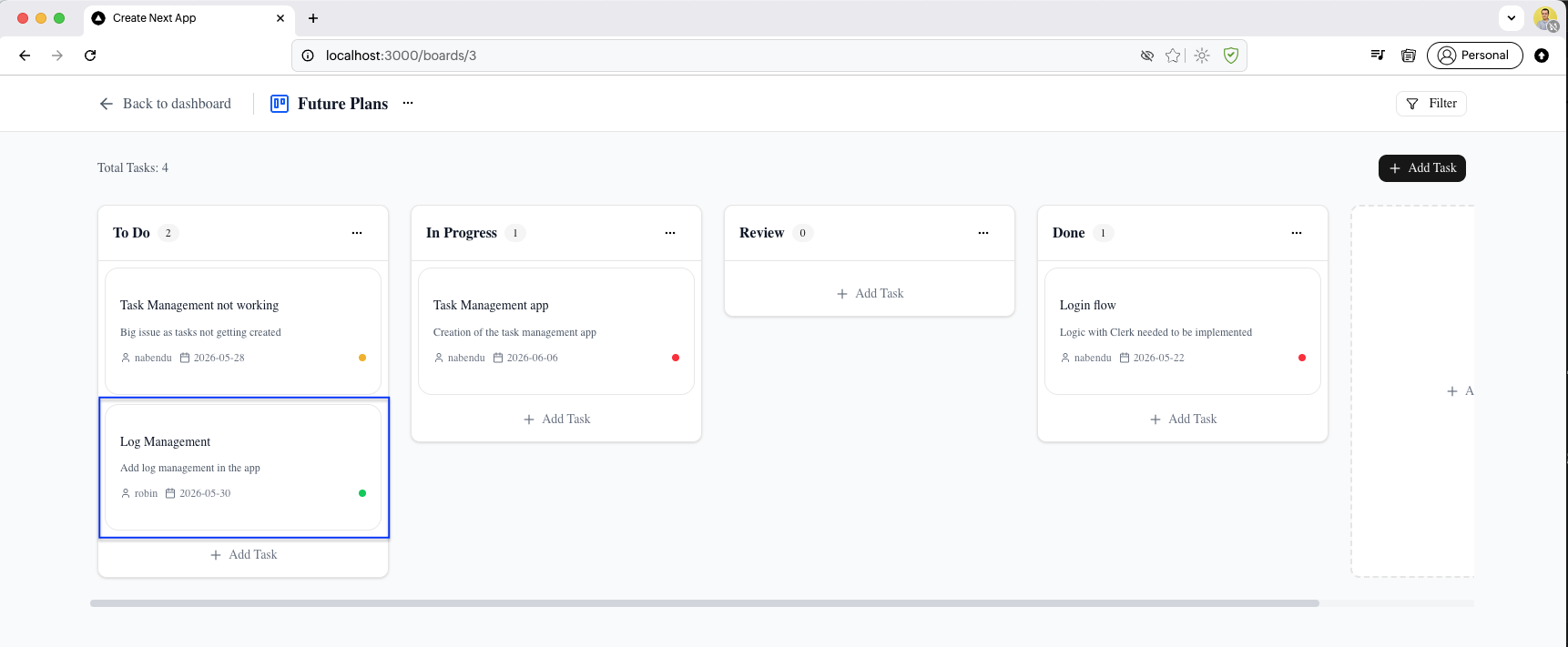
After adding the "Log Management" task, the board shows Total Tasks: 4. The ToDo column now has 2 tasks (Task Management not working + Log Management).
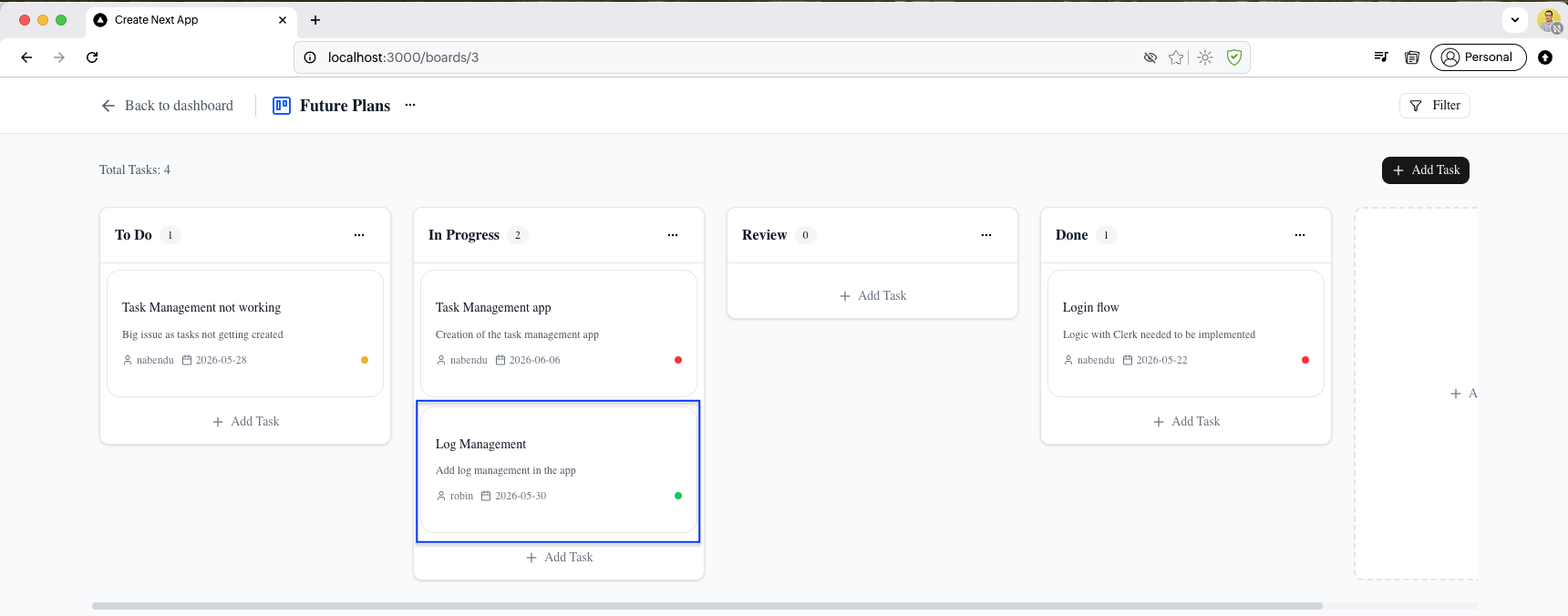
After dragging "Log Management" task to In Progress, that column now shows 2 tasks: "Task Management app" and "Log Management". The ToDo count drops back to 1.
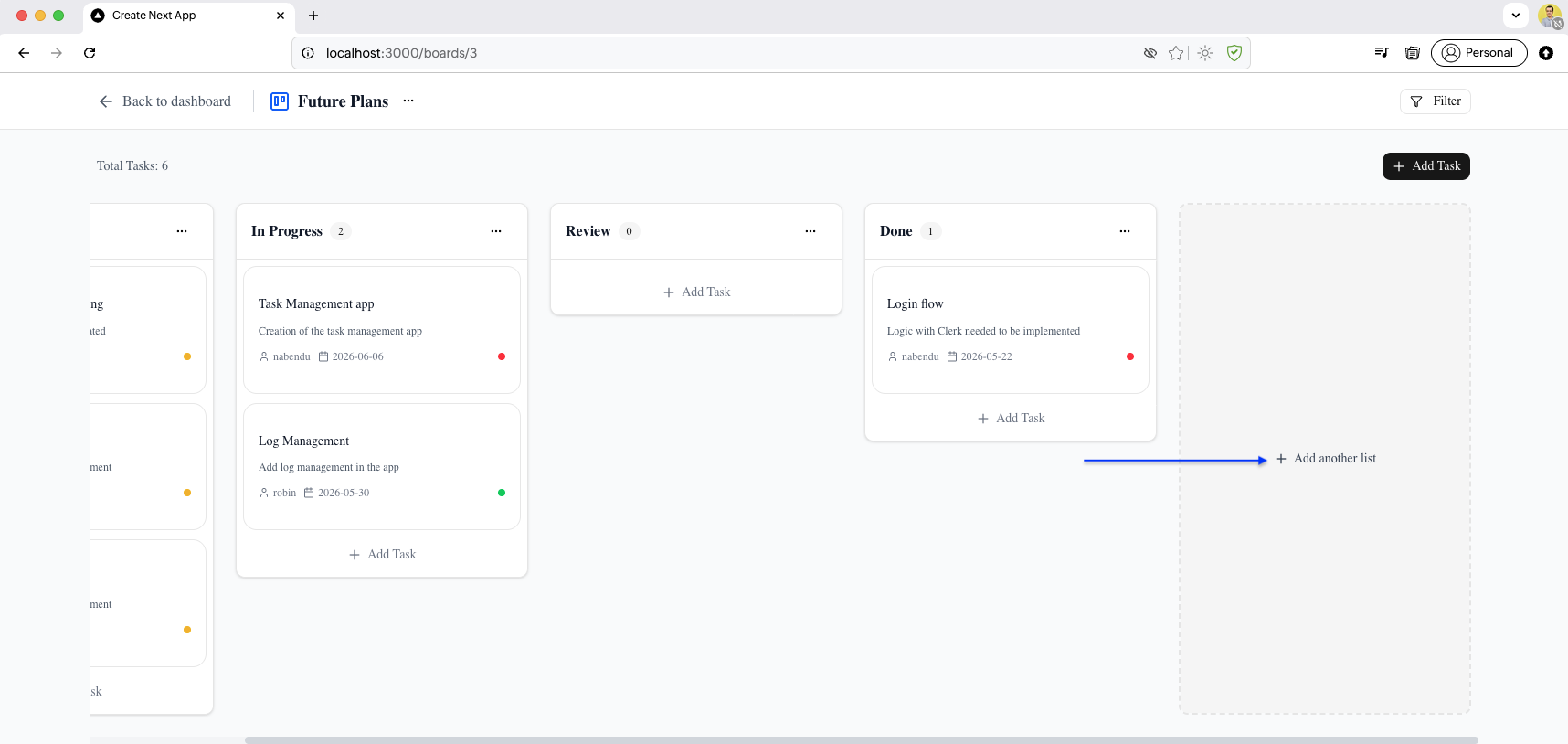
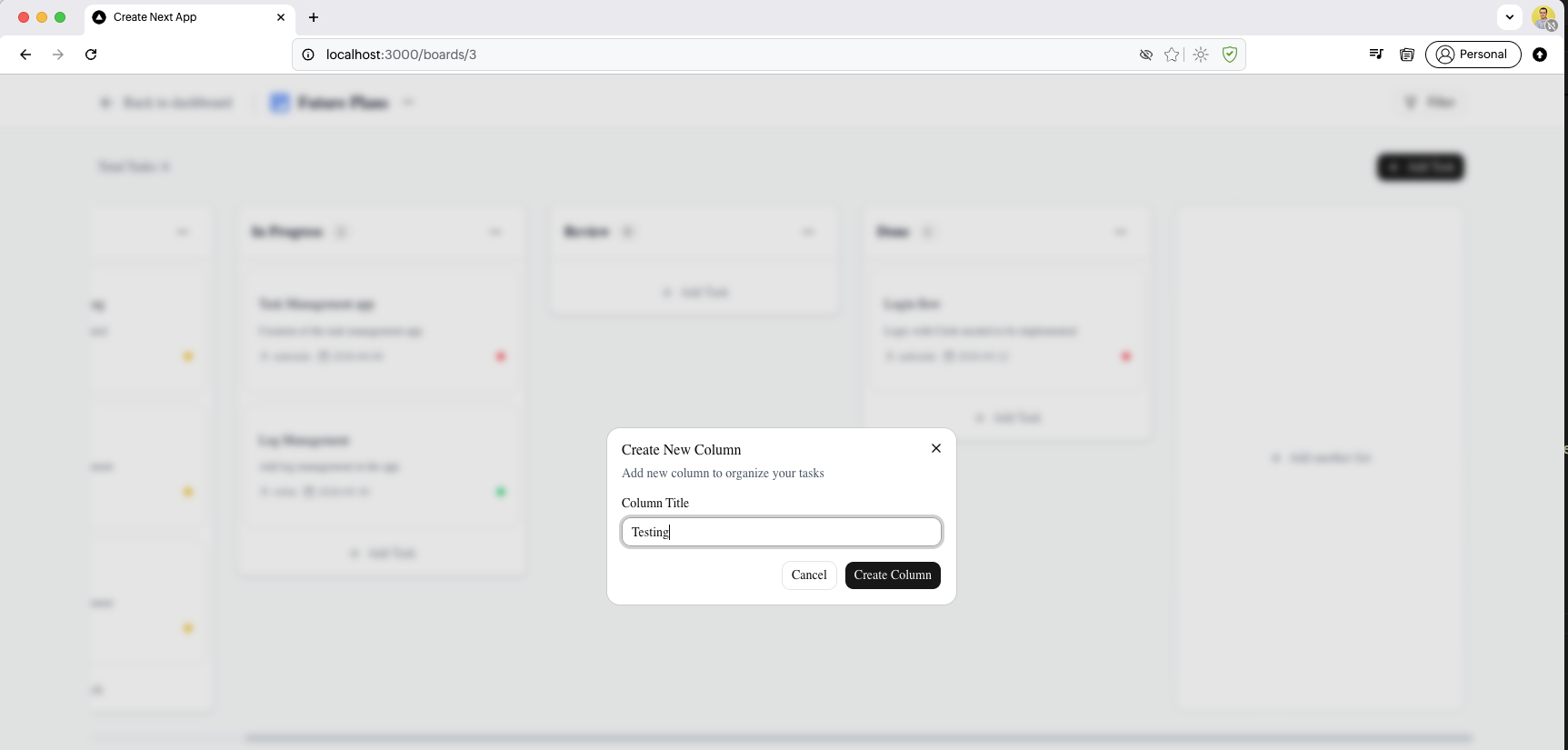
More tasks have been added so Total Tasks: 6. We have now clicked on the + Add another list.
The Create New Column dialog is open with "Testing" typed as the column title, ready to be created.
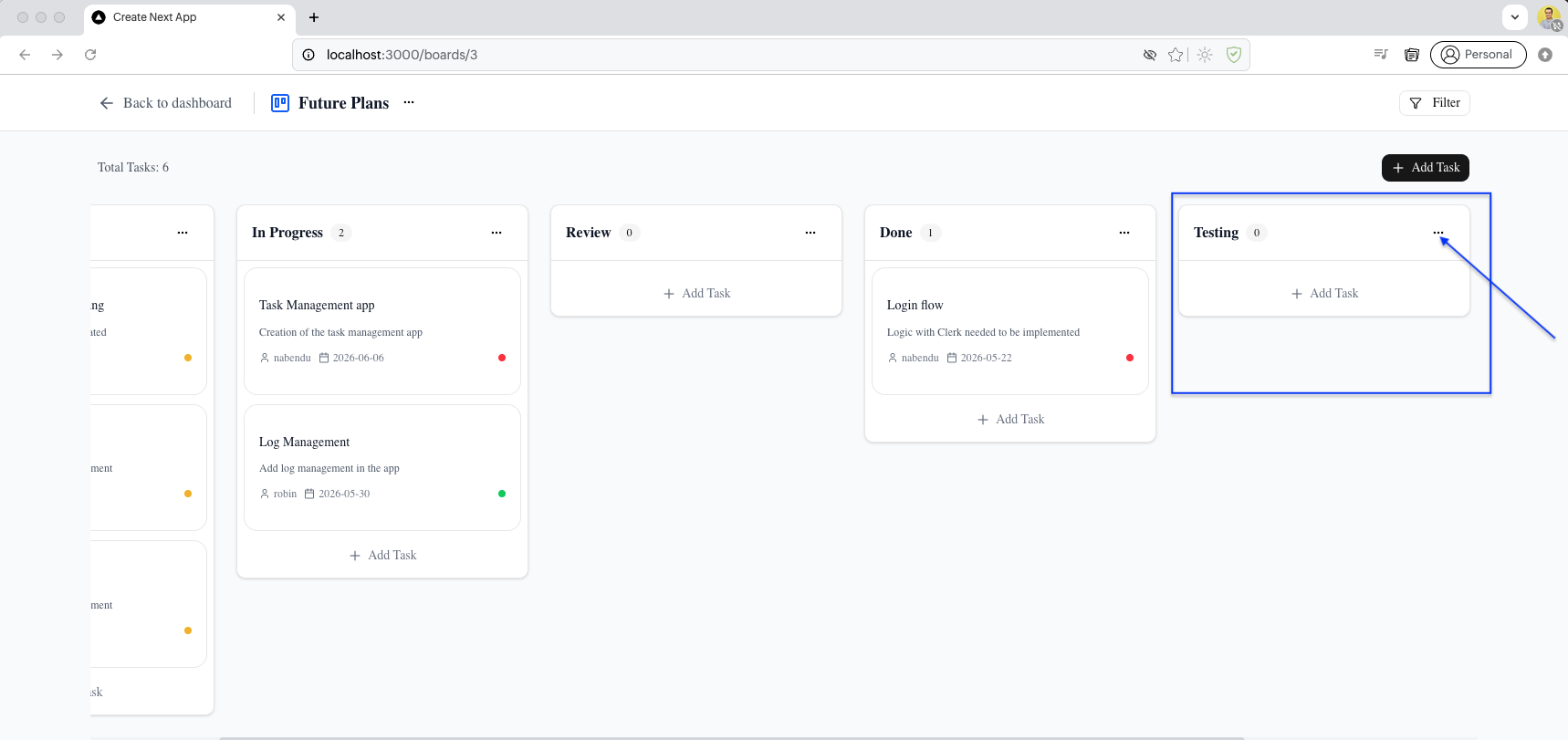
After creation, the Testing column appears as the fifth column alongside ToDo, In Progress, Review, and Done.
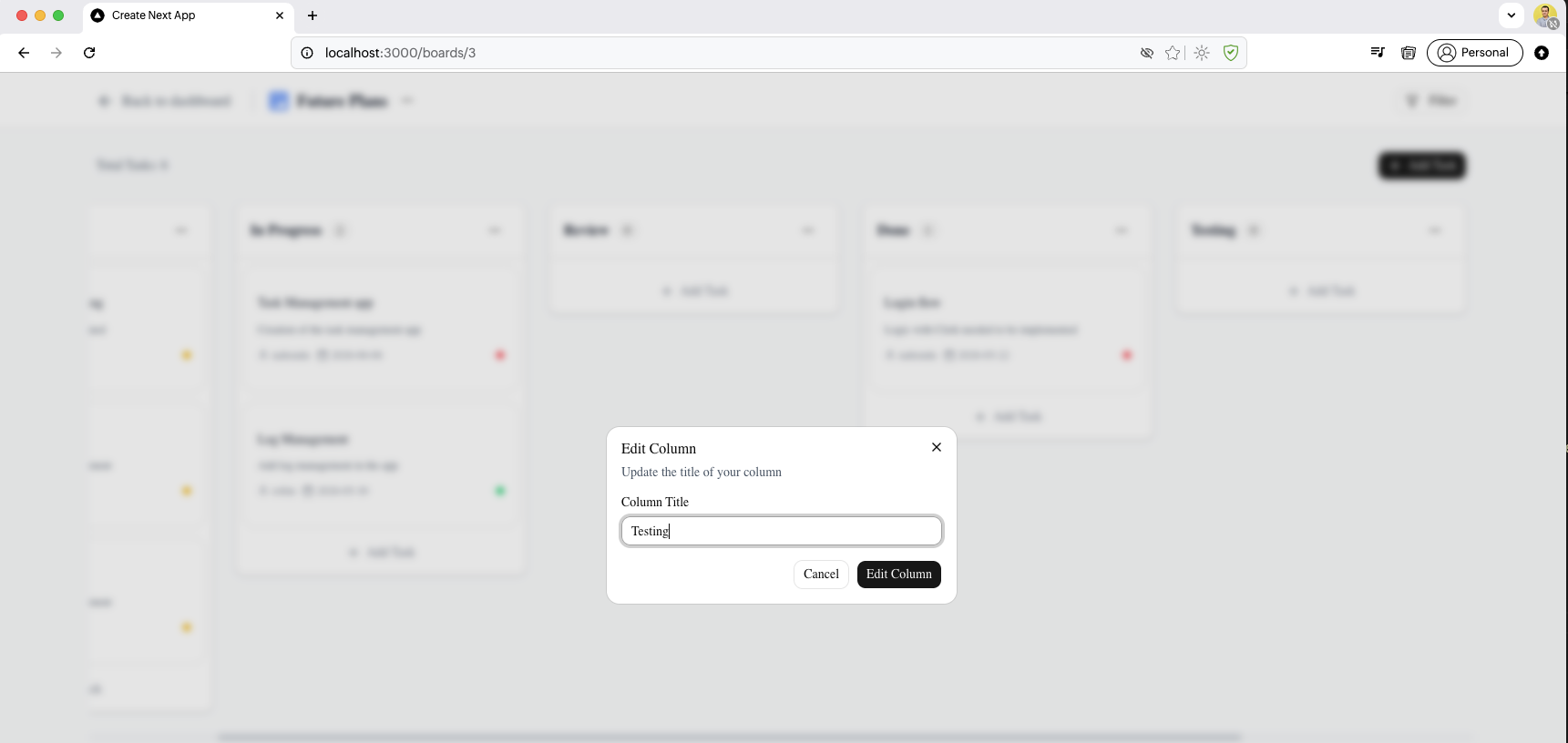
The Edit Column dialog is open showing the Testing column title ready to be edited.
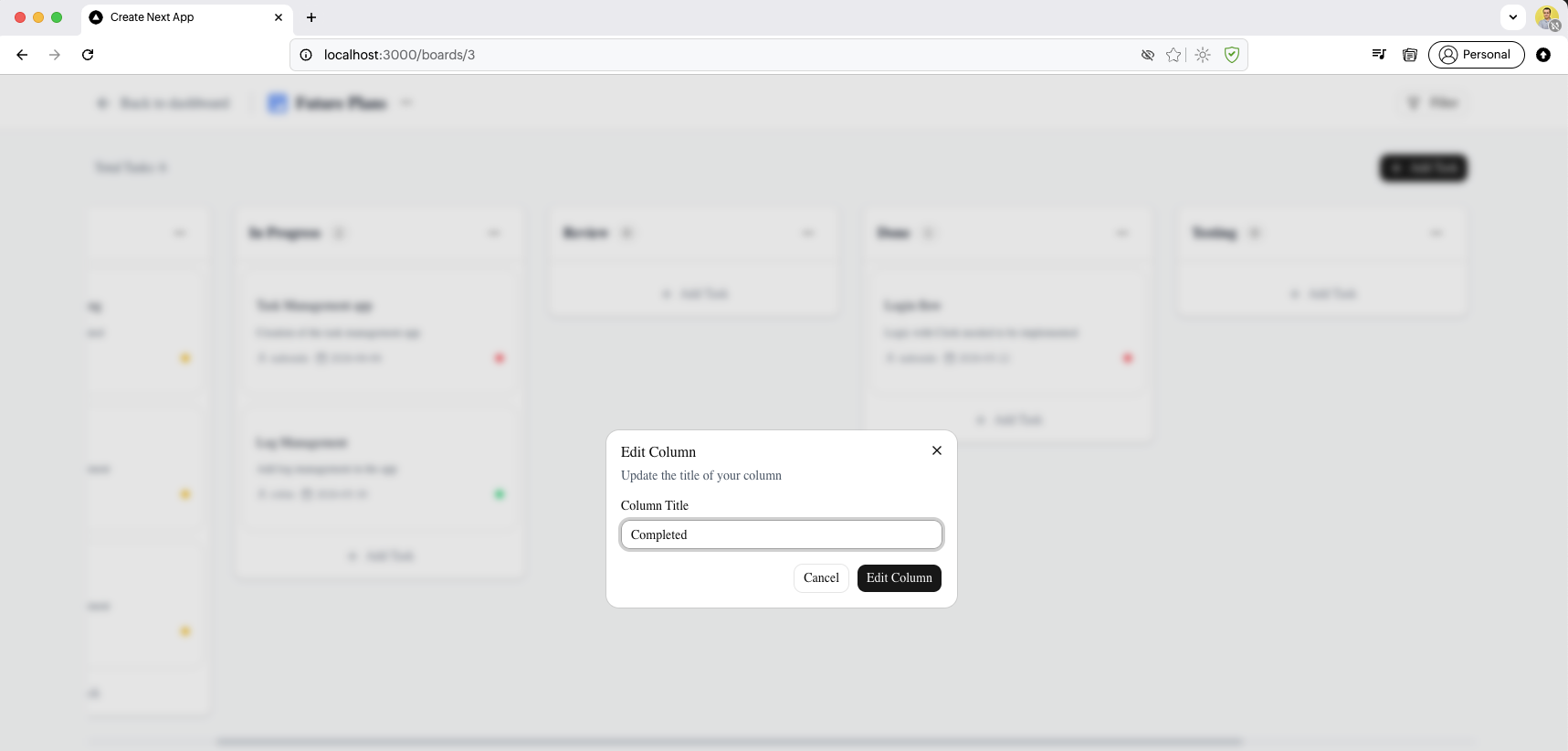
Changed the Testing column to Completed as the new column title.
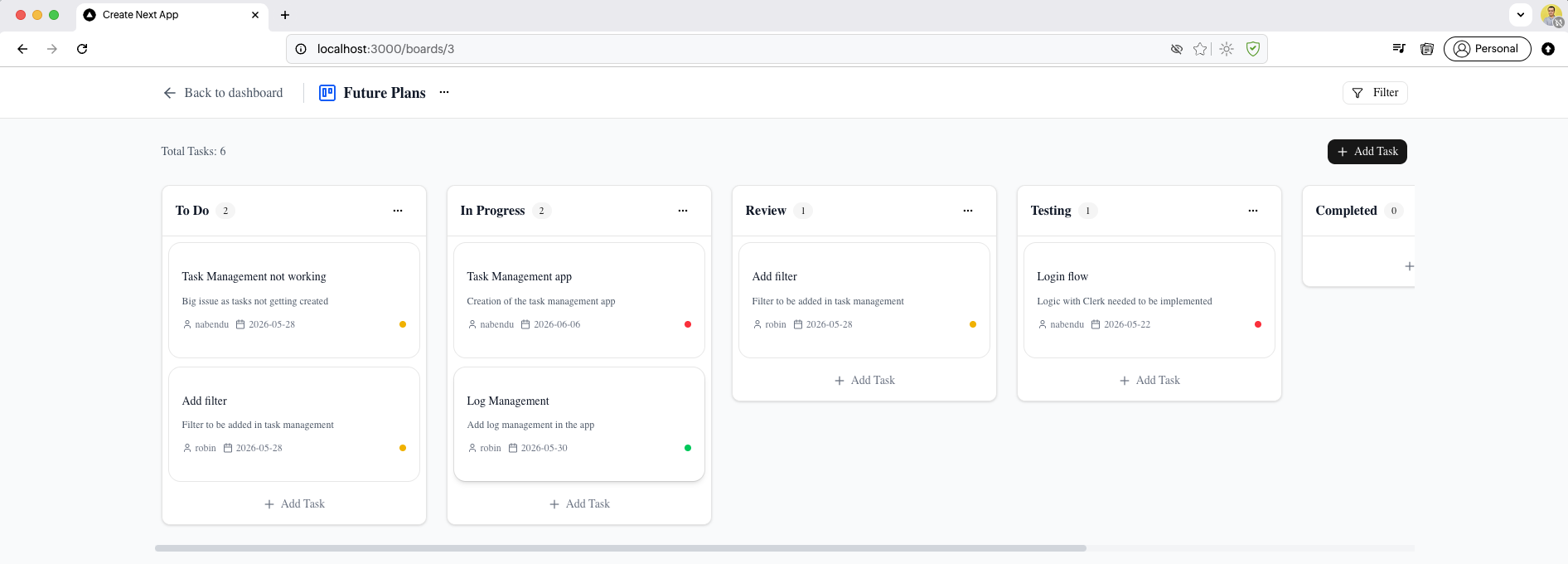
After renaming, the board shows the column renamed to Completed with 0 tasks. The column order now shows: ToDo, In Progress, Review, Done, and Completed.
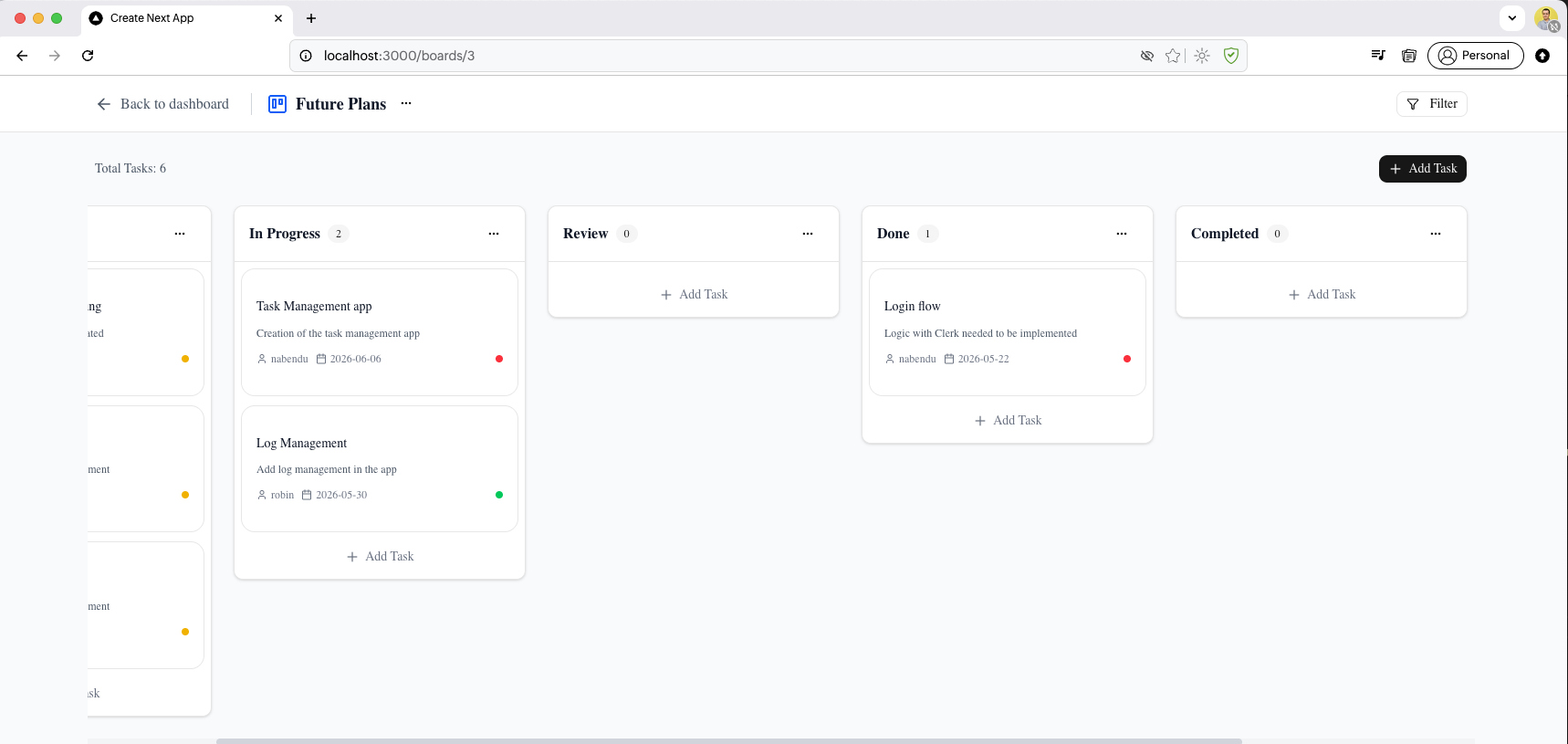
We have renamed the Done to Testing.
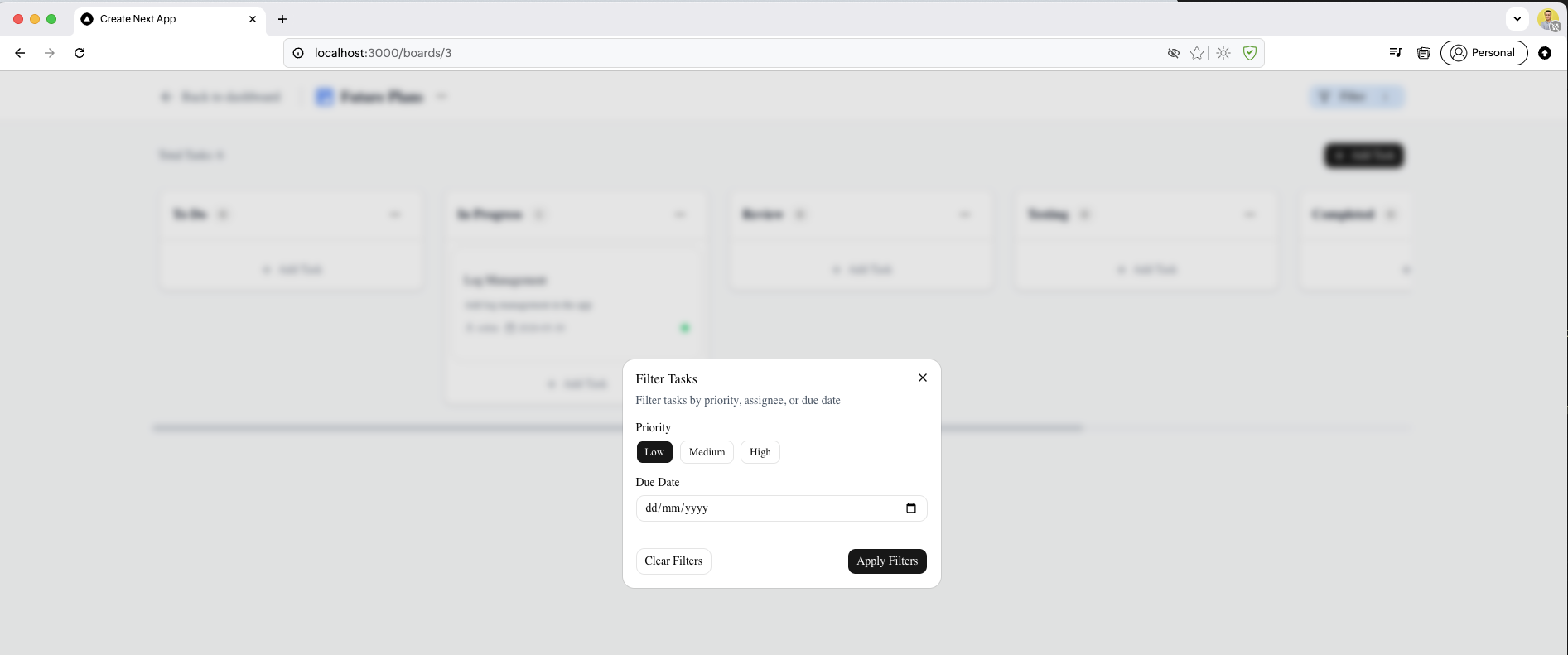
The Filter Tasks dialog is shown with Priority and Due Date filter options, and Clear Filters and Apply Filters buttons. We hav choosen Low and clicked on Apply Filters.
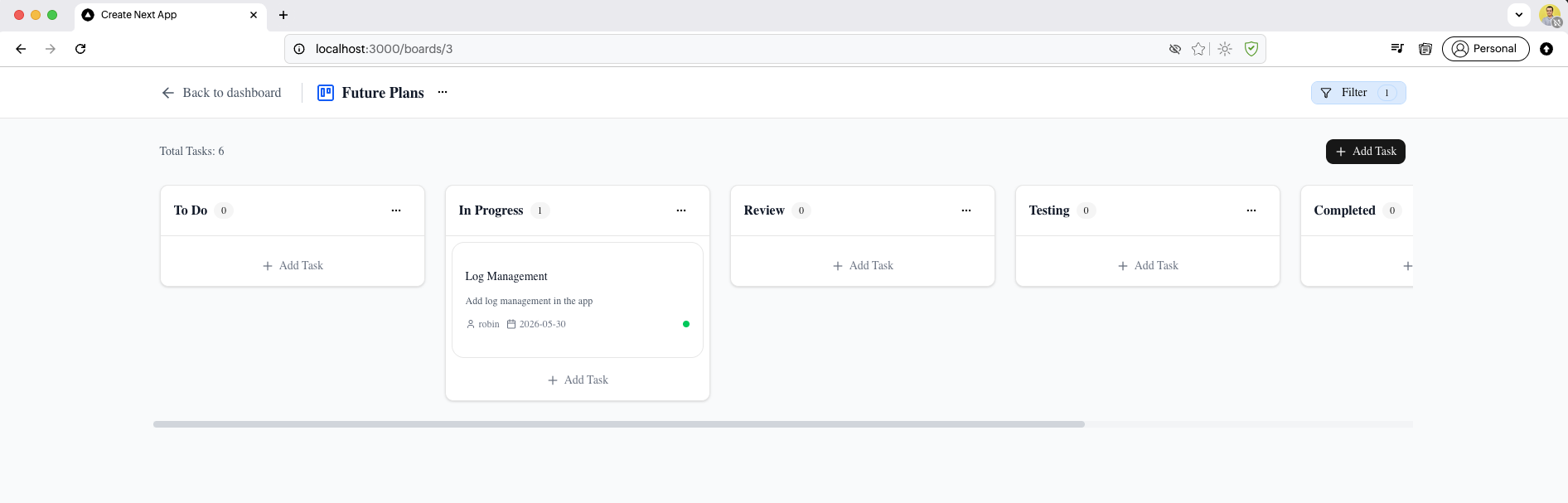
The board now shows a filtered view with Filter 1 badge in the top-right. Only the task with Low priority is shown.
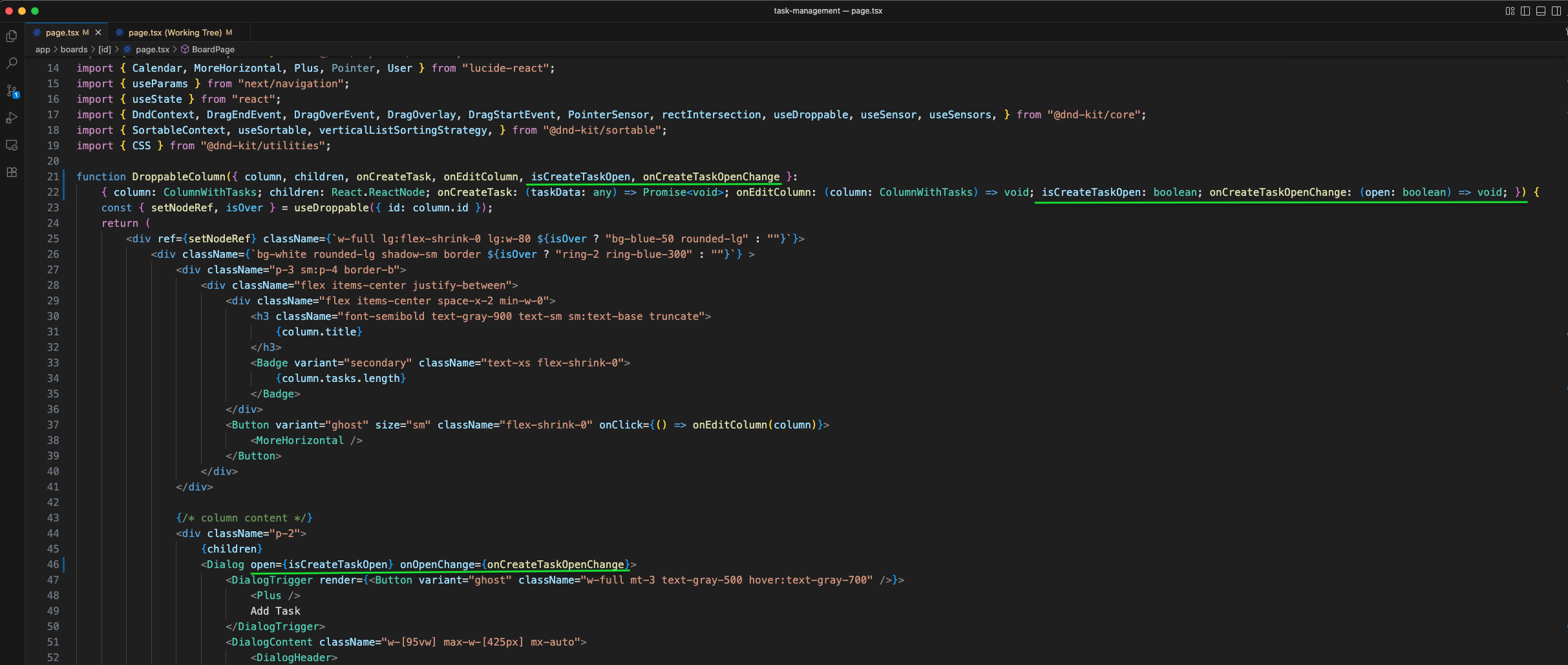
The DroppableColumn component is updated (green outline) to accept isCreateTaskOpen and onCreateTaskOpenChange props for controlling the task creation dialog state per column.
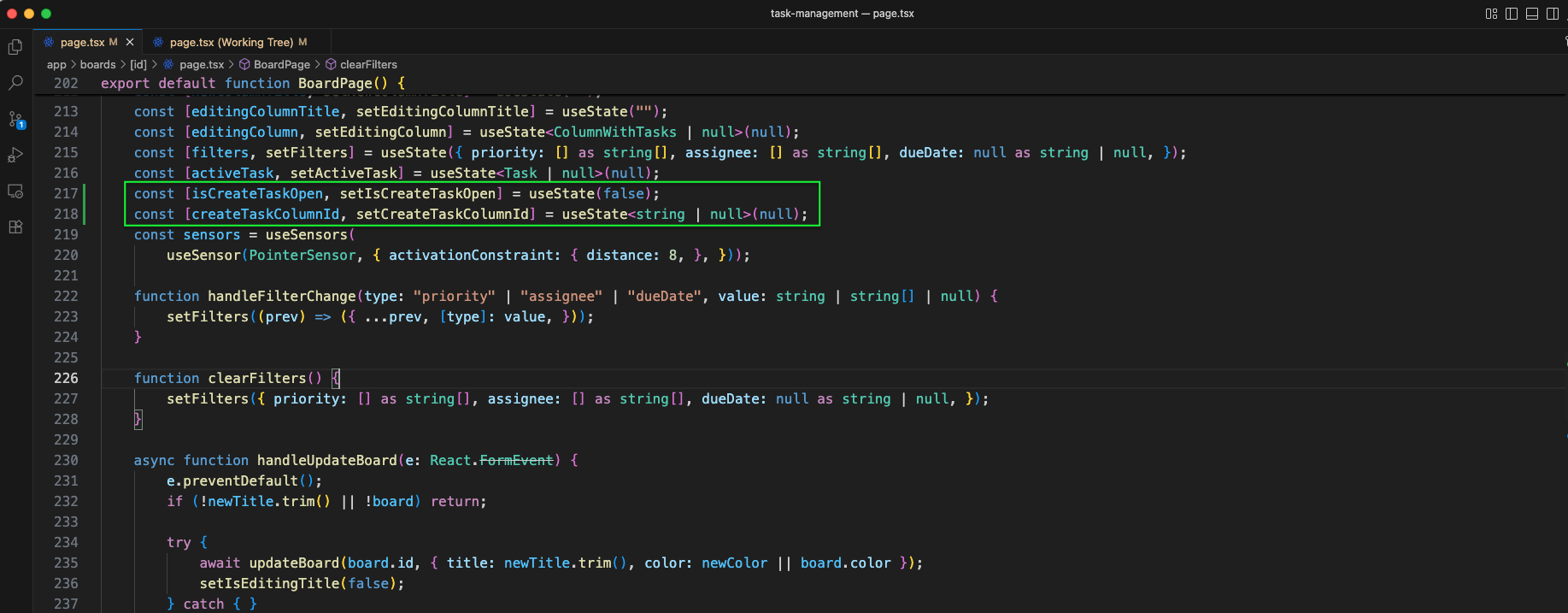
More code sections of the BoardPage component are shown (green outline), continuing the filter and task creation logic updates.
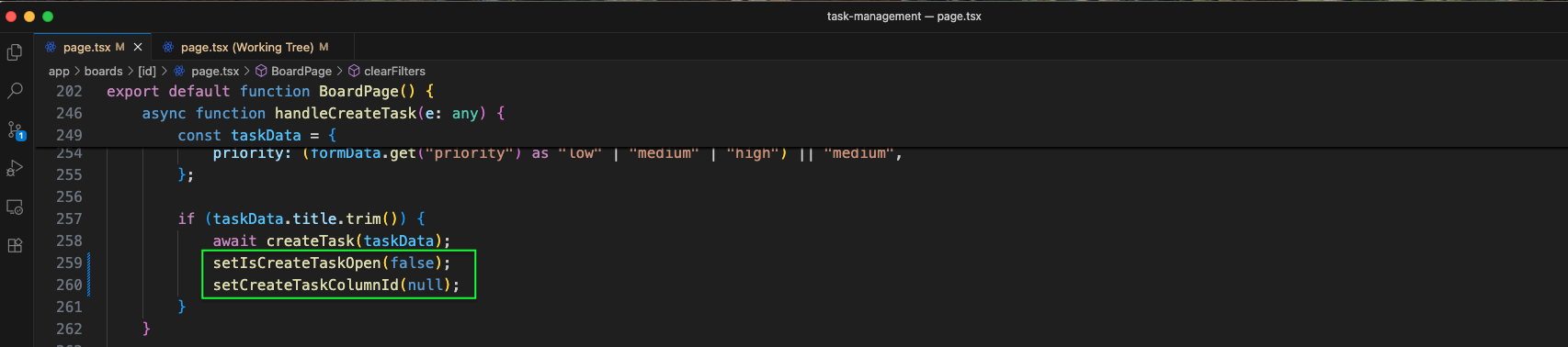
The handleCreateTask function is updated (green outline) to use setIsCreateTaskOpen(false) and setCreateTaskColumnId(null) after creating a task, closing the dialog properly.
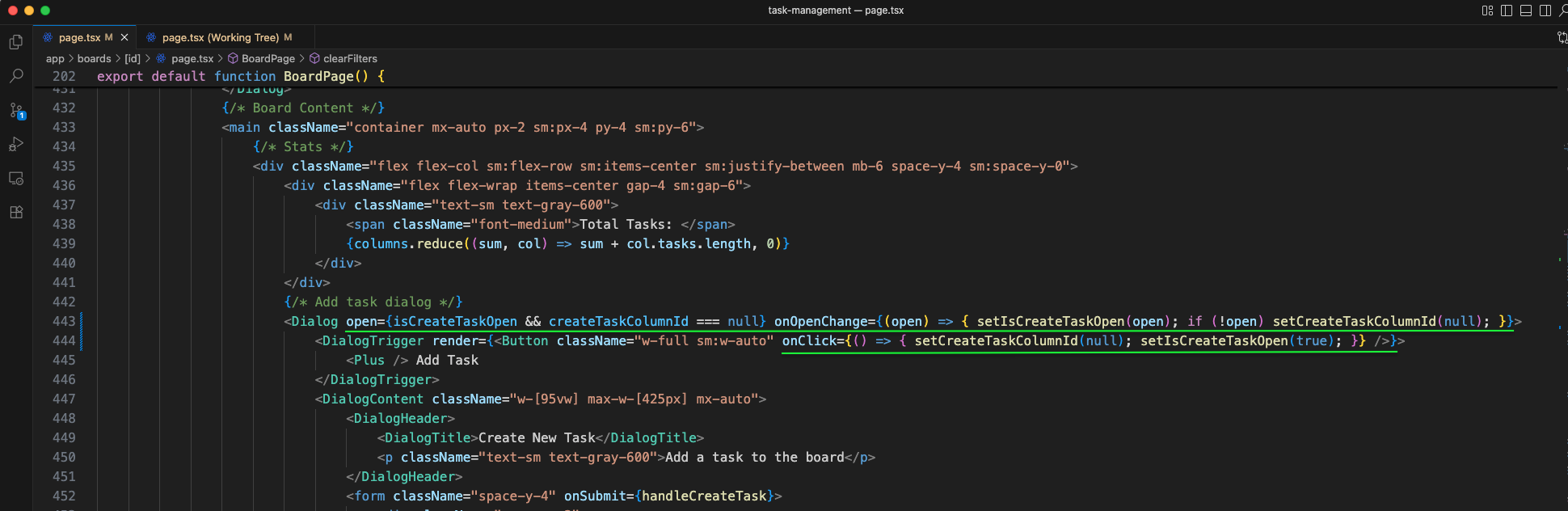
In Dialog we have added code for open and onOpenChange. Also, in DialogTrigger we have added the onClick to call setIsCreateTaskOpen(null) and setCreateTaskColumnId(true).
The DndContext wraps the board columns with sensors, collision detection, and drag handlers. DroppableColumn receives isCreateTaskOpen and onCreateTaskOpenChange props. Inside, SortableContext wraps the task list for vertical sorting.
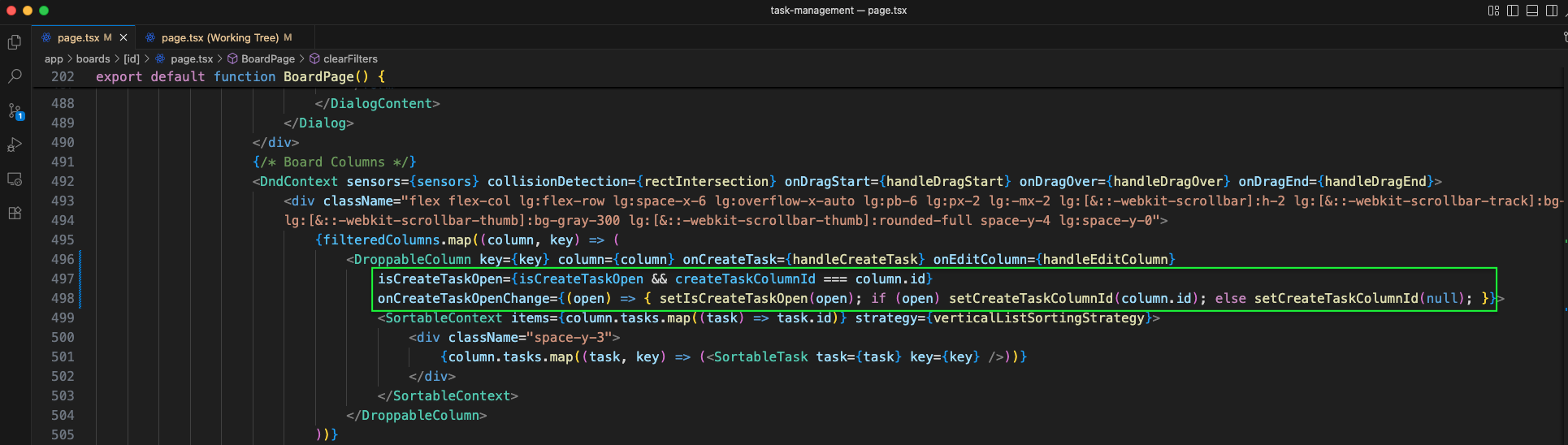
The DashboardPage is updated (green outline, lines 12-46): imports include Link, Dialog, Label, and Board. State variables viewMode (grid/list) and isFilterOpen are added. filters state manages search, dateRange (start/end), and taskCount (min/max). boardsWithTaskCount maps boards, filteredBoards filters by title match and date range, and clearFilters resets all filter values. handleCreateBoard creates a new board with default title and color.
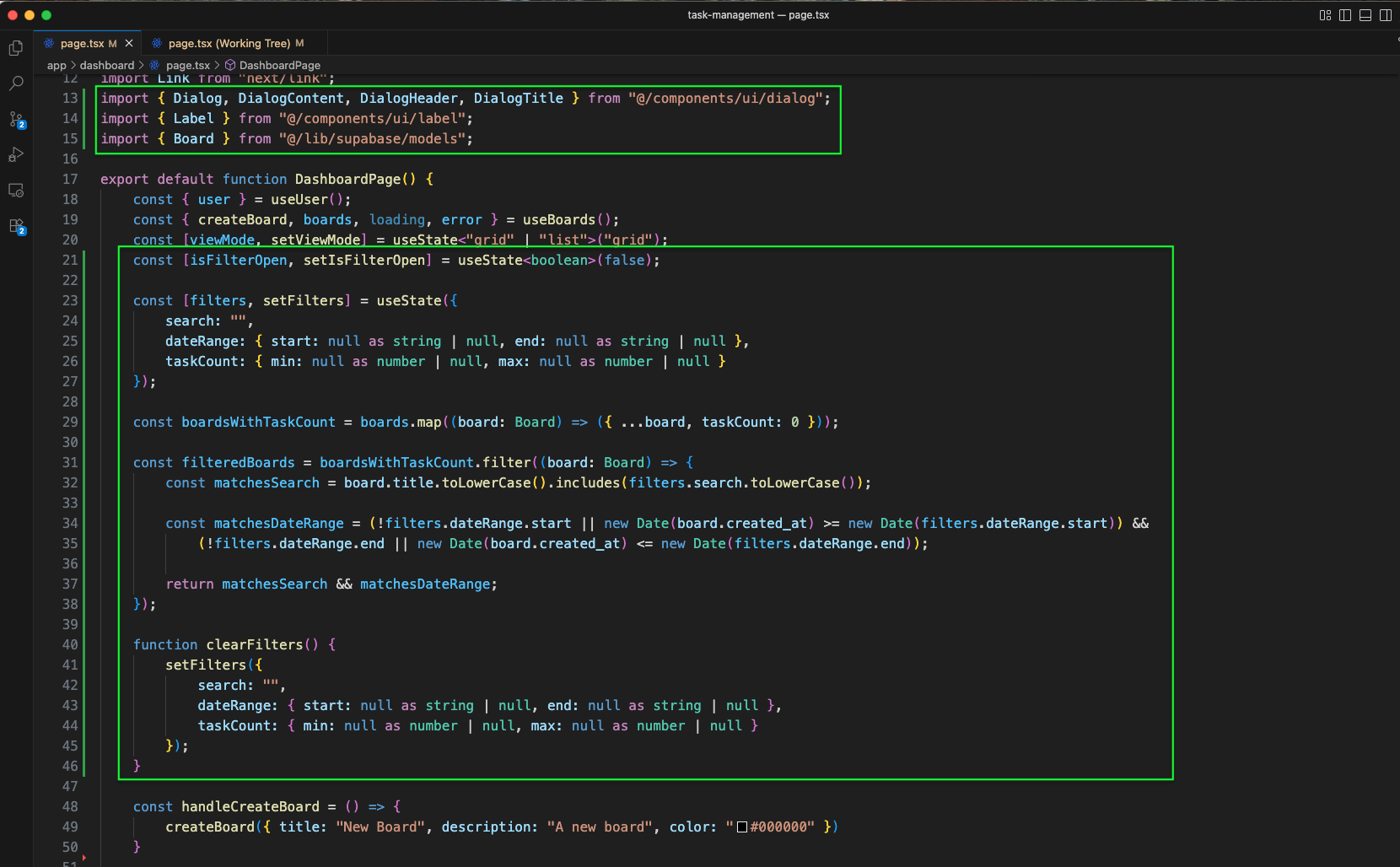
In the Button we have added onClick which will make setIsFilterOpen as true. And also in Input, we have added an onChange.
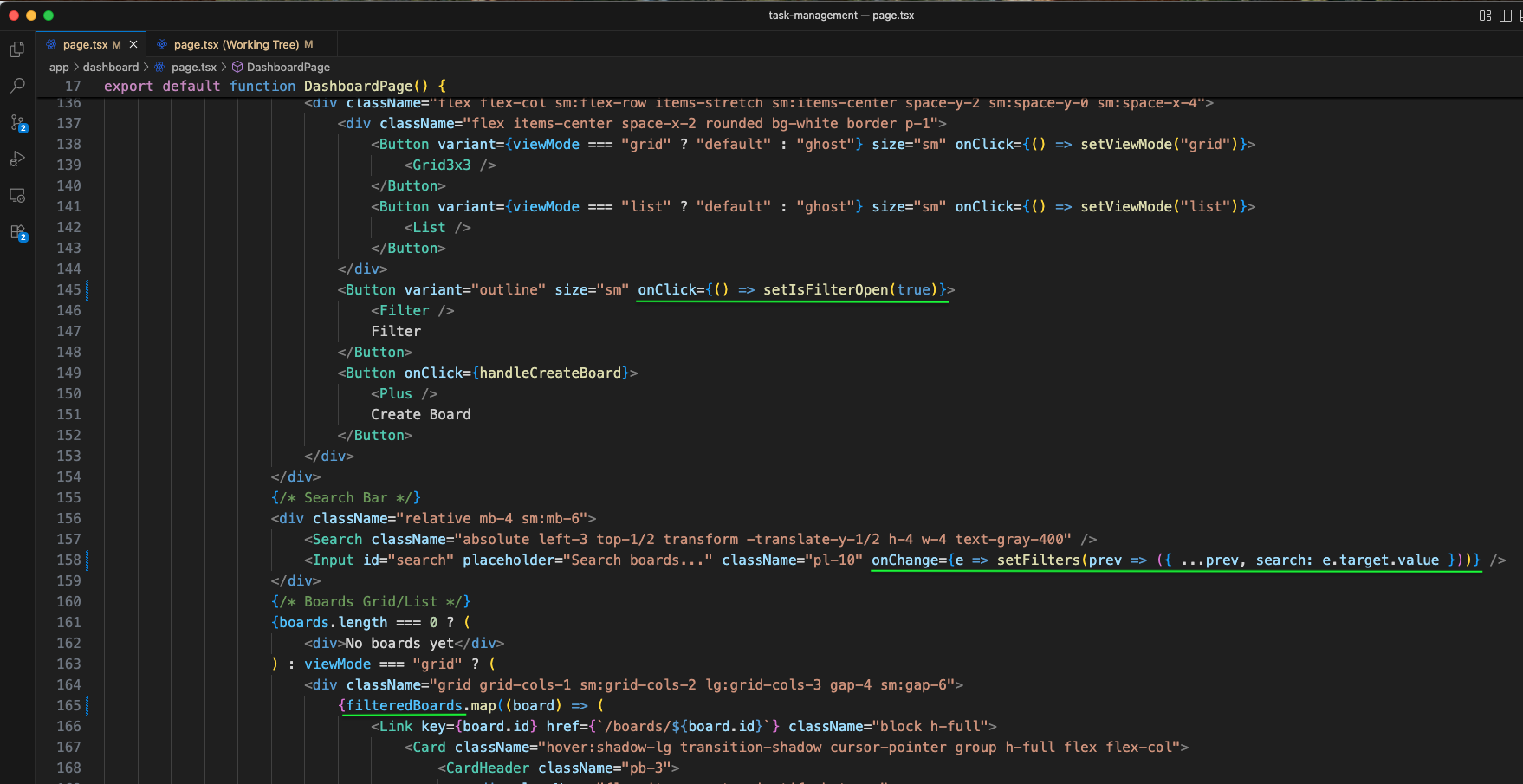
The Filter Boards dialog is added to the dashboard with a Search input for filtering board titles.
The Filter Boards dialog bottom section has Clear Filters and Apply Filters buttons.
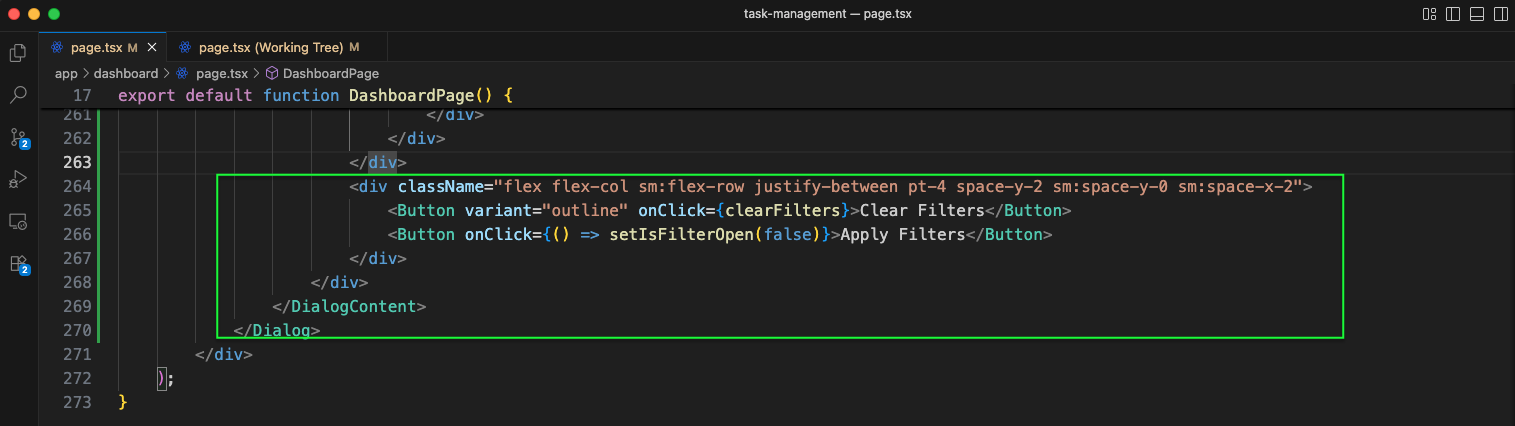
To check the Filter functionality, click on the Filter icon.
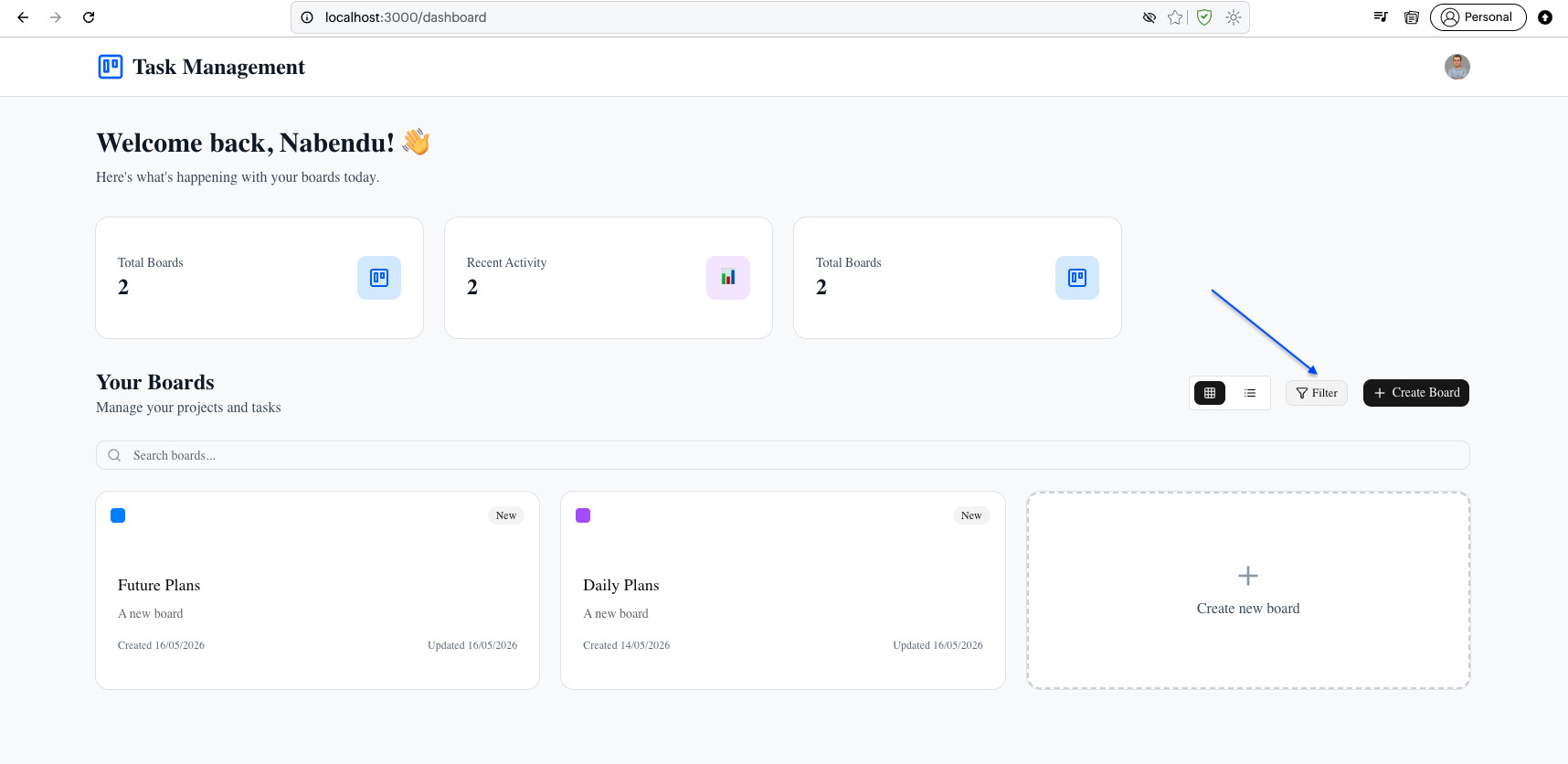
The Filter Boards dialog is open with Search, Date Range (Start Date), and Task Count (Minimum) filter options. Here, in Search we have written Future and clicked on Apply Filters button.
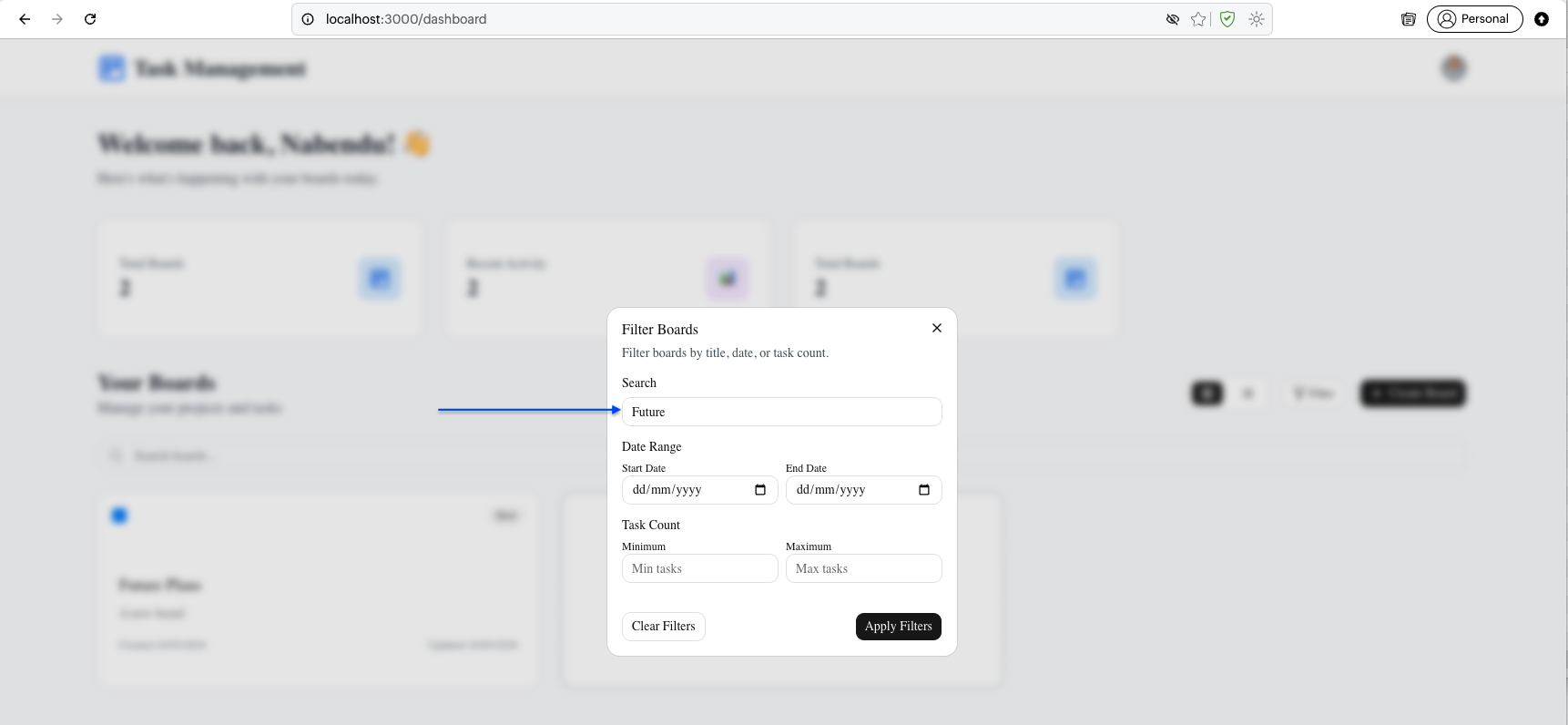
After filtering, the dashboard shows filtered results.
The HomePage is created with imports for useEffect, useRef, Calendar, Clock, Sparkles icons from lucide-react, and Navbar and Link components.
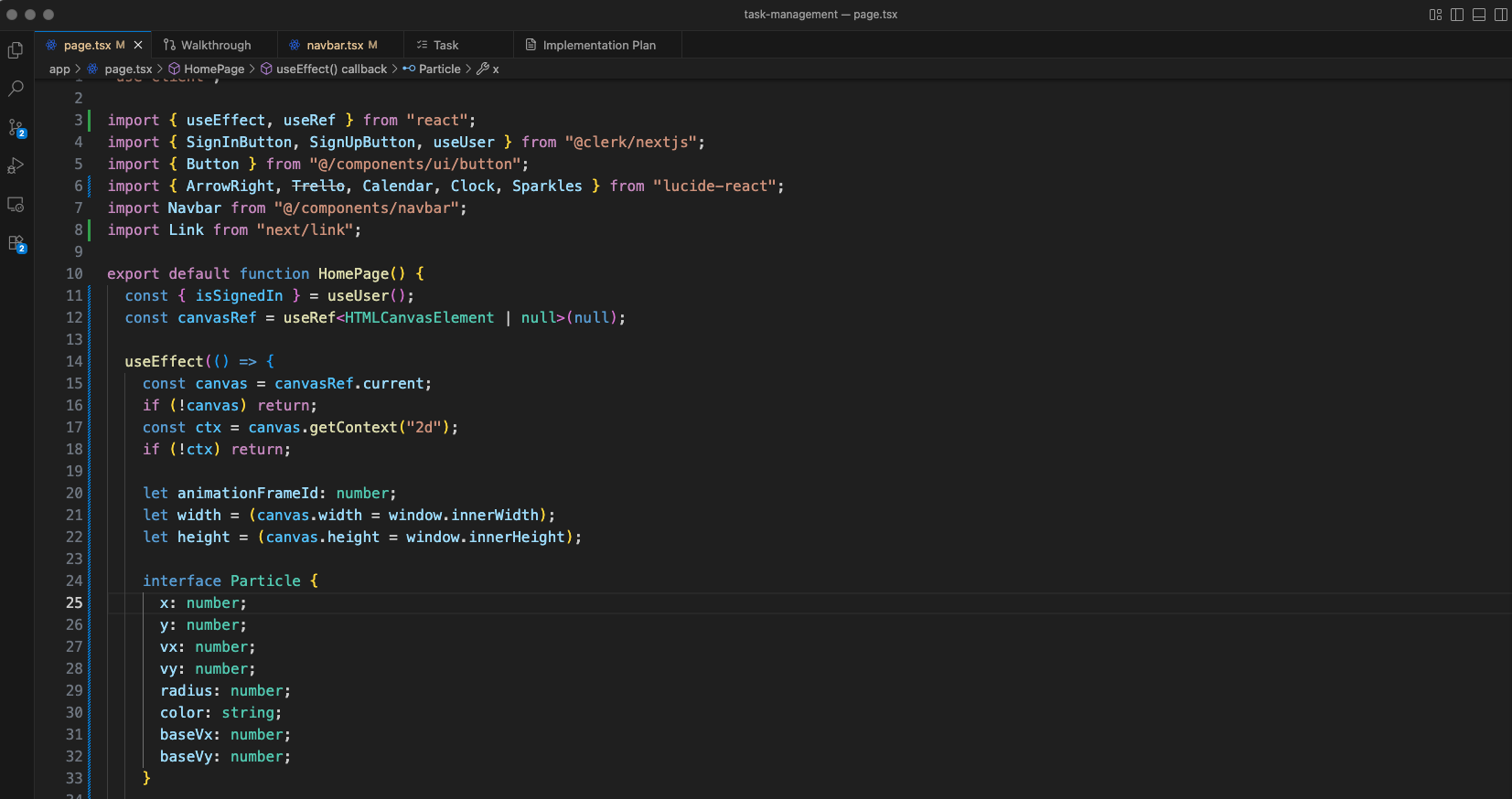
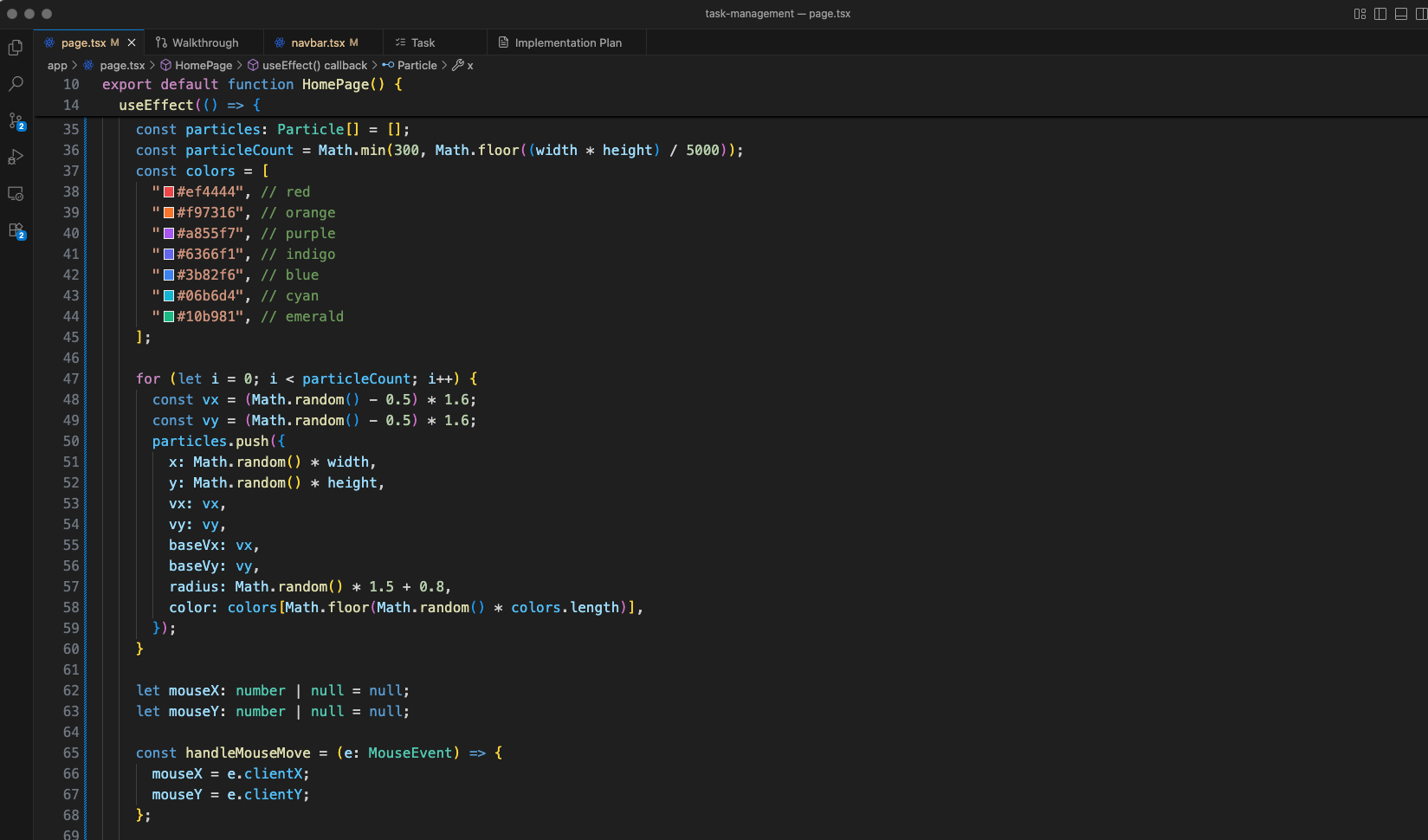
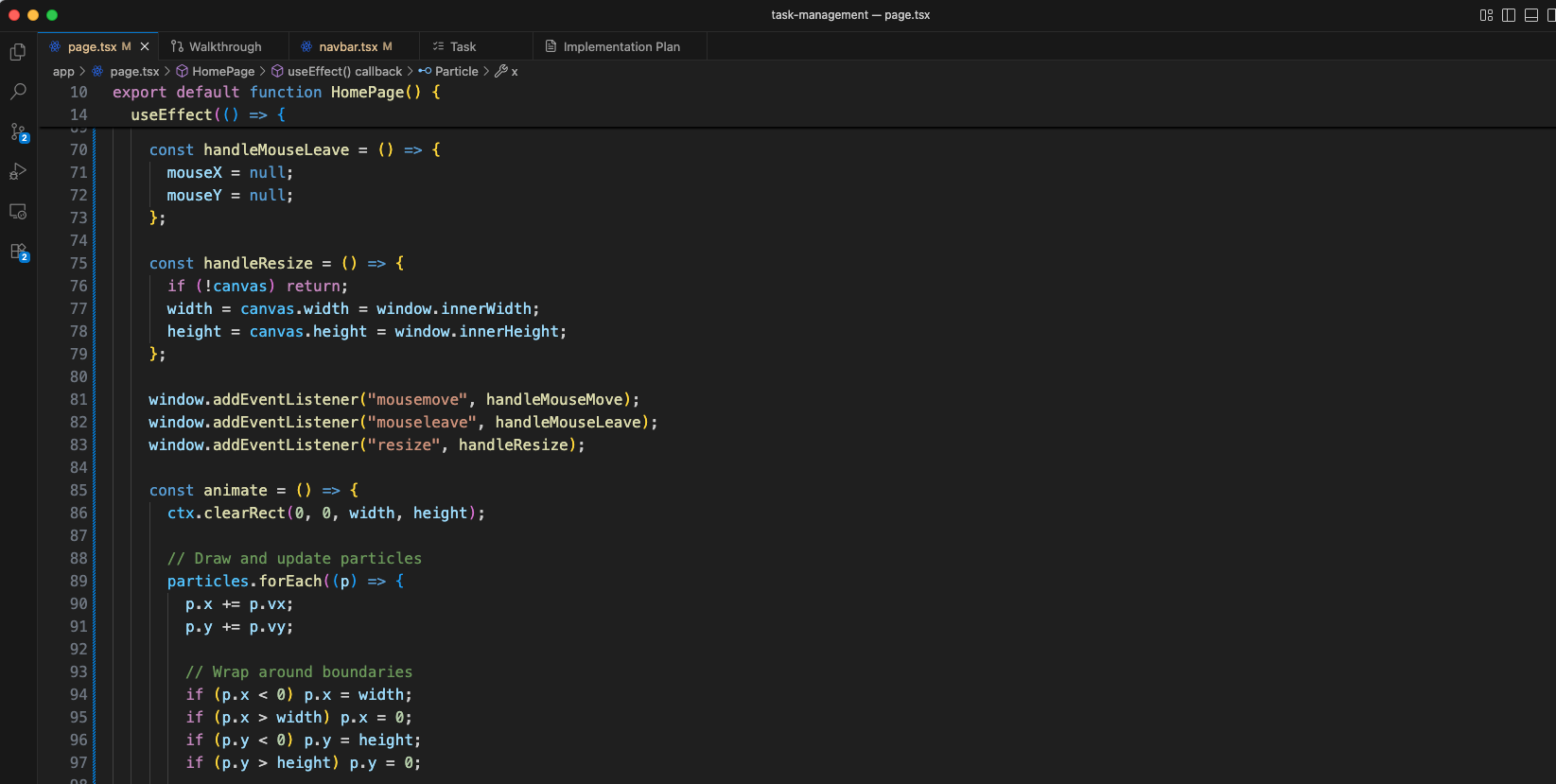
The HomePage includes a particles animation (green outline) with particle initialization, mouse move handlers, and animation loop.
The particle animation code continues with mouse attraction/gravity force logic - particles are attracted toward the mouse cursor within 180px distance, with speed limiting at 2.2.
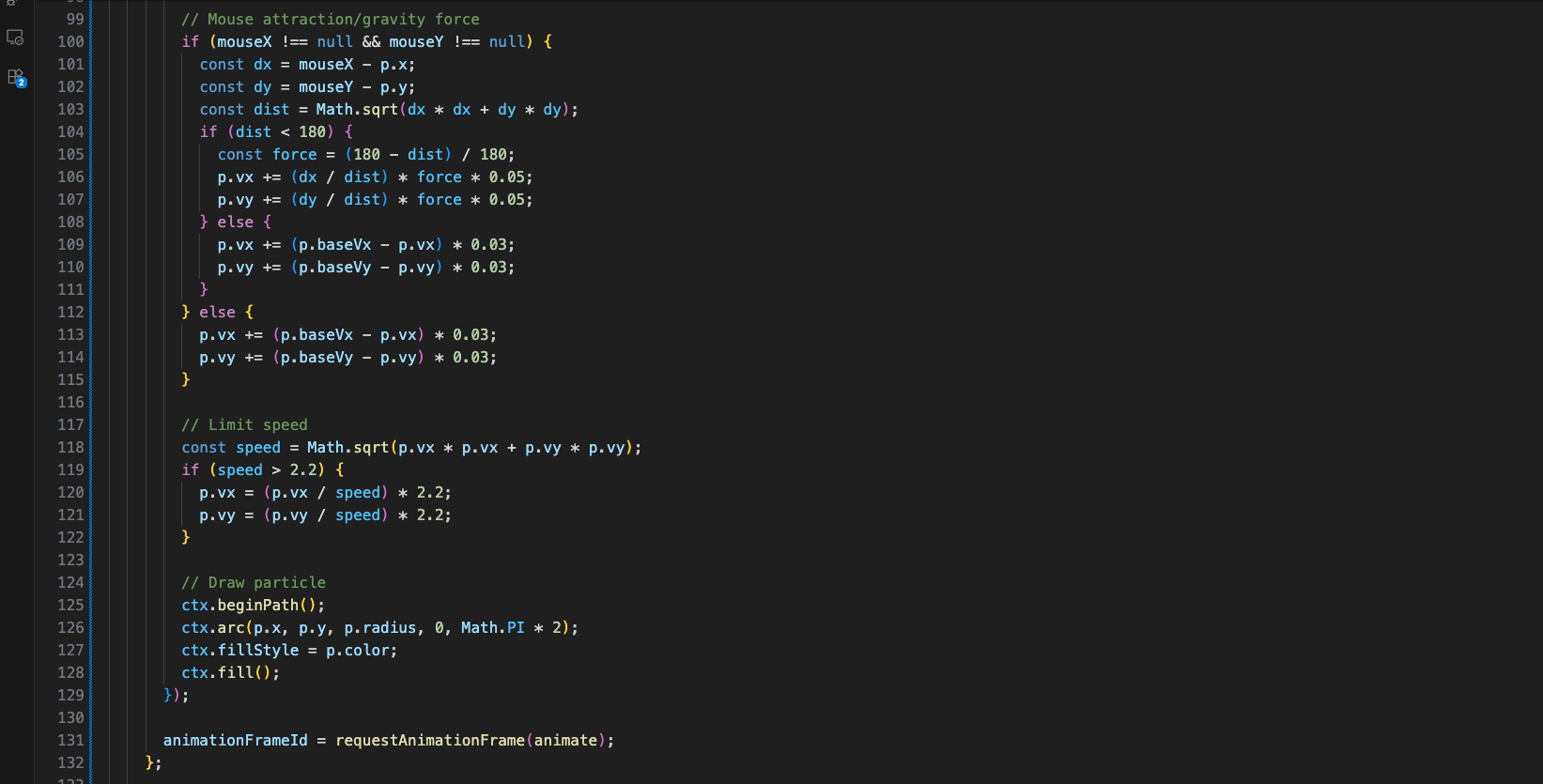
The particle animation continues with drawing each particle using canvas arc, fill style, and the requestAnimationFrame loop.
More code sections of the HomePage component are shown, continuing the landing page layout.
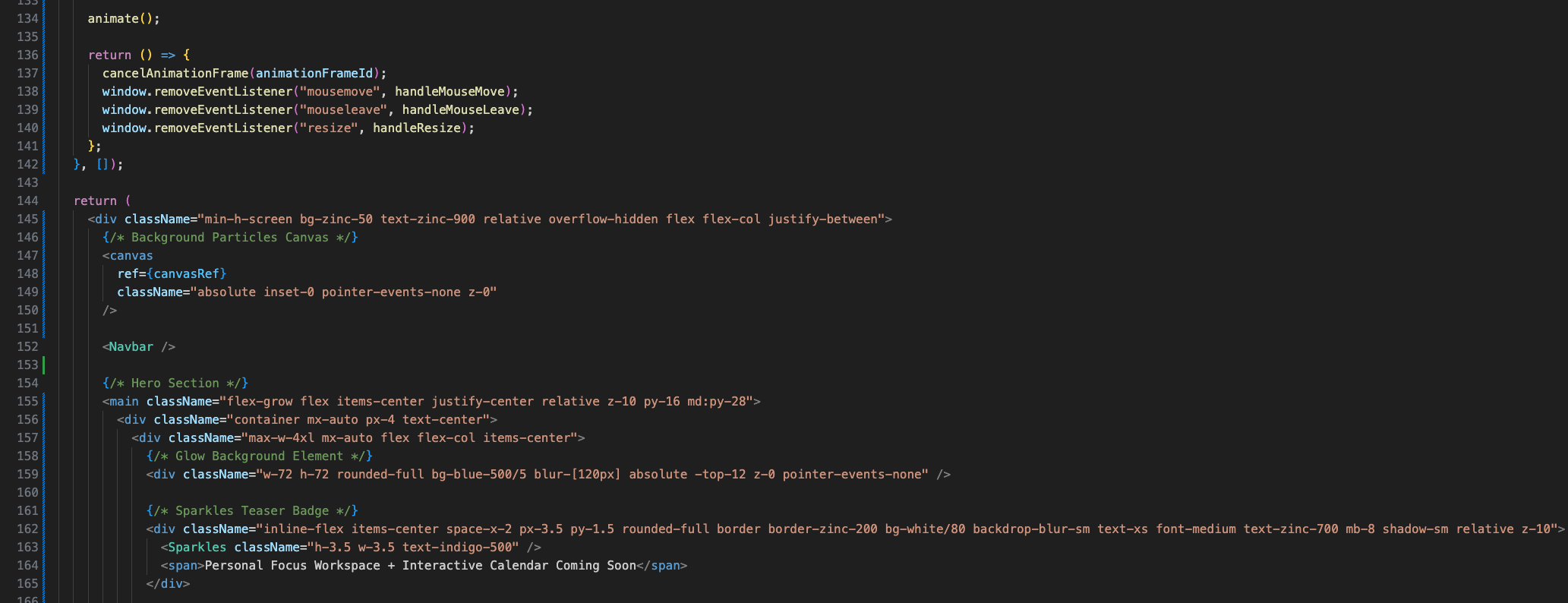
More code sections of the HomePage component are shown, continuing the landing page sections.
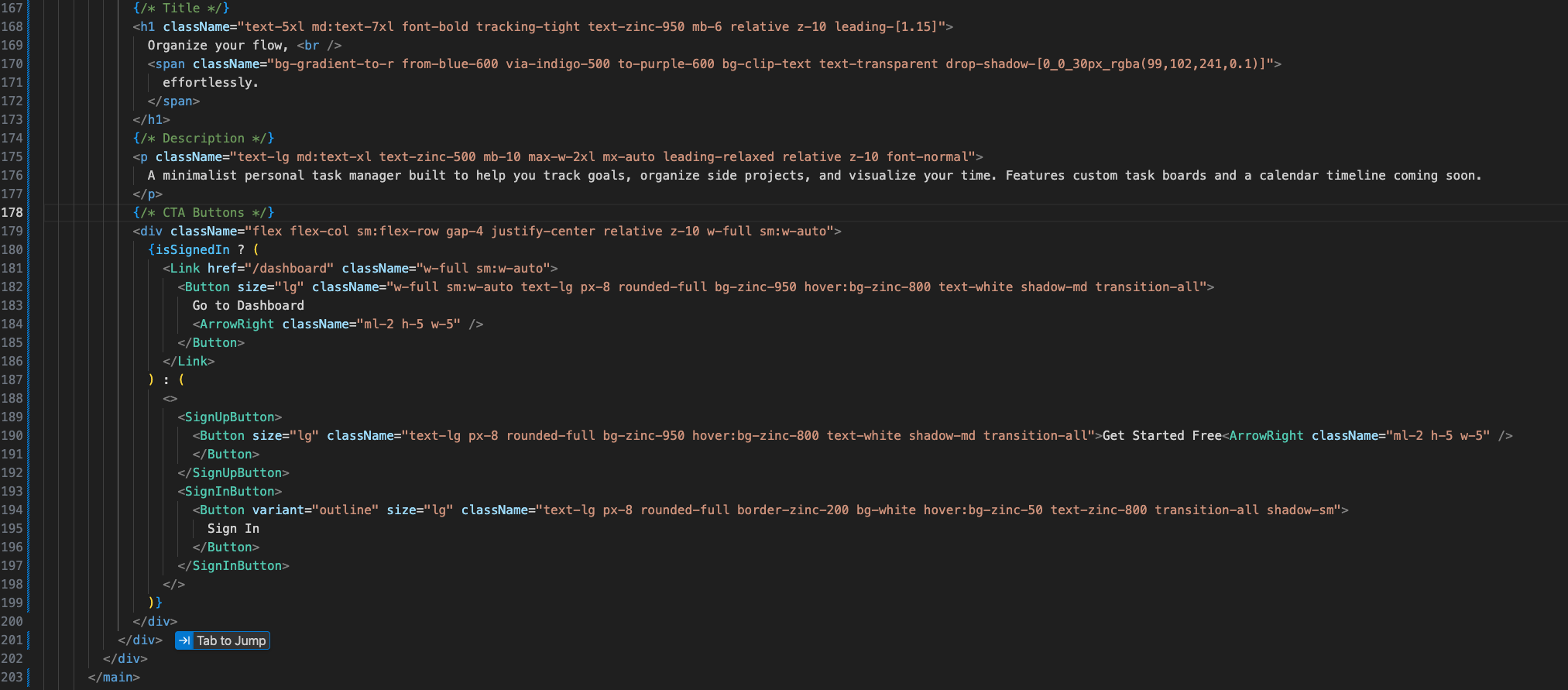
More code sections of the HomePage component are shown , continuing the feature cards.
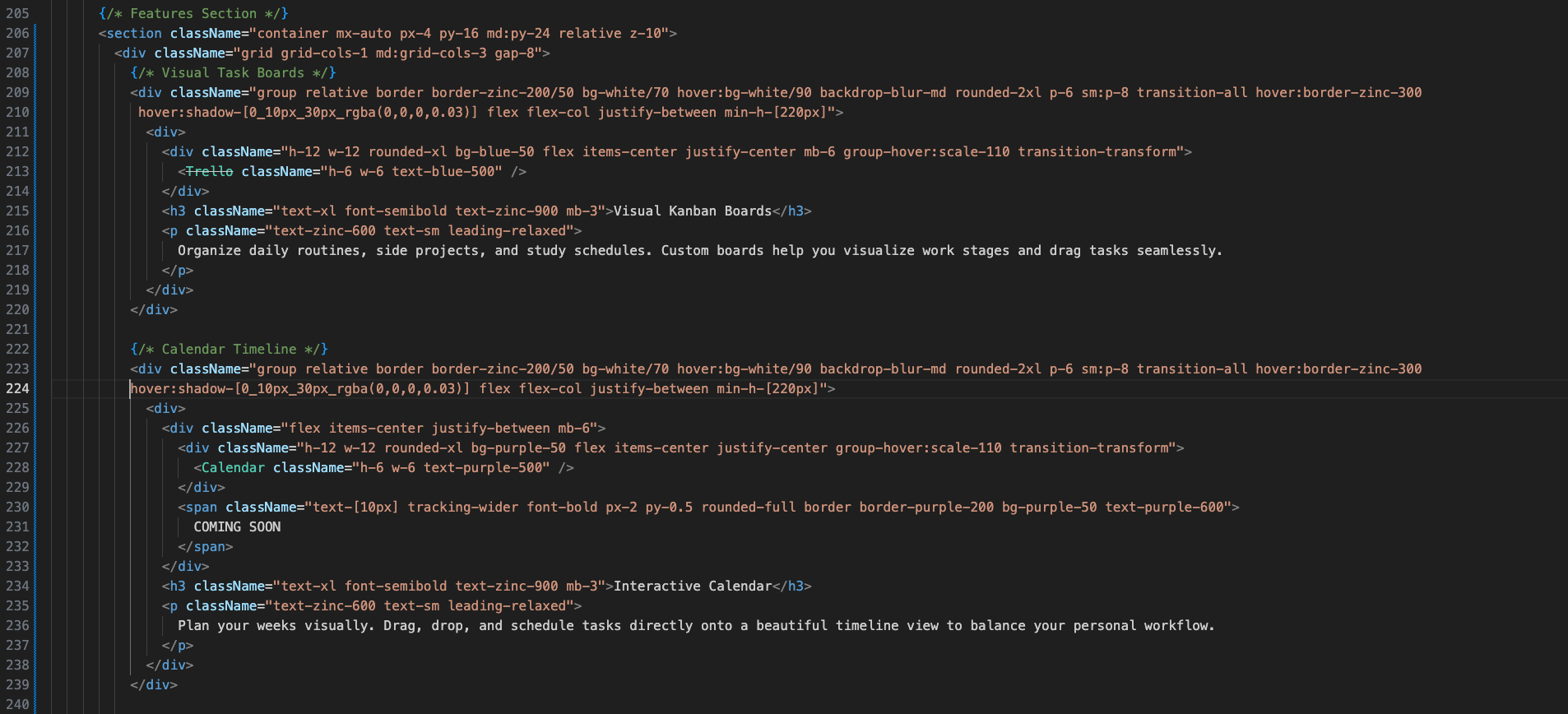
The Zen Focus section of the HomePage shows a "Distraction-Free" card with a Clock icon and description about personal focus with no team pings.
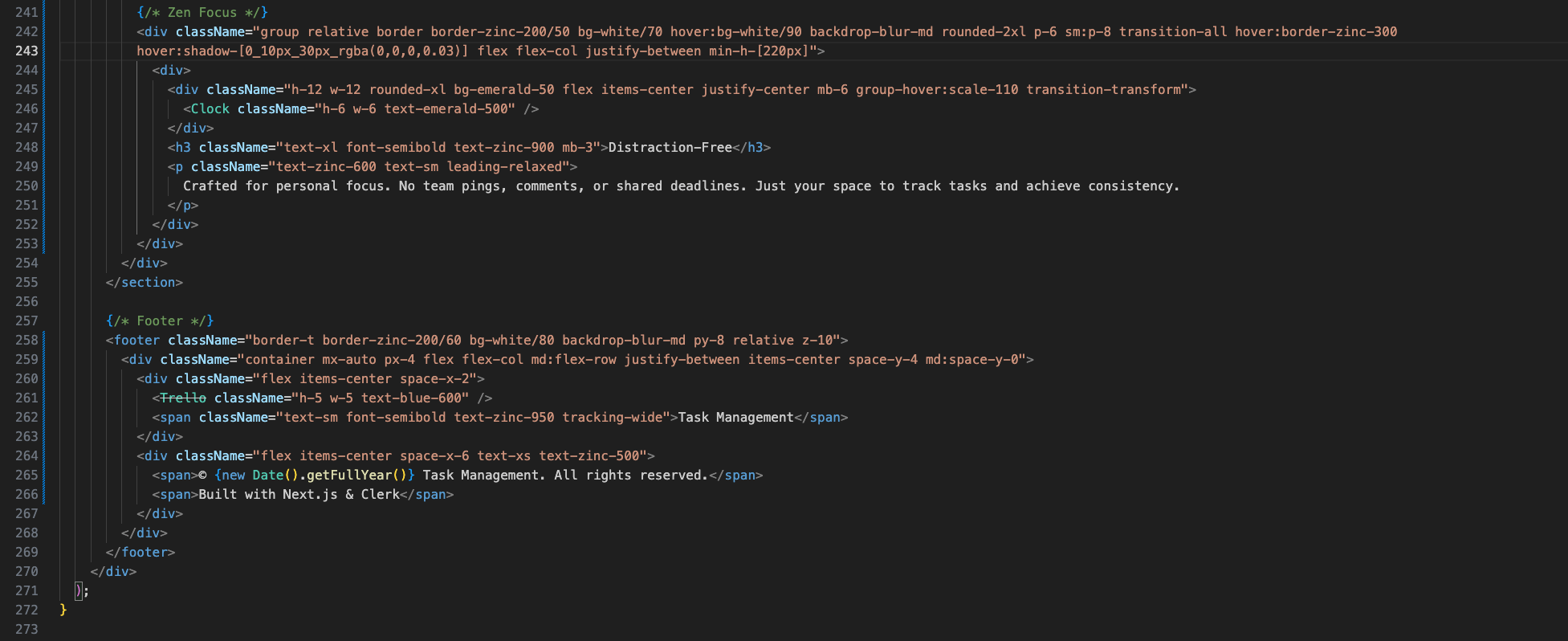
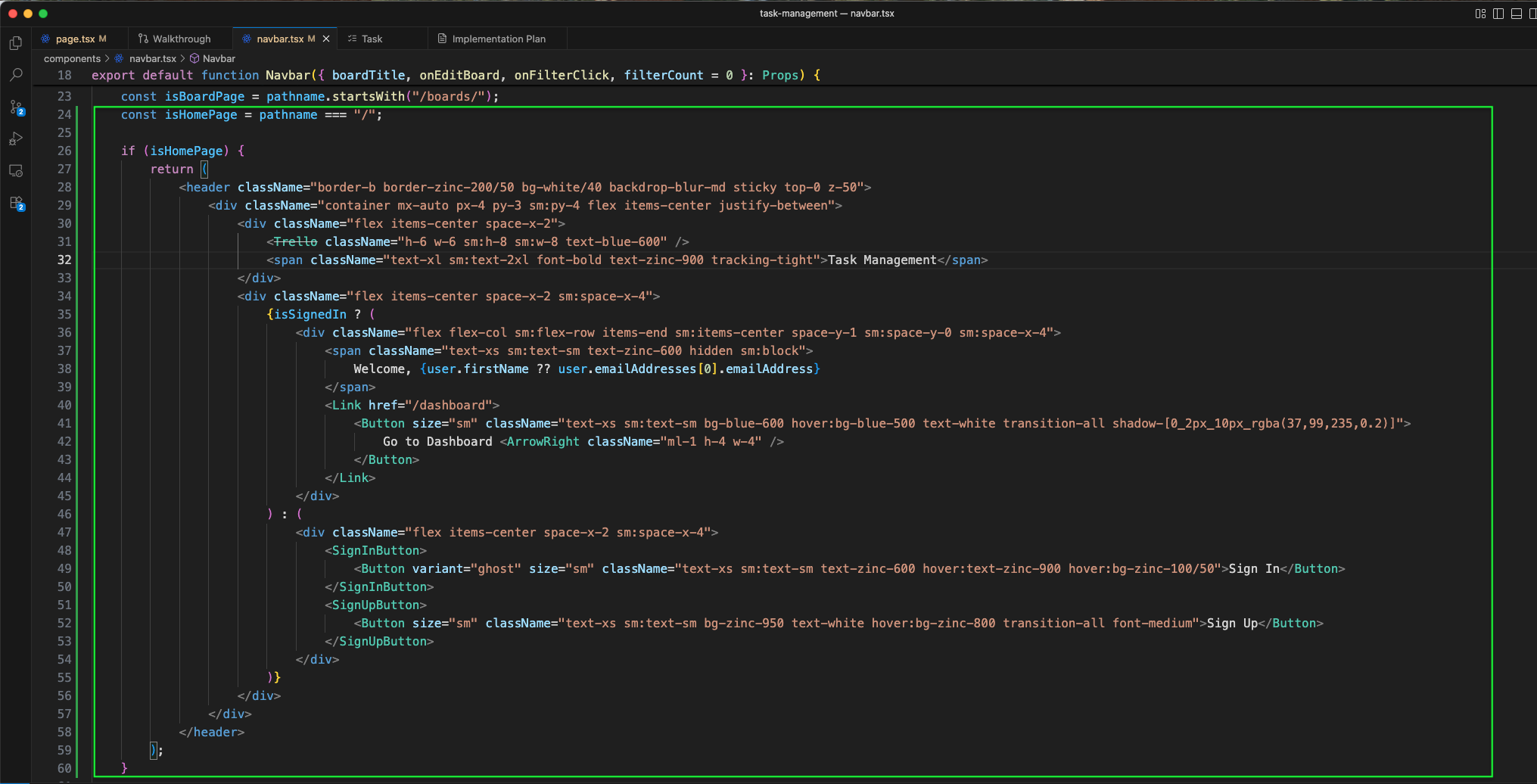
The Navbar is updated to handle the isHomePage route. When on the homepage, it renders a transparent header with the Trello icon and "Task Management" brand.
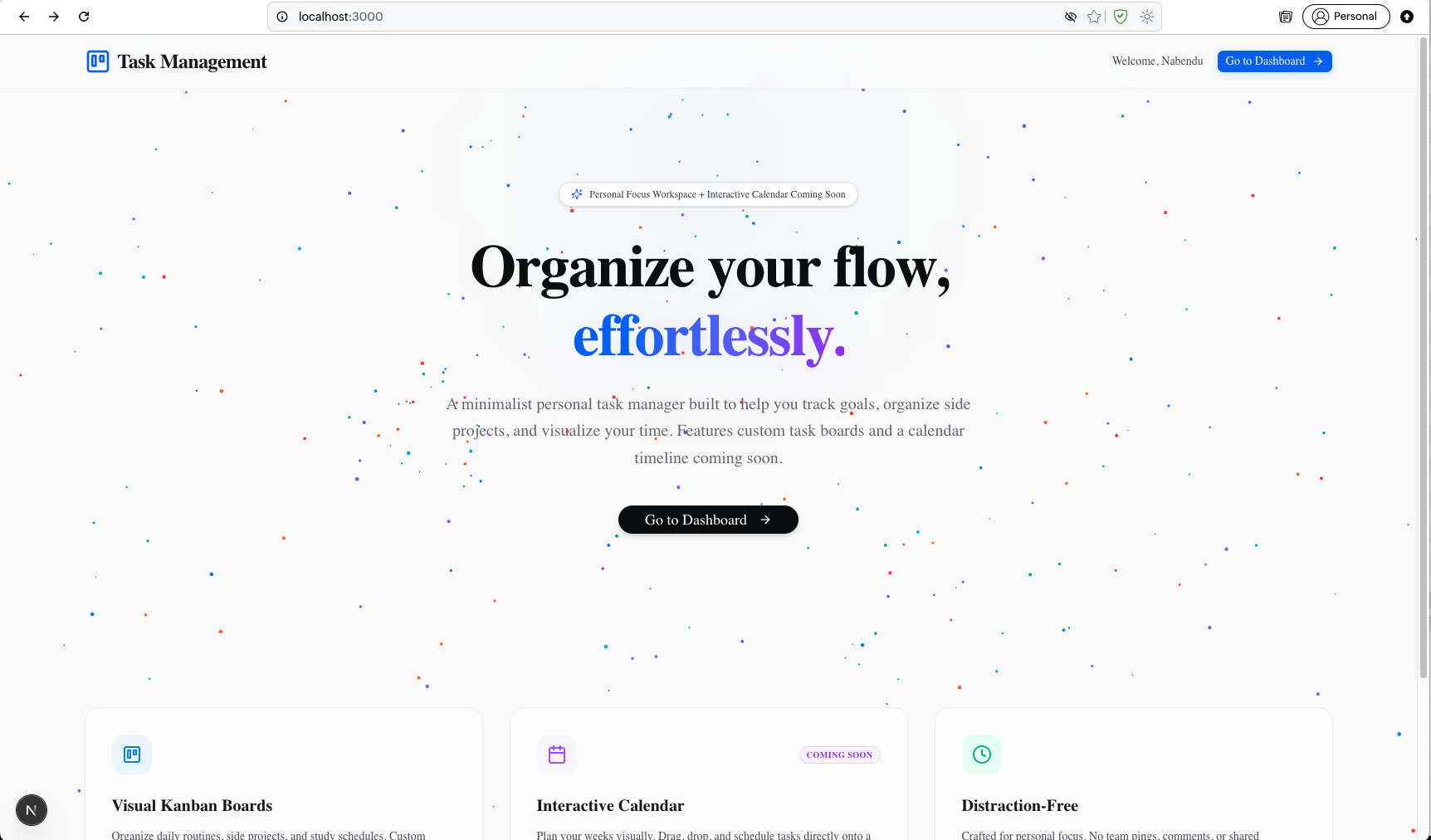
The landing page at http://localhost:3000 shows an awesome homepage, with particle animation background.
I have added a lot of thing in the code to make a personalized Task Manager. Specially the feature of having a Calendar. For this take the latest code from my GitHub repo.
And in the .env file update with Clerk URL configuration (NEXT_PUBLIC_CLERK_SIGN_IN_URL and NEXT_PUBLIC_CLERK_SIGN_UP_URL) and an ALLOWED_USERS whitelist for email/GitHub usernames. You can use any number of users.

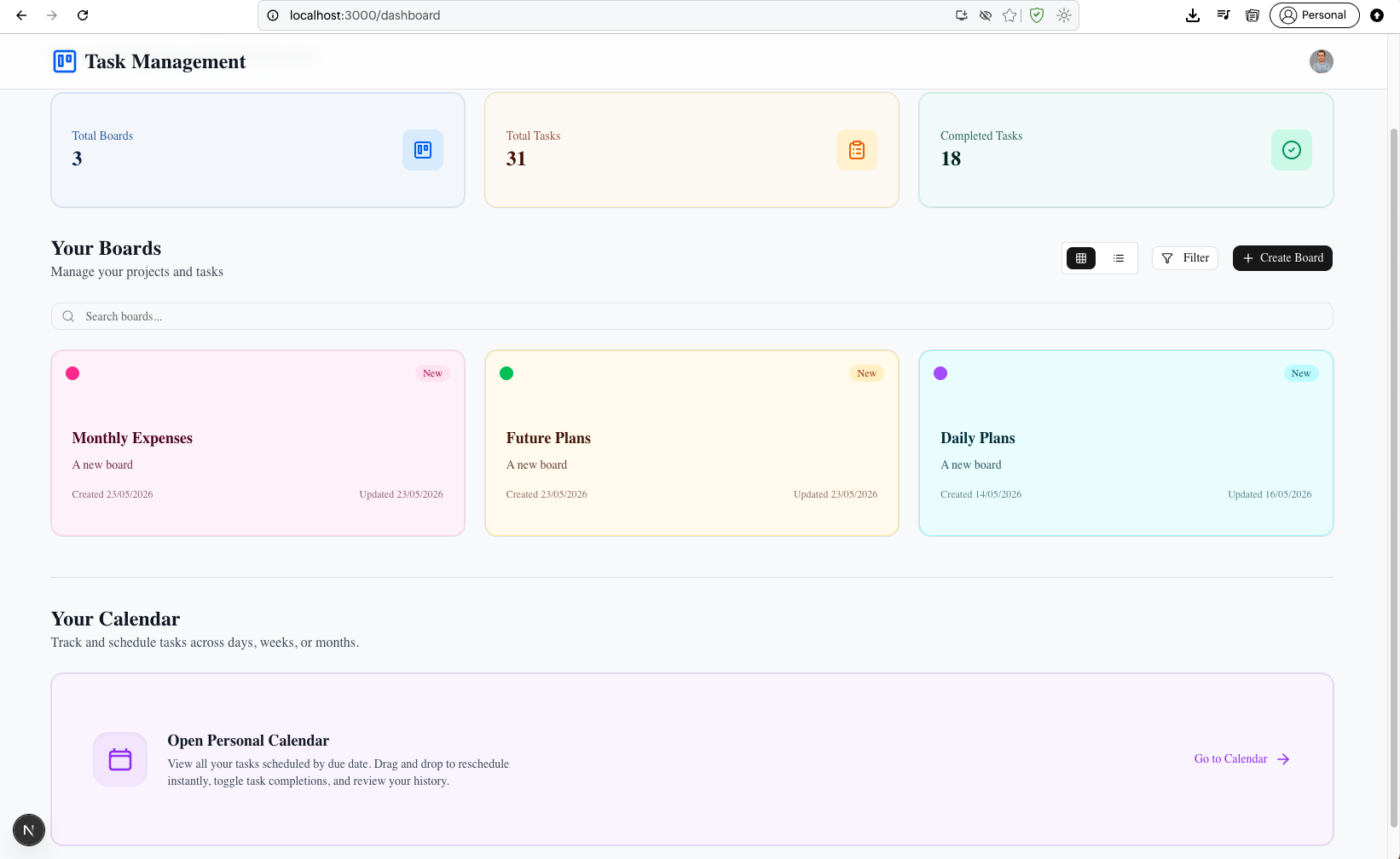
The dashboard now shows Your Boards along with Your Calendar section with "Open Personal Calendar" button.
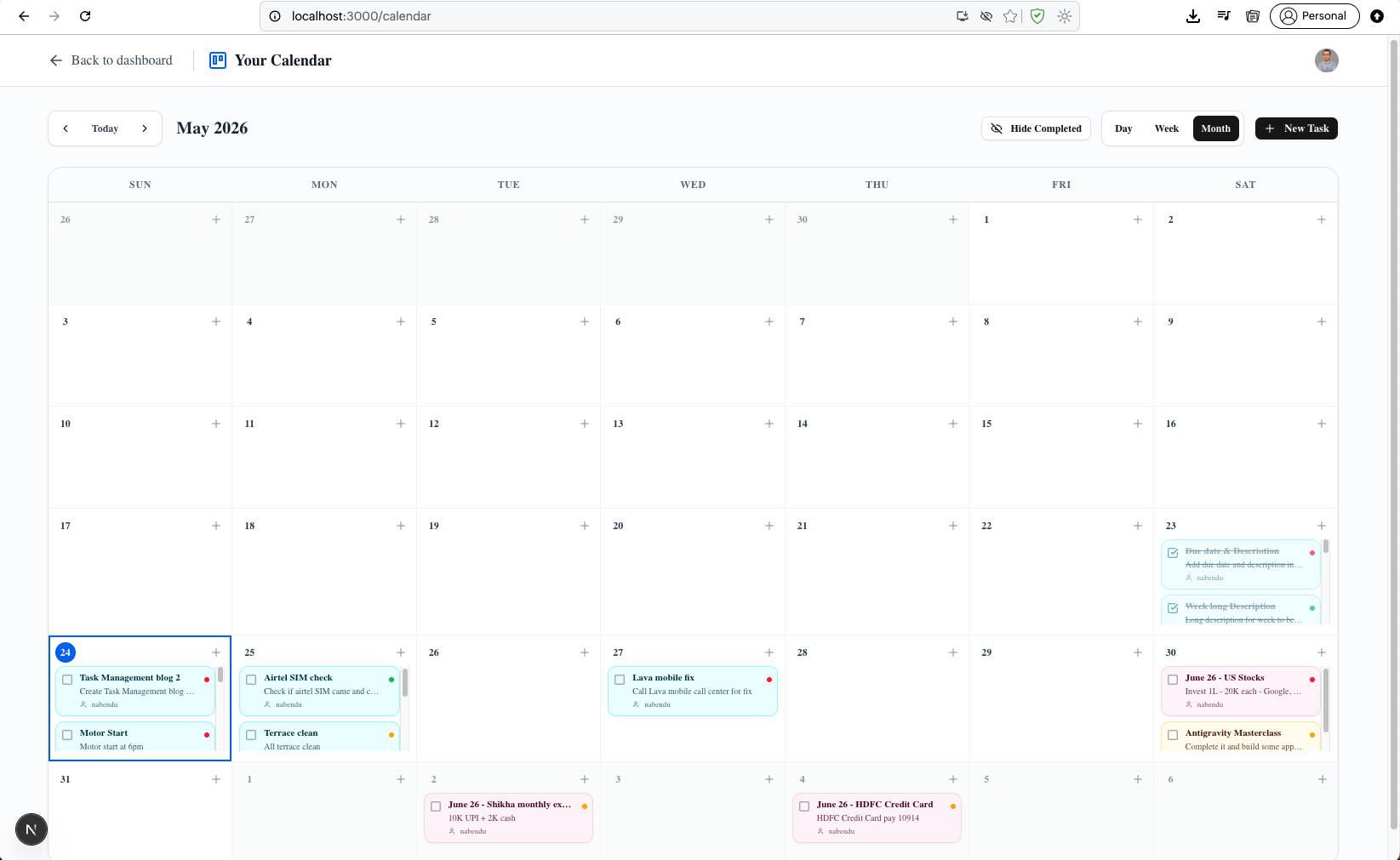
The calendar page at http://localhost:3000/calendar shows Your Calendar with month view, day/week/month navigation, and "Hide Completed" toggle.
The calendar Week view displays tasks per day of the week. Notice that different Board tasks have different background color.
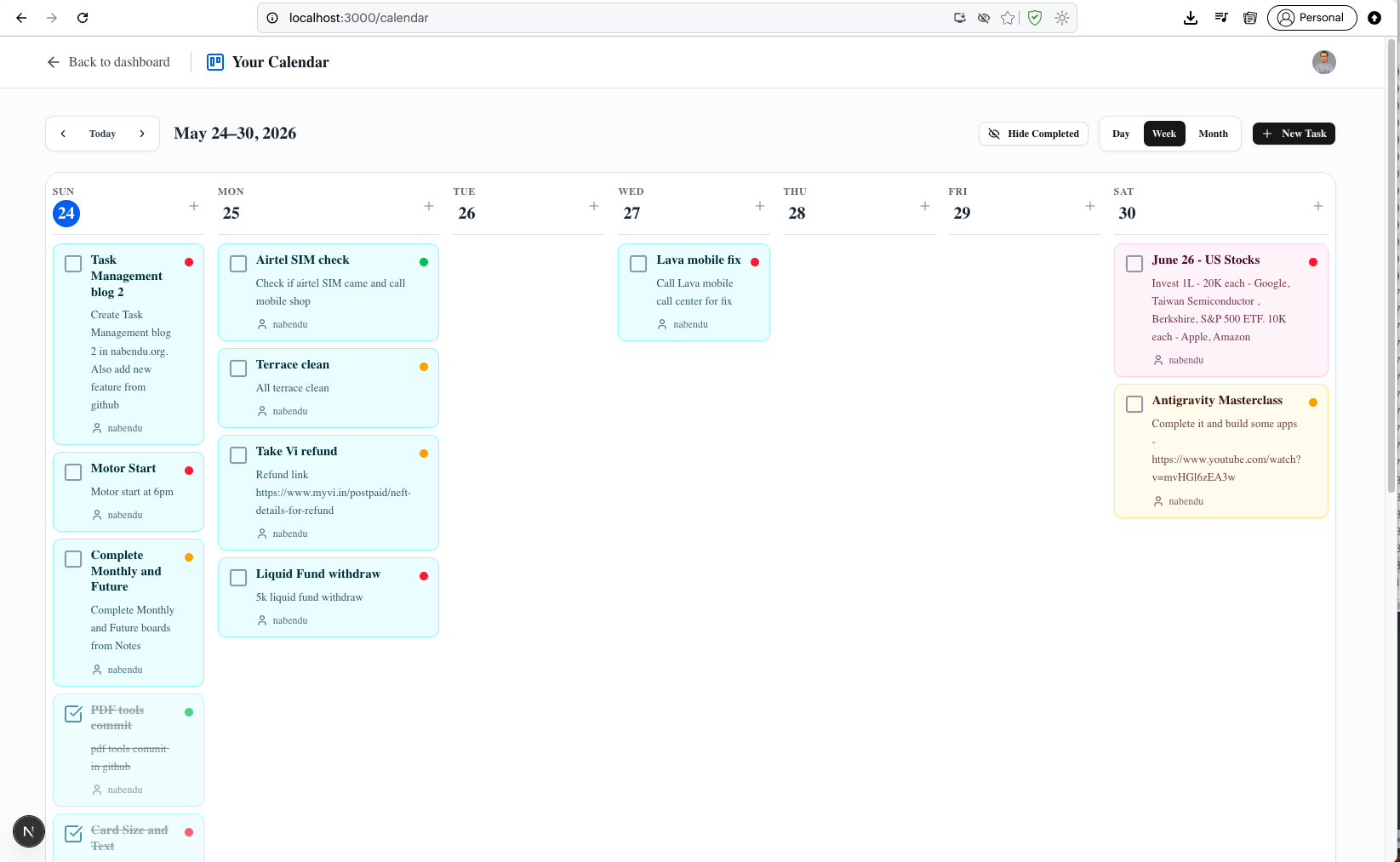
The calendar Day view shows the tasks for the day.
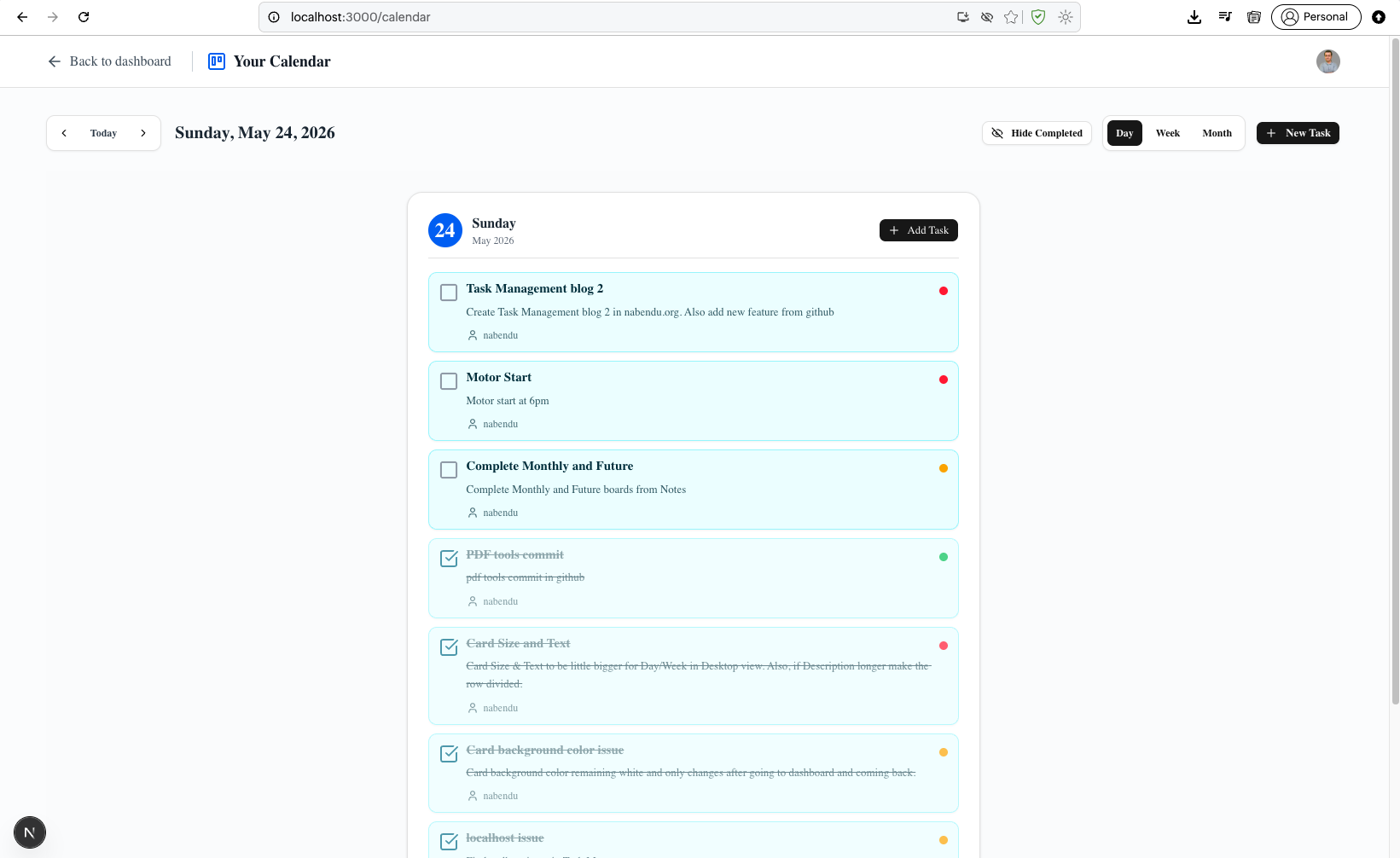
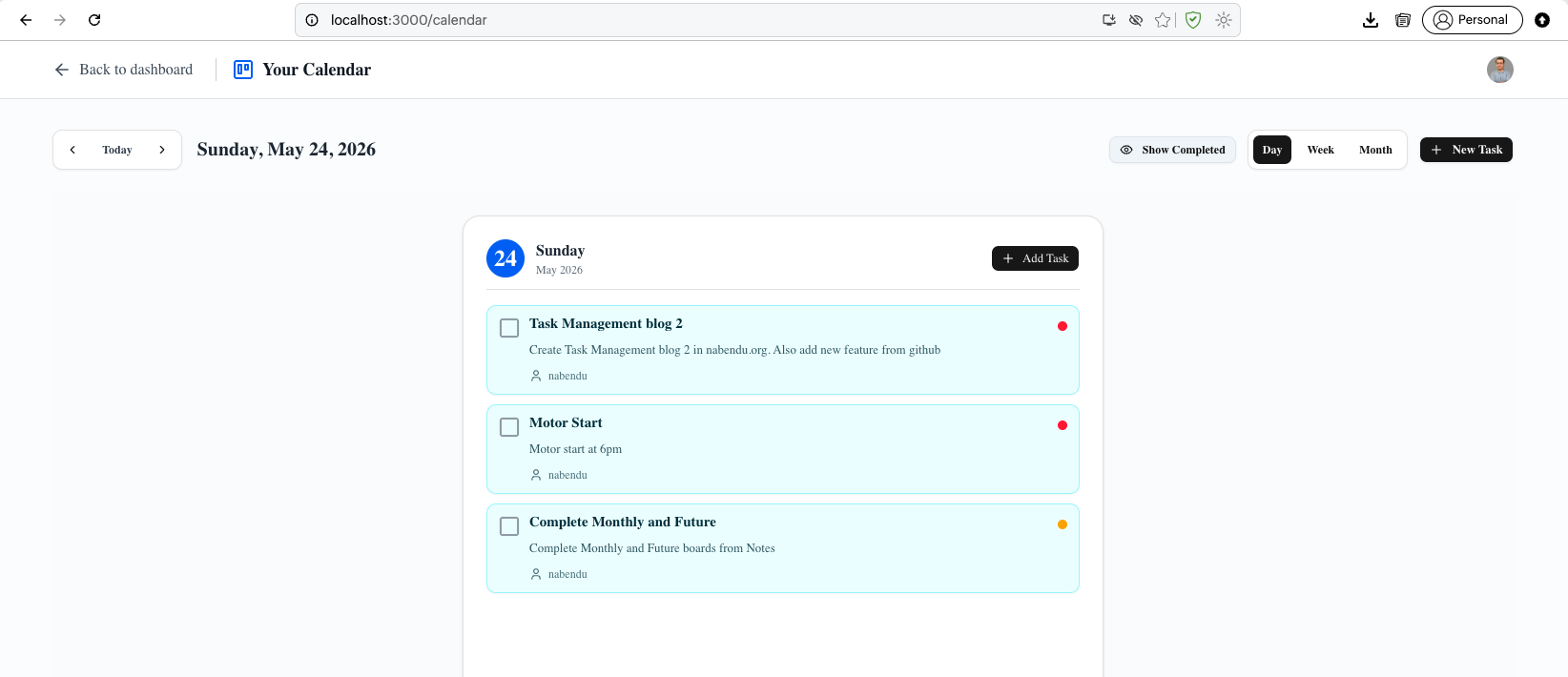
Clicking on the Hide Completed button, hides the completed tasks in the Day view and other views also.
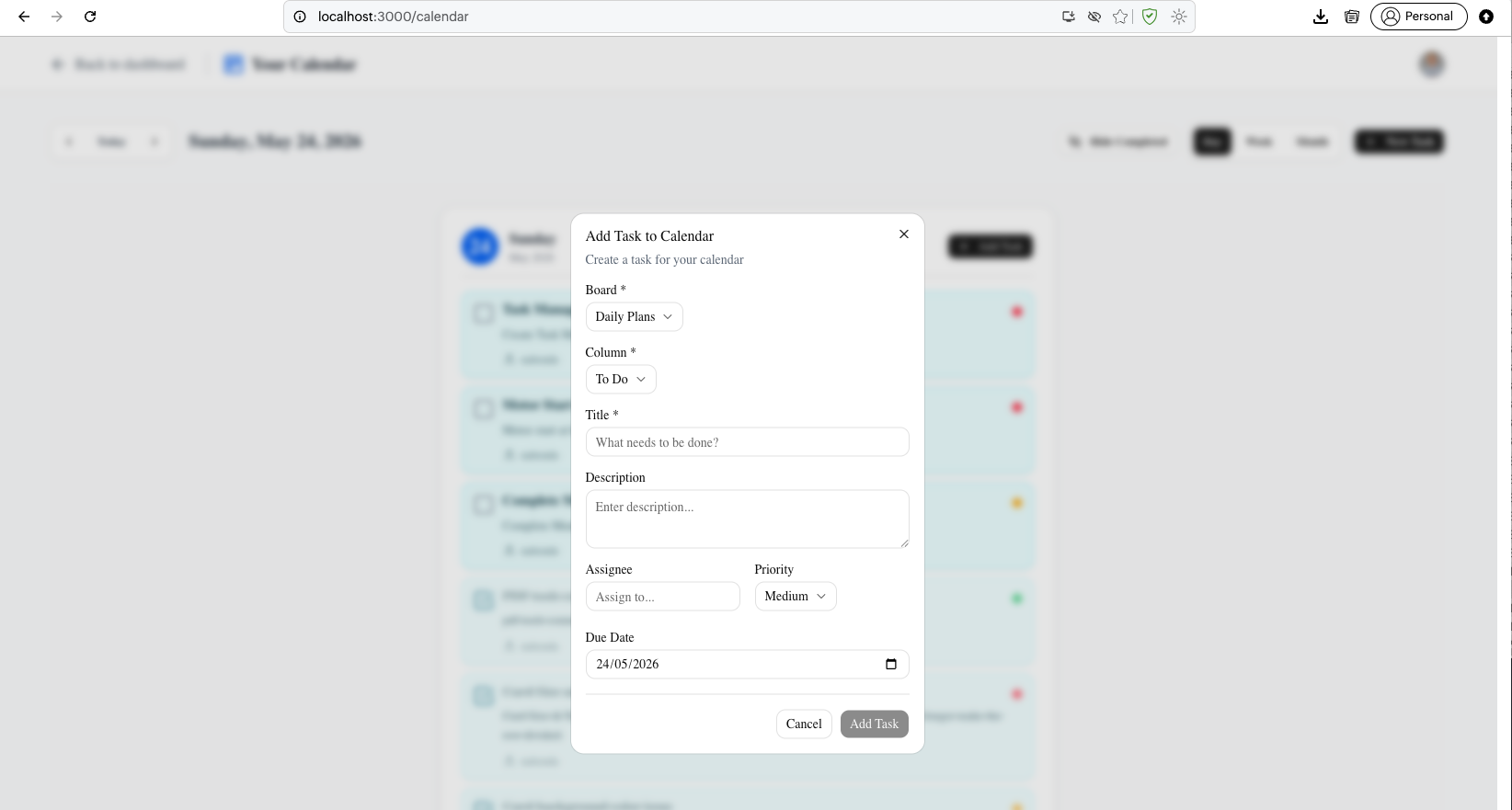
We can add tasks from Calendar also. Clicking on Add Task will open the Add Task to Calendar dialog shows form fields for Board, Column, Title, Description, Assignee, Due Date, and Priority, with Cancel and Add Task buttons.
This completes the final part of the blog. You can find the code here