Employee Mgmt System in MERN - 3
ReactJS
In this post we will continue with our Employee Management System using MERN stack. This project and post have been inspired by this YouTube playlist. Part 2 can be found here.
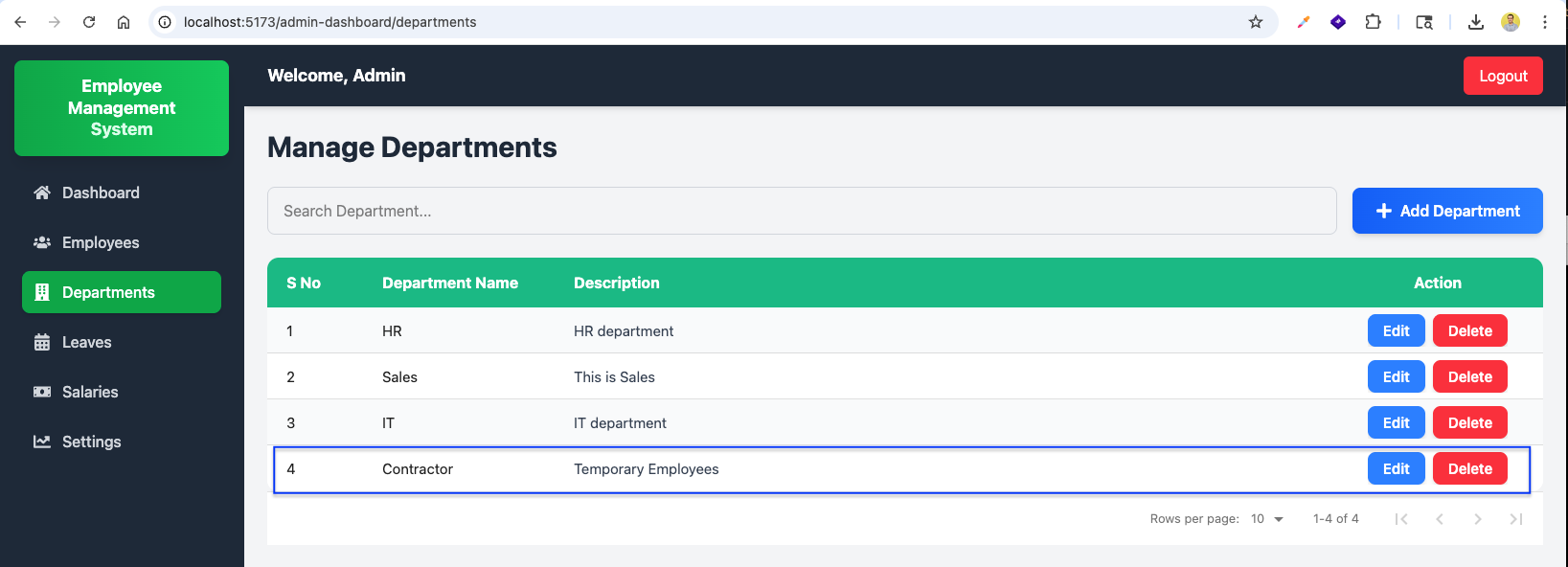
We will implement cascade delete when an admin removes a department: related employees, user accounts, leaves, and salary records must be cleaned up safely. First, here is sample data so you can see the app with a Contractor department and linked employees, leaves, and salaries before wiring the new delete behavior.
Now, in http://localhost:5173/admin-dashboard/departments the Manage Departments page lists HR, Sales, IT, and Contractor (the row we use to exercise delete below).
On Manage Employees, Mary Jones and John Smith are assigned to the Contractor department.

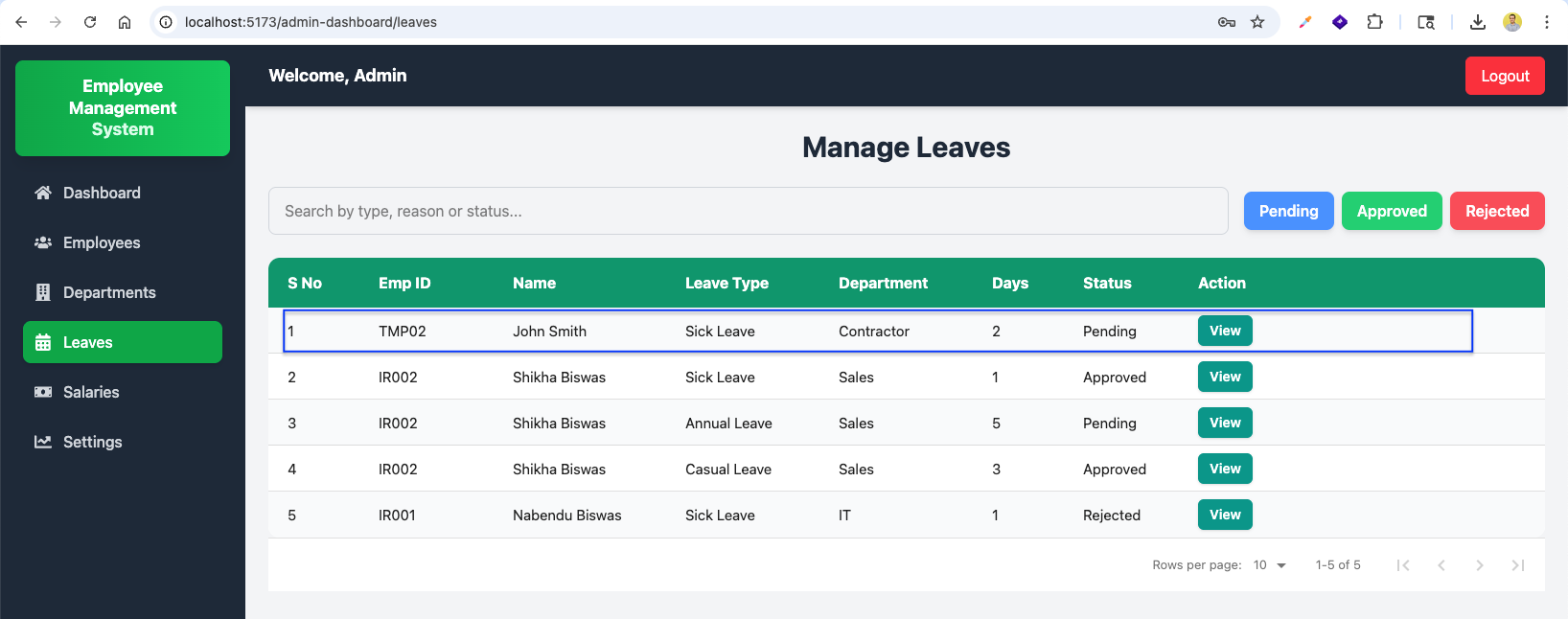
Manage Leaves shows all requests; for example, a pending sick leave for a contractor employee appears in the table alongside other rows.
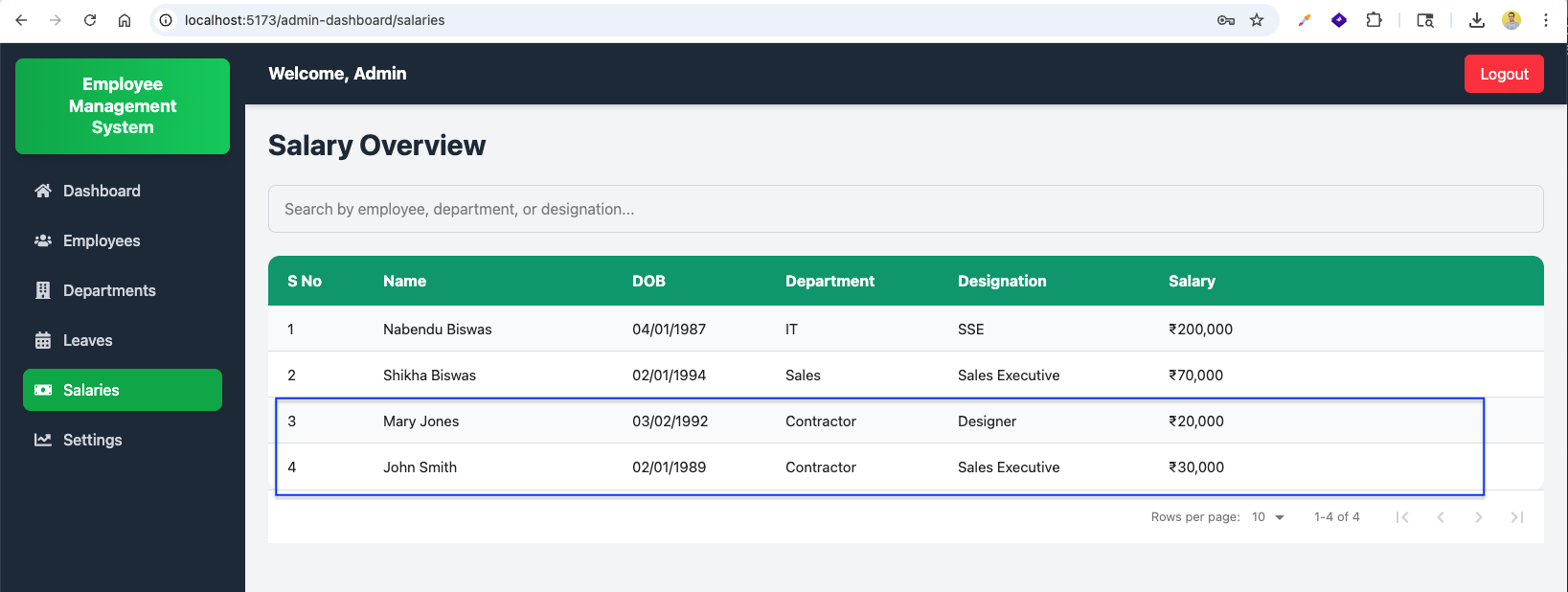
Salary Overview includes salary rows for the contractor employees as well.
Now, in departmentController.js we import Employee, User, Leave, and Salary so the controller can remove related documents when a department is deleted.

In deleteDepartment we replace immediate delete with Department.findById(id) so we can run checks and cascade logic before removing the department.

We complete deleteDepartment: collect userId values from employees in that department, delete matching Leave and Salary documents, delete User accounts, delete Employee rows, then Department.findByIdAndDelete, and return a message that includes how many employees were removed.

In DepartmentHelper.jsx, handleDelete shows a stronger confirm warning about permanent data loss, and on success uses response.data.message in alert when the API returns one.
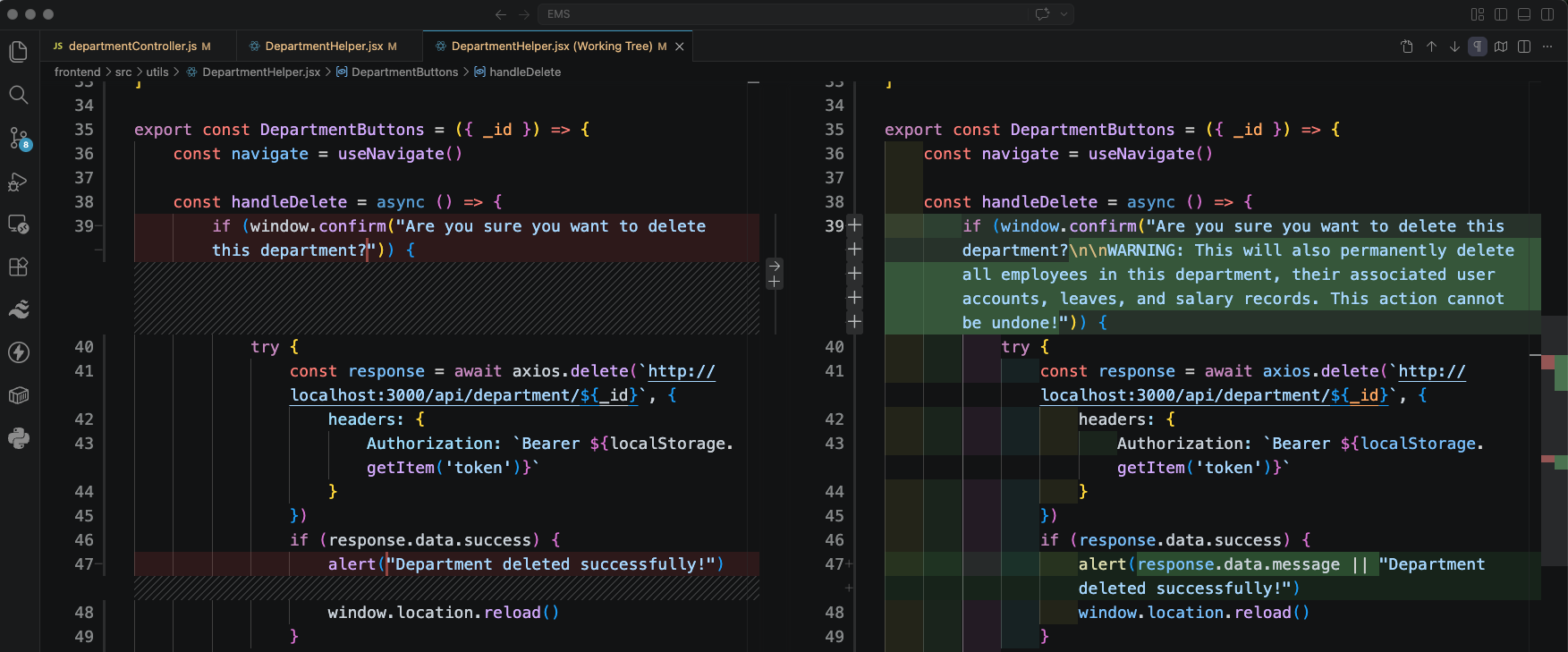
Clicking Delete on a department opens the browser confirm dialog with the full warning text.

After OK, the success alert summarizes the cascade—for example, that the department was deleted along with the employees and their associated records.

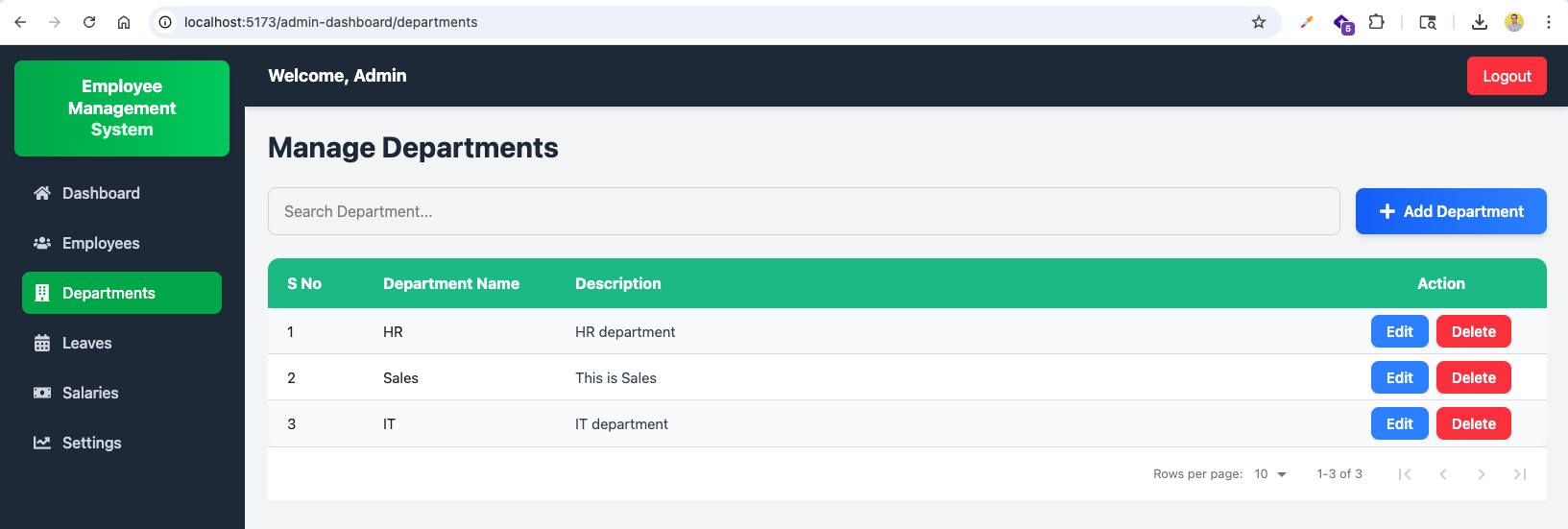
After the cascade completes, Manage Departments shows only HR, Sales, and IT—the Contractor row and its dependents are gone.
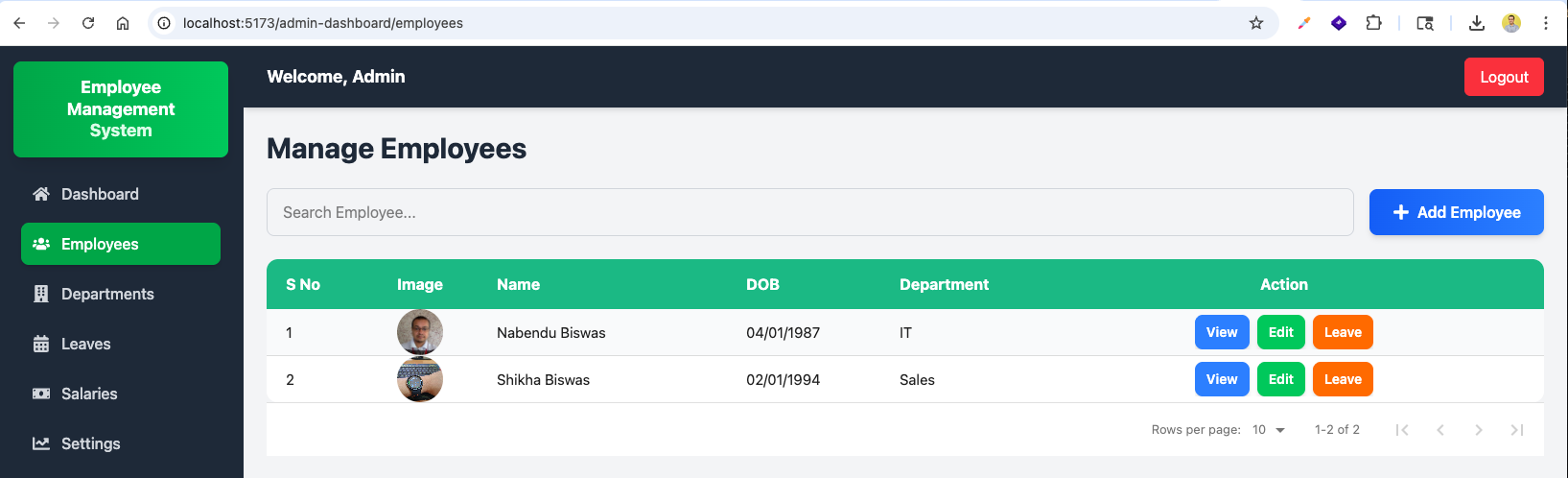
Manage Employees now lists the remaining staff (for example Nabendu Biswas in IT and Shikha Biswas in Sales).
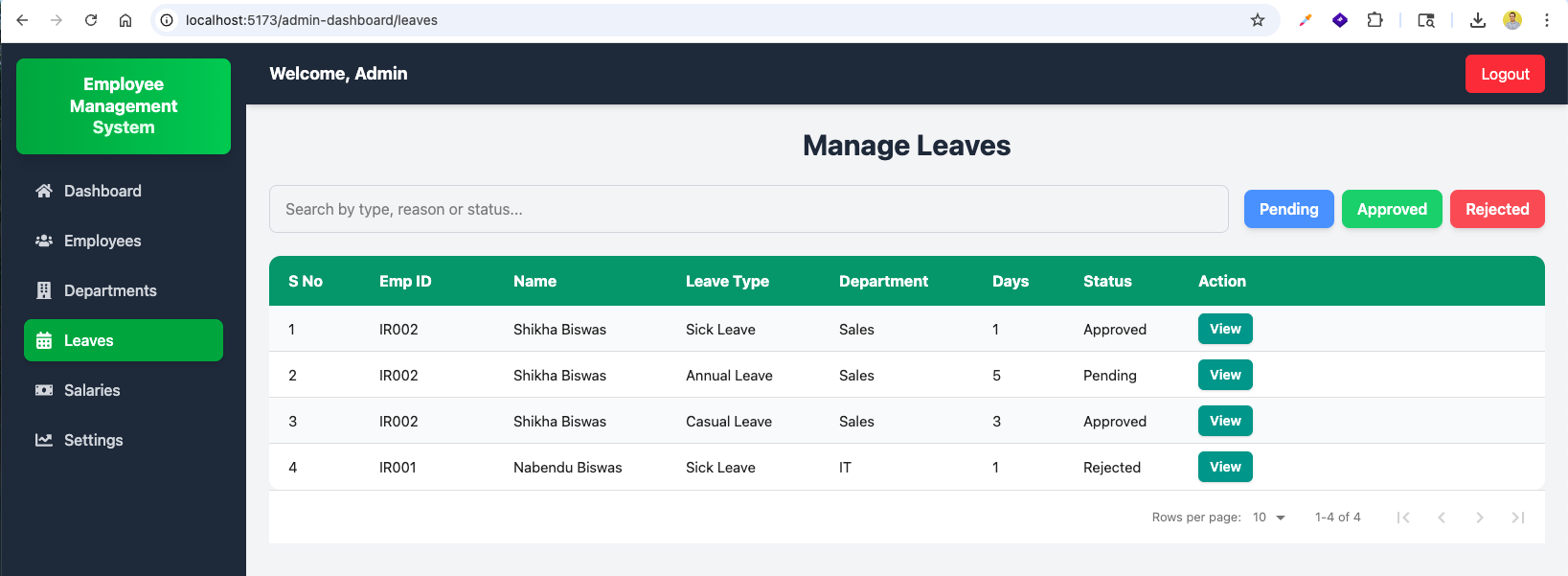
Manage Leaves still shows historical requests for those employees, with statuses such as approved, pending, and rejected.
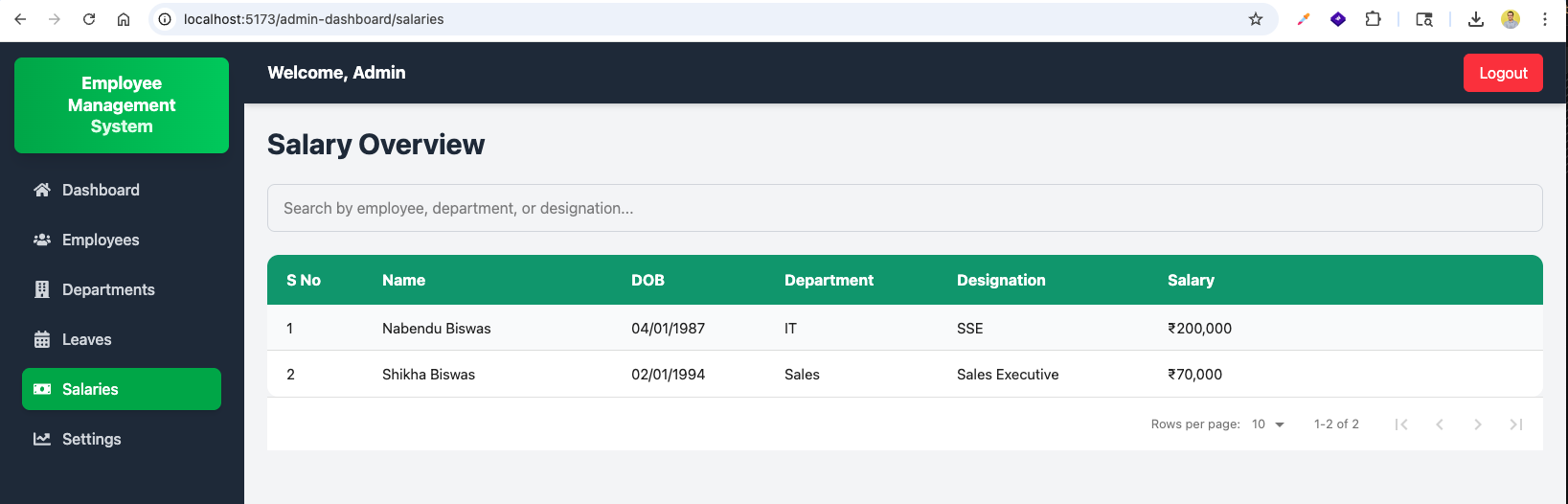
Salary Overview reflects the smaller roster: only salary rows for the employees that still exist.
Next we wire an admin dashboard summary API. In backend/index.js, import dashboardRouter and mount it at /api/dashboard.

backend/routes/dashboard.js defines a protected GET route on /summary that runs authMiddleware and delegates to getSummary.

backend/controllers/dashboardController.js implements getSummary: counts departments and employees, aggregates total salary from employees, groups leave documents by status to build a leave summary, and returns JSON (or a 500 on failure).

In AdminSummary.jsx, we store the payload in state, fetch /api/dashboard/summary on mount with axios (Bearer token from local storage), handle errors, and show a centered Loading… spinner until data arrives.
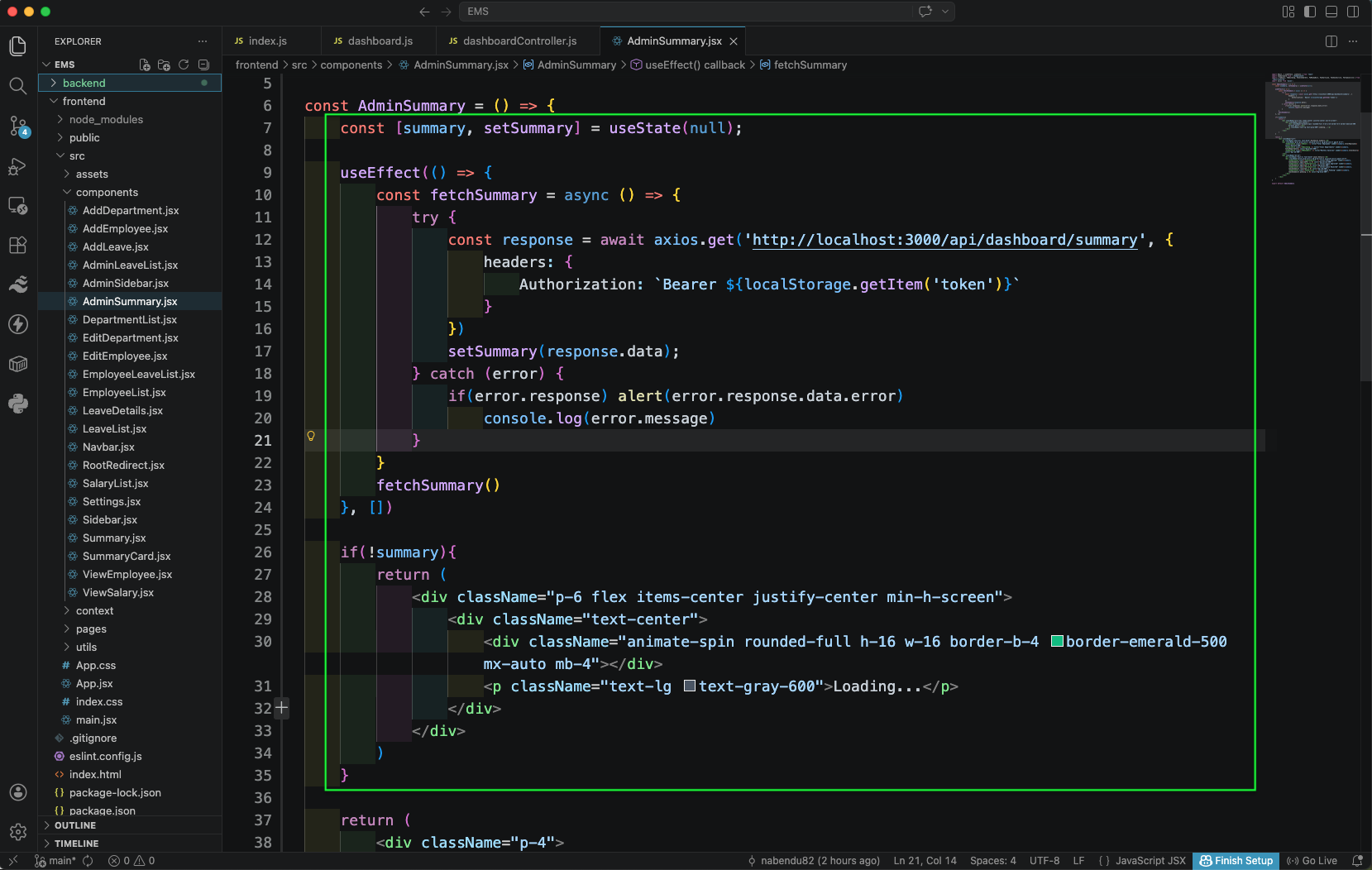
We bind SummaryCard values to the API: employee and department counts, monthly salary total, and leave metrics (applied, approved, rejected, pending) using safe fallbacks when nested fields are missing.

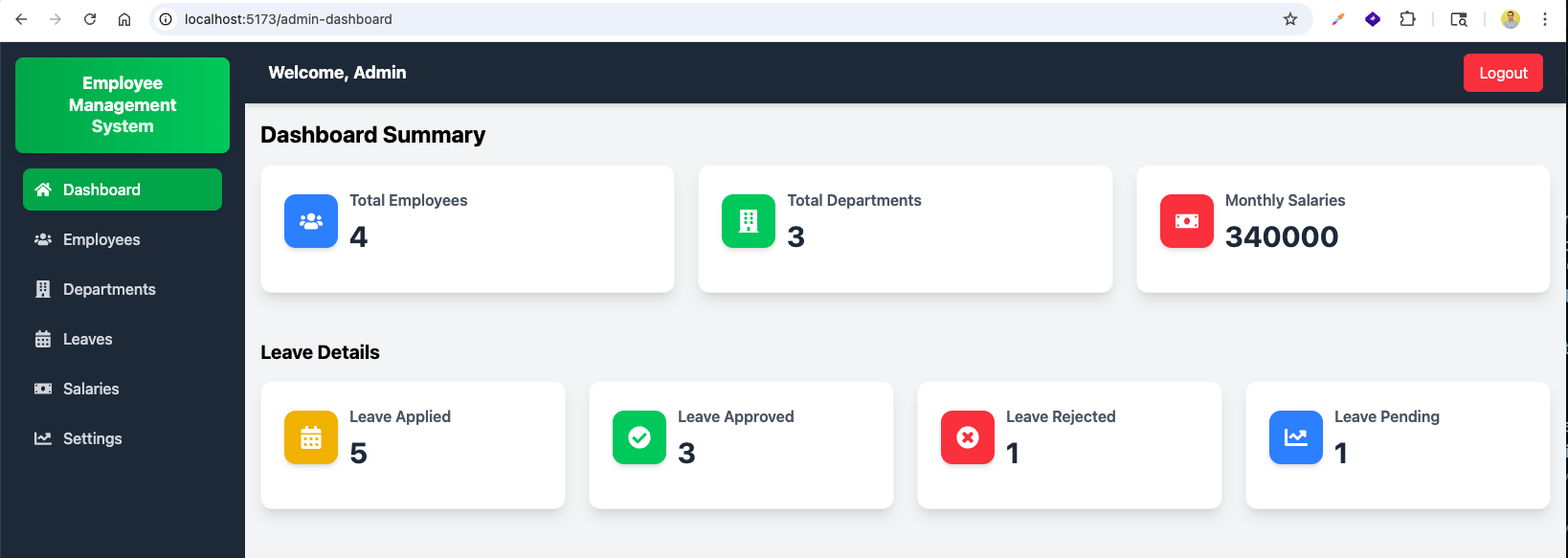
Opening /admin-dashboard shows the Dashboard Summary and Leave Details cards populated with live numbers from MongoDB.
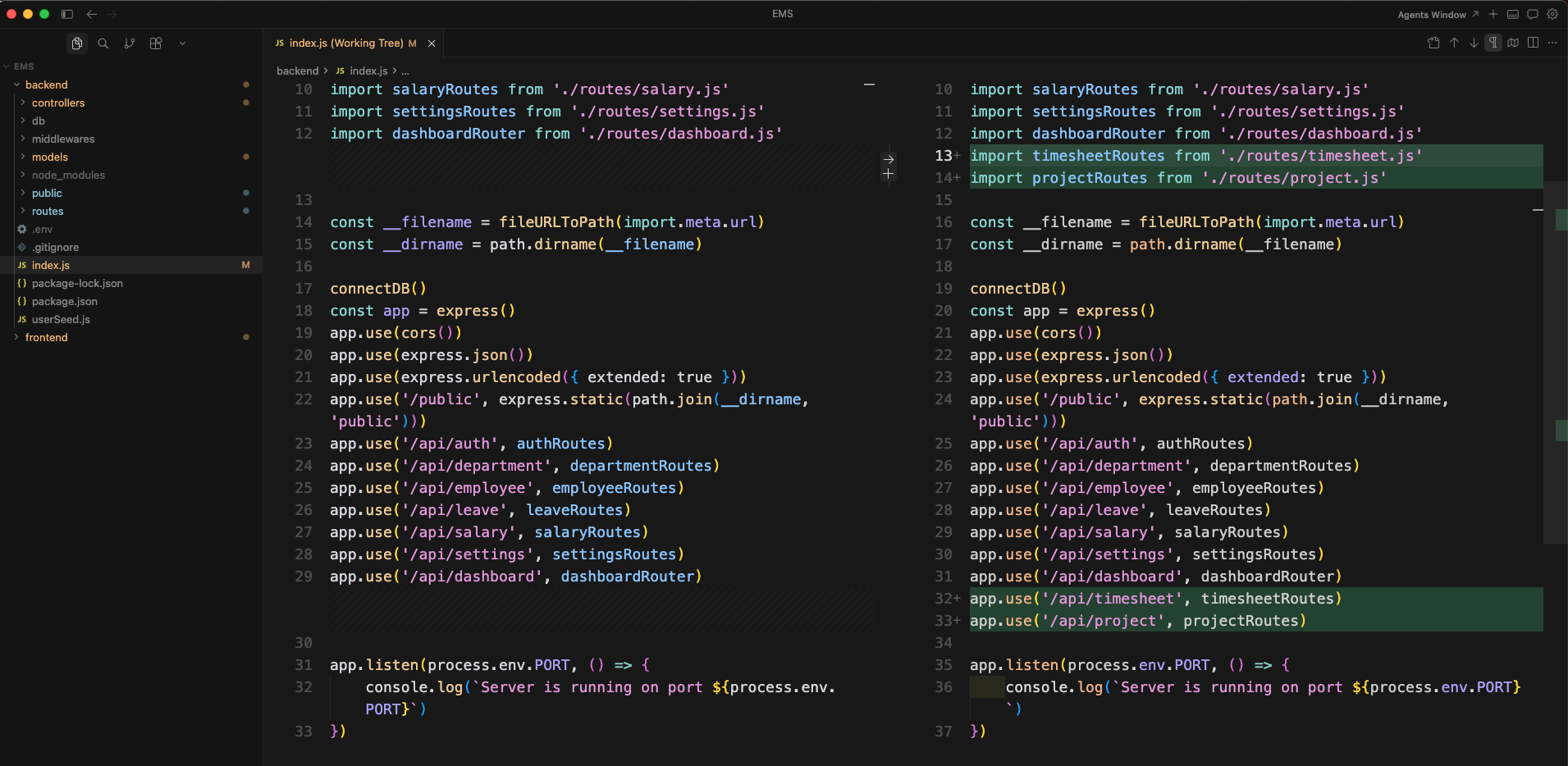
Now we add Timesheet and Project modules. In backend/index.js, we import and mount timesheetRoutes and projectRoutes alongside the existing routes to support the new features.
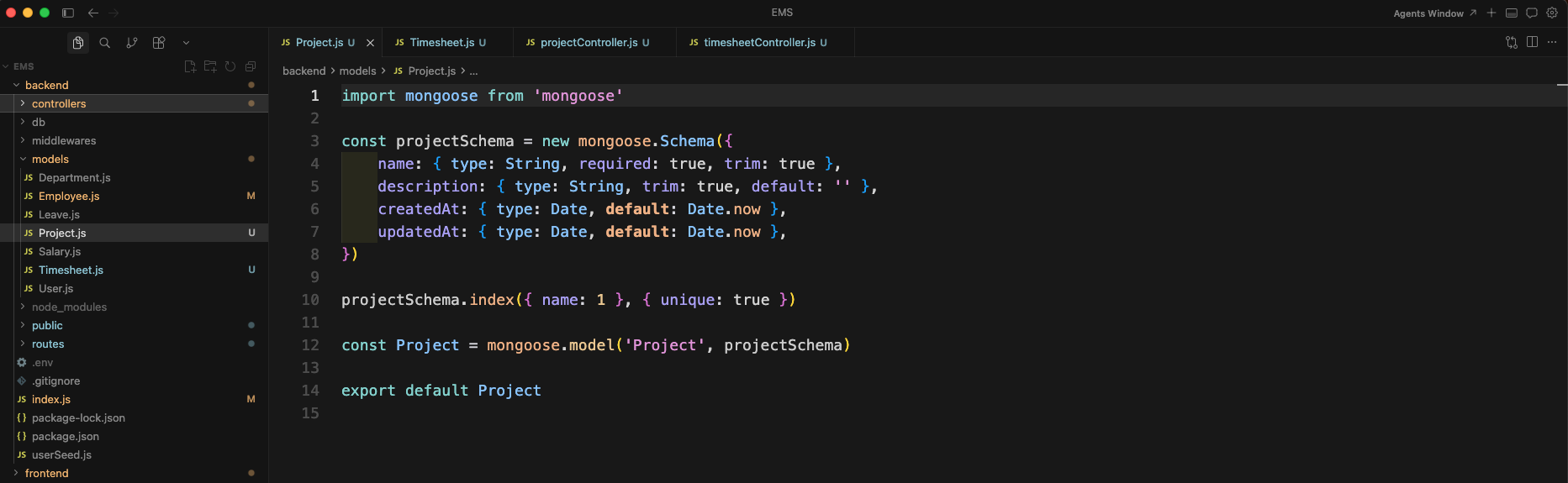
backend/models/Project.js defines the Project schema with fields for name, description, createdAt, and updatedAt, along with a unique index on the name field.
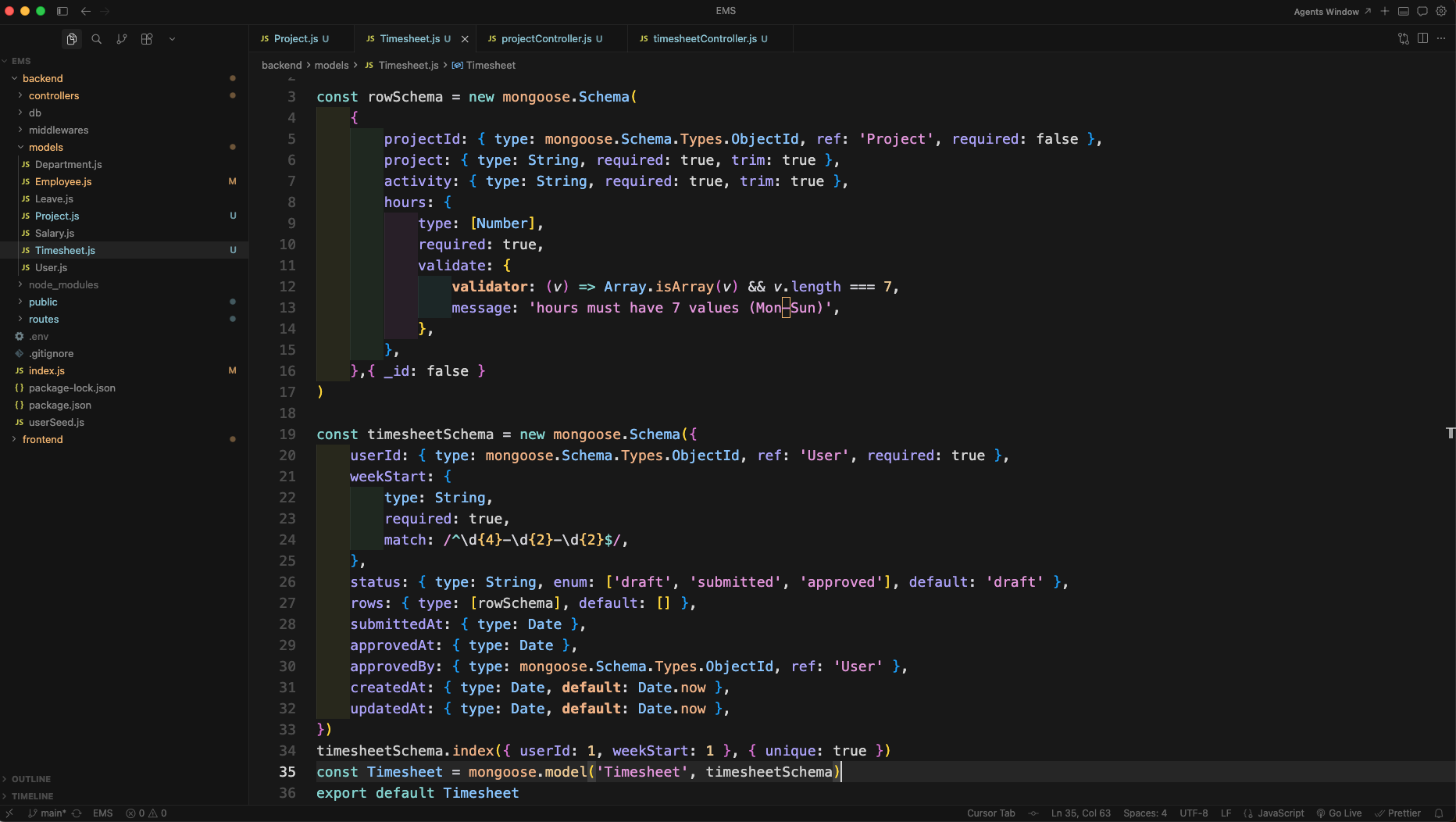
backend/models/Timesheet.js defines a rowSchema with projectId, project, activity, and a hours array of 7 values (Mon–Sun), and a timesheetSchema with userId, weekStart, status (draft/submitted/approved), rows, and timestamps.
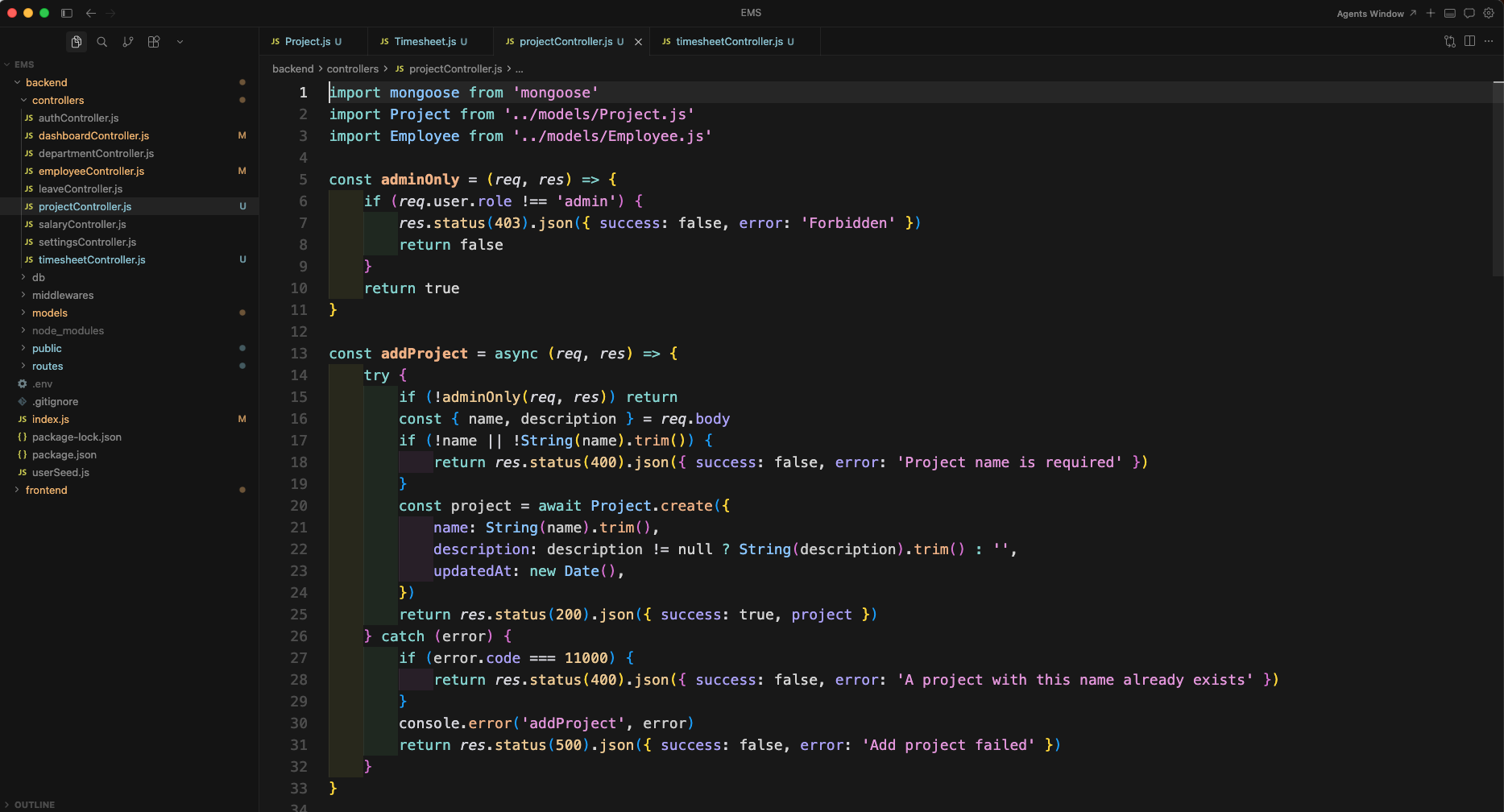
backend/controllers/projectController.js implements full CRUD: addProject, getProjects, getProjectById, editProject, and deleteProject — with duplicate name handling and employee project reference cleanup on delete.
The getProjects function fetches all projects sorted by name, while getProjectById retrieves a single project by its ID — both with admin access checks.
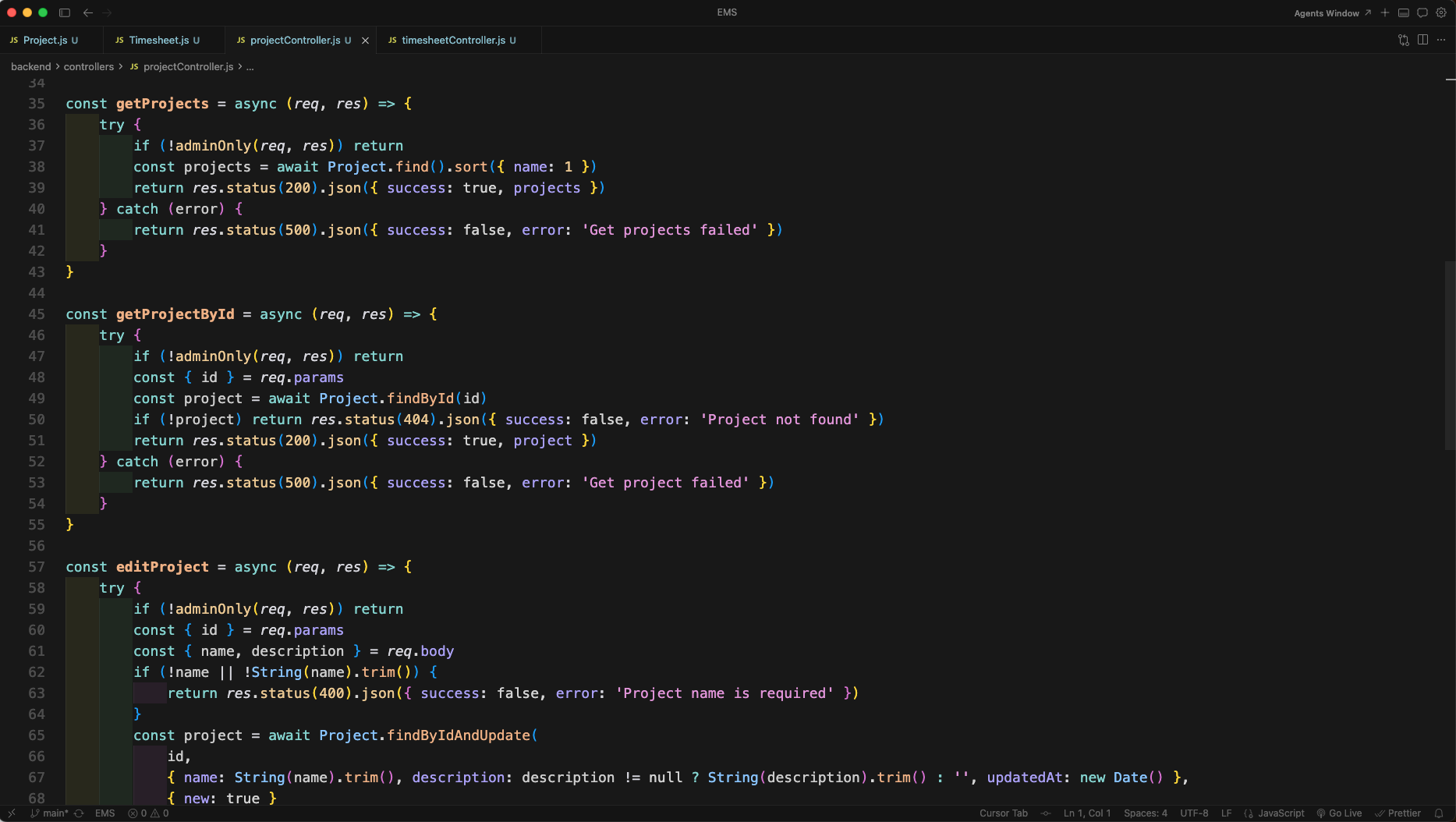
editProject updates a project using findByIdAndUpdate and returns the updated document, handling duplicate name errors with a 11000 error code check.

backend/controllers/timesheetController.js starts with helper utilities: pad2 for zero-padding, mondayYmdFromDate to compute the Monday of any given week, parseYmdLocal for date parsing, and stripLocalDate for date normalization.

The canInteractWithWeek function ensures a timesheet week can only be created or edited if its Monday is not in the future. finalizeTimesheetRows begins by validating rows and fetching the employee's assigned projects.

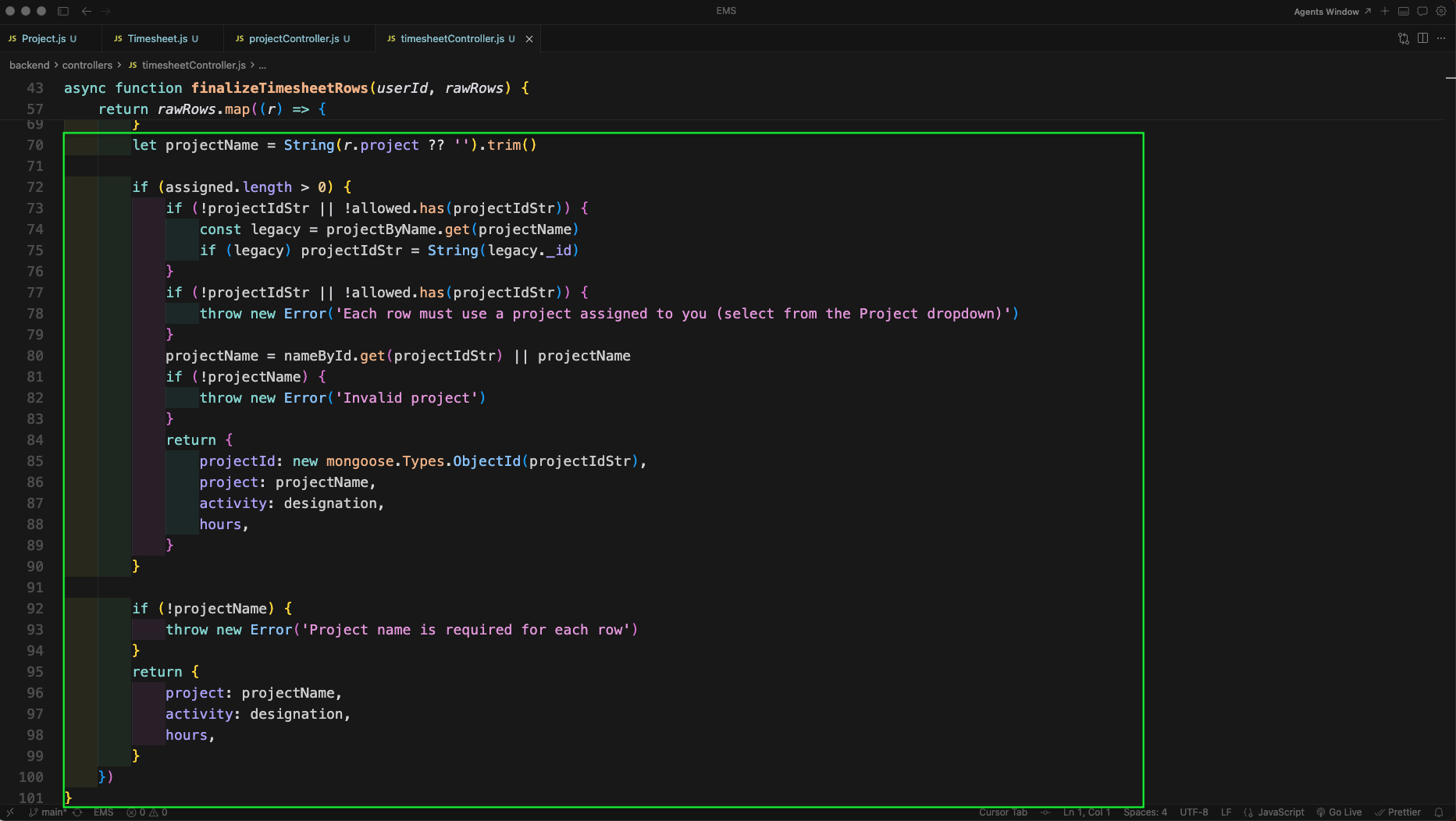
finalizeTimesheetRows continues by mapping each row to a validated format: it checks the project ID against the employee's assigned projects, falls back to project name lookup, and returns structured row data with project reference, activity, and hours.
The weekdayTotalsValid function validates that Mon–Fri hours total either 0 (leave/holiday) or exactly 8 per day. getTimesheetWeek fetches a timesheet by weekStart, populates employee department and projects, and determines whether the week can be edited.
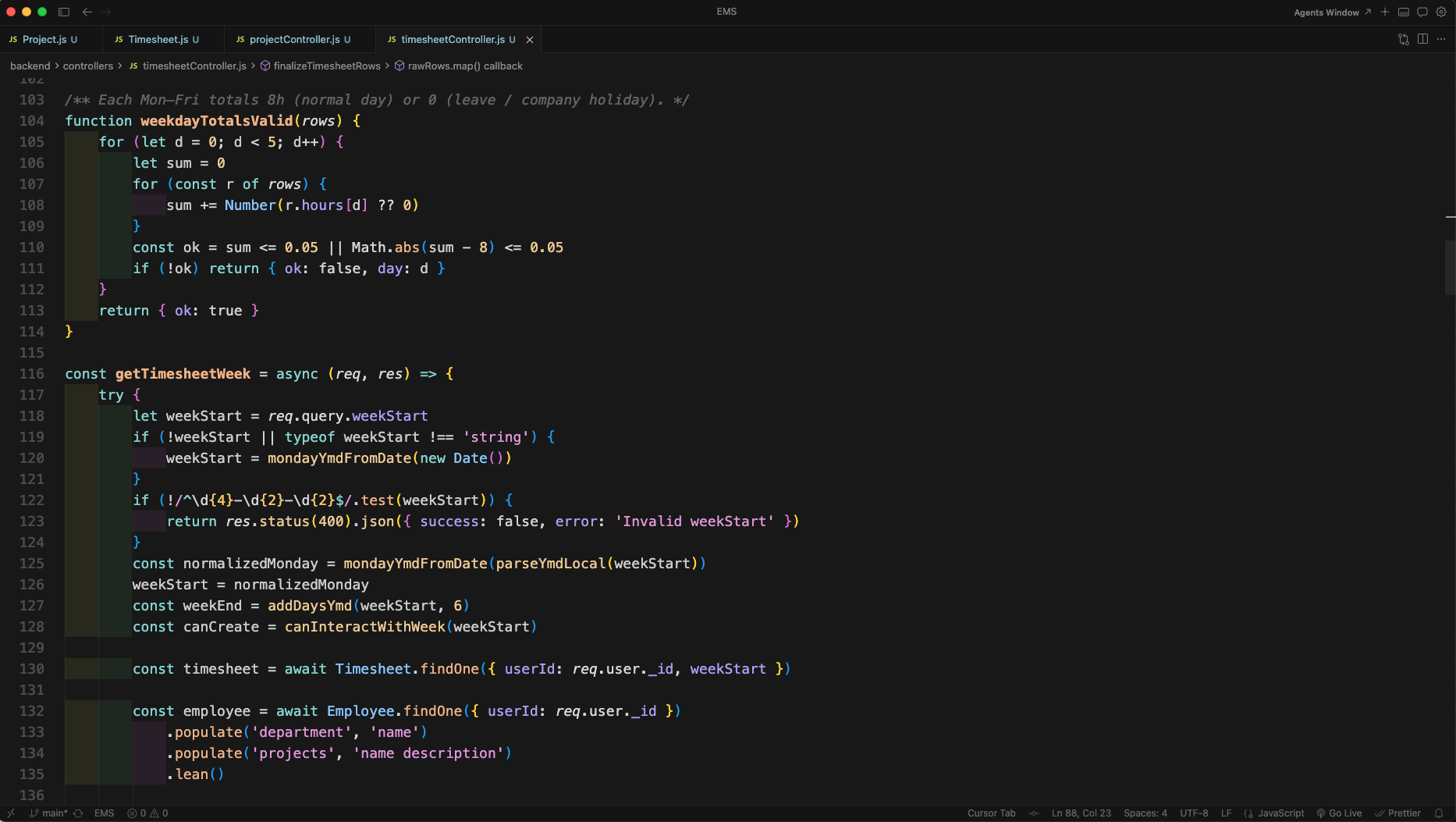
getTimesheetWeek returns the timesheet data along with weekStart, weekEnd, canCreate flag, and employee timesheet context including designation and assigned projects.
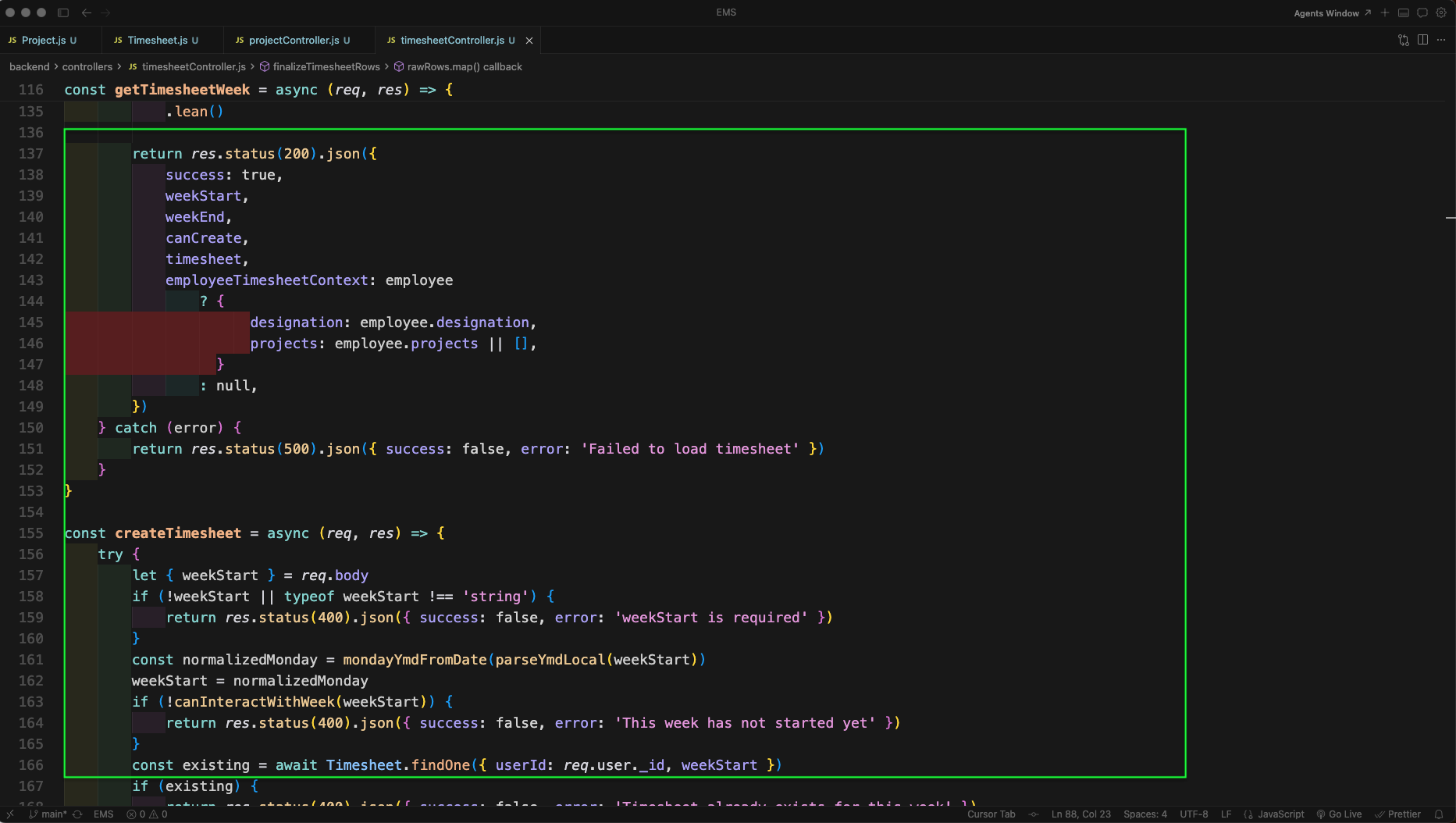
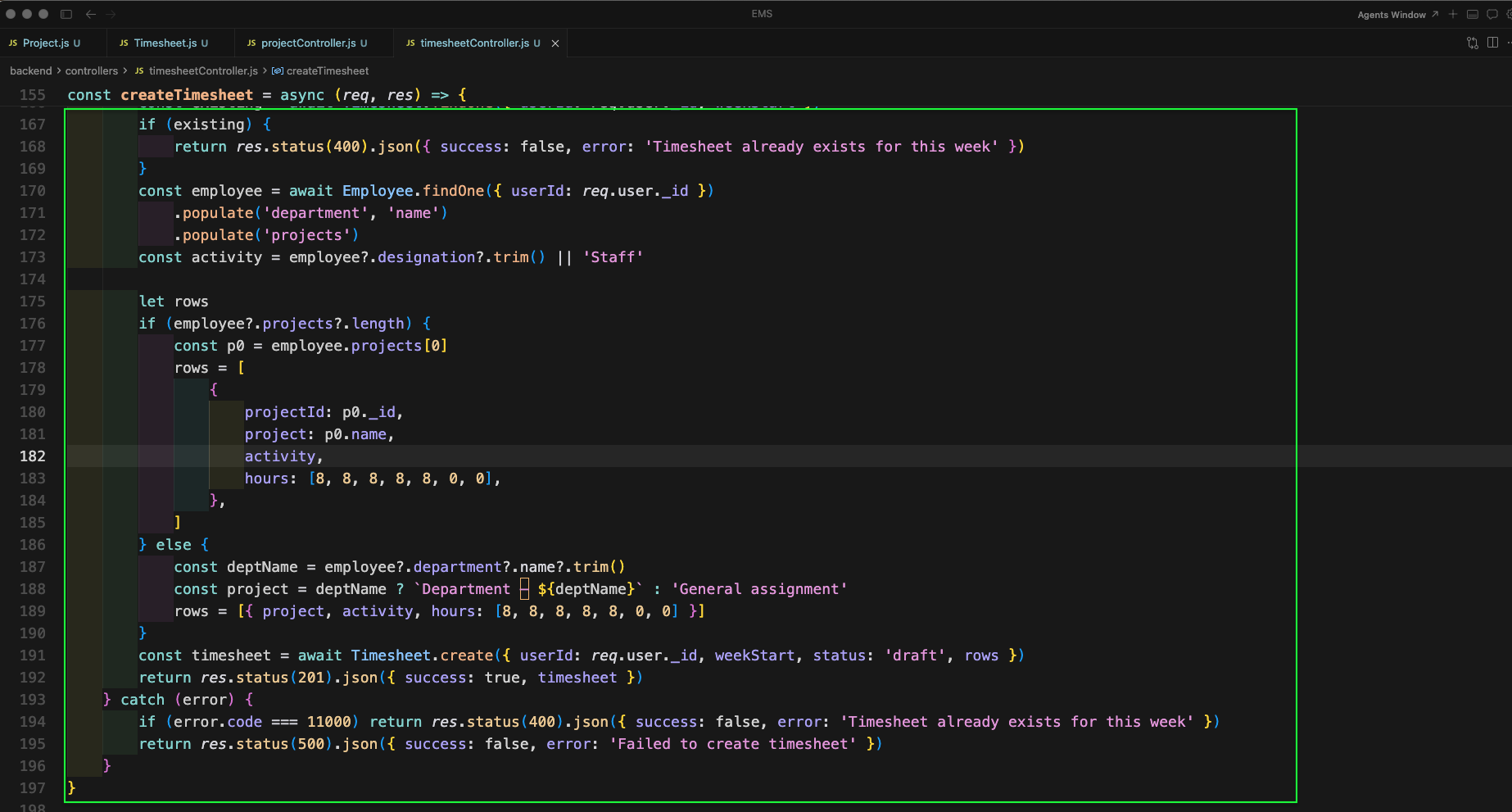
createTimesheet checks if a timesheet already exists for the given week, then auto-generates initial rows using the employee's first assigned project with 8-hour default entries (Mon–Fri), or falls back to a department-based project name.
saveTimesheet validates the timesheet ID, calls finalizeTimesheetRows to validate and structure the row data, and ensures the timesheet exists and is still in draft status before saving.

submitTimesheet checks that the timesheet exists, is in draft status, and that the week can still be interacted with (not in the future). It then finalizes rows and updates the status to submitted with a timestamp.
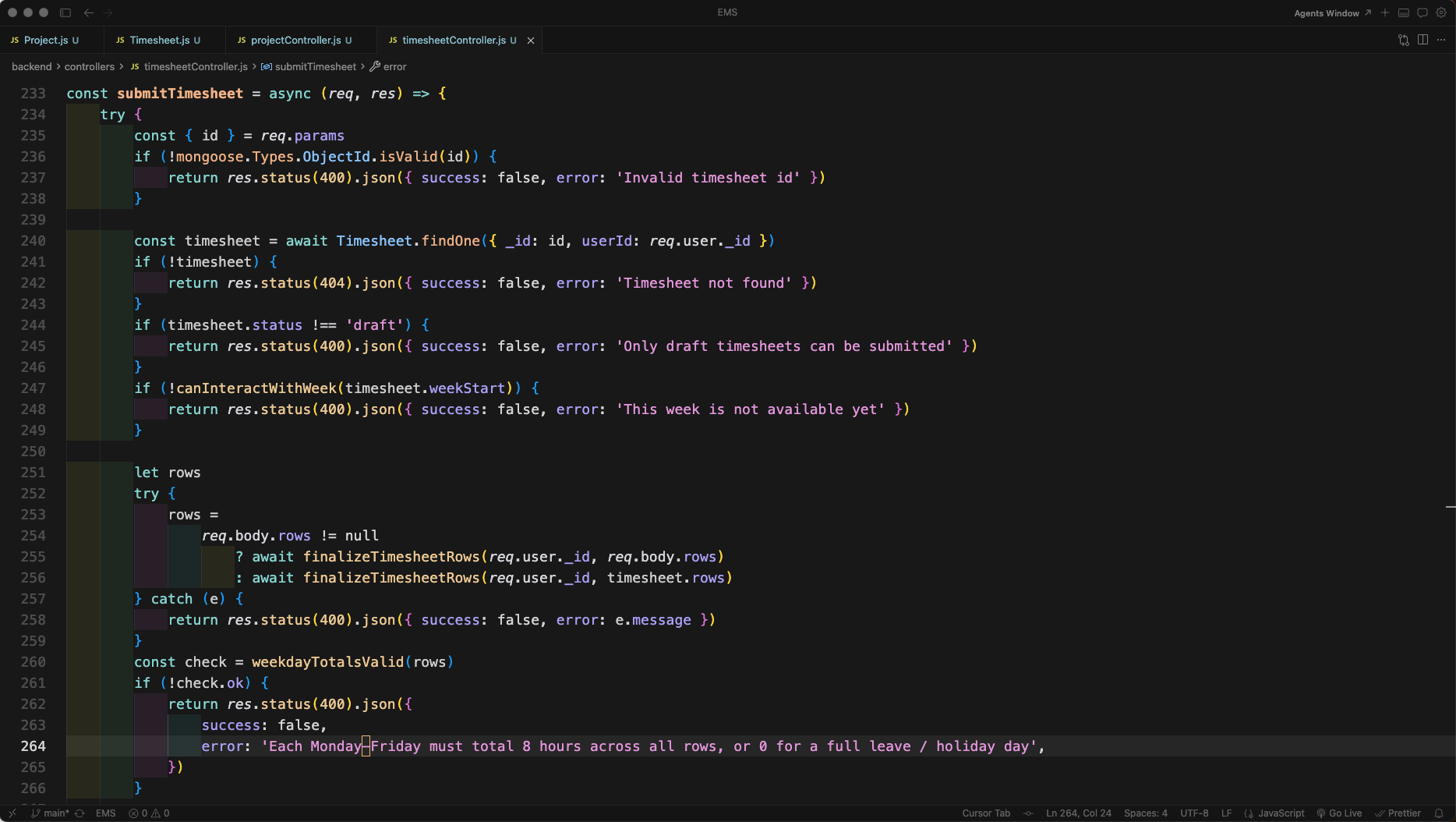
The rest of submitTimesheet saves the finalized rows, sets status to submitted, records submittedAt, and also introduces weekOverlapsCalendarMonth helper used for admin filtering by year/month.
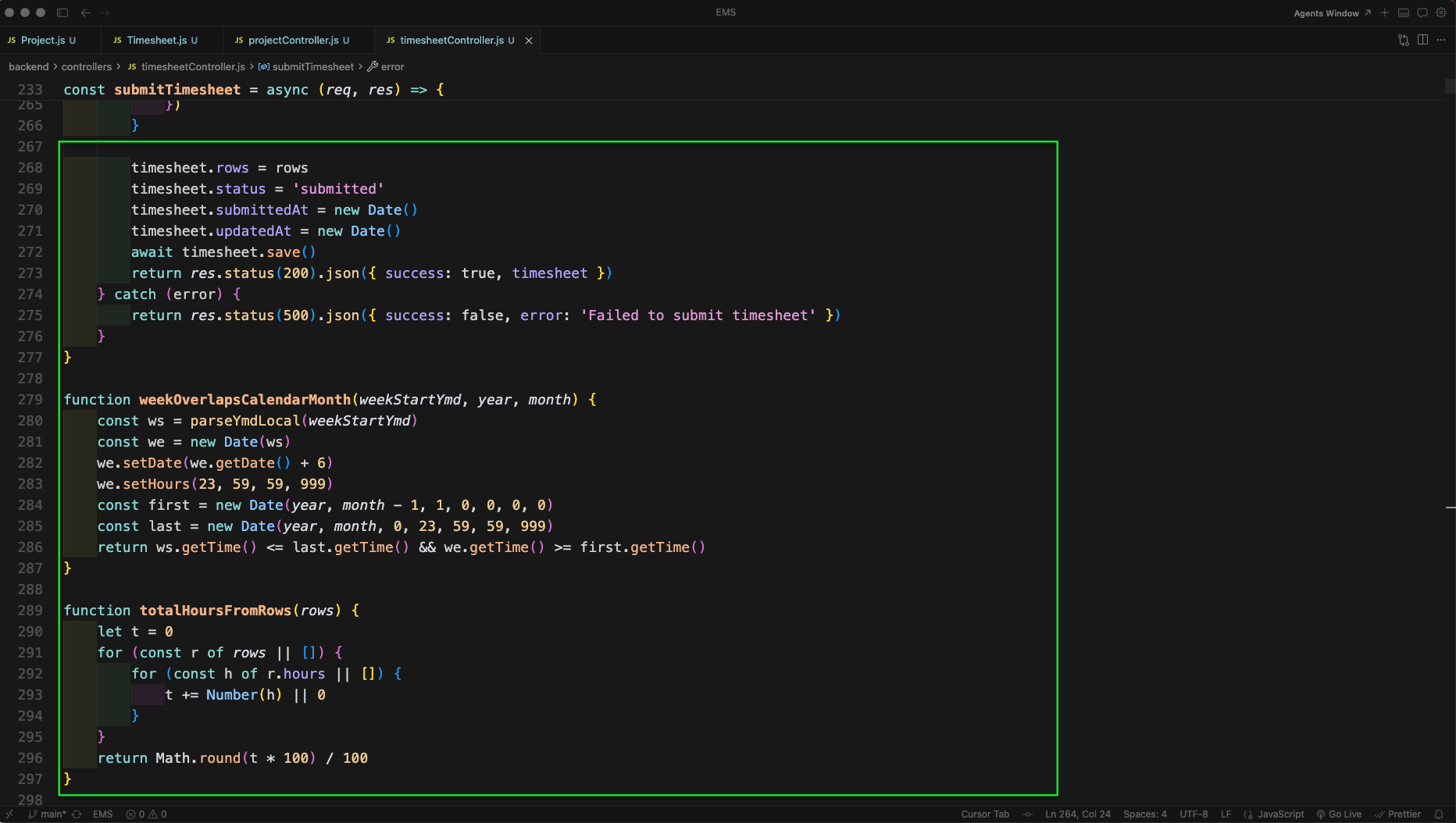
adminListTimesheets is an admin-only endpoint that filters submitted/approved timesheets by year and month, populating user name and email, and sorting by weekStart and updatedAt.
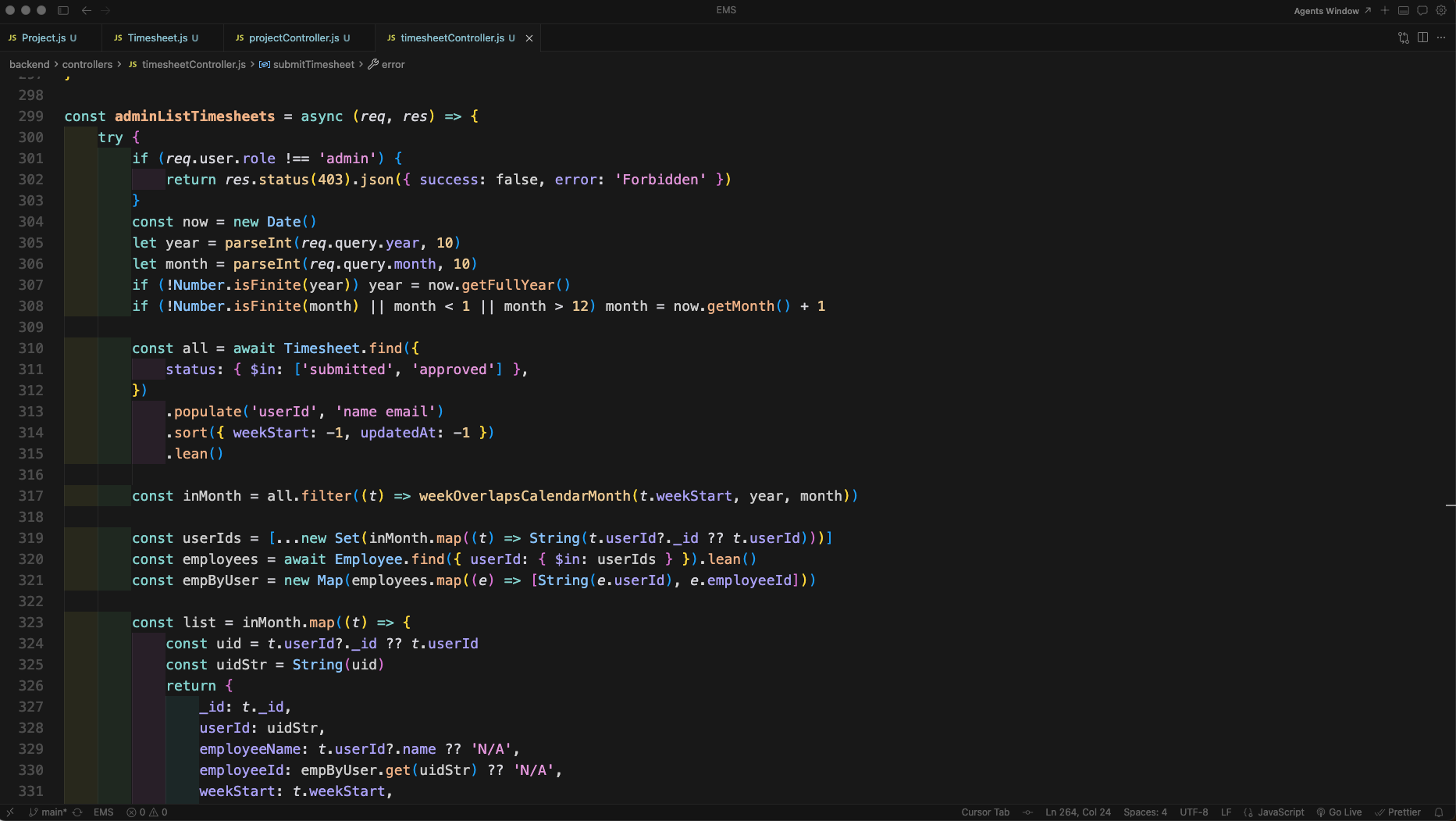
adminListTimesheets maps each result to a clean list with weekStart, weekEnd, status, totalHours, and timestamps. getTimesheetAdmin begins by verifying admin role and validating the timesheet ID.
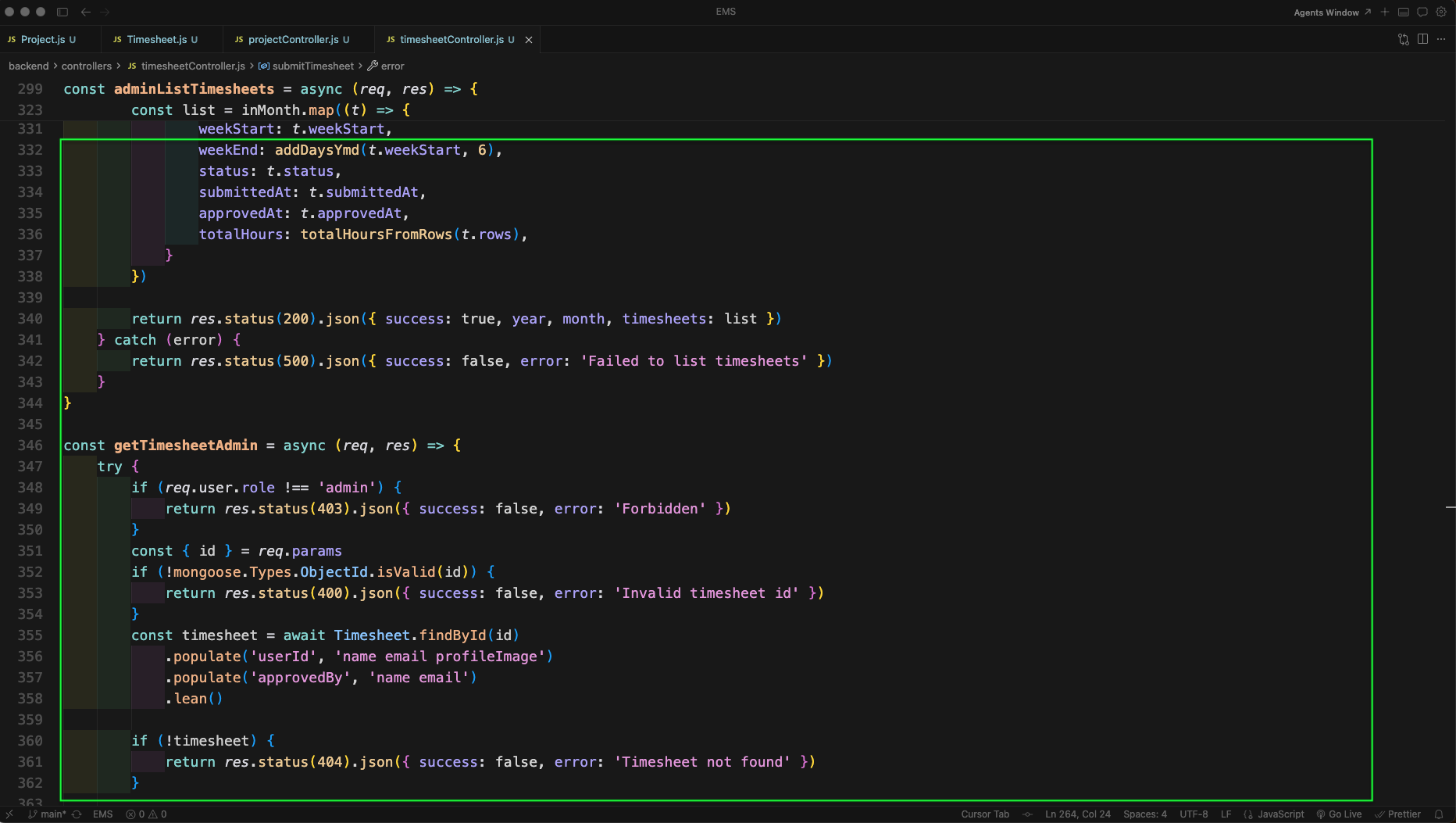
getTimesheetAdmin fetches the employee record for the timesheet user and returns enriched data including employeeId and department name. approveTimesheet begins with admin role check.
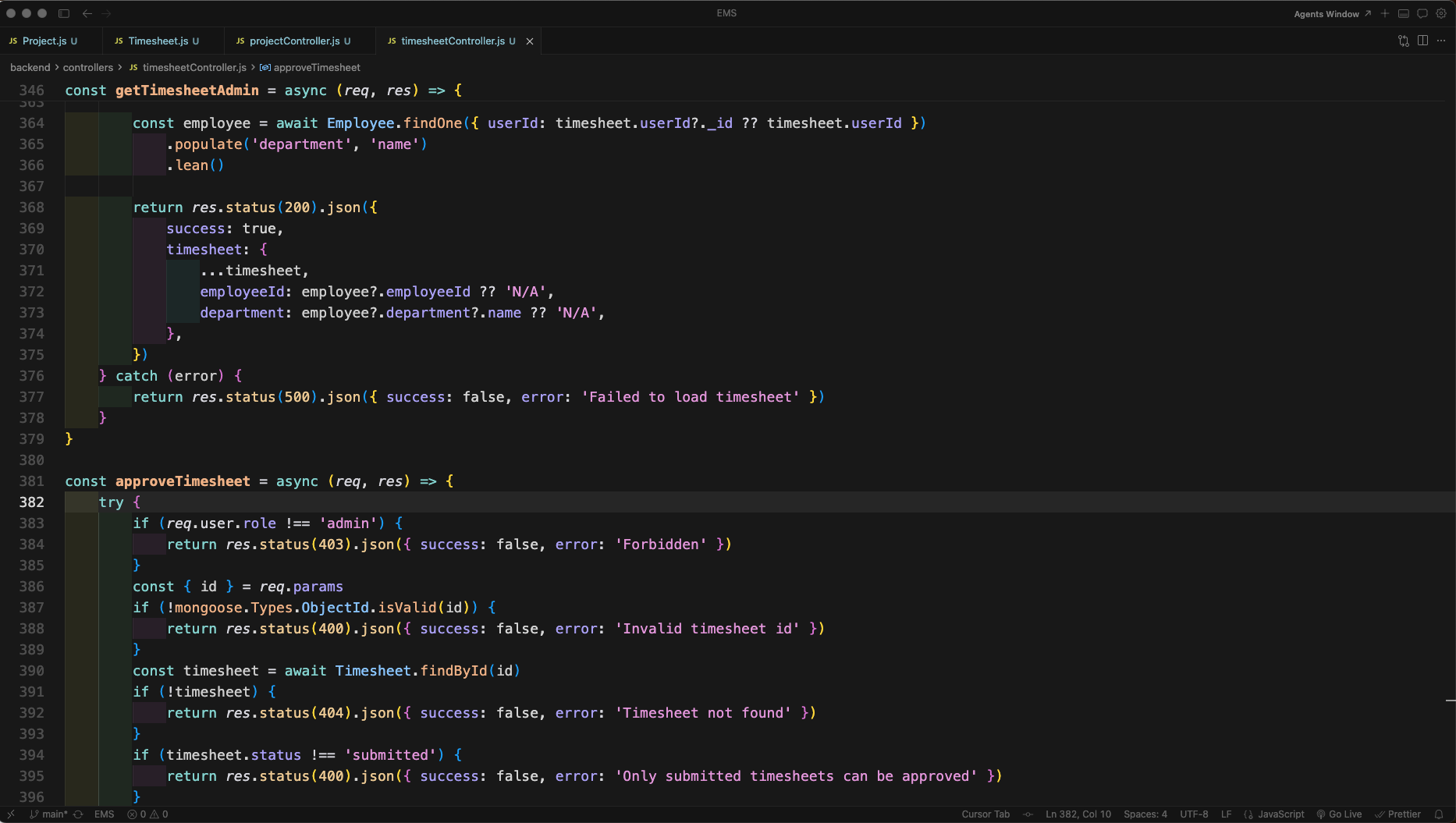
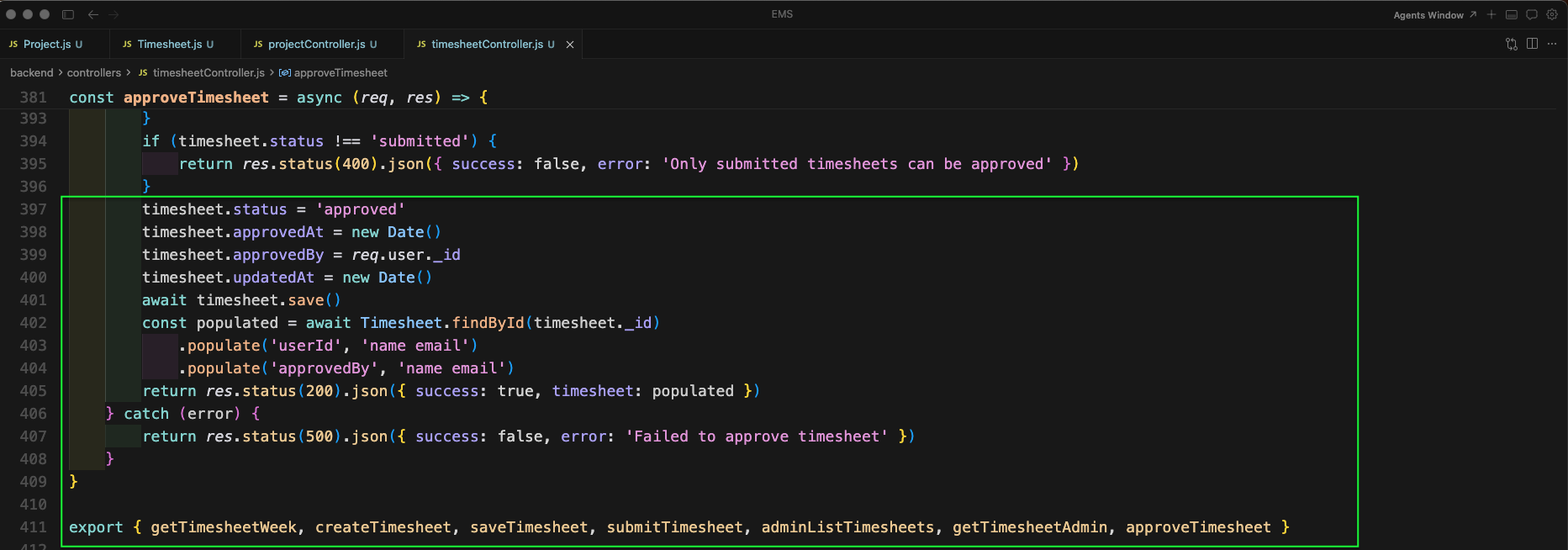
approveTimesheet confirms the timesheet is currently in submitted status, then sets it to approved, records approvedAt and approvedBy, and returns the fully populated timesheet with user and approver details.
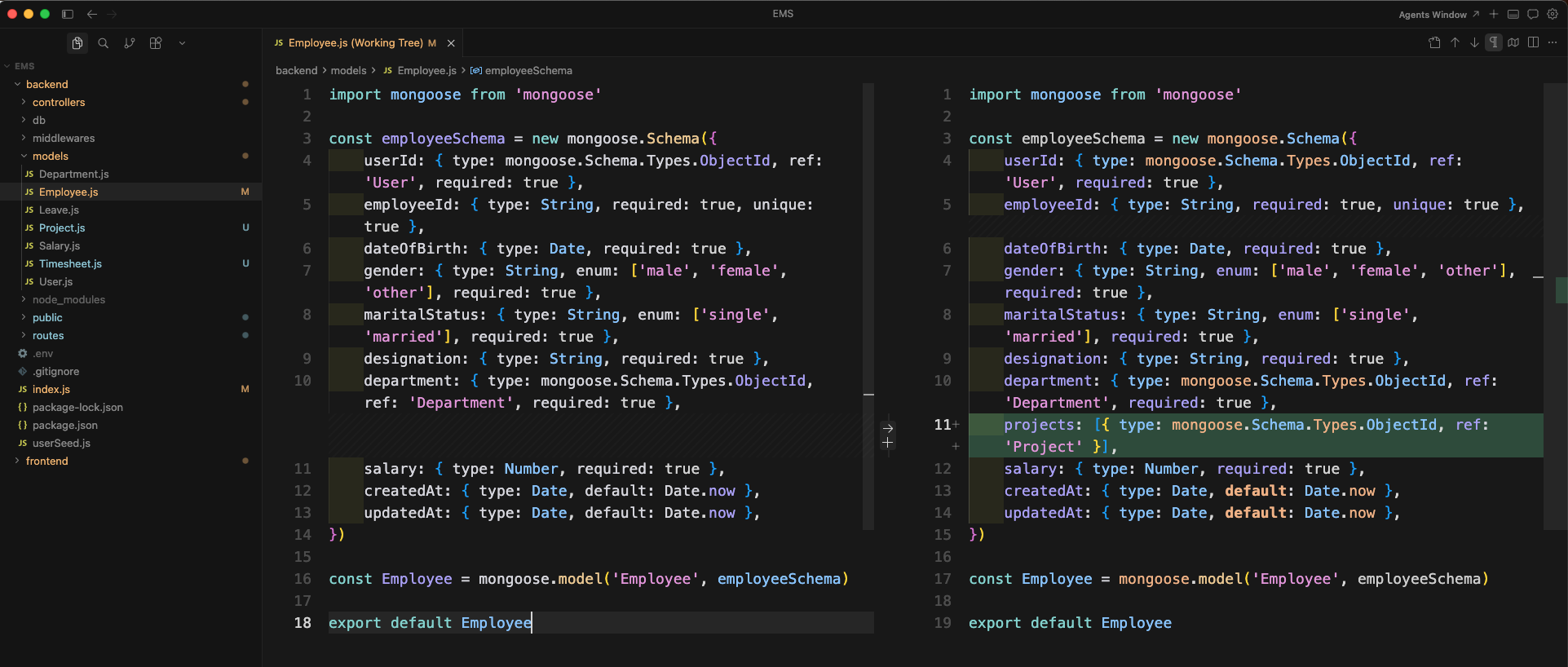
backend/models/Employee.js defines the Employee schema with fields for userId, employeeId (unique), dateOfBirth, gender, maritalStatus, and designation alongside other employee-specific fields.
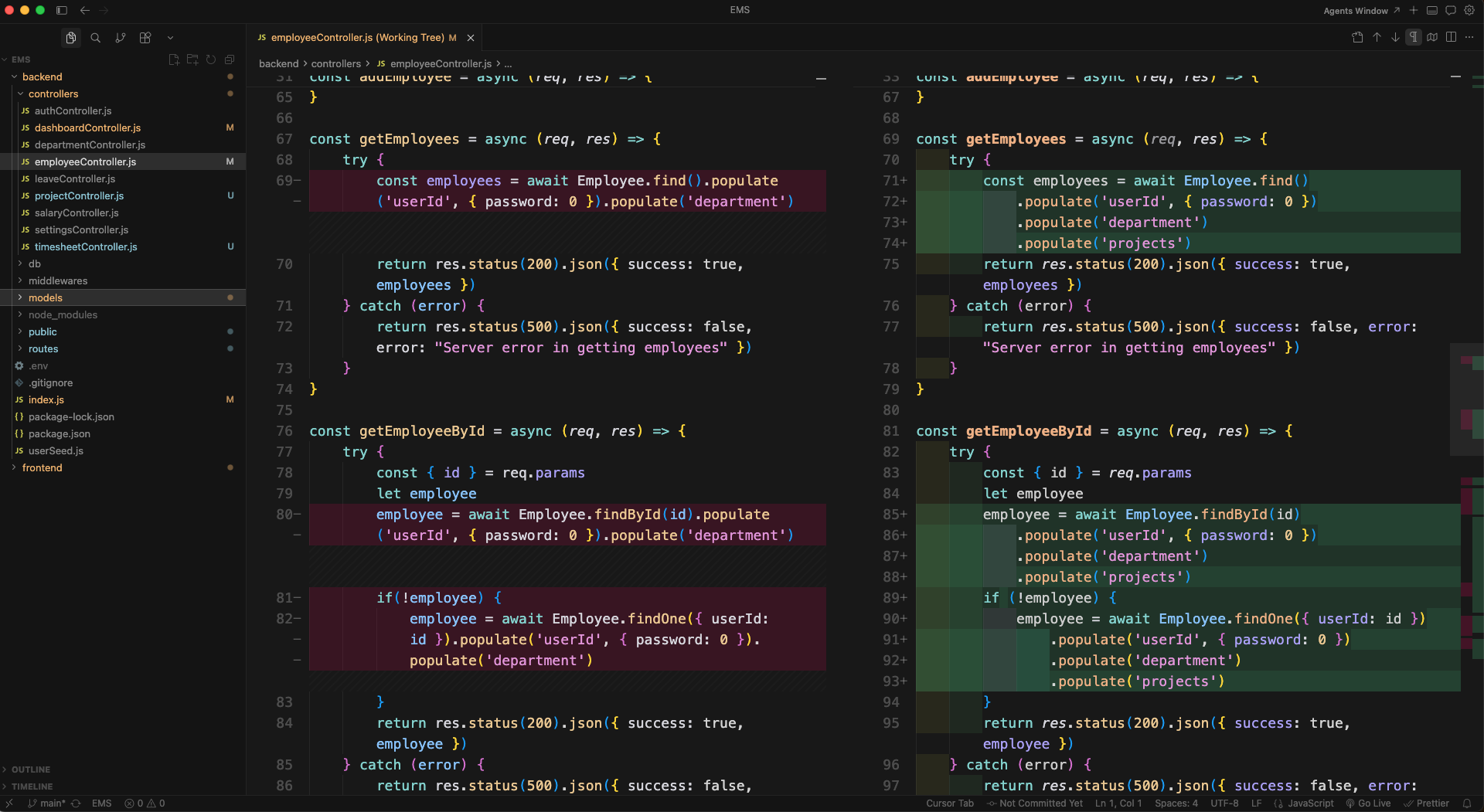
Now we wire employee editing to support project assignments. In backend/controllers/employeeController.js, the existing getEmployees and getEmployeeById functions populate the employee's userId and department for display.
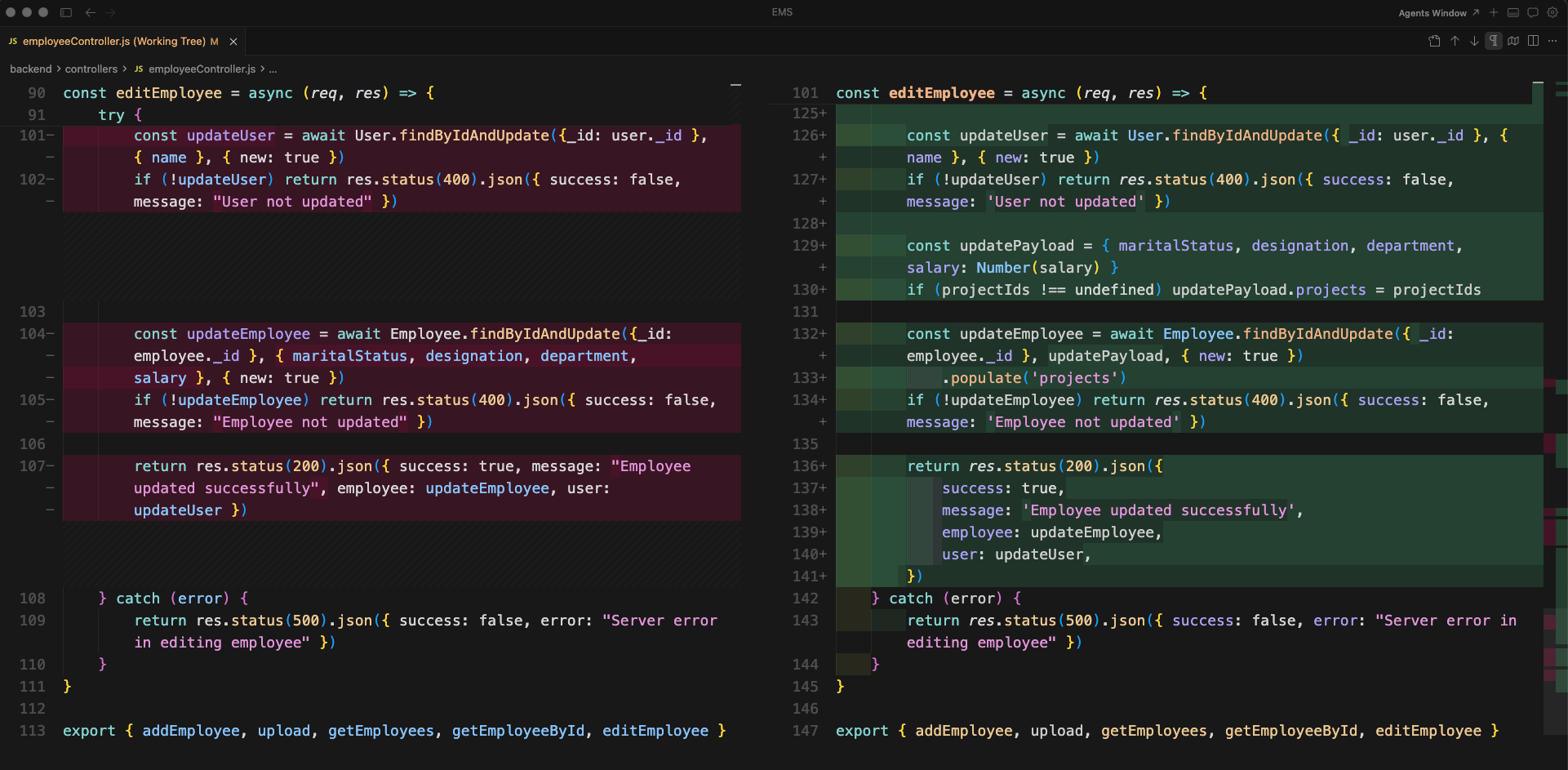
editEmployee is updated to destructure projects from the request body alongside the existing fields, allowing project associations to be edited.
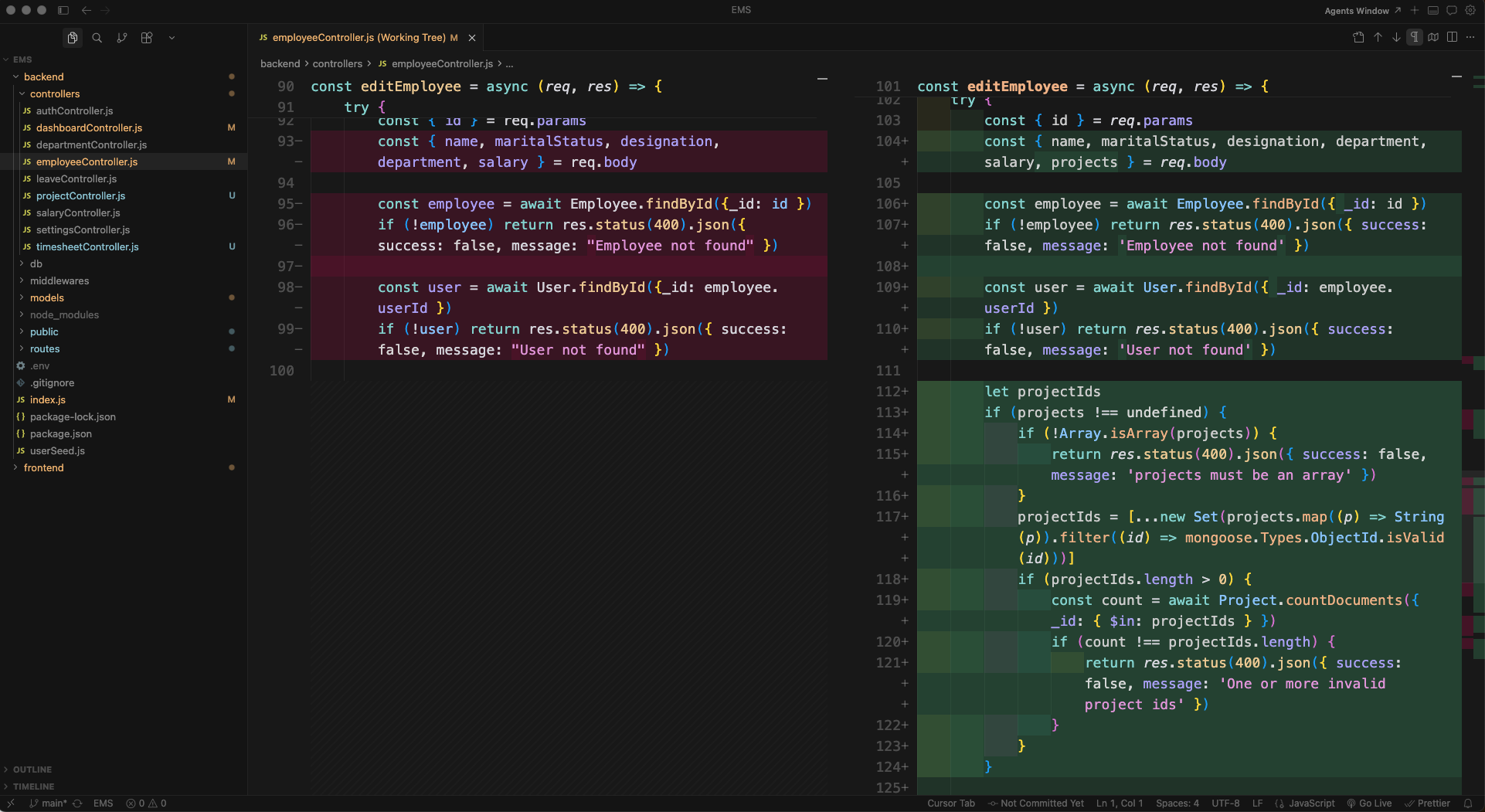
The editEmployee function now builds a updatePayload object that conditionally includes projects (as projectIds) when provided, and passes it to findByIdAndUpdate for a cleaner update.
Next we wire the Timesheet summary into the admin dashboard. In backend/controllers/dashboardController.js, we import the Timesheet model along with helper utilities pad2, parseYmdLocal, and weekOverlapsCalendarMonth.

The getSummary function now computes a timesheetSummary for the current month: it filters submitted/approved timesheets, counts employees with submissions, and tracks pending vs approved weeks.
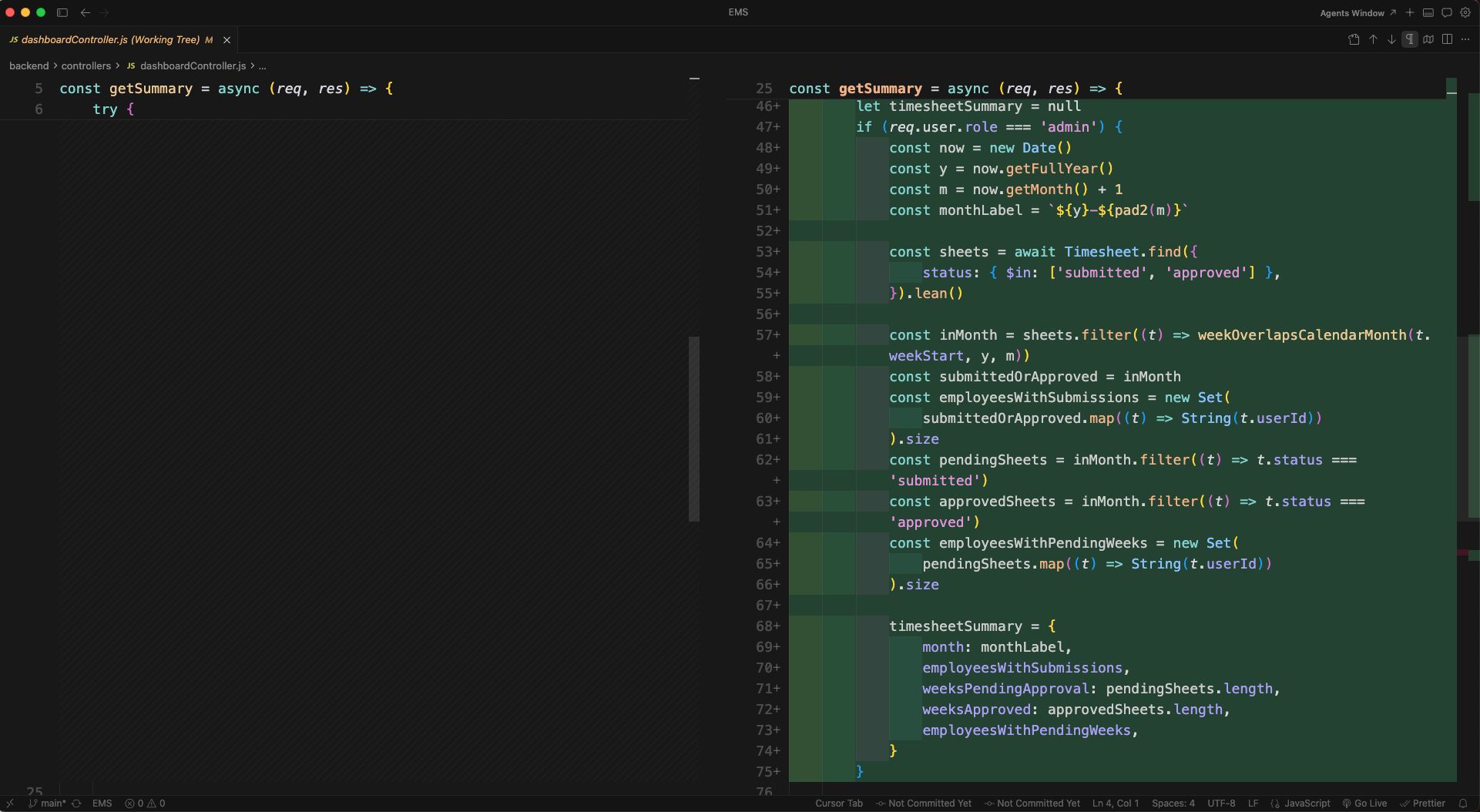
The dashboard API response is updated to include timesheetSummary alongside totalEmployees, totalDepartments, totalSalary, and leaveSummary.

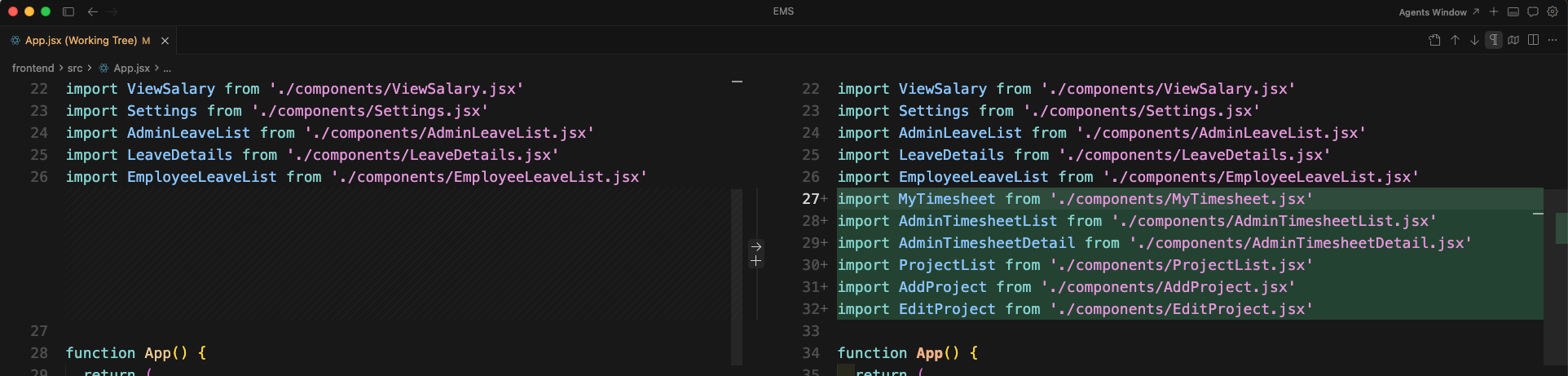
Now we wire the frontend routes. In frontend/src/App.jsx, we add imports for the new timesheet and project components: MyTimesheet, AdminTimesheetList, AdminTimesheetDetail, ProjectList, AddProject, and EditProject.
New routes are added to App.jsx for the timesheet management pages at /admin-dashboard/timesheets, /admin-dashboard/timesheets/:id, and project management at /admin-dashboard/projects, /admin-dashboard/add-project, /admin-dashboard/project/:id.

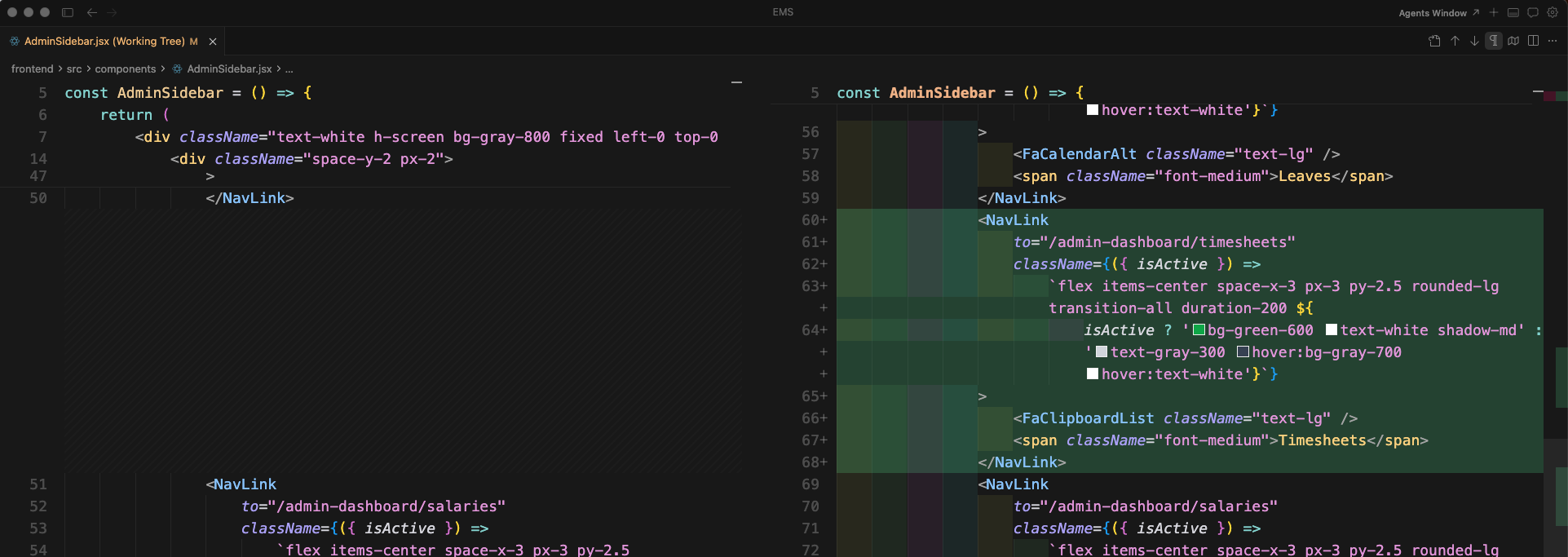
AdminSidebar.jsx is updated to include navigation links for the new Timesheets and Projects pages alongside the existing Departments, Leaves, and Salaries links.

The sidebar now shows all admin navigation items: Departments, Employees, Leaves, Salaries, Timesheets, Projects, and Settings — each with appropriate icons and active state highlighting.
Now we add the Timesheet Summary section to the admin dashboard. In AdminSummary.jsx, we add a new Timesheet (this month) section with four SummaryCard components: employees with submissions, weeks awaiting approval, weeks approved, and employees with pending weeks.
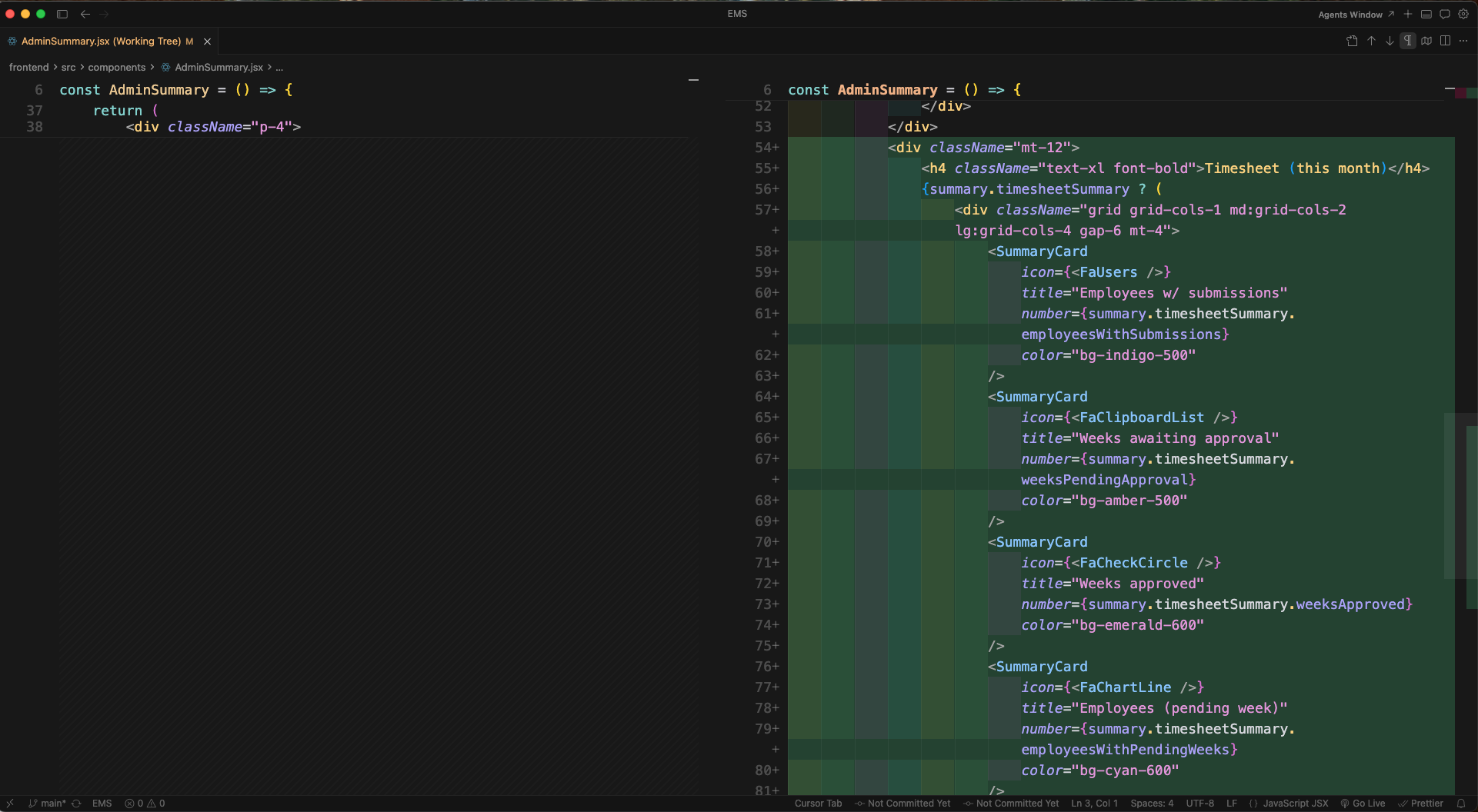
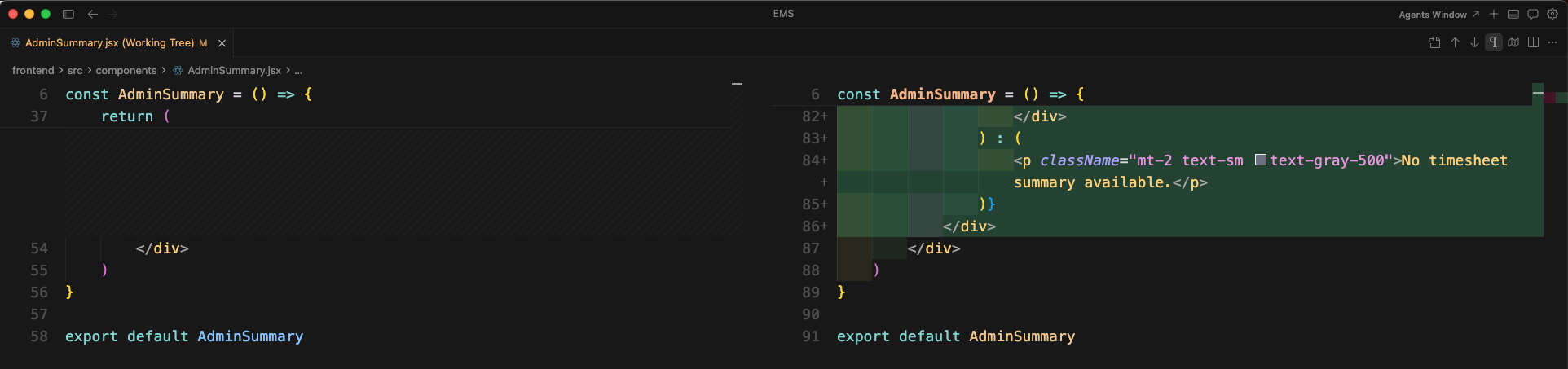
The AdminSummary component is updated to conditionally render the timesheet section only when summary.timesheetSummary is available, wrapping the cards in a responsive grid layout.
Next we update the employee sidebar. In frontend/src/components/Sidebar.jsx, the employee's navigation is updated to include a Leaves link with a calendar icon and active state highlighting.

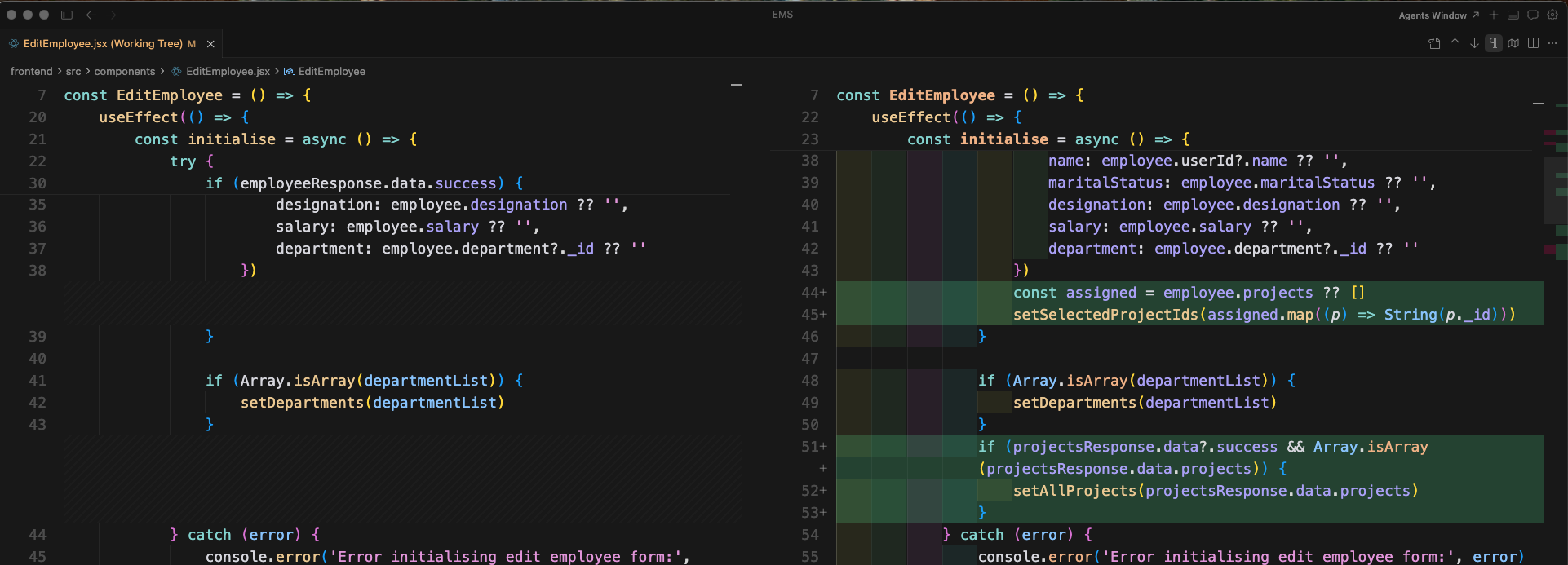
Now we wire the EditEmployee component to support project assignments. The component is updated with new state variables: allProjects for the project list and selectedProjectIds for tracking which projects are assigned to the employee.

The EditEmployee initialisation effect now fetches the employee's assigned projects and populates selectedProjectIds alongside the existing form fields.
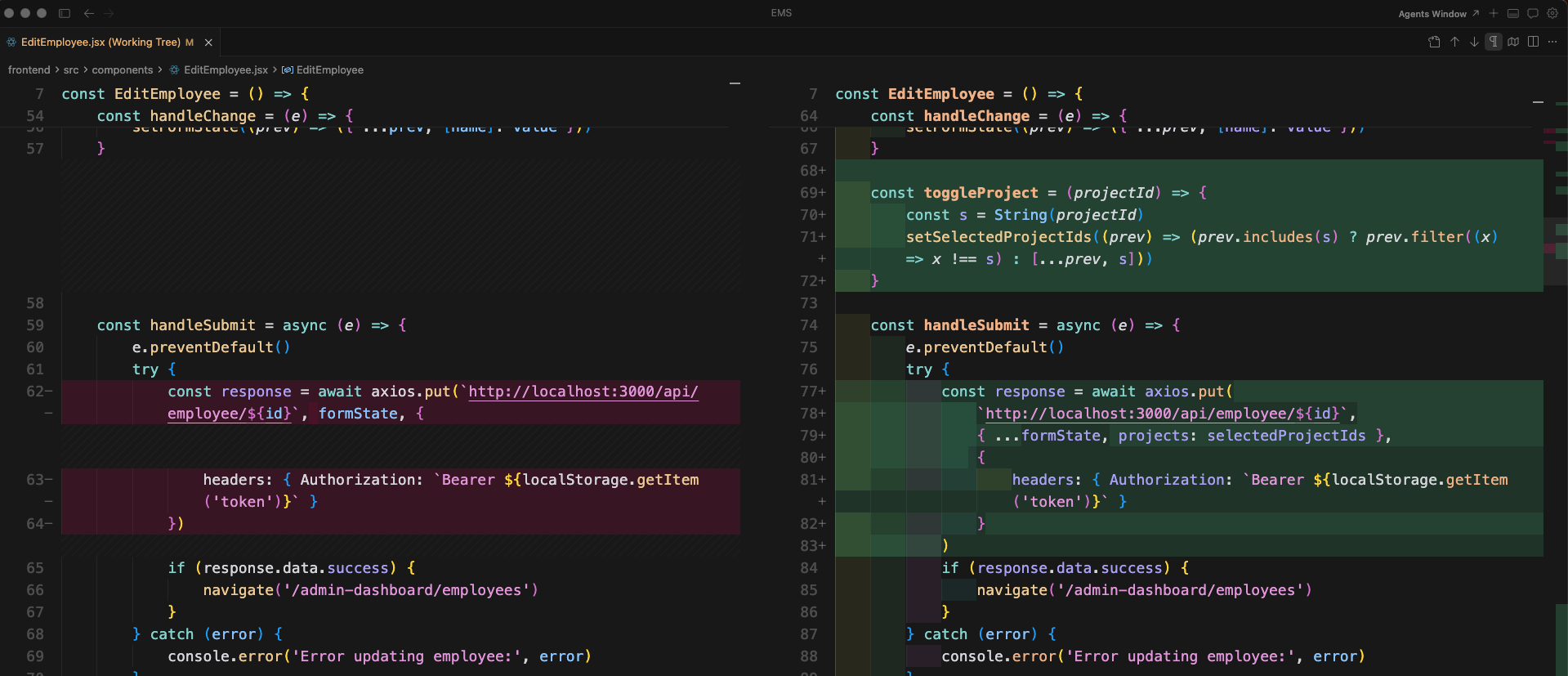
handleSubmit in EditEmployee is updated to include projects: selectedProjectIds in the PUT request payload, and new helper functions handleChange and toggleProject manage the form state and project selection toggling.
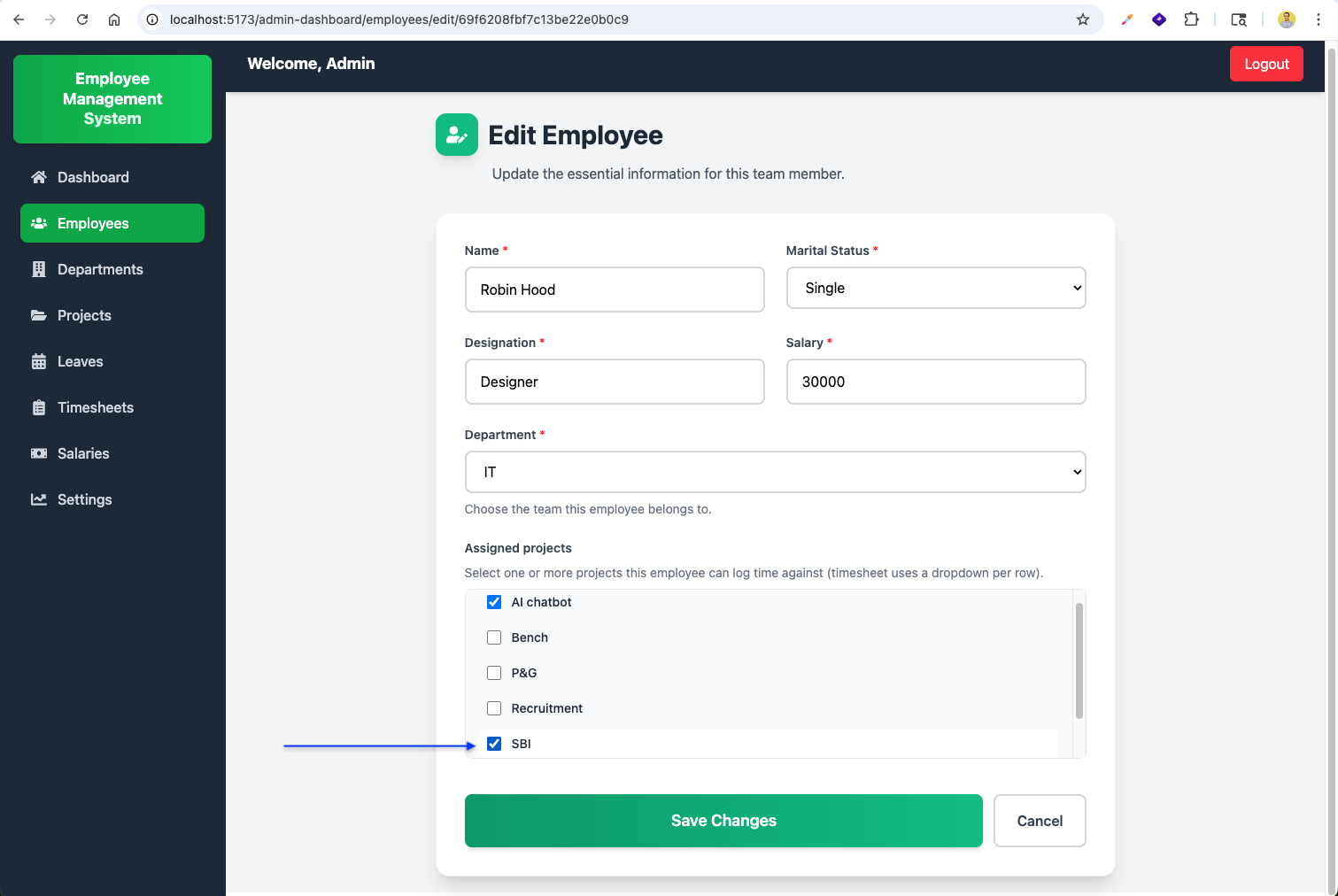
The EditEmployee form now includes an Assigned Projects section with checkboxes for each project. It shows a helpful message when no projects exist yet, and allows selecting multiple projects the employee can log time against.
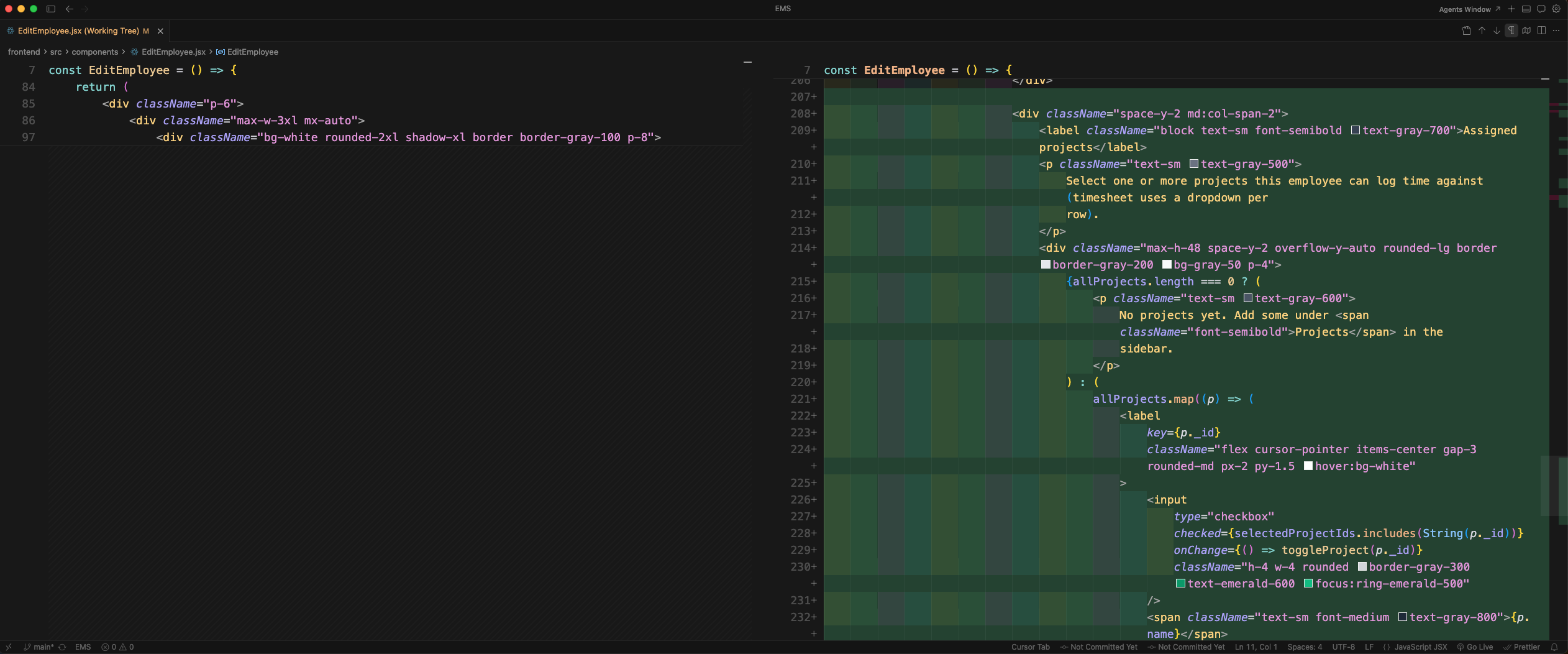
The project selection checkboxes are rendered in a scrollable container with a max height, each showing the project name with a checkbox that toggles the selected state.

ViewEmployee.jsx is updated to import useLocation and detect whether the view is in the employee portal or admin dashboard, conditionally rendering the back button destination accordingly.
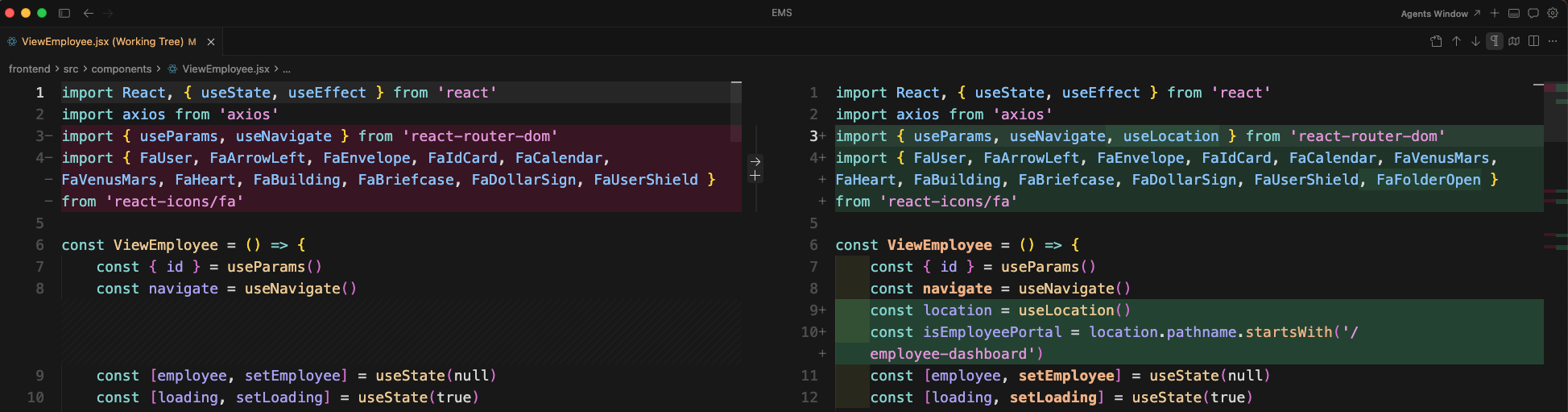
The ViewEmployee component now shows a Back to Employees button that navigates to the correct route based on the portal context, and displays the employee's details in a styled card layout with gradient background.
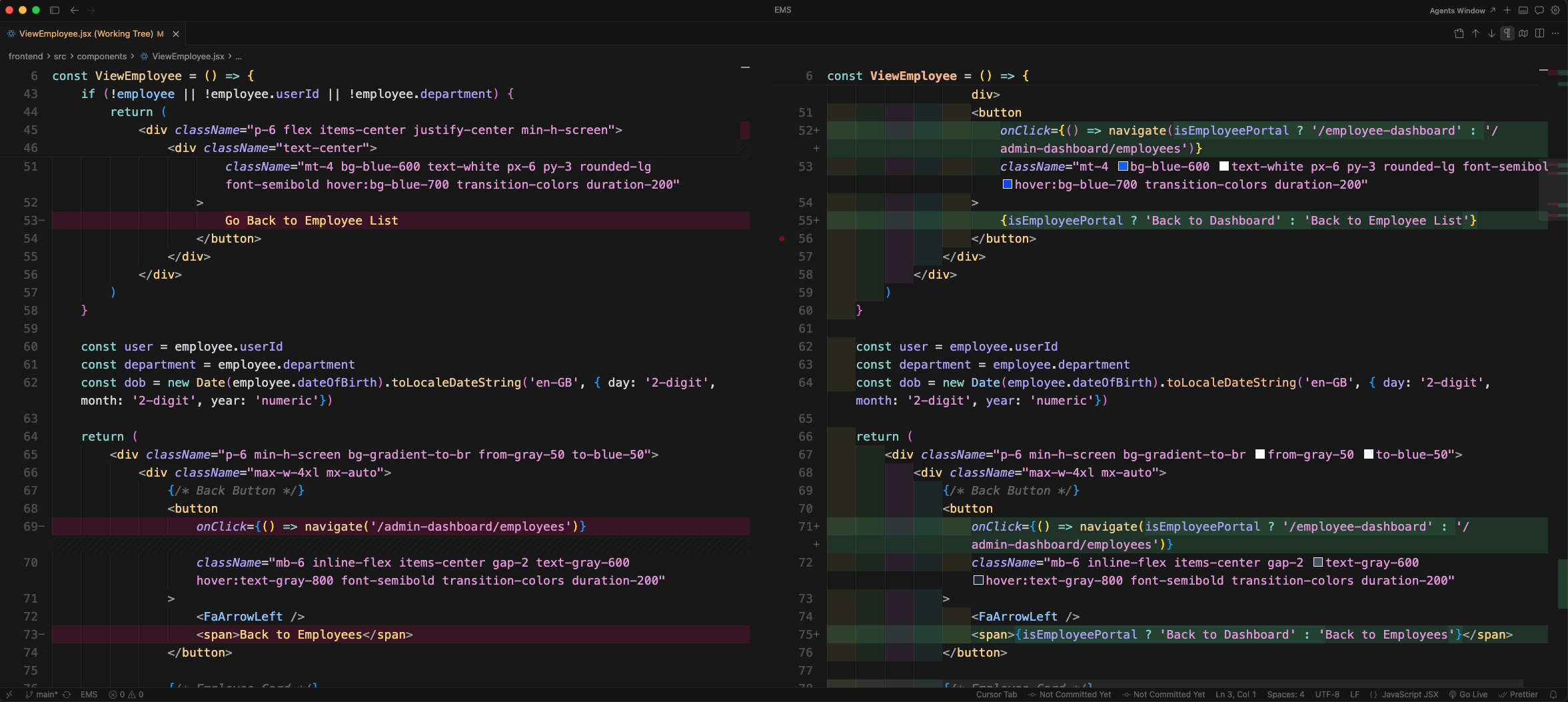
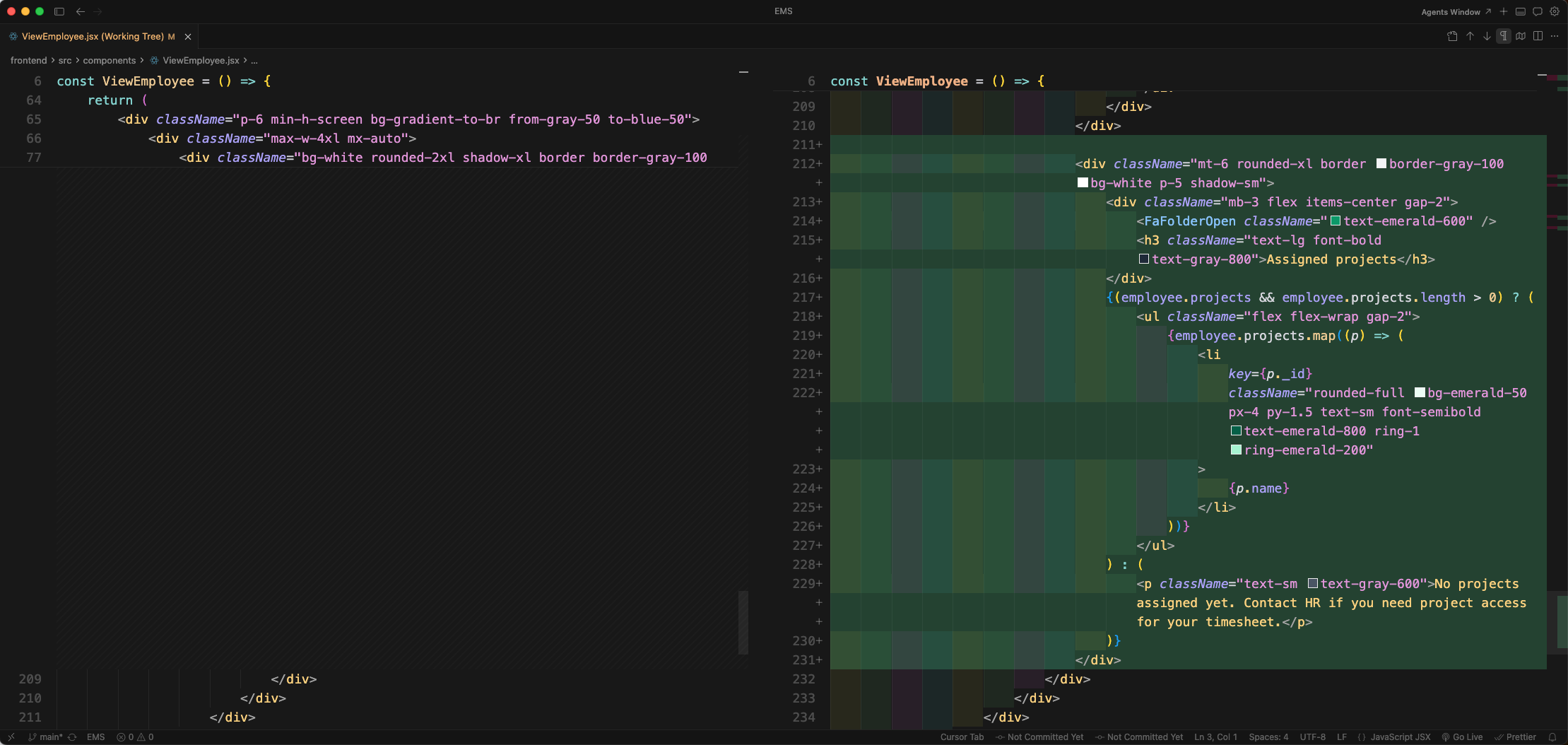
The ViewEmployee component now includes an Assigned Projects section that displays the employee's projects as styled pill badges, or shows a helpful message if no projects are assigned yet.
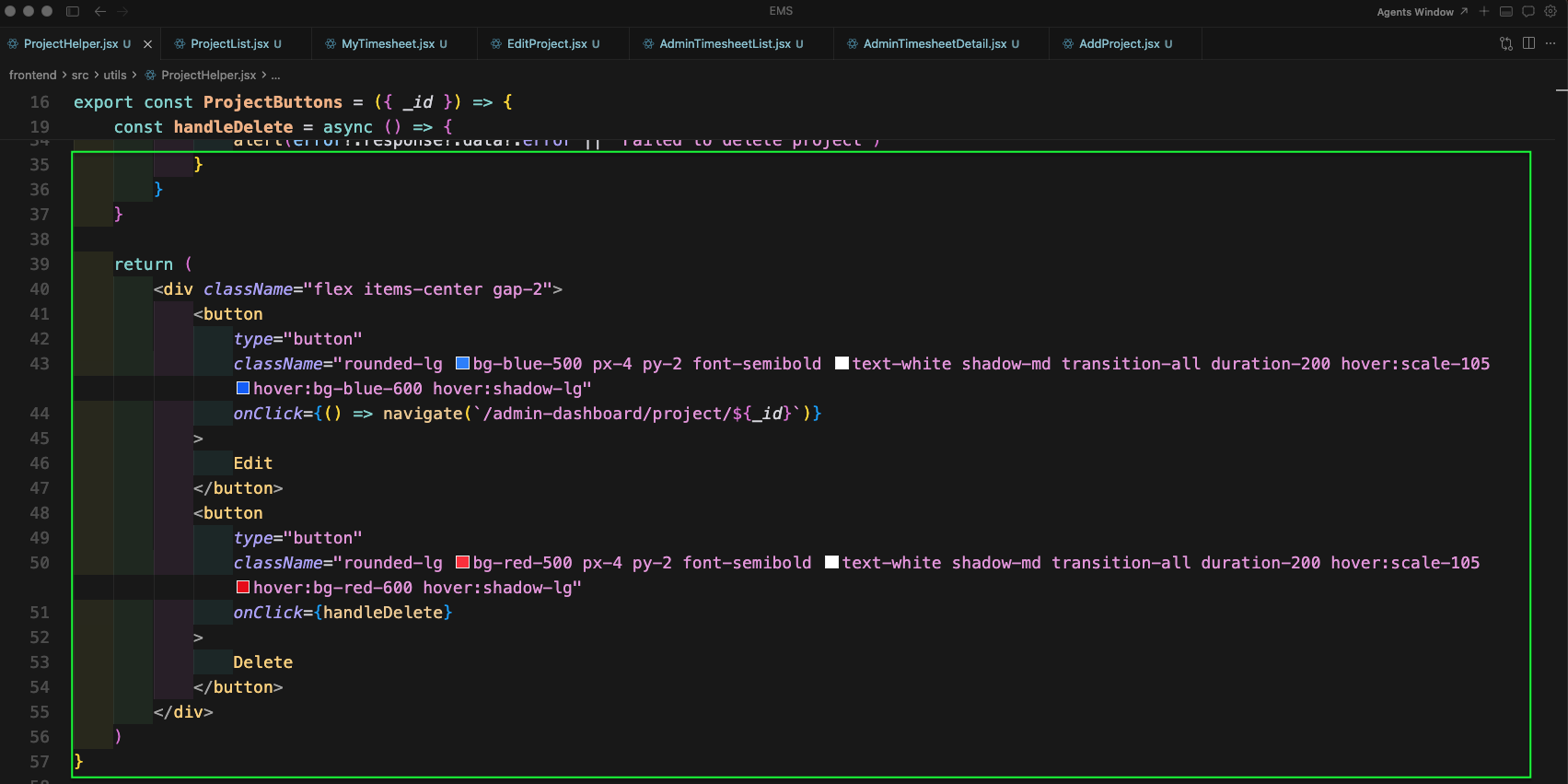
Now we build the ProjectHelper utility. ProjectHelper.jsx defines the projectColumns configuration for the DataTable (S No, Project name, Description, Action) and the ProjectButtons component with Edit and Delete actions.
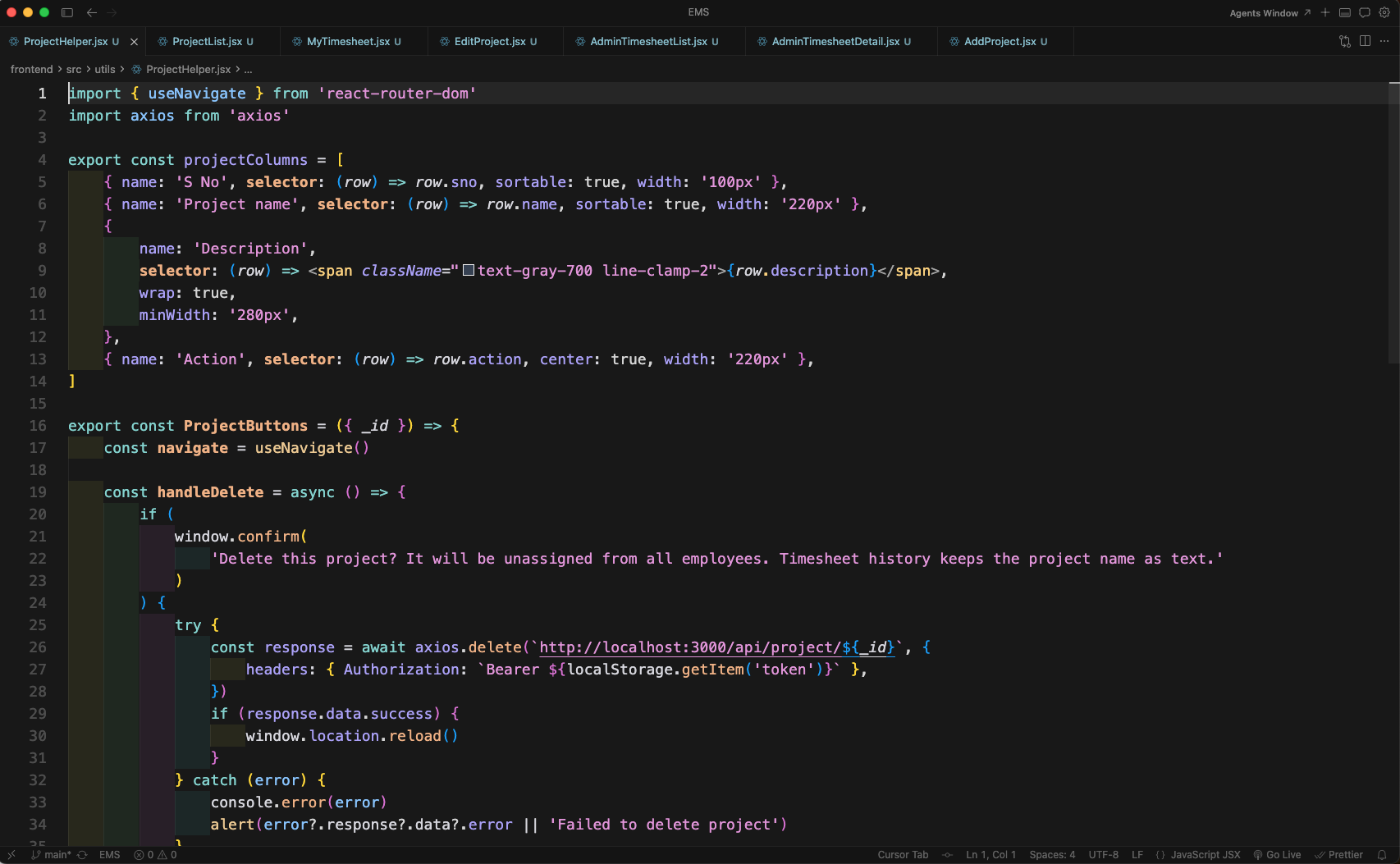
ProjectButtons renders Edit and Delete buttons with styled hover effects. The handleDelete function shows a confirm dialog warning that the project will be unassigned from all employees, then calls the delete API.
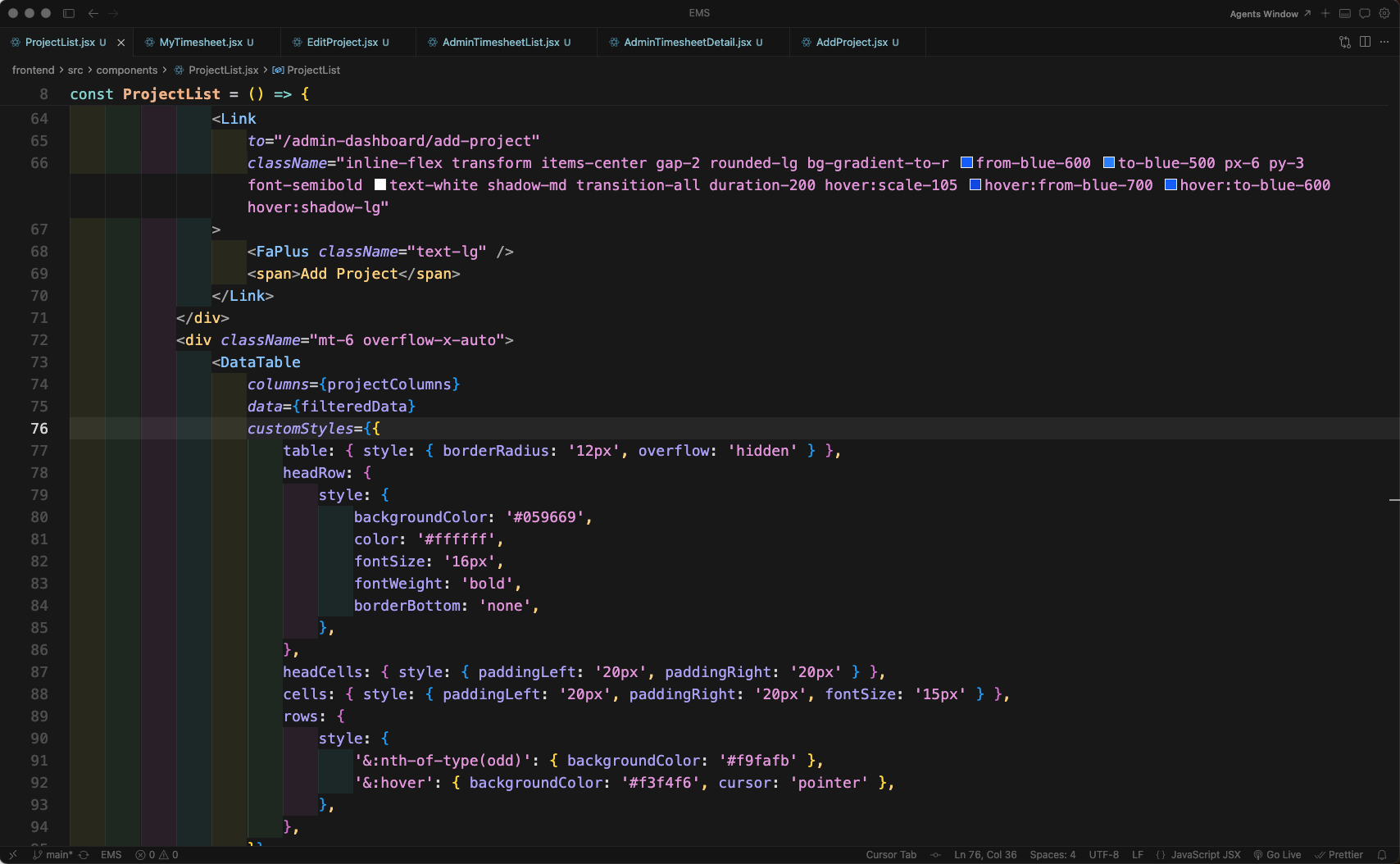
ProjectList.jsx is the main project management component. It fetches projects from the API, maps them with serial numbers and action buttons, and stores them in state for display.

ProjectList includes a search input that filters projects by name or description in real-time, and an Add Project button that links to the add-project route.

The Add Project button is styled with a gradient background and hover scale effect. The project list is rendered using the DataTable component with the configured columns.
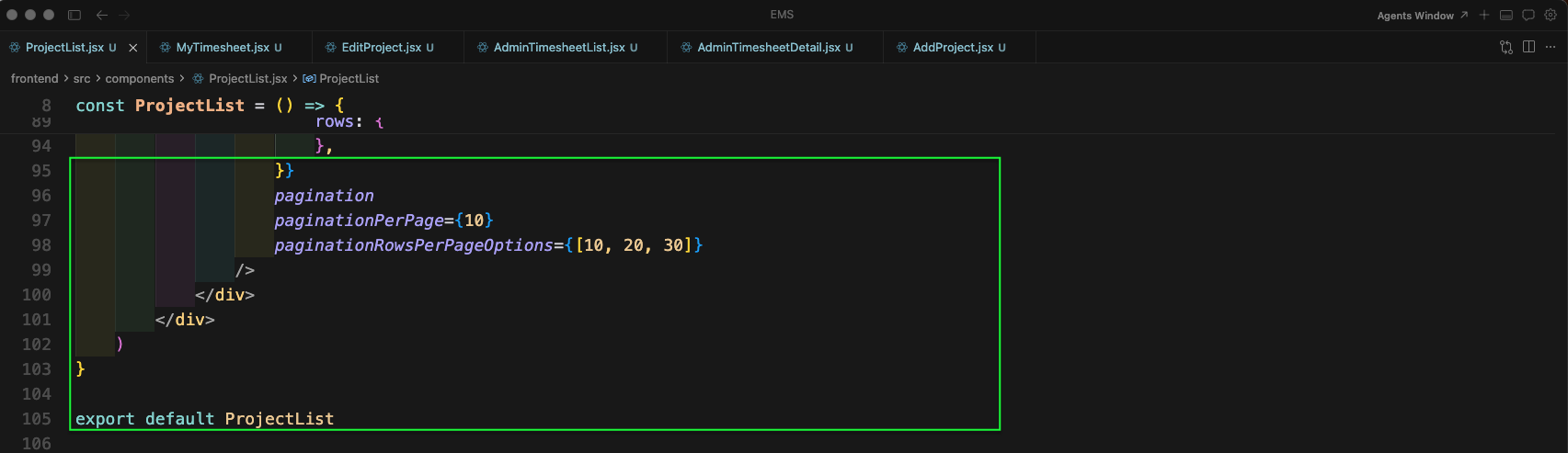
ProjectList renders the data using react-data-table-component with pagination enabled (10 rows per page, with options for 10, 20, 30).
Now we build the MyTimesheet component. It starts with date utility functions: pad2 for zero-padding, mondayYmdFromDate to compute the Monday of a given week, parseYmdLocal for date parsing, addDaysYmd to add days, formatDmY for display formatting, and dayShortLabel for day labels.

More helper functions follow: formatHourDisplay renders hours as plain numbers, parseHourInput parses user input (clamped 0–24), sum reduces an array, and cloneRows deep-clones timesheet rows with validated hour arrays.
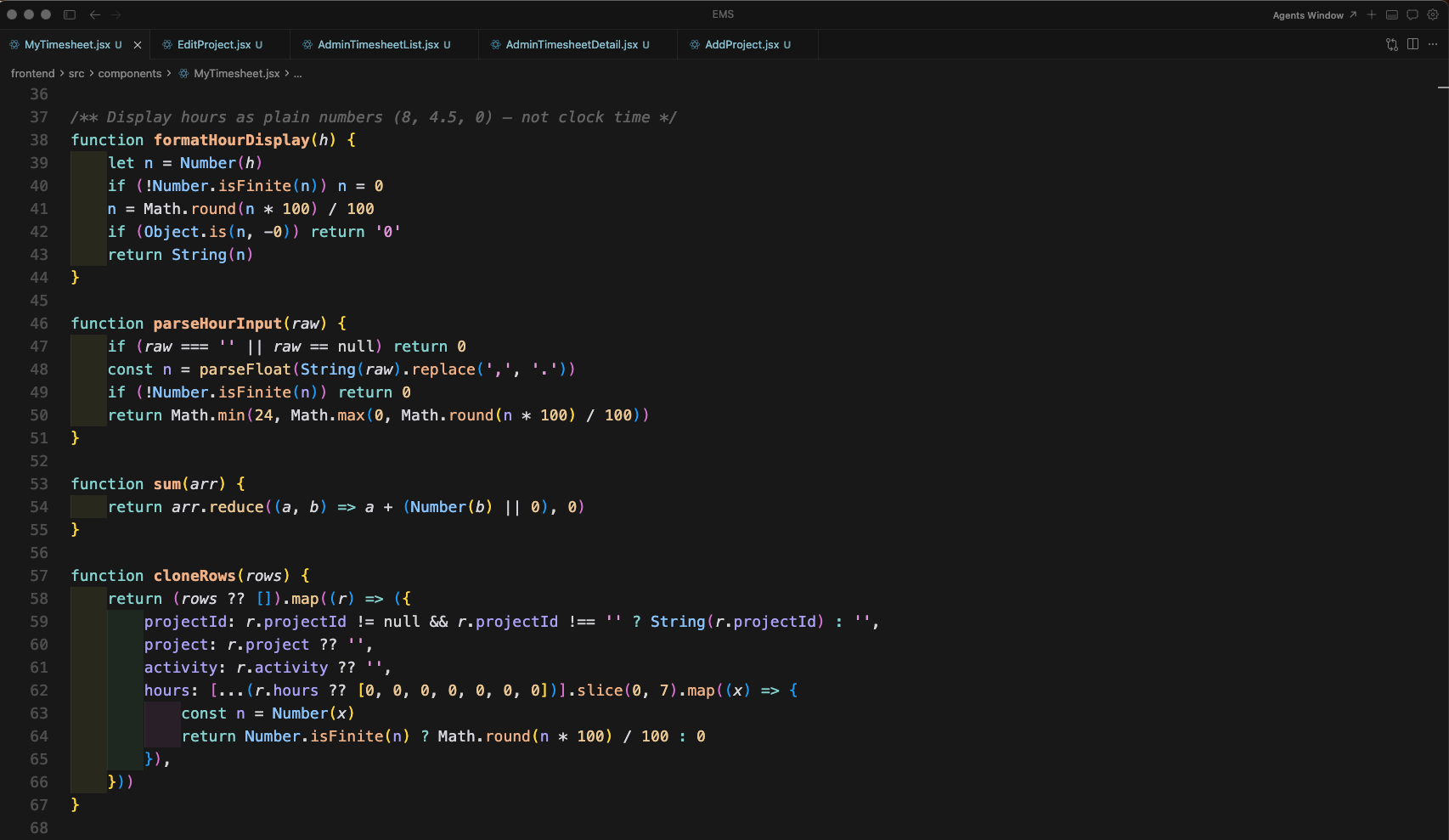
The MyTimesheet component initialises state: weekStart, weekEnd, canCreate, timesheet, loading, msg, err, editing, editRows, editBaseline, and employeeTimesheetContext. It derives designation, assignedProjects, and hasAssignedProjects from context, and defines makeEmptyRow, dayColumns, and authHeader.

fetchWeek loads the timesheet for the current weekStart via API, updating state with the response data. startEdit enters edit mode by cloning the timesheet rows and setting the editing flag.

startEdit clones the rows, sets editBaseline and editRows, and enables editing mode. The updateField function updates a specific cell value in the edit rows by row index and field name.

updateProjectSelection handles project dropdown changes: it finds the selected project from the assigned projects list and updates the row with the projectId, project name, and the employee's designation as the activity.
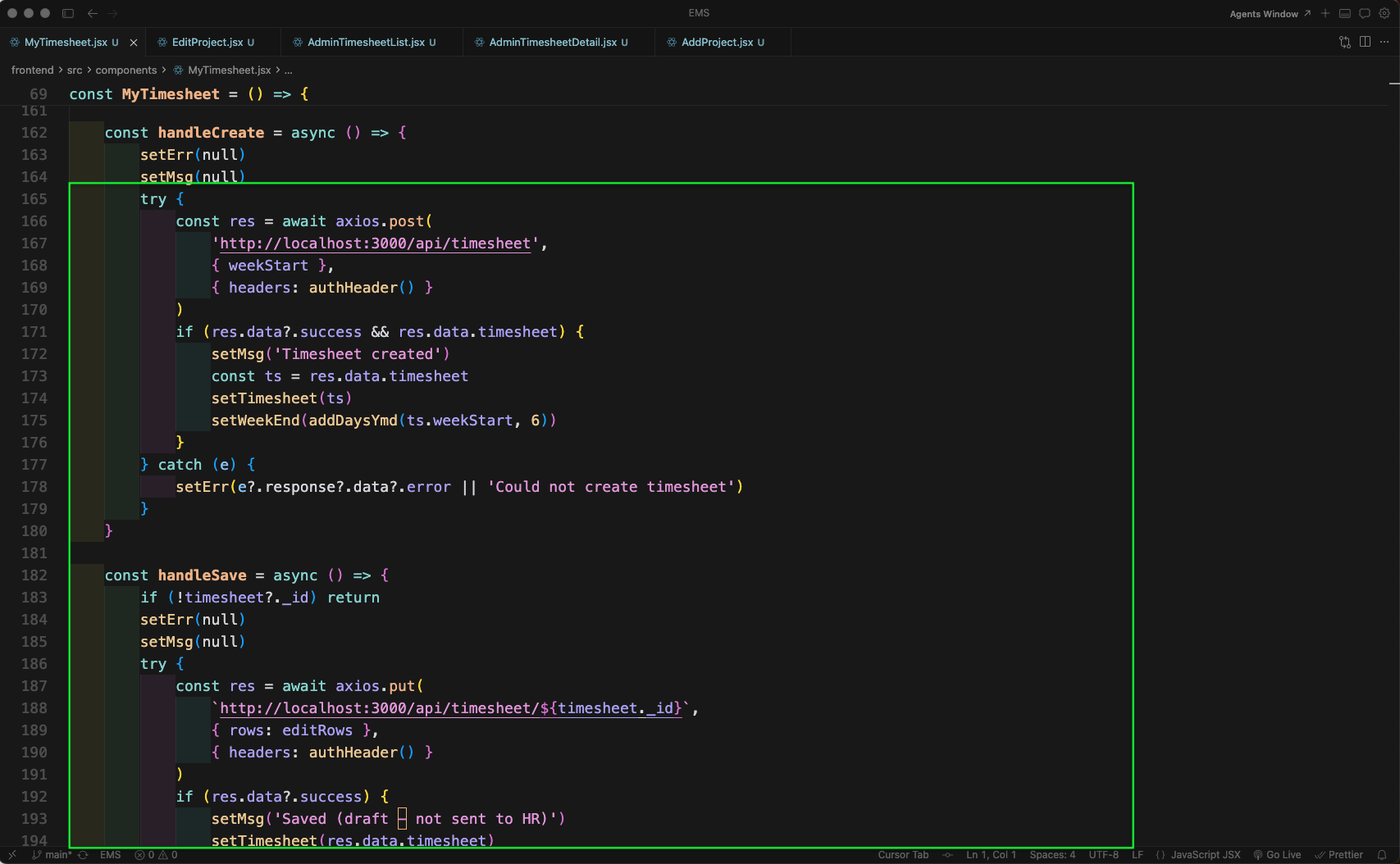
handleCreate creates a new timesheet via API. handleSave saves the edited rows. handleSubmit submits the timesheet for HR approval. shiftWeek navigates between weeks by adjusting weekStart forward or backward.

updateProjectSelection finds the selected project from the assigned list and updates the row with the projectId, project name, and the employee's designation as the activity field.

addRow appends an empty row to the edit rows, while removeRow deletes a row by index (ensuring at least one row remains). displayRows shows either edit rows or the saved timesheet rows. colTotals uses useMemo to compute column-wise hour totals across all rows for Mon–Sun. grandTotal sums all hours. Status flags isApproved, isSubmittedPending, and canEmployeeEdit control UI state.
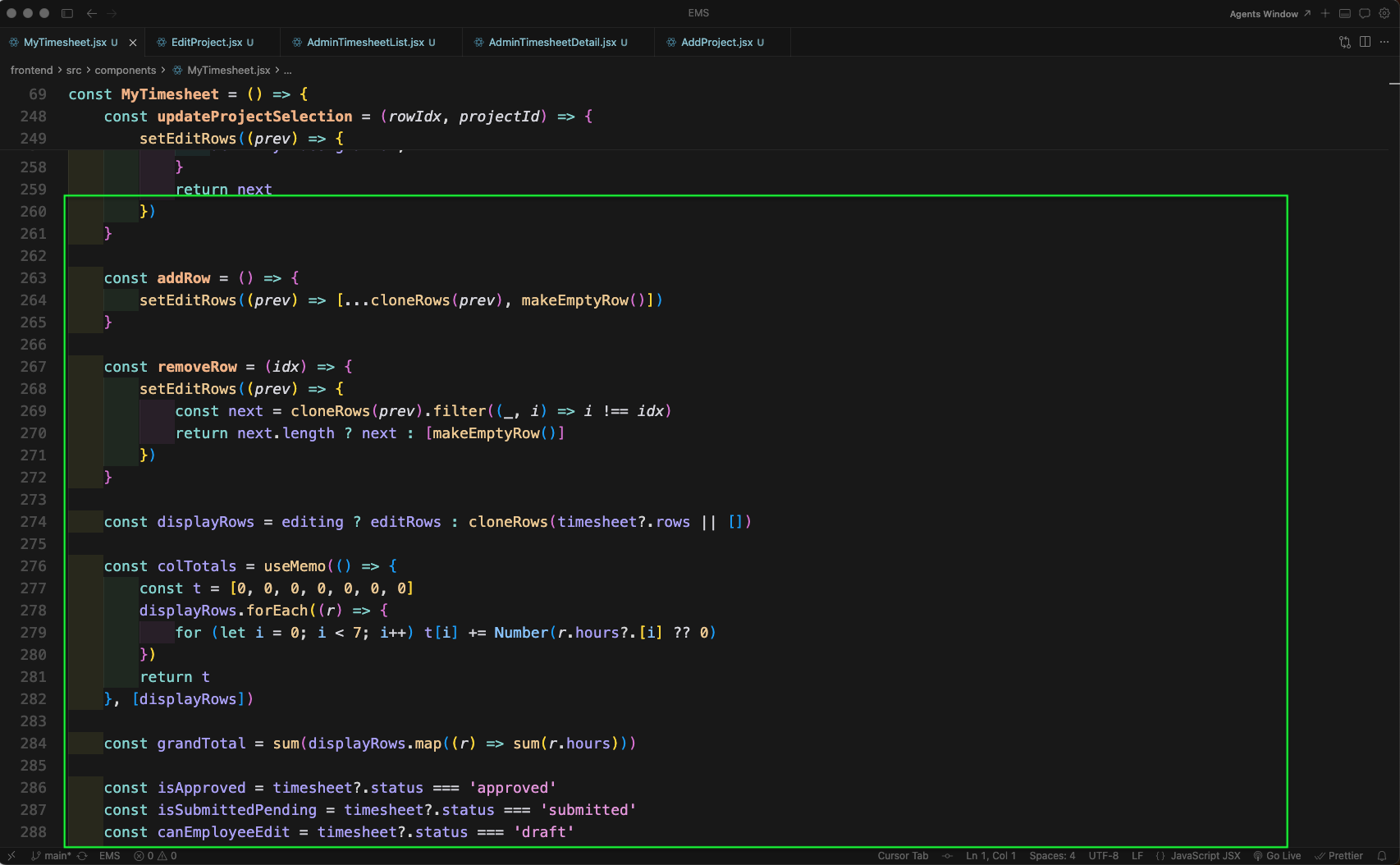
The statusLabel displays the current timesheet status: "Approved by HR", "Submitted (pending HR approval)", or "Draft (not submitted to HR)". A loading state shows a simple loading message.

The timesheet header shows the Timesheet Period with previous/next week navigation buttons. Success and error messages are displayed in styled alert boxes when present.
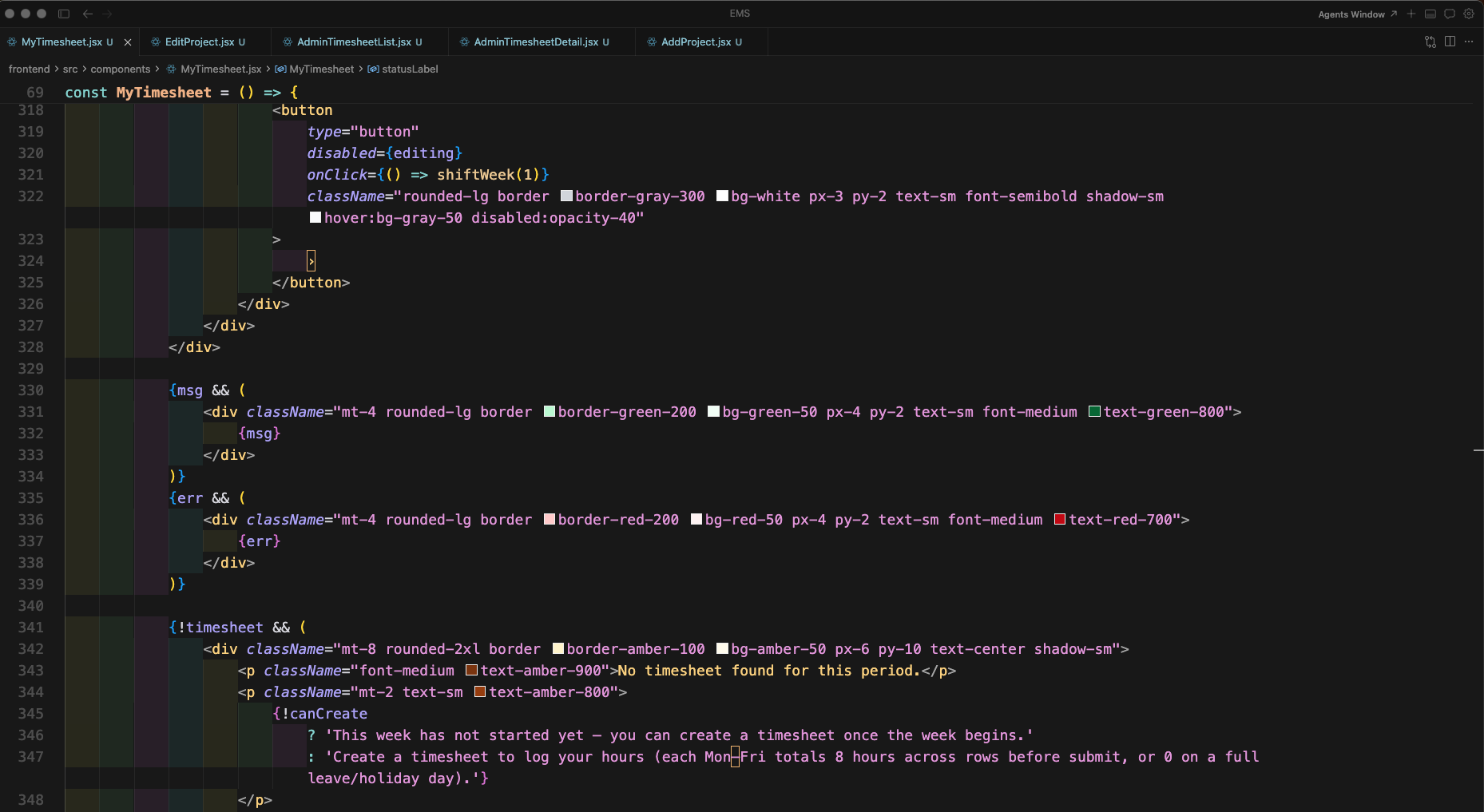
When no timesheet exists, a Create Timesheet button is shown (disabled if the week hasn't started). When a timesheet exists, a full table with project, designation, day columns (Mon–Sun), and total is rendered.

Each row in the timesheet table shows a project dropdown (when editing and projects are assigned) or a text input, the designation, hour inputs for each day, and a row total. The table has an emerald-themed header.

In MyTimesheet.jsx, the displayRows.map() function renders each timesheet row with the designation or activity label, editable number inputs for each day (Mon–Sun) with 0–24 range, step 0.25, and decimal input mode, along with a computed row total.
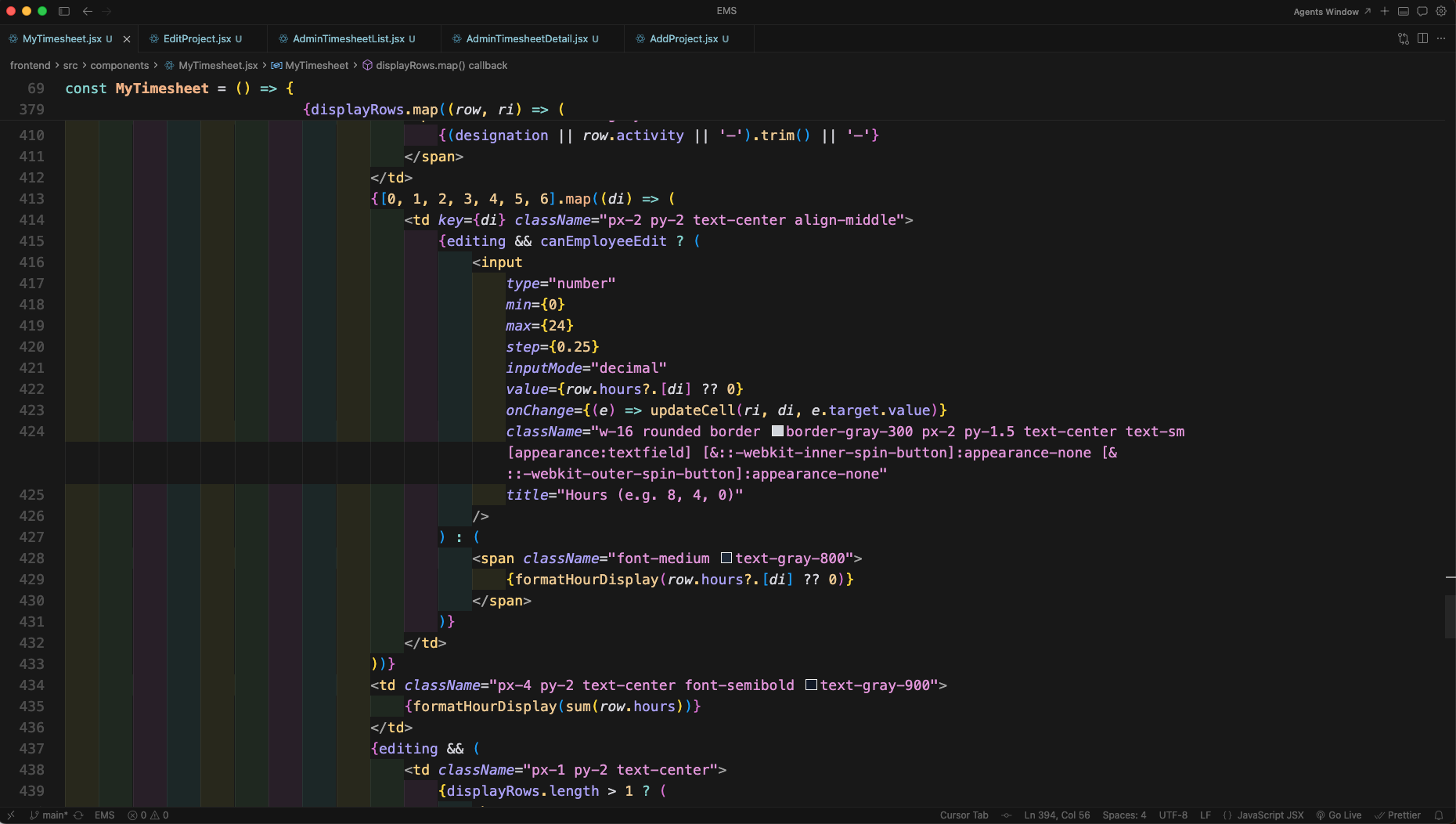
The removeRow button appears on each row when editing, allowing deletion of a row (minimum one row is enforced). Below the rows, a Total row uses colTotals and grandTotal computed via useMemo to display column-wise hour sums and the overall total.
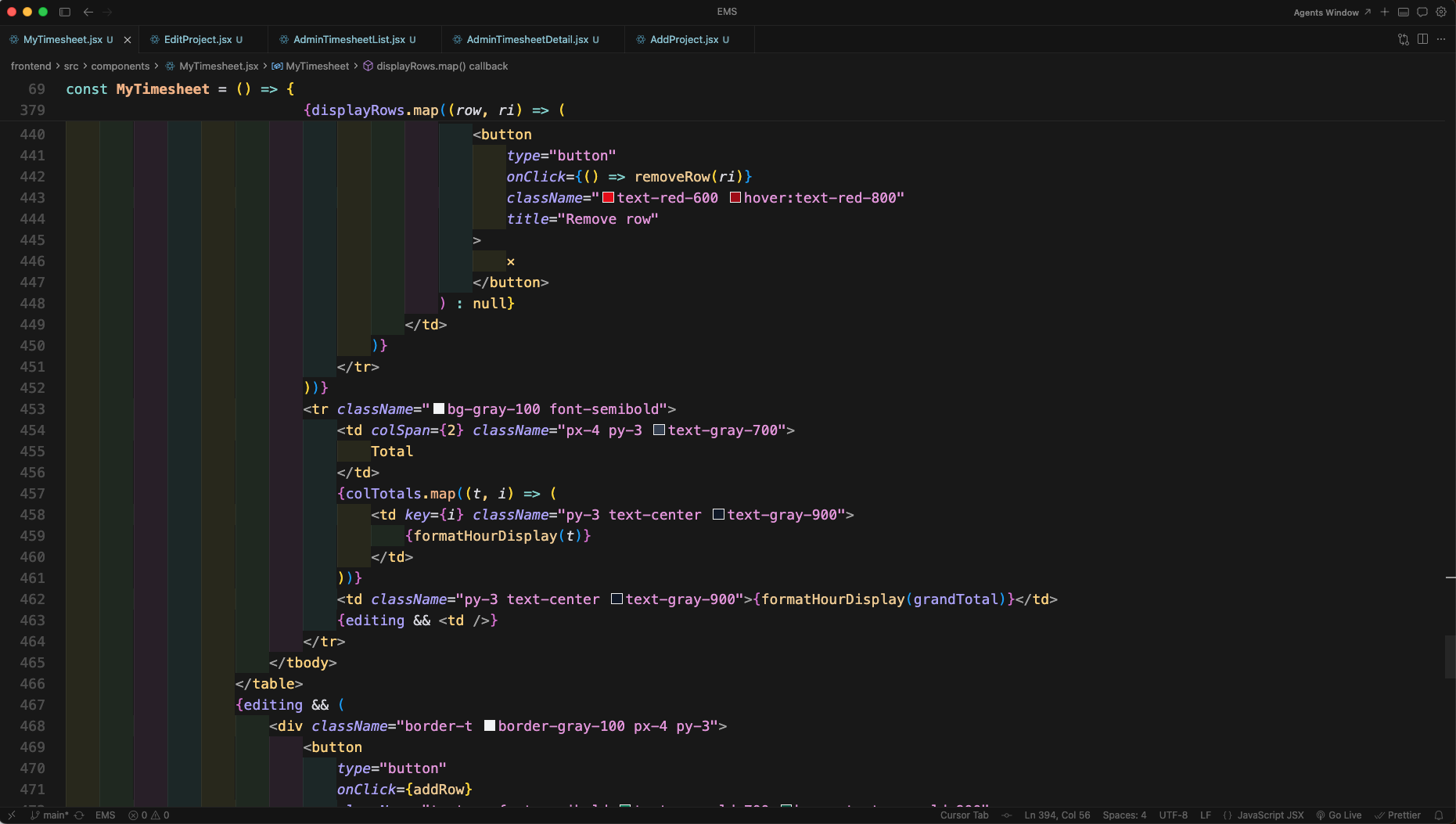
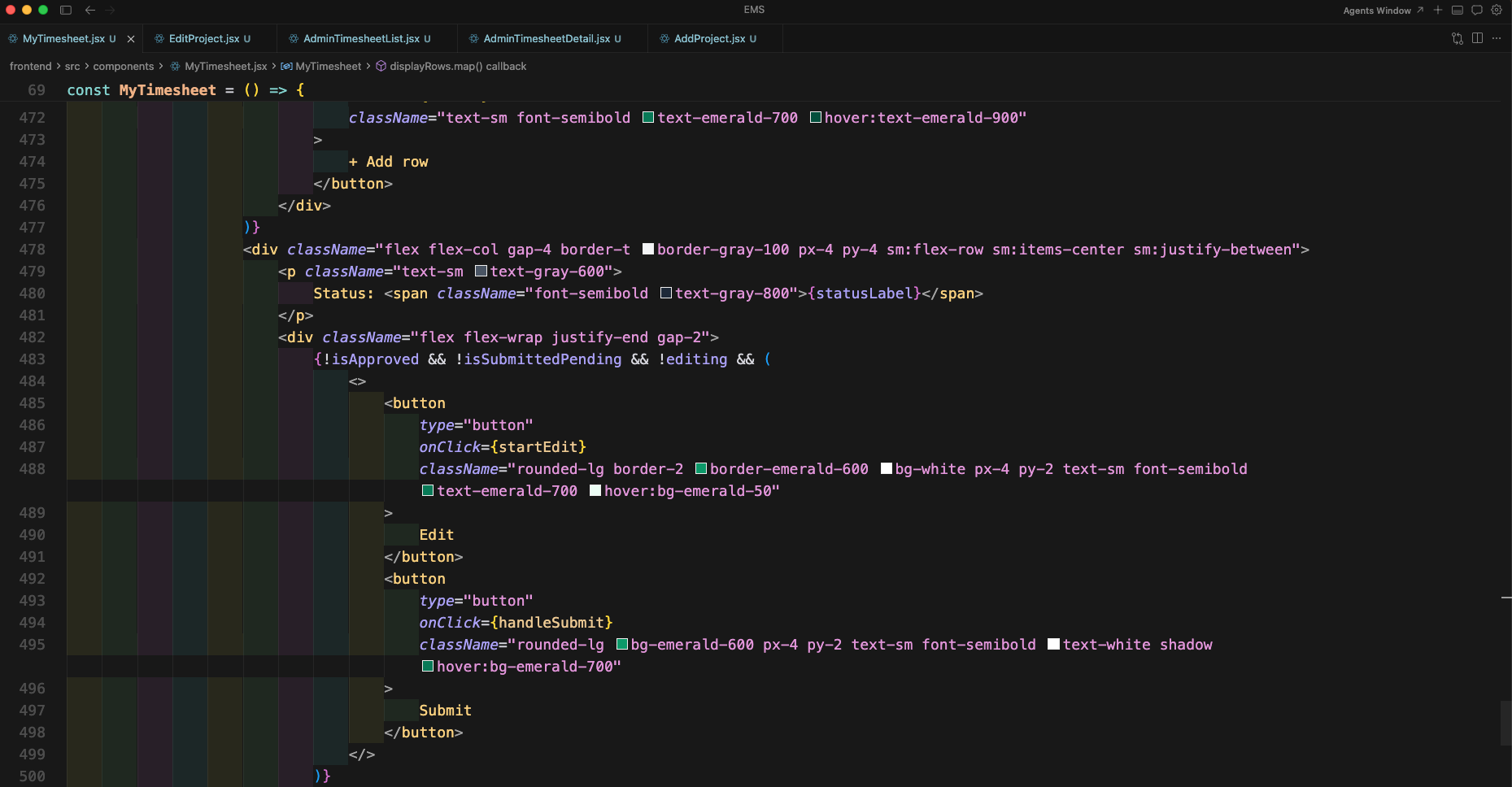
An + Add row button appears below the table in edit mode to append new empty rows. Below that, the Status label shows the current timesheet state: draft, submitted, or approved. When not editing, Edit and Submit buttons let the employee modify or submit the timesheet for HR approval.
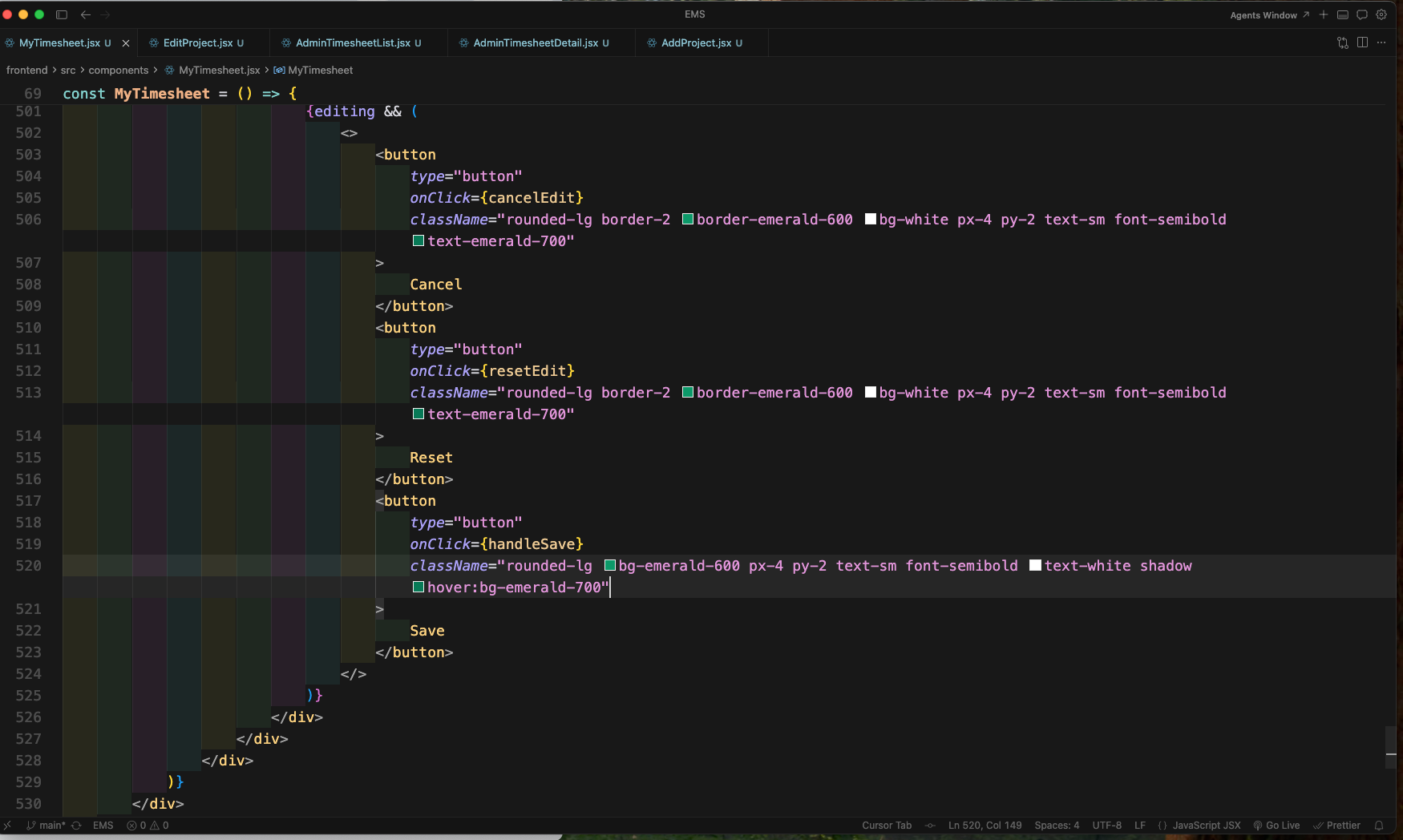
When the timesheet enters edit mode, Cancel, Reset, and Save buttons replace the default action buttons. Cancel exits without changes, Reset restores the original saved rows, and Save persists the updated rows via the API.
The MyTimesheet component closes with export default MyTimesheet, making it available for routing. The component encapsulates all timesheet functionality—fetching, creating, editing, saving, submitting, and week navigation—for the employee portal.

Now we build the EditProject component. EditProject.jsx imports useParams, useEffect, useState, axios, FaFolderOpen icon, and useNavigate. The component extracts the project id from the route, sets up form state, and uses useEffect to fetch the existing project data on mount.
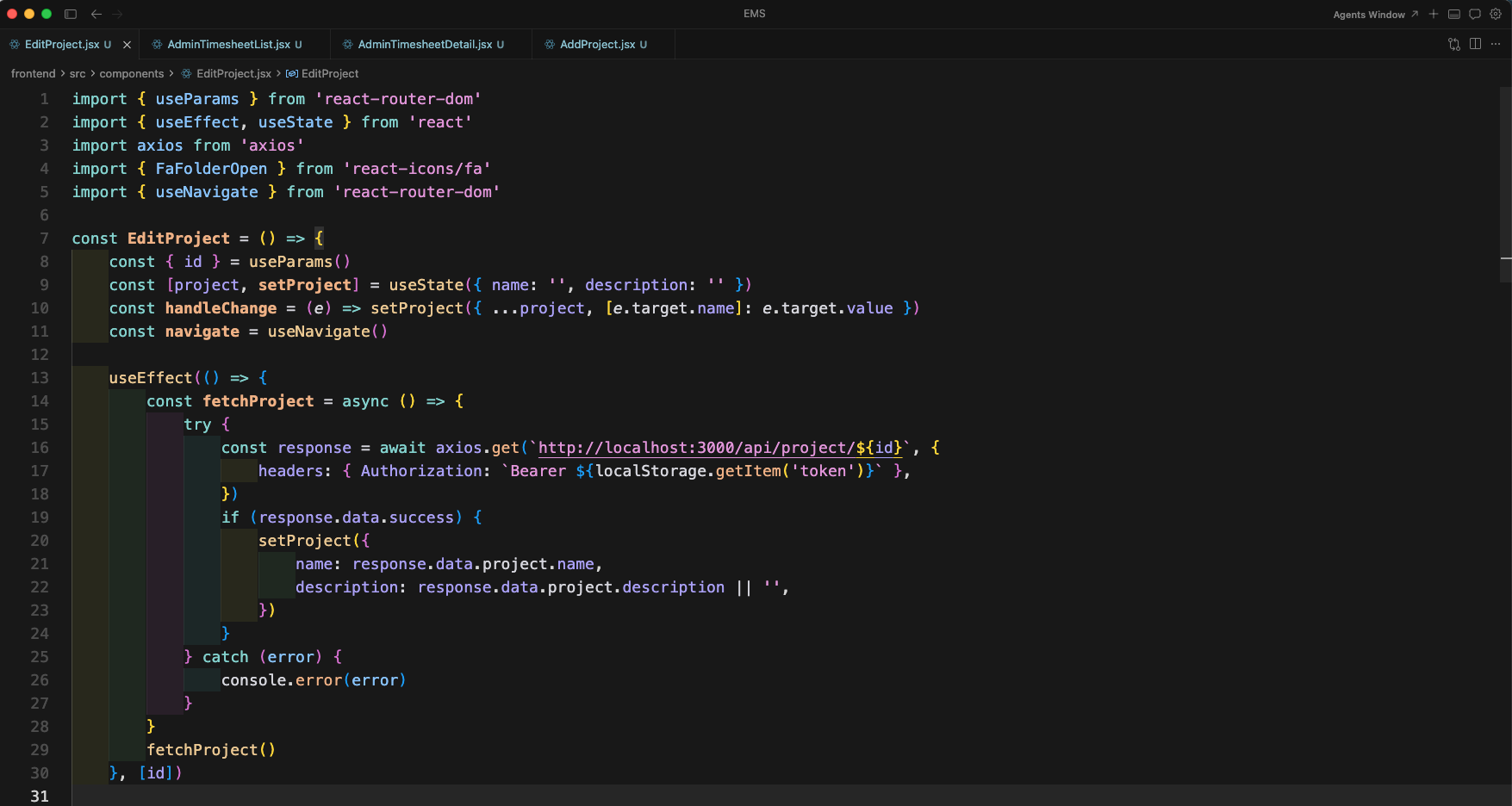
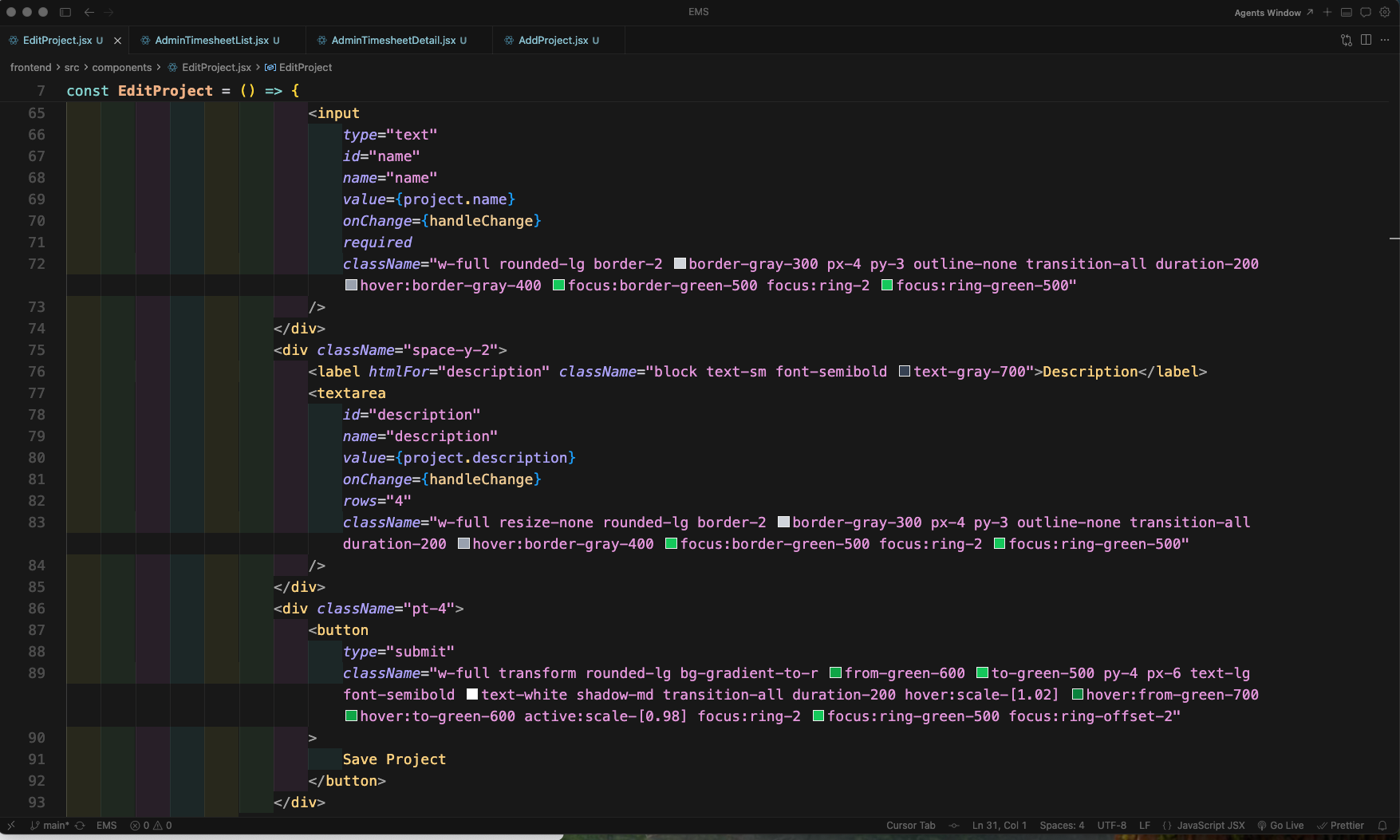
handleSubmit in EditProject sends a PUT request to update the project, navigates back to the project list on success, and shows an error alert on failure. The form JSX includes a styled header with the folder icon and Edit Project title, plus a Project name input field.

The form continues with a Description textarea for optional project details, and a full-width Save Project button styled with a gradient from green-600 to green-500, hover scale animation, and focus ring for accessibility.
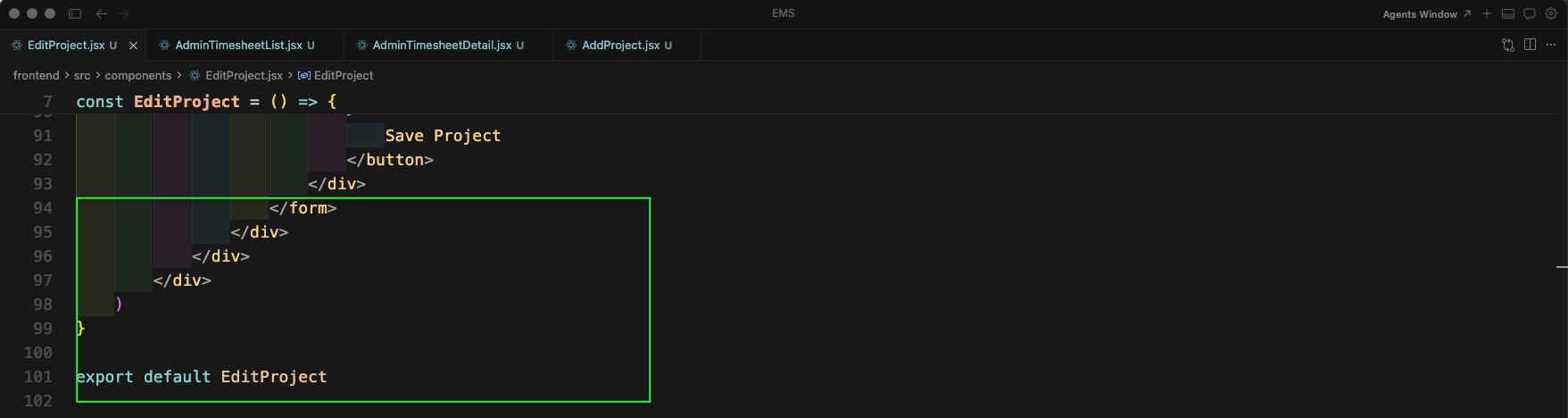
The EditProject component closes the form and wrapping divs, then exports the component with export default EditProject. The component is now ready to be wired into the admin routes for editing existing projects.
Next we build the AdminTimesheetList component. AdminTimesheetList.jsx imports useEffect, useMemo, useState, Link, DataTable, and axios. Helper functions formatDmY (for date display) and statusDisplay (for status labels) are defined. State tracks year, month, rows, and loading. The useEffect fetches submitted/approved timesheets filtered by year and month for the admin view.

The AdminTimesheetList component uses useMemo to define columns for the DataTable: S No, Emp ID, Name, Week, Total hrs, and Status columns.

The DataTable includes an Action column with a View link that routes to the timesheet detail page. The component also renders year and month filter dropdowns, and a page title with description text.

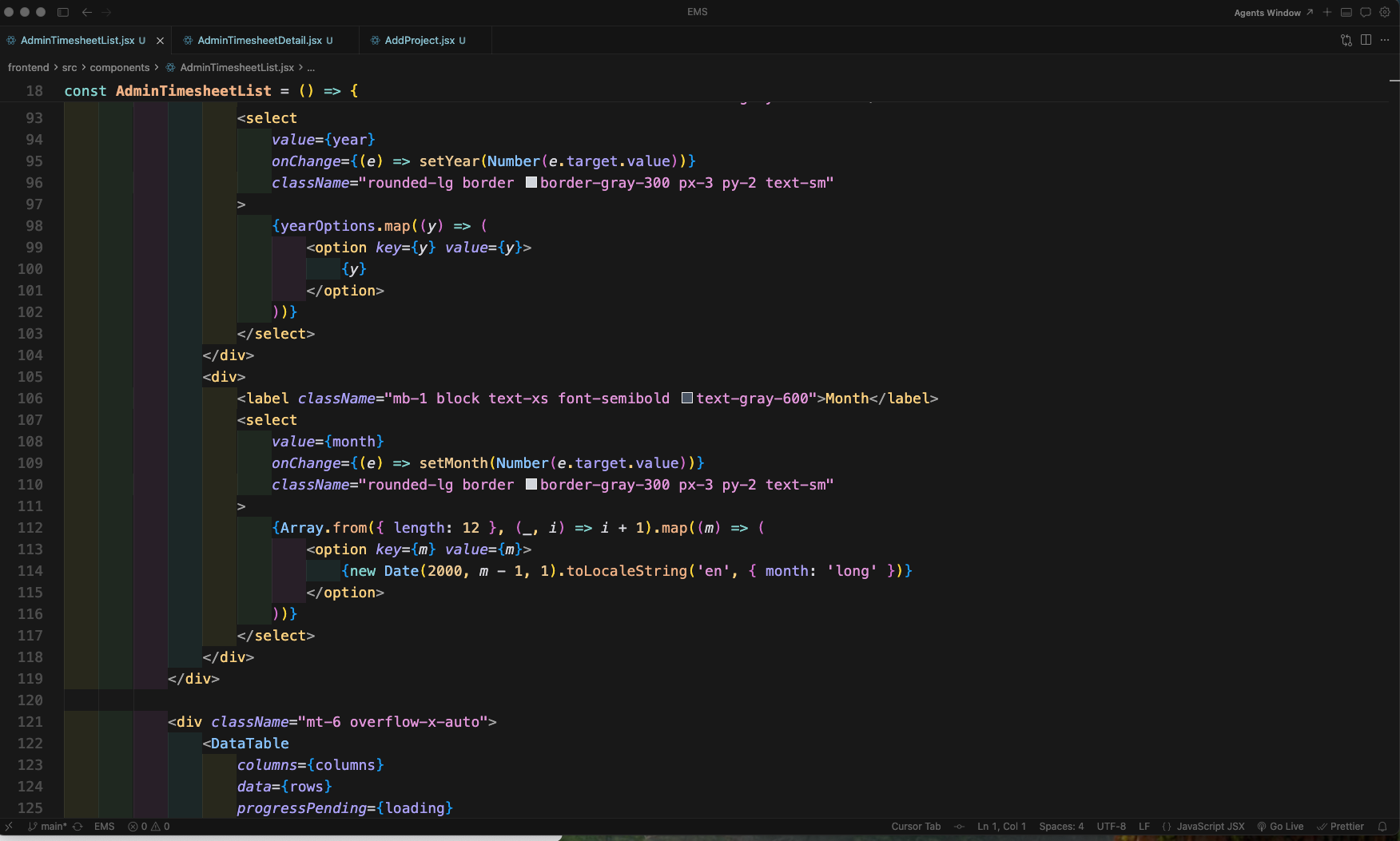
The AdminTimesheetList component provides Year and Month select dropdowns. The year generates options ranging from current year minus 2 to plus 2, while the month dropdown lists all 12 months by name.
The AdminTimesheetList component renders the DataTable with custom styles for rounded corners, styled header row with teal background, and striped alternating rows. Pagination is configured with 10 rows default and options for 10, 25, 50.

Now we build the AddProject component. AddProject.jsx imports useState, FaFolderOpen icon, axios, and useNavigate. The component sets up project state with name and description, defines handleChange to update state, and handleSubmit to POST the new project to the API then navigate back to the project list.
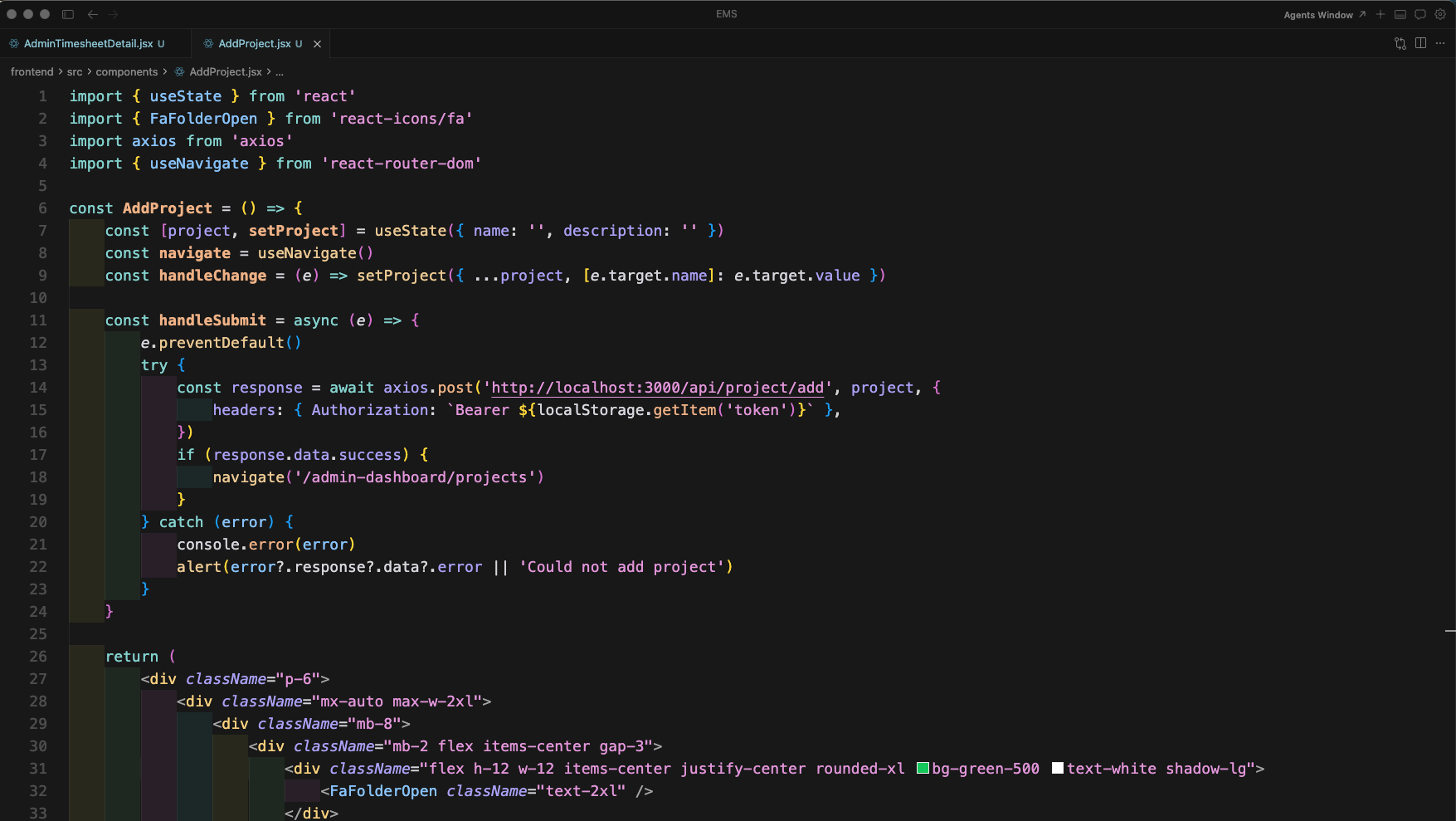
The AddProject component renders a styled header with the folder icon and Add Project title, plus a helper text explaining that projects should be created and then assigned to employees via Edit Employee. The form includes a required Project name input field with a placeholder.

The form includes an optional Description textarea and a full-width gradient Add Project button with hover scale effect. The component ends with export default AddProject.

Next we build the AdminTimesheetDetail component. AdminTimesheetDetail.jsx imports useEffect, useMemo, useState, Link, useParams, and axios. It defines helper functions: pad2 for zero-padding, parseYmdLocal for date parsing, addDaysYmd to increment dates, formatDmY for display formatting, dayShortLabel for day labels, and formatHourDisplay for hour formatting.
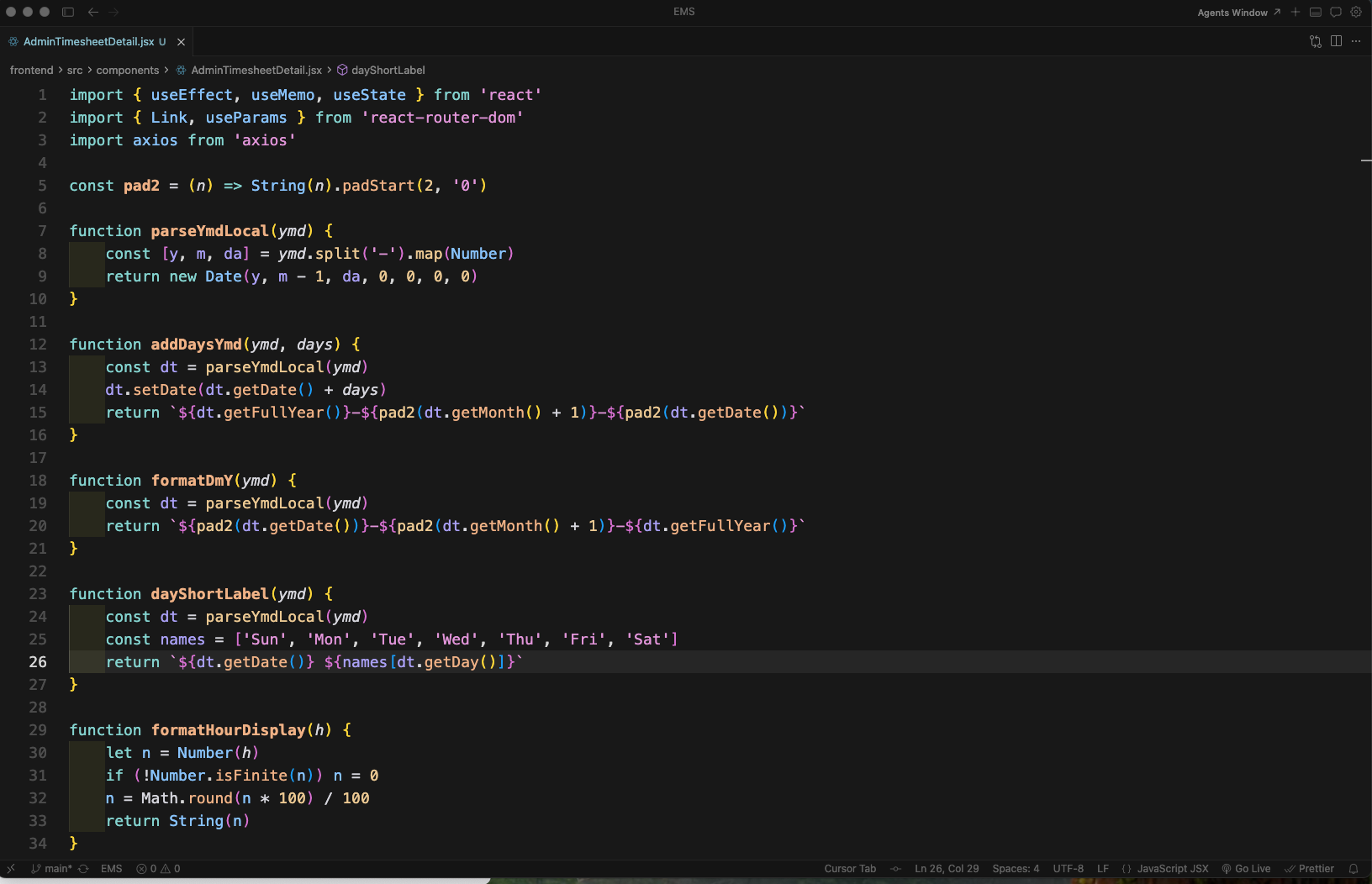
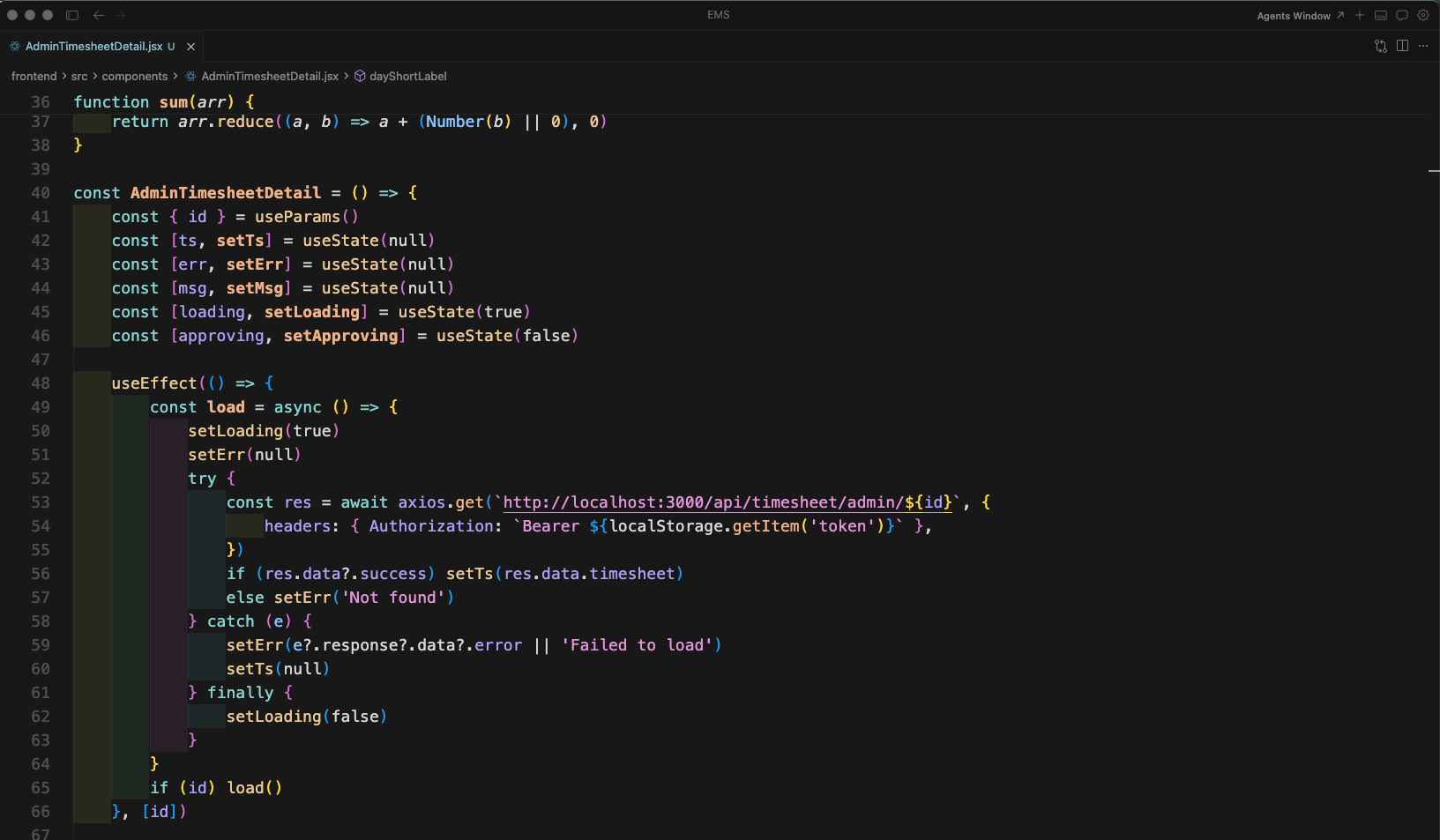
The AdminTimesheetDetail component defines a sum utility function, then sets up state for ts (timesheet), err, msg, loading, and approving. The useEffect loads the timesheet by ID from the API on mount, handling success and error states.
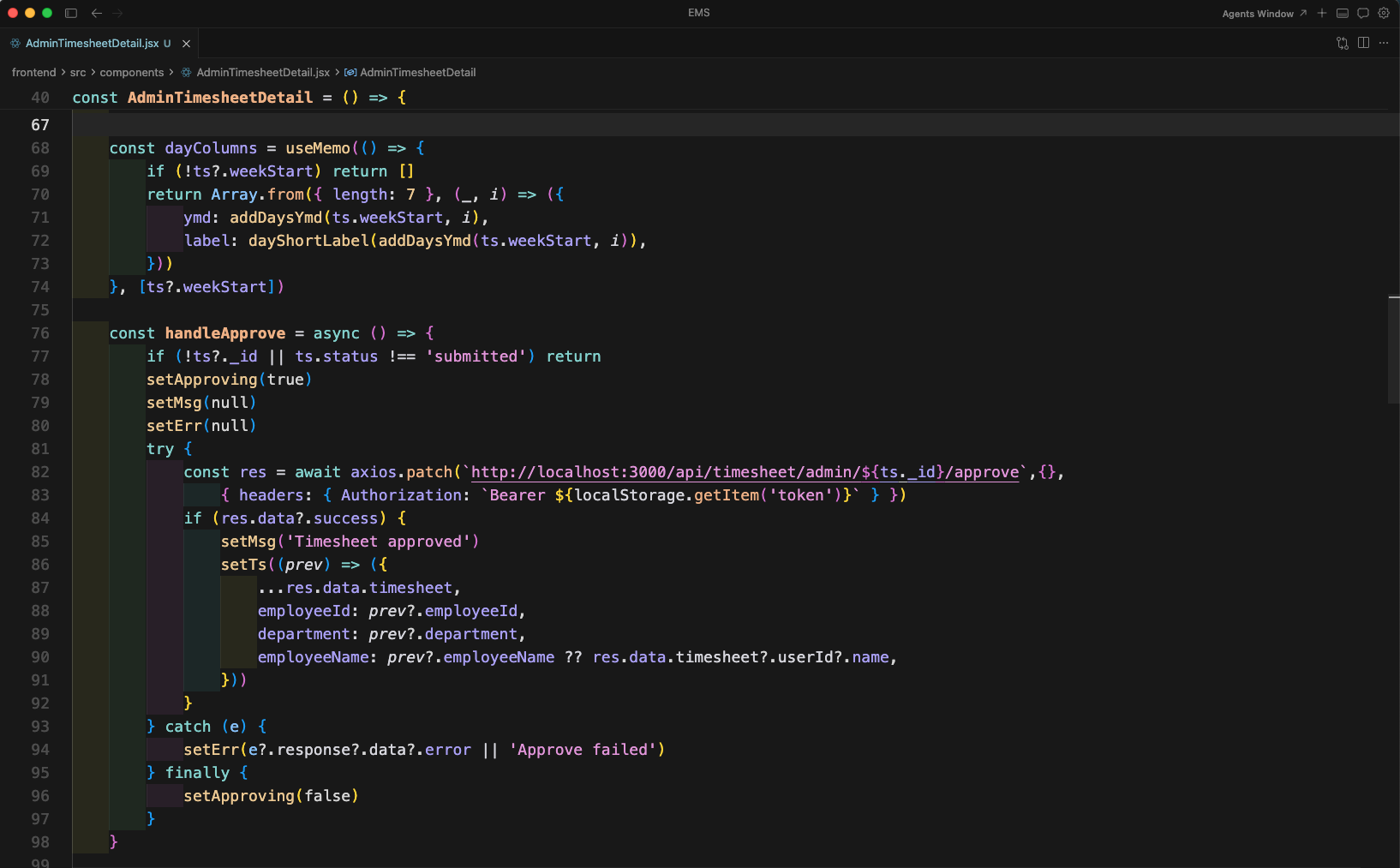
The AdminTimesheetDetail component uses useMemo to compute dayColumns from the timesheet weekStart. The handleApprove function sends a PATCH request to approve the timesheet, updates the state on success, and handles errors with a fallback message.
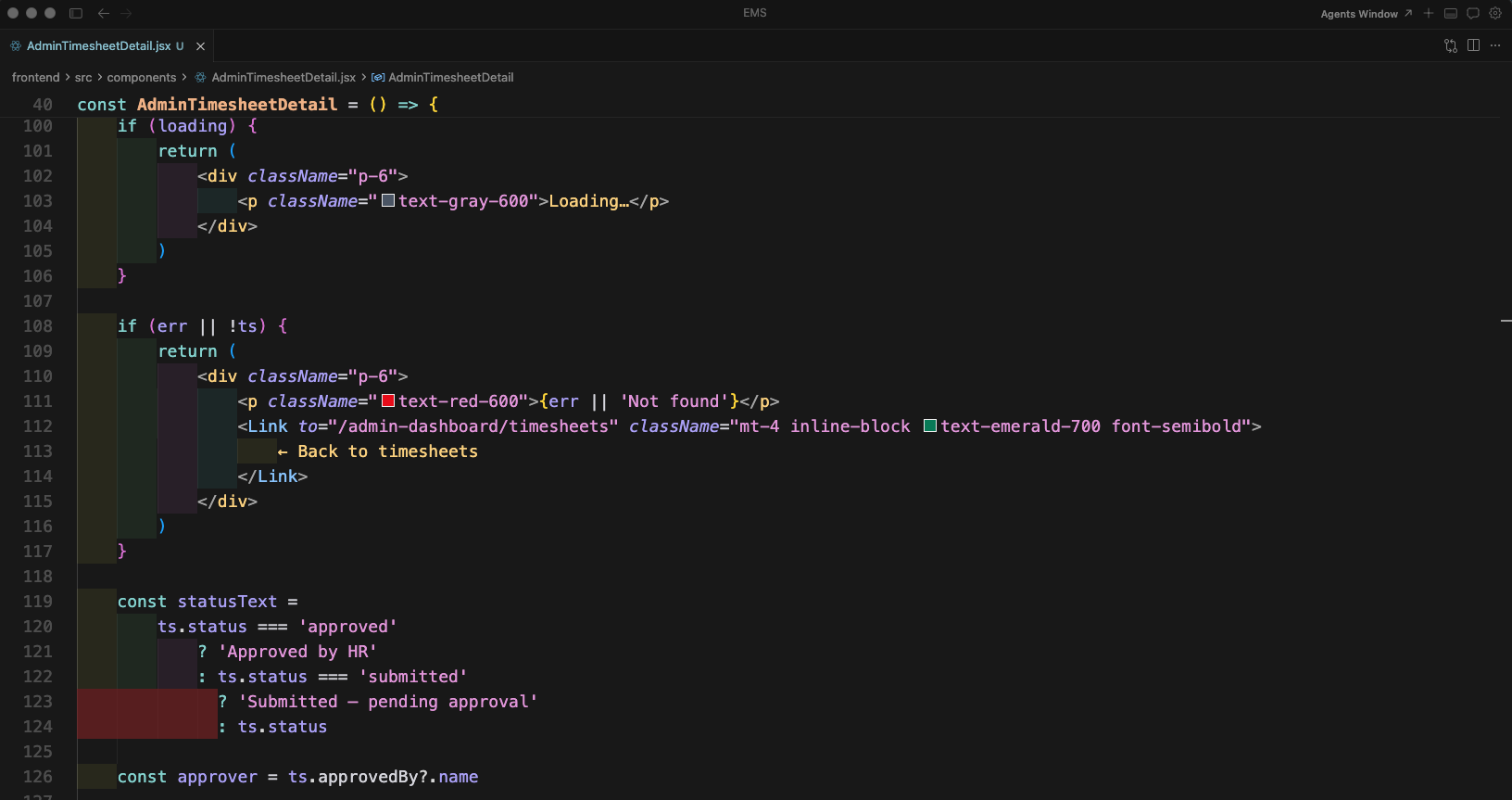
The AdminTimesheetDetail component renders loading and error states: a loading message while fetching, and an error or "Not found" message with a back link if the timesheet cannot be loaded. On success, it displays statusText and the approver name.
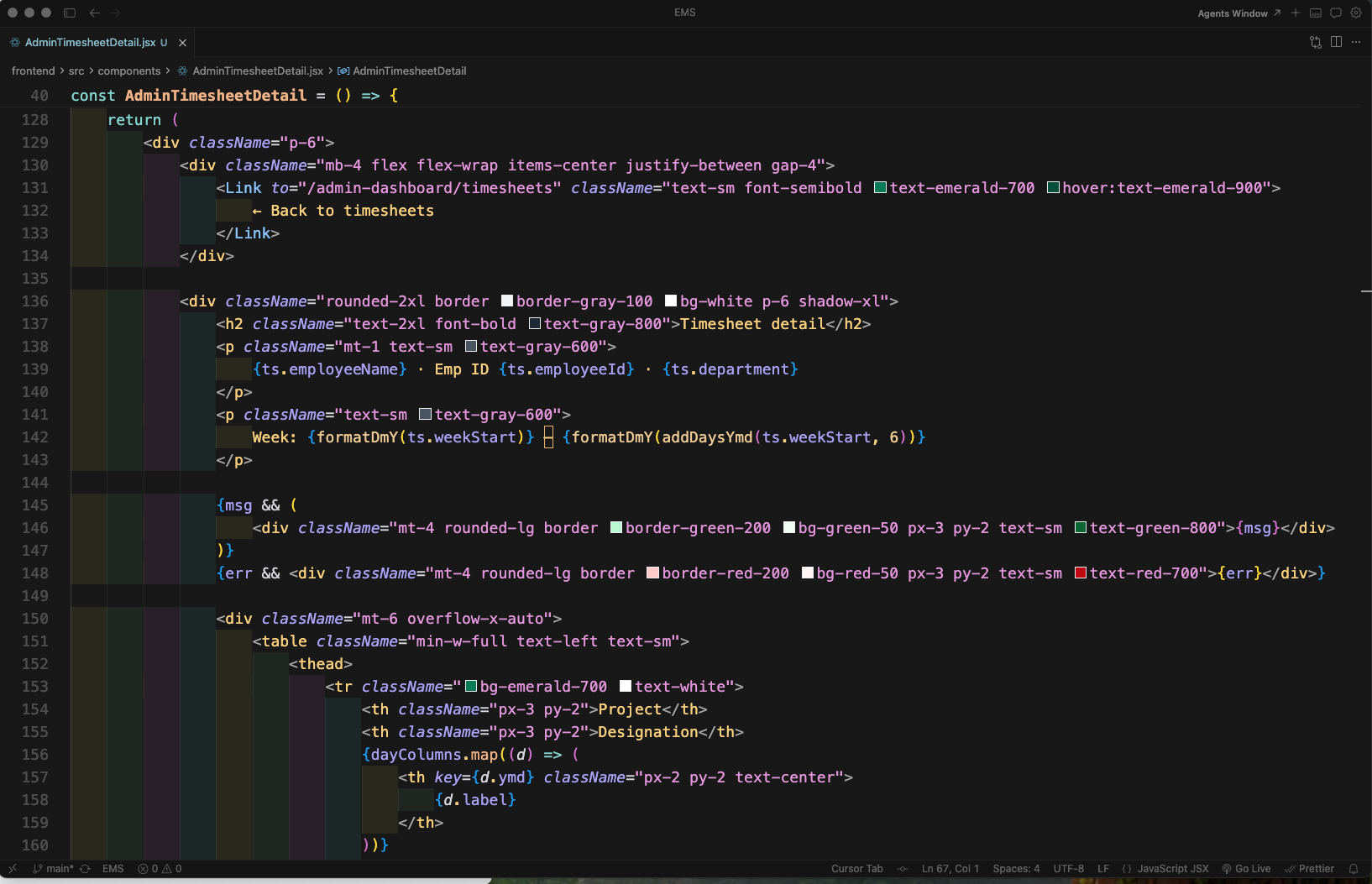
The component renders the timesheet header with employee name, Emp ID, department, and week range. It shows success and error message banners. The table has an emerald-themed header with Project, Designation, day columns (Mon-Sun), and Total columns.
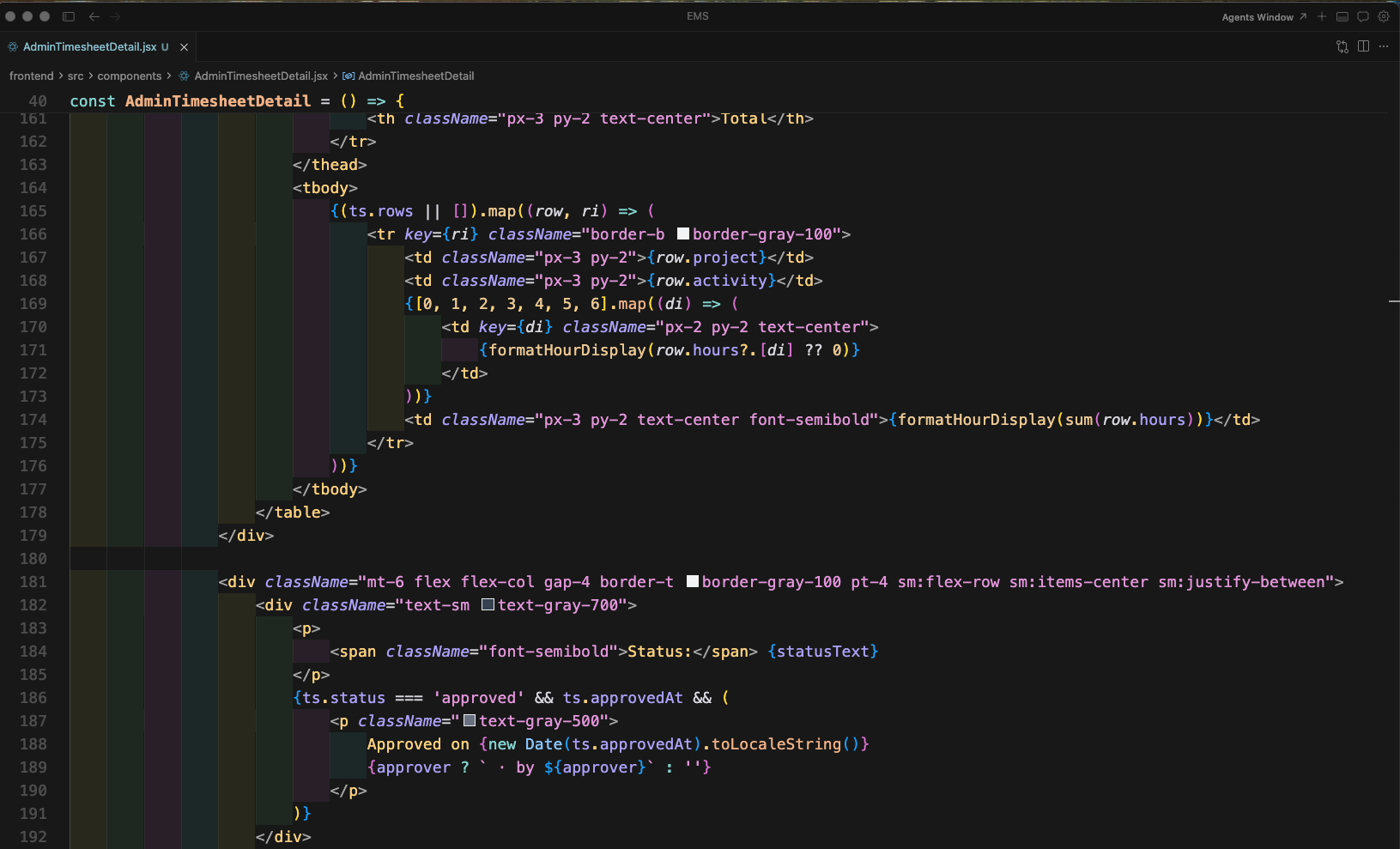
The timesheet table body maps through rows displaying project name, activity/designation, formatted hours for each day, and a row total. The component also shows the status text and approval timestamp with approver name when approved.
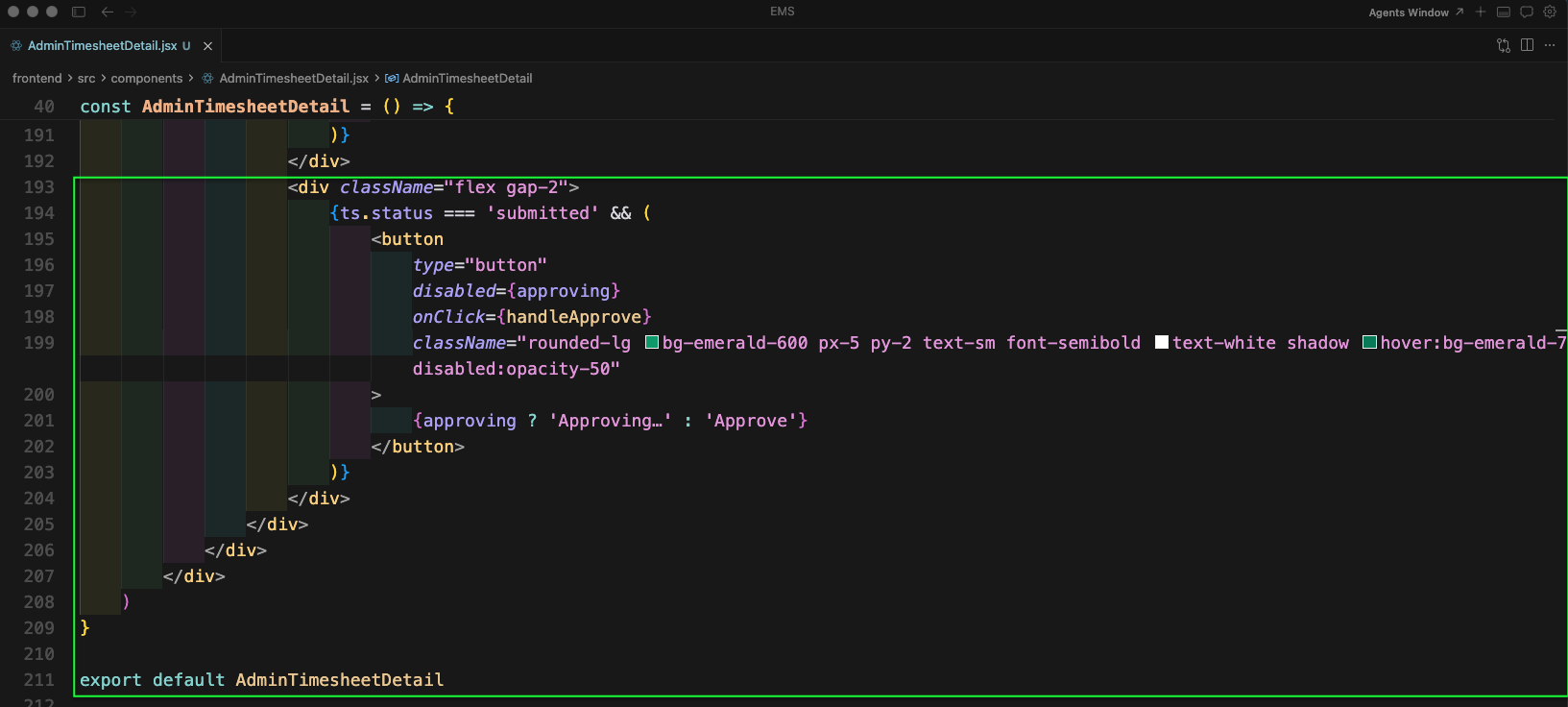
When the timesheet status is submitted, an Approve button is shown. Clicking it triggers handleApprove which sends a PATCH request and shows "Approving..." while processing. The component ends with export default AdminTimesheetDetail.
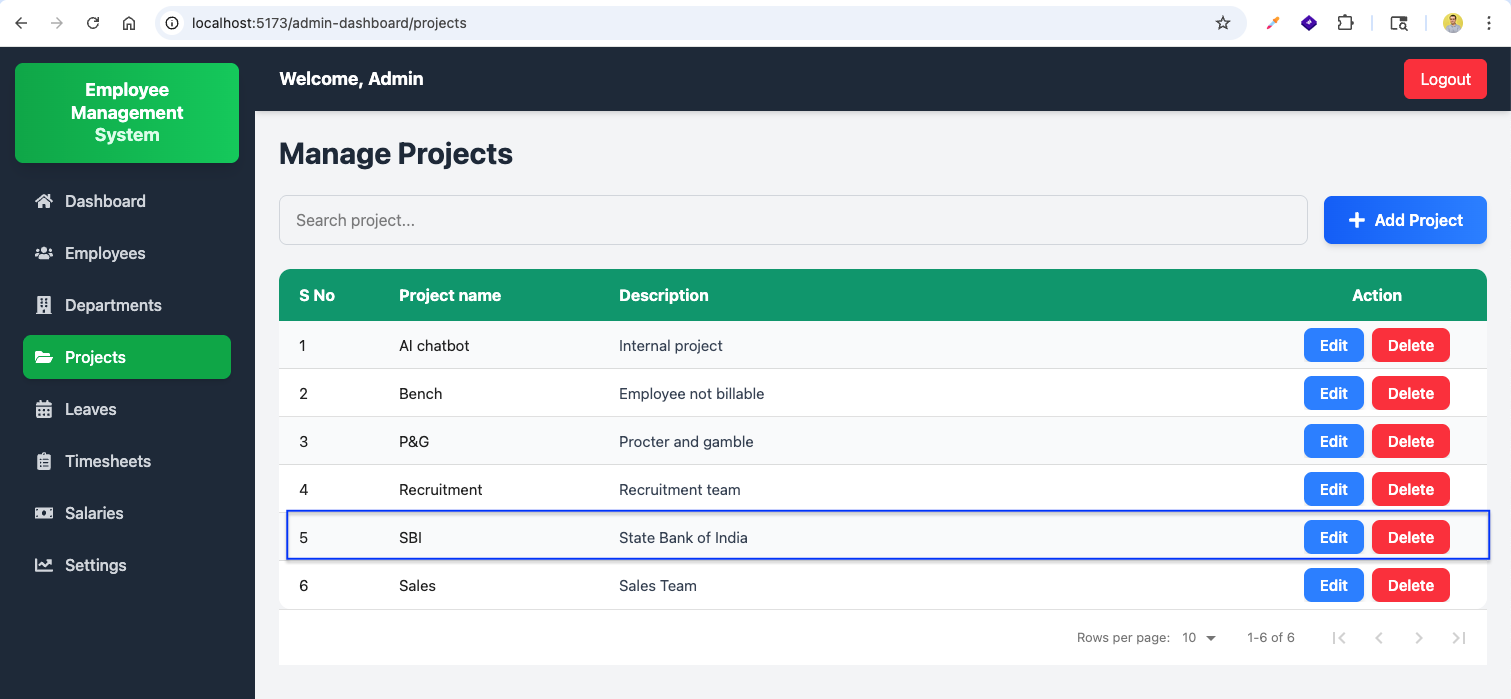
Now we see the app in action. The Manage Projects page at /admin-dashboard/projects shows a list of projects with a search input and a DataTable listing project name, description, and action buttons.

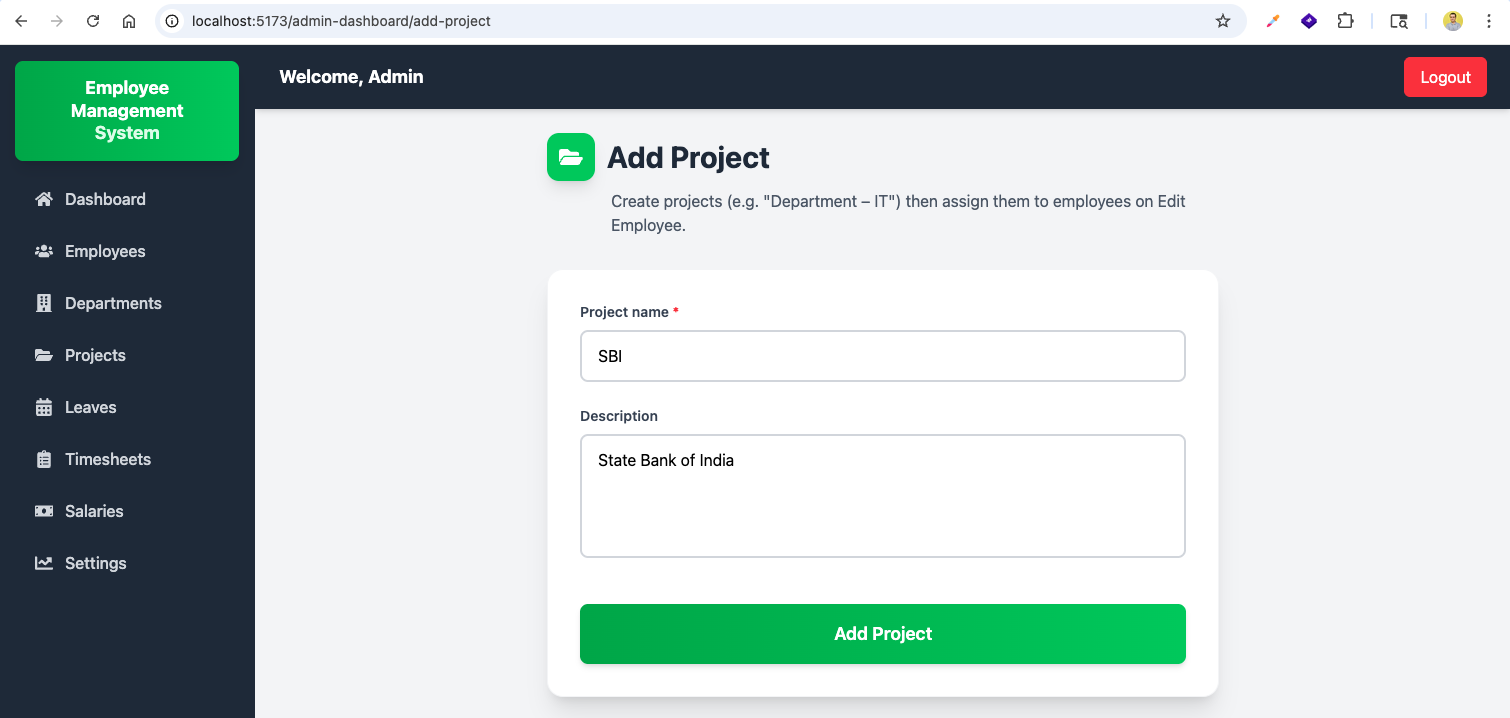
The Add Project page at /admin-dashboard/add-project shows the form with a project name input and description textarea, prepopulated with example values like "SBI" and "State Bank of India".
After adding projects, the Manage Projects page lists all projects including the newly added ones (SBI, etc.) with Edit and Delete action buttons for each row.
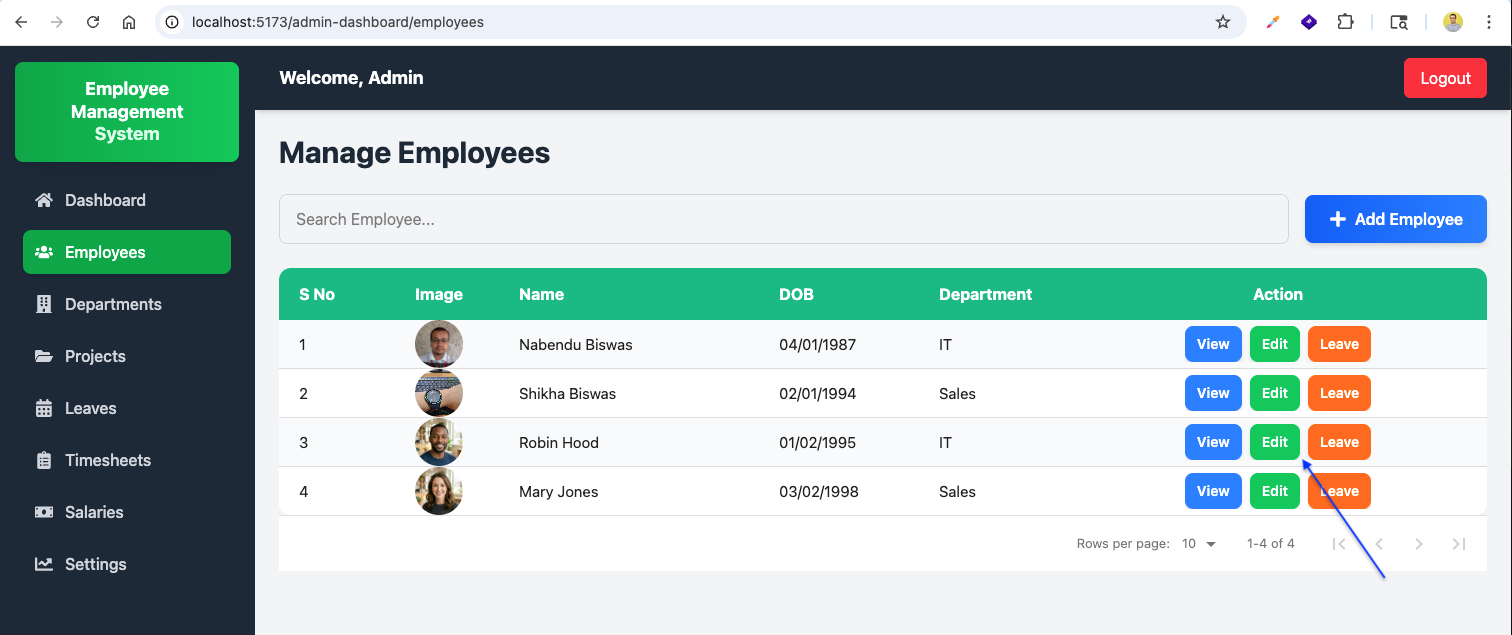
The Manage Employees page at /admin-dashboard/employees lists employees with their details (name, DOB, department) and View/Leave action buttons. Search and Add Employee functionality is available.
The Edit Employee page for Employee now shows for Assigned projects where multiple projects can be selected. Including the newly added SBI project.
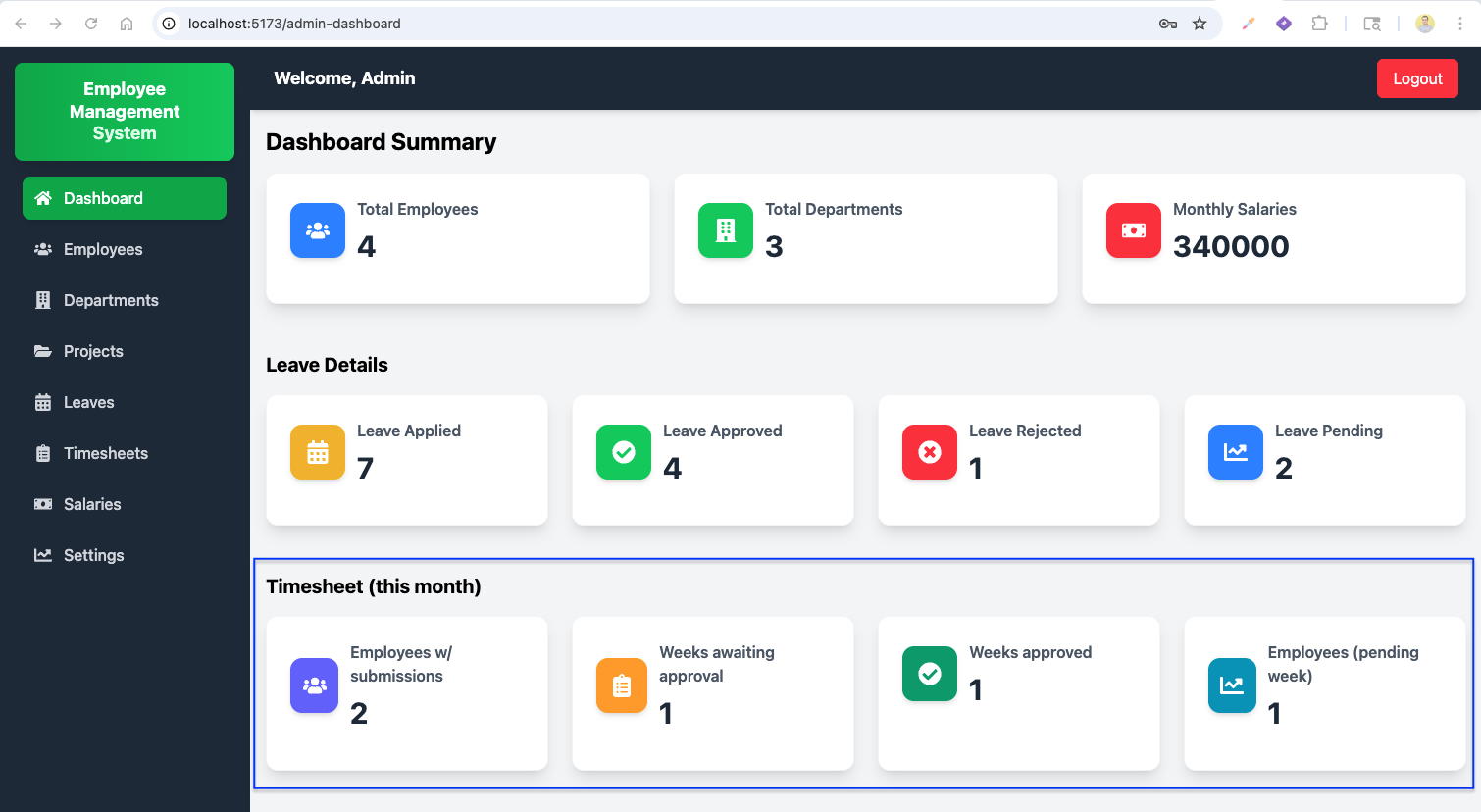
The admin Dashboard Summary now shows Timesheet (this month) cards showing employees with submissions, weeks awaiting/approved approval, and employees with pending weeks.

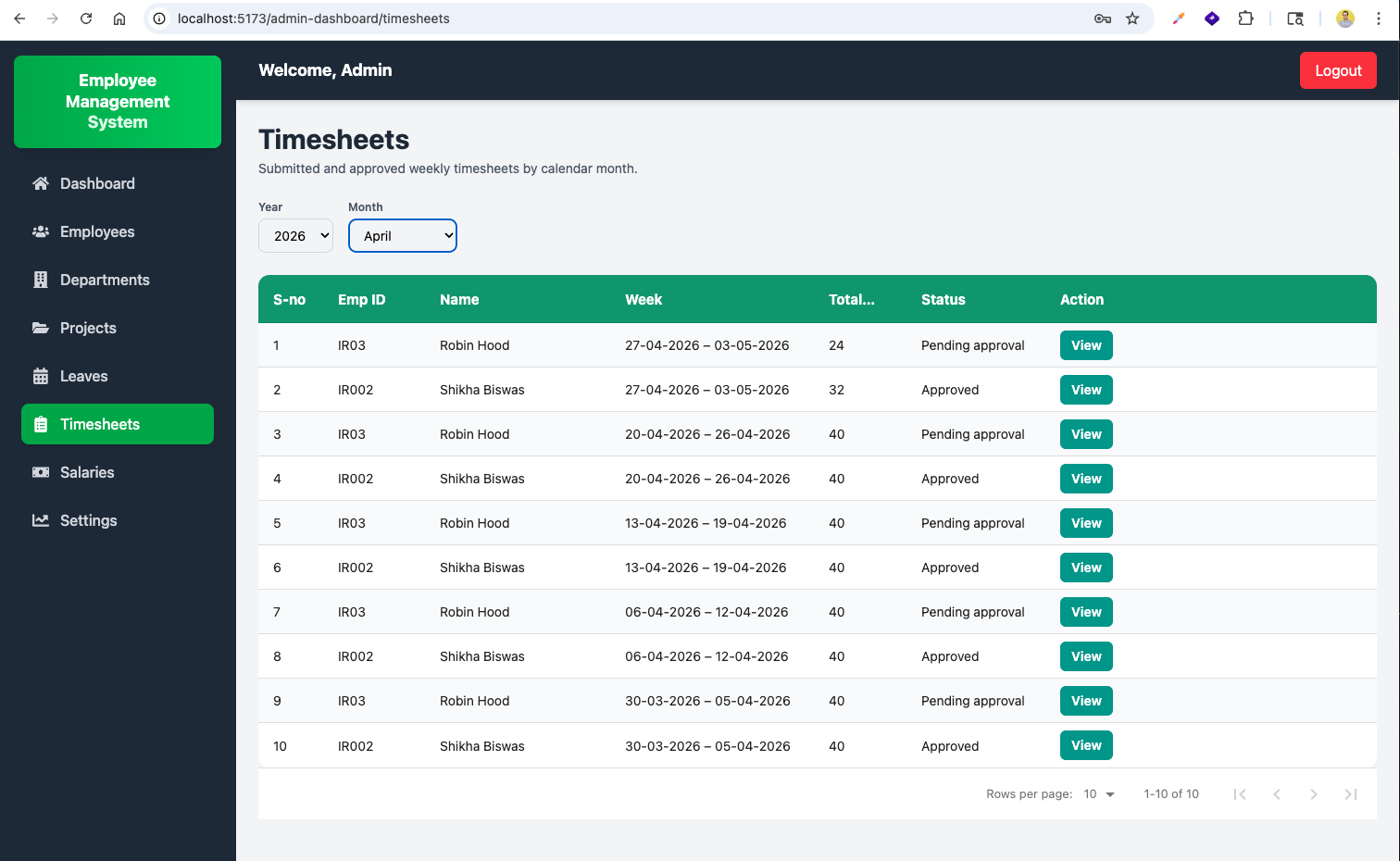
Filtering the Timesheets page by April shows an Employee timesheets as approved for that month, demonstrating the year/month filter functionality.

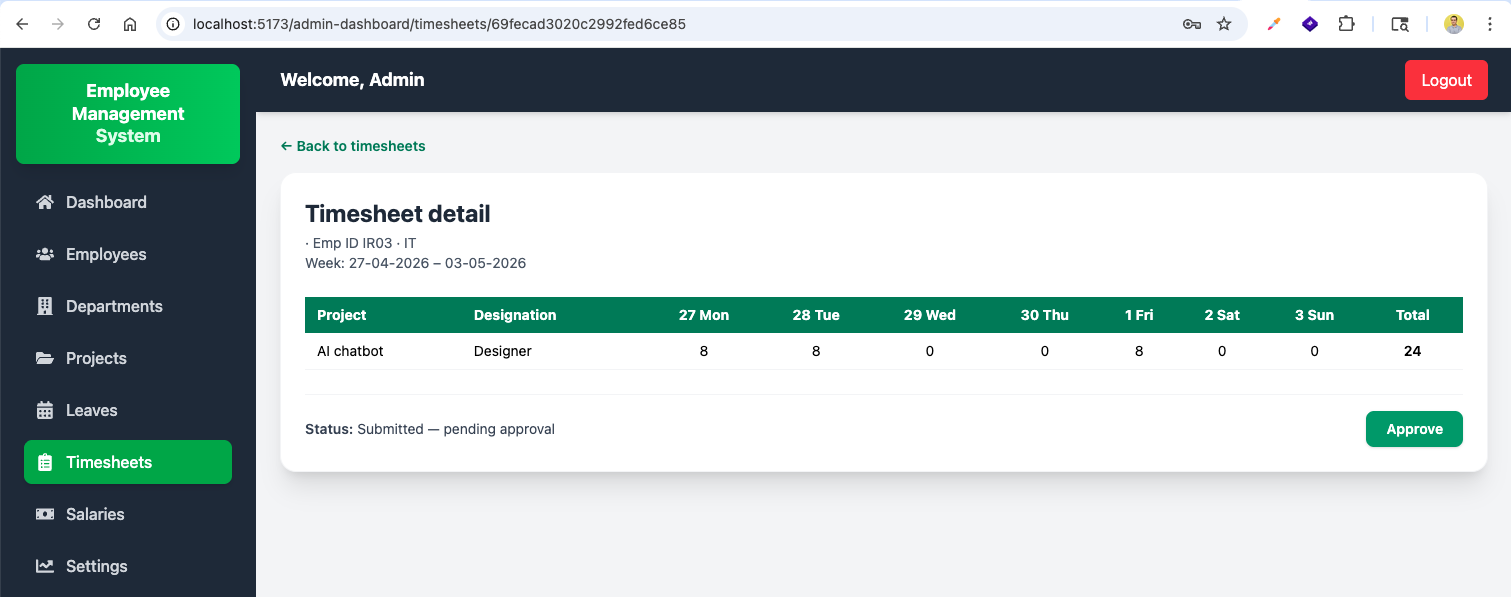
Clicking View on a timesheet shows the Timesheet detail page for Shikha Biswas with the Recruitment project, Sales Executive designation, 32 total hours, and "Approved by HR" status with the approval timestamp.

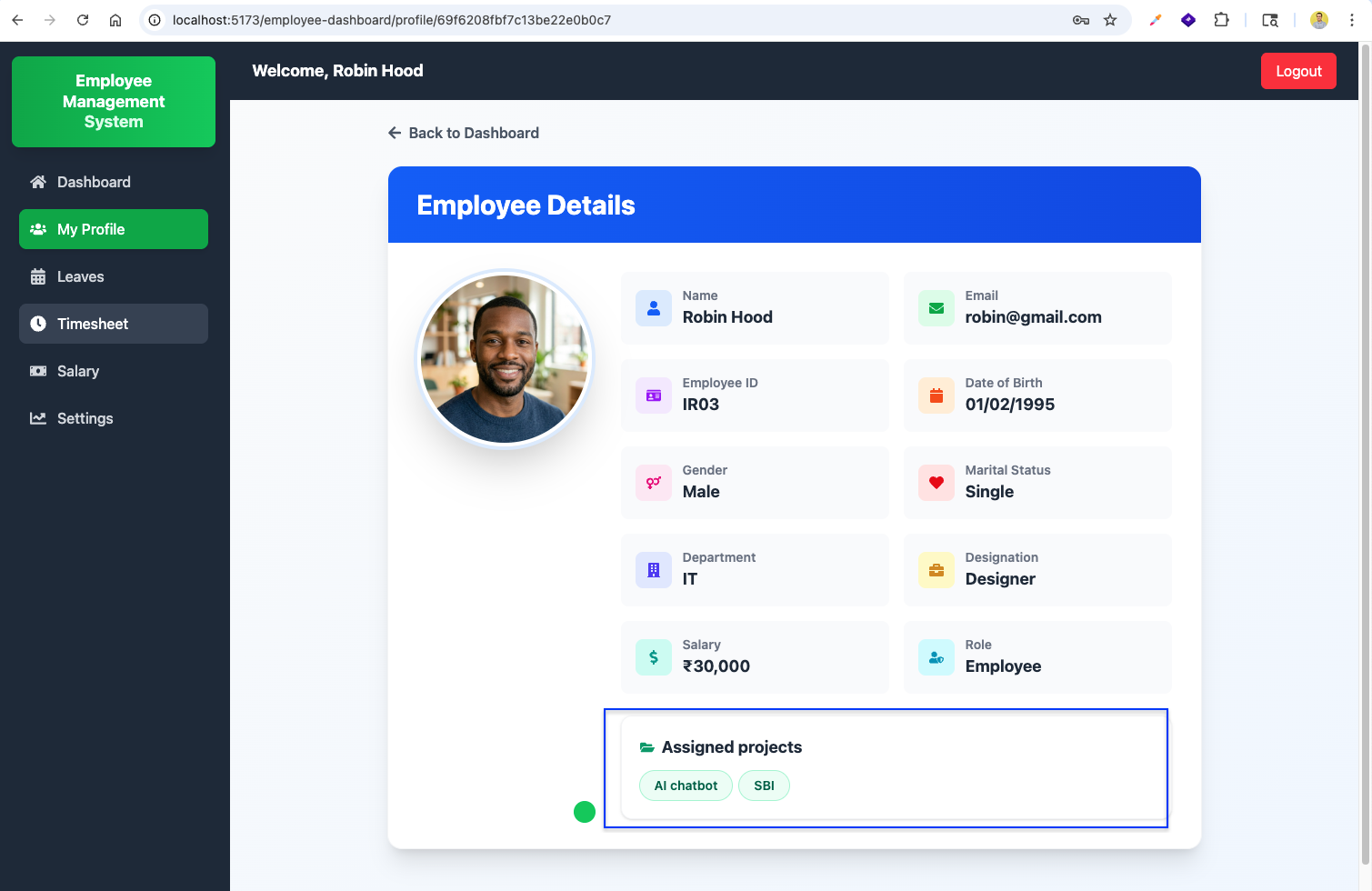
The employee My Profile page shows Robin Hood's personal and employment details including the newly added assigned projects displayed as pill badges.
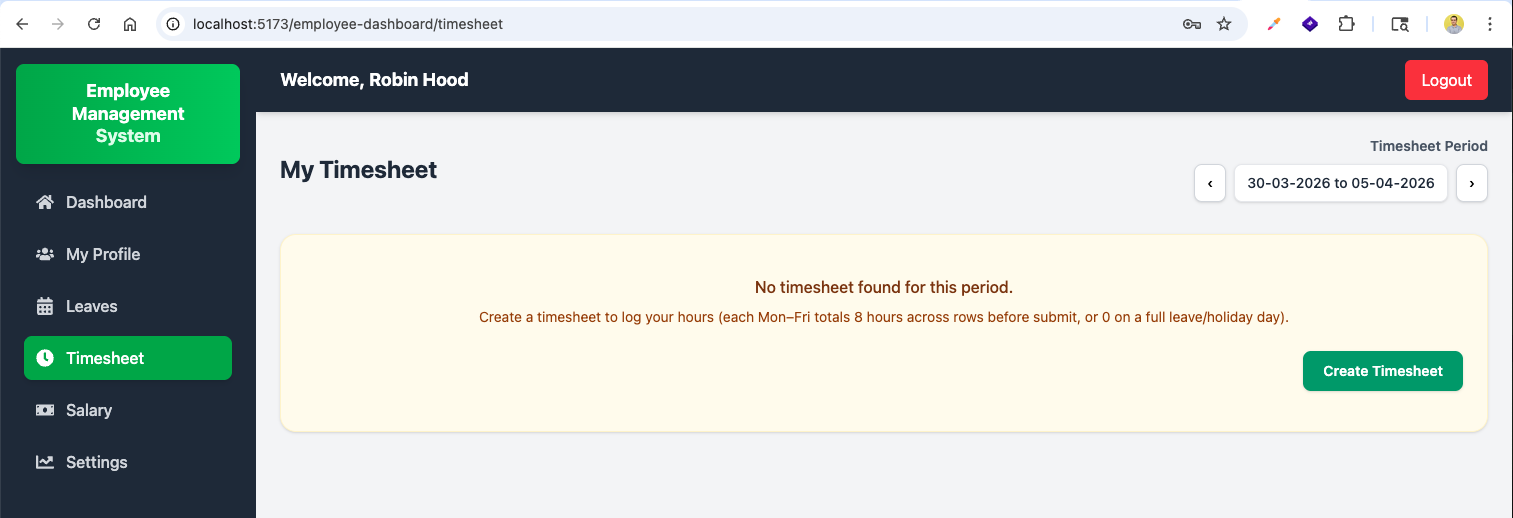
The employee My Timesheet page for Robin Hood shows the week 30-03-2026 to 05-04-2026 with a Create a timesheet button displayed when no timesheet exists for the period.
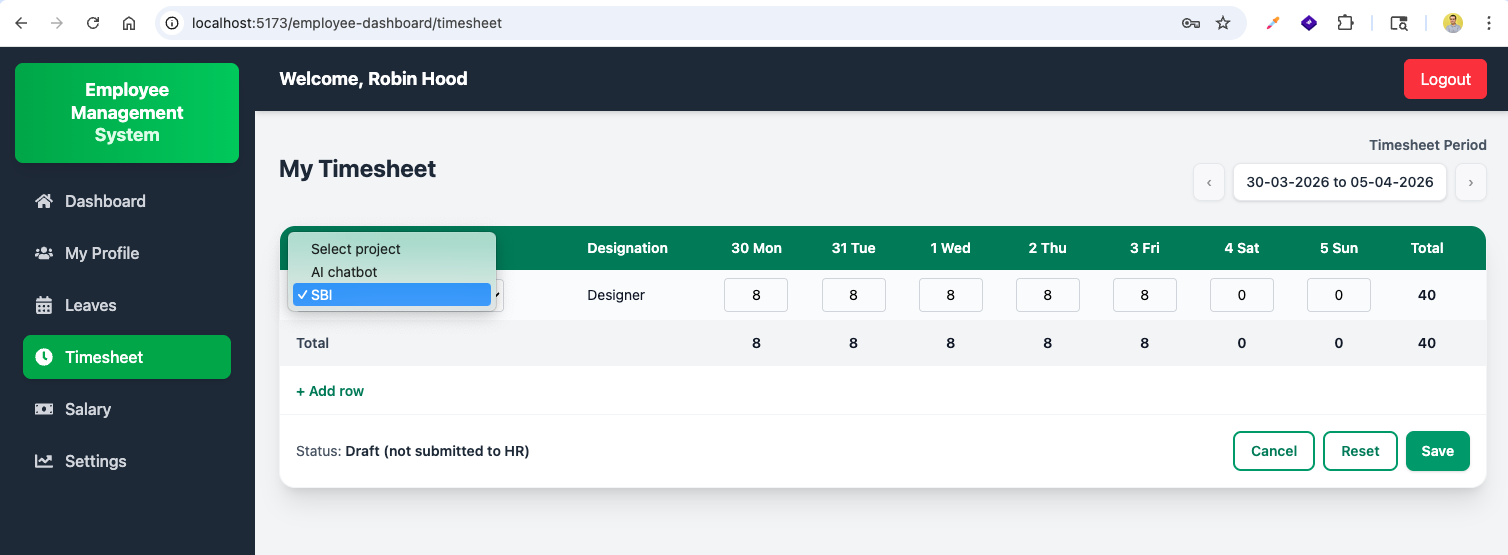
After clicking Create, the timesheet editor appears with a project dropdown (Al chatbot selected), designation (Designer), editable hour inputs for each day (Mon-Sun) showing 8 hours for Mon-Fri, and a row total of 40. The Cancel and Reset buttons are visible in edit mode.
After saving, the timesheet shows "Saved (draft - not sent to HR)" message with the timesheet table and Edit and Submit buttons in the footer.

After submitting, the timesheet status changes to Submitted (pending HR approval) with the SBI project and Designer designation, showing the submitted state to the employee.

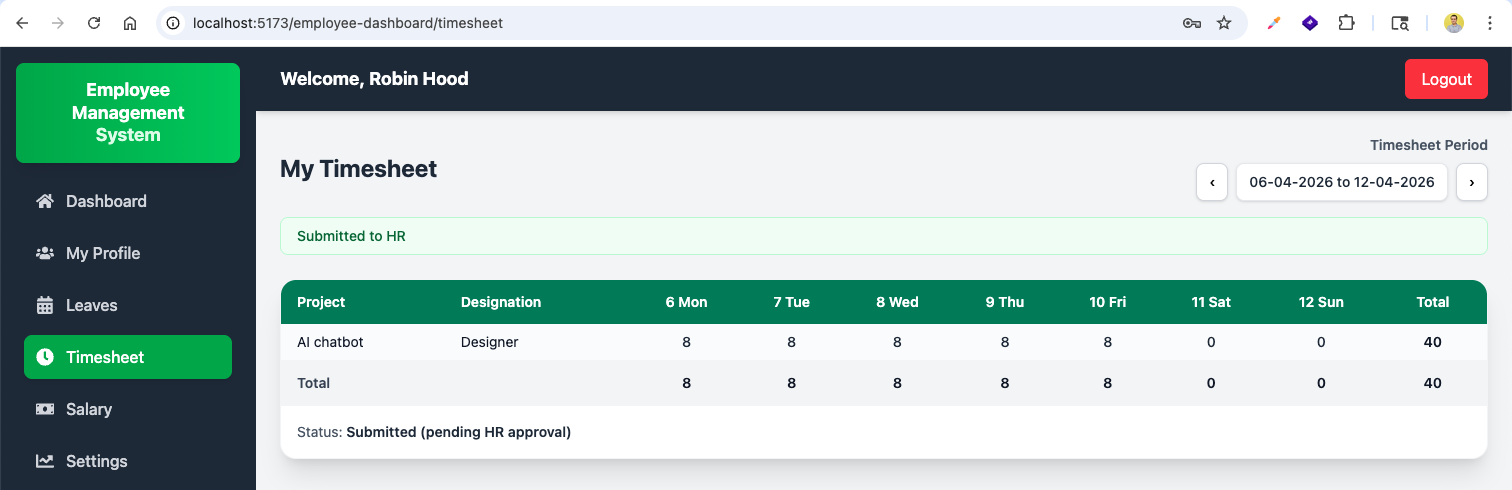
The employee can navigate to the next week (06-04-2026) and submit another timesheet with the Al chatbot project, again showing the submitted state.
Continuing to the following week (13-04-2026 to 19-04-2026), the employee submits another timesheet with 40 hours and "Submitted (pending HR approval)" status.

The employee's timesheet for week 20-04-2026 to 26-04-2026 shows the SBI project with 40 total hours and "Draft (not submitted to HR)" status, with the Edit button available for making changes before submission.

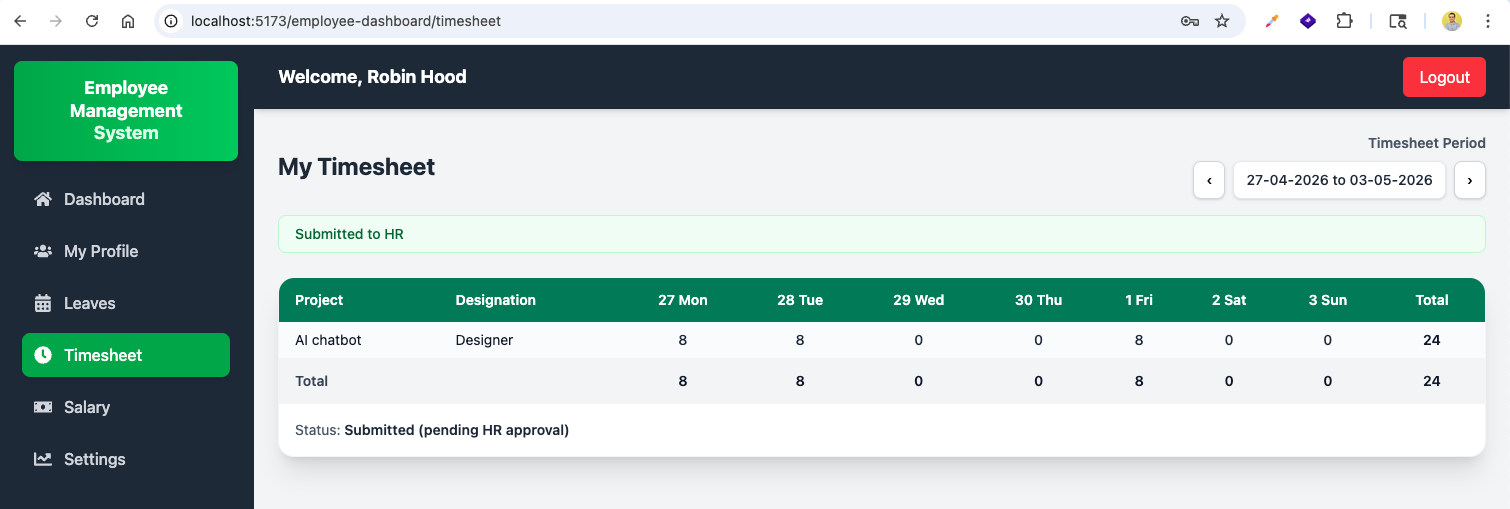
For week 27-04-2026 to 03-05-2026, the employee submitted a timesheet with only 24 hours (some weekdays with 0 hours) and the status shows "Submitted (pending HR approval)".
Back on the admin dashboard, the Timesheet (this month) section now shows updated stats: 2 employees with submissions, 1 week awaiting approval, 1 week approved, and 1 employees with pending weeks.
The admin Timesheets page lists all submitted/approved timesheets for the current month, showing each with Emp ID, Name, Week range, Total hours, and Status (Pending approval or Approved), with a View link for each row.
Clicking View on a pending timesheet opens the detail page showing the employee's timesheet rows with a Submit button visible, ready for the admin to approve.
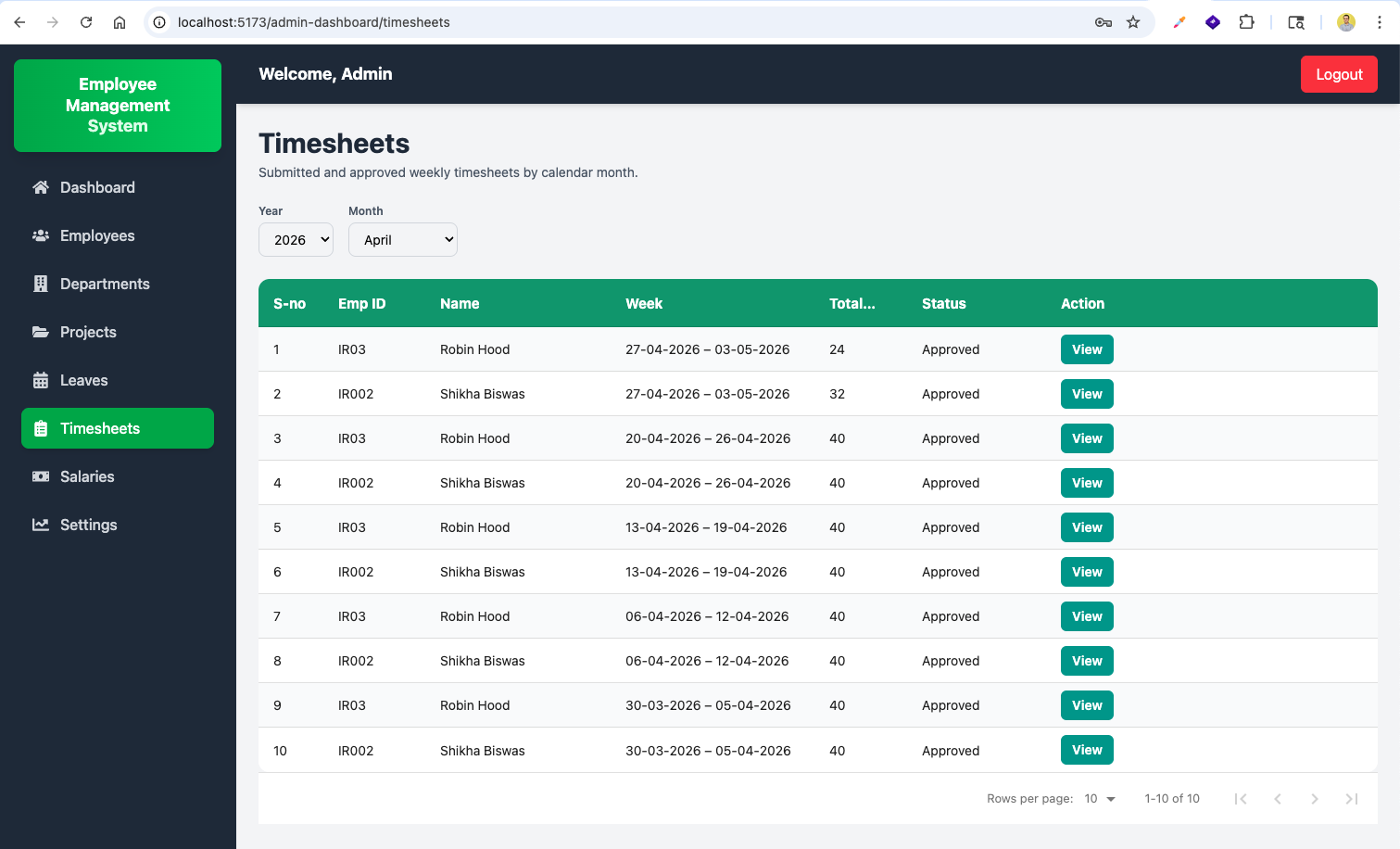
After the admin approves pending timesheets, the Timesheets page shows all rows with Approved status, confirming the approve functionality works end-to-end.
Switching the month filter to May shows timesheets that overlap with May, demonstrating the year/month filtering works correctly for cross-month weeks.

This completes the series. You can find the code for the same here